
Headless WordPress media works differently from a classic theme: WordPress still stores and manages every image, but a separate front end built with Next.js, Faust.js or Astro decides how those images reach the visitor. Get the media layer right and a headless site is fast and cheap to run; get it wrong and you end up with broken images, stale files and a surprise image optimisation bill.
This guide explains where image URLs come from in WPGraphQL and the REST API, why offloading media to cloud storage and a CDN matters even more in a headless setup, and how to configure next/image without overspending. It finishes with a decision table for where to optimise images, a setup checklist and a troubleshooting table. Version numbers and prices are dated “as of October 2026” so you know what to re-check later.
Table of Contents
- How Headless WordPress Media Works
- Where Image URLs Come From: WPGraphQL and the REST API
- Why Offloading Media Matters More in Headless
- Configuring next/image for WordPress Media
- Image Optimisation Costs and a Worked Example
- Faust.js and Astro: What Changes
- Caching and Revalidation: The Three Caches
- When CORS Matters (and When It Does Not)
- Decision Table: Where Should You Optimise Images?
- Setup Checklist for Headless WordPress Media
- Troubleshooting Common Problems
- Frequently Asked Questions
How Headless WordPress Media Works
In a headless build, WordPress becomes a content back end. Editors still upload images in the Media Library, WordPress still generates its thumbnail sizes, and attachment data still lives in the database. What changes is who renders the page.
The front end asks WordPress for content through an API, receives text plus image URLs, and builds HTML from them. The visitor’s browser never talks to WordPress for the page itself. It only fetches images from whatever URL the API handed over.
The request flow in four steps
- Upload: an editor uploads a photo; WordPress saves the original and creates sub-sizes such as
thumbnail,mediumandlarge. - Query: the front end asks WPGraphQL or the REST API for a post and its featured image.
- Render: the framework turns the URL into an
<img>tag, often routed through an image optimiser. - Deliver: the browser downloads the image from the origin, a bucket, a CDN or the optimiser’s cache.
Every decision about headless WordPress media comes down to two questions. Which URL does the API return, and which system turns that URL into the bytes a visitor downloads?
Key point: In headless WordPress, the API response is the contract. If the URL in the response is wrong, slow or temporary, nothing the front end does later can fully fix it.
Where Image URLs Come From: WPGraphQL and the REST API
Both common APIs expose the same attachment data for headless WordPress media, but with different field names. Knowing which field maps to which file saves guesswork when an image looks blurry or a srcset is empty.
WPGraphQL MediaItem fields
The WPGraphQL media documentation shows a post’s featured image as a one-to-one connection, queried as featuredImage { node { sourceUrl } }. The main image fields are below.
| Field | What it returns | Notes |
|---|---|---|
sourceUrl | URL of the full image | Accepts a size argument (for example MEDIUM or LARGE) |
srcSet | Comma-separated URLs with widths | Built by WordPress core; defaults to the medium size if no argument is passed |
sizes | A sizes attribute string | Also takes a size argument |
mediaDetails | Width, height, file and a list of sizes | Each size has its own sourceUrl, width and height |
mediaItemUrl | URL of the attachment file | Useful for PDFs and video, not only images |
altText, caption, mimeType | Accessibility and type data | Always query altText for <img alt> |
A typical query for a card component looks like this: featuredImage { node { sourceUrl(size: LARGE) altText mediaDetails { width height } } }. Asking for width and height matters, because image components need them to reserve space and avoid layout shift.
One quirk worth knowing: in the current WPGraphQL source, sourceUrl with no argument returns the full file, but sourceUrl(size: FULL) is coerced to large. If you need the true original, call sourceUrl without a size.
REST API media fields
The REST API media reference exposes attachments at /wp/v2/media. The fields you will use most are source_url (the original file), media_details (dimensions plus a sizes object), alt_text and mime_type.
For a post’s featured image, add ?_embed to the posts request and read _embedded["wp:featuredmedia"][0]. That avoids a second request per post, which adds up quickly on archive pages.
Why this matters for offloaded files
Under the hood, both APIs ask WordPress core for URLs. The REST controller uses wp_get_attachment_url() and wp_get_attachment_image_src(), and WPGraphQL’s srcSet calls wp_get_attachment_image_srcset(). Rendered post content passes through the the_content filter in both.
That is good news. A media offload plugin that rewrites URLs through WordPress’s own filters also rewrites them in your API responses, with no extra code on the front end. If you want a refresher on which sub-sizes WordPress creates and why, see our guide to WordPress image sizes.
Why Offloading Media Matters More in Headless
On a classic site, serving images from the WordPress server is merely slow. For headless WordPress media it creates structural problems, because the WordPress server was supposed to fade into the background.
Five reasons to move headless WordPress media off the origin
- You can lock down WordPress. Many teams put the CMS behind a firewall, basic auth or a private hostname. If images still live on that server, the public needs access to it anyway.
- Builds hit the origin hard. A static or incremental build may request hundreds of images in a burst. A small WordPress host can struggle under that load, while object storage handles it easily.
- One stable hostname.
next/imageand Astro allow-list remote hosts. A single media domain such asmedia.example.comis simpler and safer to allow than a CMS hostname that may change. - Hosting moves stop breaking images. If WordPress moves to a new host, offloaded file URLs stay the same and your front end needs no changes.
- A CDN sits in front of the files. Visitors fetch originals and sub-sizes from edge locations close to them, and so does your image optimiser.
The cost side matters too. When an optimiser or CDN pulls originals from a bucket, you pay that provider’s egress price on every cache miss. Our guide to egress fees on WordPress compares those prices, and media offload vs CDN explains why the two work best together.
Configuring next/image for WordPress Media
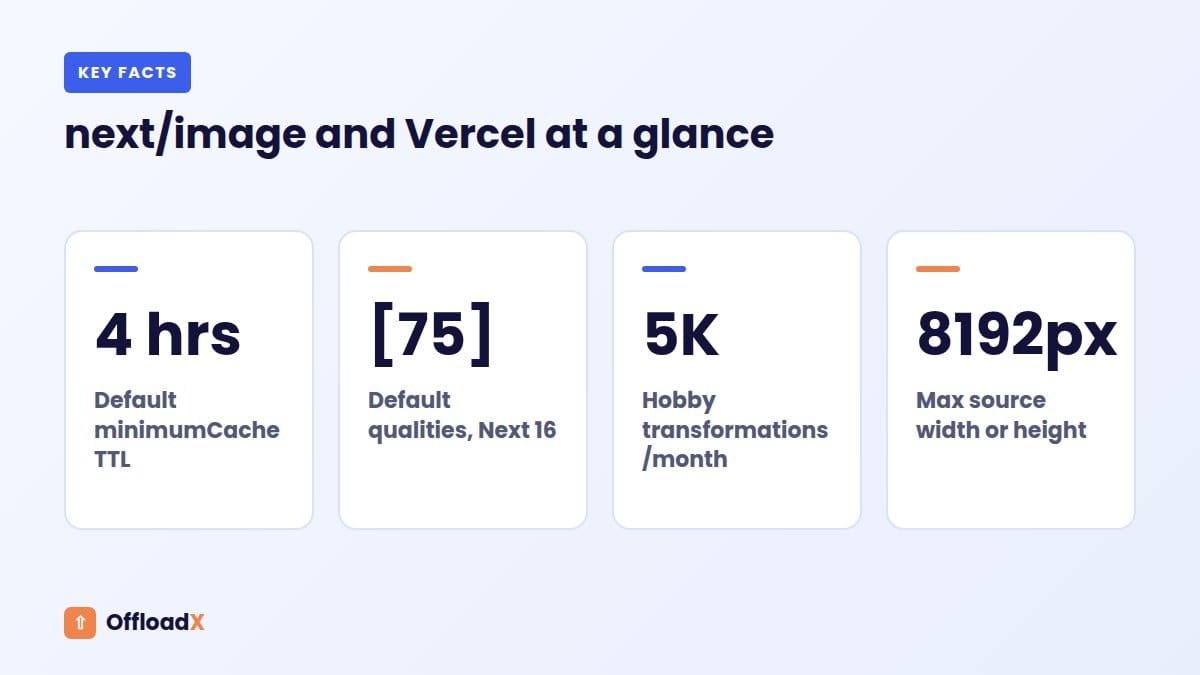
The Next.js Image component reference covers every option. As of October 2026 the docs are for Next.js 16, and a few defaults changed in that release, so older tutorials can mislead you.
Allow your media host with remotePatterns
Remote images must match a remotePatterns entry, or Next.js answers with 400 Bad Request. Be as specific as you can: protocol, hostname and path prefix. For an offloaded library on a custom domain, the config looks like this:
images: { remotePatterns: [{ protocol: 'https', hostname: 'media.example.com', pathname: '/wp-content/uploads/**', search: '' }] }
Omitting protocol, port, pathname or search implies a wildcard, which the docs warn against. Since Next.js 15.3 you can also pass new URL('https://media.example.com/wp-content/uploads/**') instead of an object.
Options that matter for WordPress images
| Option | Default (Next.js 16) | What to do for WordPress |
|---|---|---|
remotePatterns | None allowed | Add only your media domain and path |
domains | Deprecated since 14 | Do not use; migrate to remotePatterns |
qualities | [75] | Keep one or two values; each extra value multiplies variants |
formats | ['image/webp'] | Adding AVIF stores a second variant of every image |
minimumCacheTTL | 14400 seconds (4 hours) | Raise it for media that never changes at the same URL |
deviceSizes | 640 to 3840, eight widths | Trim to the widths your layout really uses |
unoptimized | false | Use per image for SVGs, GIFs and tiny icons |
loaderFile | Built-in optimiser | Point to a CDN image service instead |
dangerouslyAllowLocalIP | false | Only for local development against a WordPress on a private IP |
Two details trip people up when using next/image with WPGraphQL data. First, the optimised image’s lifetime is the larger of minimumCacheTTL and the upstream Cache-Control max-age, so a long cache header on your bucket files extends it. Second, the docs state there is no built-in way to invalidate that cache, which is why stable, versioned file names matter.
Use the sizes prop with WordPress layouts
Pass a real sizes value, such as (max-width: 768px) 100vw, 50vw, for any image that is not full width. Without it, the browser may pick a much larger width than needed, and your optimiser creates a variant nobody benefits from.
Using WordPress’s own srcSet instead
You can skip next/image and render a plain <img> with WordPress’s srcSet and sizes. The browser then picks from the sub-sizes WordPress already generated. This costs nothing per transformation and works well when your theme sizes already match the layout.
The trade-off is format. WordPress outputs what you uploaded or converted at upload time, so if you want WebP or AVIF you need to create it on the WordPress side. Our comparison of WebP vs AVIF on WordPress helps you choose.
Image Optimisation Costs and a Worked Example
Framework image optimisation for headless WordPress media is not free when a host runs it for you. Vercel is the most common host for Next.js, and its image optimisation pricing is billed on three meters.
| Meter (Vercel, as of October 2026) | Hobby included | On-demand rate | Billed when |
|---|---|---|---|
| Image transformations | 5K per month | $0.05 to $0.0812 per 1K | Every cache MISS and STALE |
| Image cache reads | 300K per month | $0.40 to $0.64 per 1M | Reads from the shared global cache, in 8 KB units |
| Image cache writes | 100K per month | $4.00 to $6.40 per 1M | Every MISS and STALE, in 8 KB units |
The rate range reflects regional pricing. Delivery also counts towards Fast Data Transfer and CDN requests. On Hobby, which is limited to non-commercial use, going over the limit makes new images fail with a 402 error while already cached ones keep working.
Vercel also lists limits: source images can be at most 8192 pixels wide or tall, the transformed image can be at most 10 MB, and only JPEG, PNG, WebP and AVIF sources are optimised. Other formats are served as they are.
What creates a new transformation
Vercel’s cache key for a remote image combines the source URL, the requested width (w), the quality (q) and the normalised Accept header. Each unique combination is a separate variant. More widths, more qualities and more formats all multiply the count.
Worked example: a 1,500-image blog
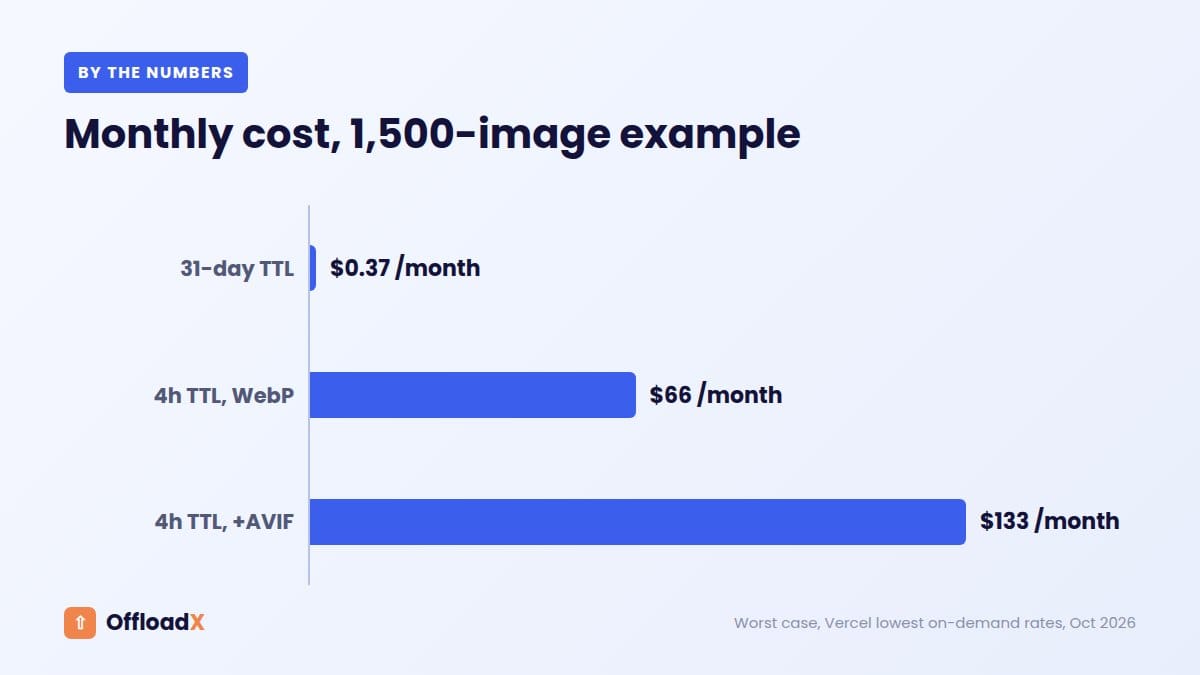
Take a headless blog that displays 1,500 images. Each is requested at three widths in one format (WebP), so there are 4,500 variants. Assume an average optimised size of 60 KB, which is about 8 cache units of 8 KB. We use the lowest on-demand rates from the table above.
| Scenario | Transformations | Cache write units | Approx. monthly cost |
|---|---|---|---|
| First optimisation of every variant | 4,500 | 36,000 | $0.23 + $0.14 = about $0.37 |
| 4-hour TTL, every variant re-requested after each expiry (worst case) | 810,000 | 6,480,000 | $40.50 + $25.92 = about $66 |
| 31-day TTL or long upstream Cache-Control | About 4,500 | About 36,000 | About $0.37 |
| Same as row 2, but WebP and AVIF | 1,620,000 | 12,960,000 | About $133 |
The worst case assumes six expiries a day for 30 days (180 cycles), which only happens on busy sites. Real numbers sit somewhere between the rows. The lesson holds anyway: TTL and the number of variants drive the bill far more than library size does.
Key point: Vercel’s own cost guide recommends a long minimumCacheTTL, a single format, a single quality and trimmed widths. For offloaded files that never change at the same URL, a long cache header on the bucket gives you the same effect.Self-hosting Next.js
If you run Next.js yourself, image optimisation runs on your server and caches results in <distDir>/cache/images. There is no per-transformation fee, but you pay in CPU and memory. Behind a proxy or CDN, the docs note you must forward the Accept header so format negotiation works.
Pushing optimisation to a CDN
A custom loaderFile can hand resizing to an image CDN. For example, Cloudflare’s Images pricing includes 5,000 unique transformations a month, then $0.50 per 1,000 on the paid plan (as of October 2026). That can suit images already stored in R2, and our guide to putting a custom domain on R2 covers the delivery side.
Faust.js and Astro: What Changes
The principles of headless WordPress media stay the same across frameworks. What changes is where the allow-list lives and when image optimisation happens.
Faust.js
Faust.js is WP Engine’s toolkit for building headless WordPress sites with Next.js. It uses WPGraphQL and a companion WordPress plugin, and the current version uses Apollo Client with explicit GraphQL queries. It adds template hierarchy, previews and block rendering.
For images, Faust.js relies on Next.js. You still configure remotePatterns in next.config.js (wrapped by withFaust), and every next/image rule and cost above applies unchanged.
Astro
Astro authorises remote images with image.domains or image.remotePatterns in its config, as explained in the Astro images guide. Images from other sources are not optimised, but the <Image /> component still helps prevent layout shift.
For a fully static Astro build, authorised remote images are processed at build time. That means no per-request optimisation bill, but longer builds and a build that downloads every original. A fast bucket and CDN help a lot here. With a server adapter, processing happens on demand instead, and your host’s image service and pricing apply.
| Framework | Allow-list setting | When images are optimised | Main cost driver |
|---|---|---|---|
| Next.js | images.remotePatterns | On first request, then cached | Transformations and cache writes |
| Faust.js | Same as Next.js | Same as Next.js | Same as Next.js |
| Astro (static) | image.domains or image.remotePatterns | At build time | Build minutes and origin egress |
| Astro (server adapter) | Same as above | On demand | Host’s image service pricing |
Caching and Revalidation: The Three Caches
Most “my new image is not showing” problems in headless WordPress media come from caching. It helps to name the three layers involved.
- Bucket and CDN cache: your storage provider or CDN caches the original files, controlled by
Cache-Controlheaders and purges. - Optimiser cache: Next.js or your host caches each transformed variant, keyed by URL, width, quality and format.
- Page cache: statically generated or incrementally regenerated pages contain the image URL from the last time the page was built.
Replacing an image without a stale copy
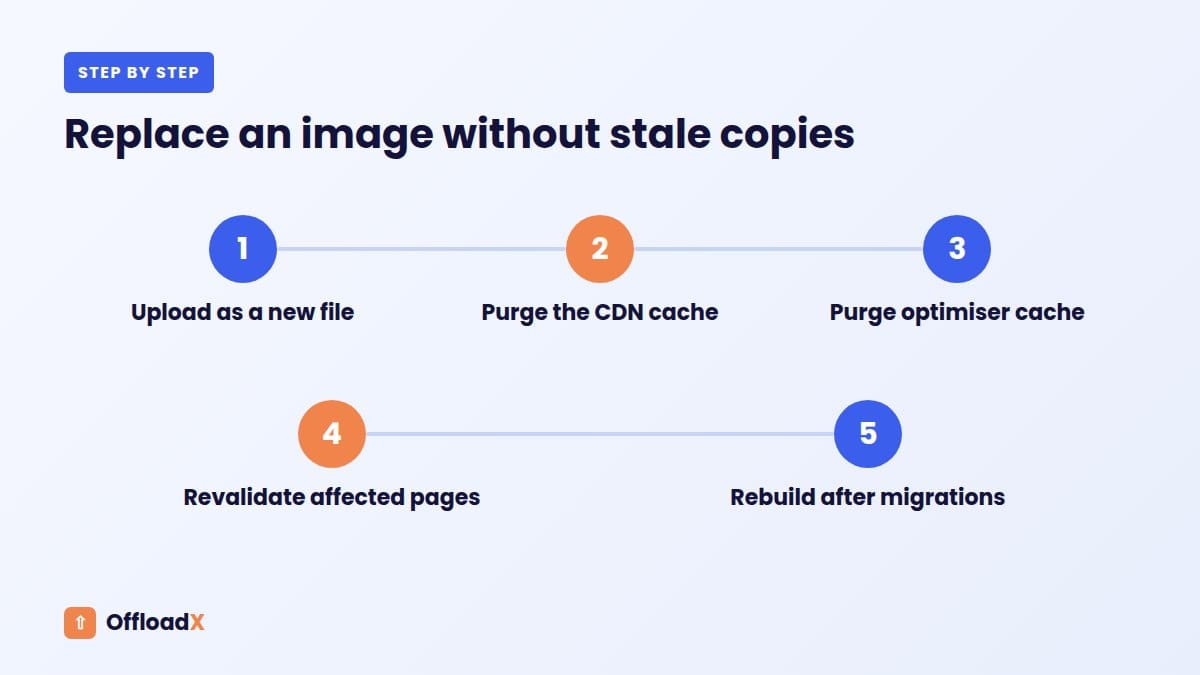
The safest rule is never to overwrite a file at the same URL. Upload a new file instead, so it gets a new name and a new URL. All three caches then treat it as new content, and you can keep long cache lifetimes everywhere.
If you must replace in place, purge the CDN, purge the optimiser cache (Vercel offers manual and programmatic purges per source image; self-hosted Next.js needs the cache folder cleared), then revalidate the affected pages.
Revalidating pages when media changes
For the page cache, Next.js supports time-based revalidation and on-demand revalidation with revalidatePath or revalidateTag. A common pattern is a small WordPress hook that calls a protected revalidation route when a post is saved.
Remember that changing an image attachment does not always “save” the posts that use it. If you swap a featured image or edit alt text, revalidate the posts that reference it as well.
After a media migration
When you first offload an existing library, the API starts returning new URLs immediately. Pages that were built earlier still contain the old origin URLs until they are rebuilt. Plan a full rebuild or a broad revalidation right after the migration, and keep the old files reachable until it finishes.
When CORS Matters (and When It Does Not)
CORS is often blamed for image problems it does not cause. A normal <img> tag without a crossorigin attribute does not need CORS headers at all, as MDN’s CORS guide explains. Server-side fetches, such as the Next.js optimiser pulling an original, are not subject to browser CORS either.
Cases where you do need CORS on the bucket
- Front-end code reads image data with
fetch(), for example to build a blur placeholder in the browser. - You draw images onto a
<canvas>and then export or read pixels. - Web fonts or WebGL textures are served from the media domain.
- Browsers upload directly to the bucket with presigned URLs.
In those cases, add a CORS policy on the bucket that allows only your front-end origins and the GET and HEAD methods you need. Cloudflare’s R2 CORS docs describe the AllowedOrigins, AllowedMethods, AllowedHeaders, ExposeHeaders and MaxAgeSeconds fields. If you see errors after adding one, our list of common Cloudflare R2 WordPress errors covers the usual causes.
Decision Table: Where Should You Optimise Images?
There are four places to handle image optimisation for headless WordPress media. Each has a clear sweet spot, and many sites combine two of them.
| Where | How it works | Best for | Watch out for |
|---|---|---|---|
| In WordPress at upload | Compress and convert to WebP before offloading; serve WordPress sub-sizes with srcSet | Content sites with predictable layouts; tight budgets | Formats fixed at upload; changing sizes later means regenerating |
| Framework optimiser on the host | next/image on Vercel or another host resizes on request | Many layouts, art direction, fast iteration | Per-transformation fees; TTL and variant count drive cost |
| Image CDN via custom loader | loaderFile builds URLs for a CDN image service | Large libraries already on that CDN’s storage | Separate billing and a second vendor to manage |
| Build-time processing | Astro static builds or similar generate variants once | Small to medium static sites | Build time grows with the library |
A quick scoring rule
Give one point for each statement that is true for your site. With 0 to 1 points, optimise in WordPress at upload and use srcSet. With 2 to 3, use a framework optimiser with a long TTL. With 4 or more, compare an image CDN loader against the framework optimiser using your real traffic.
- Your design uses more than three distinct image widths per template.
- You want AVIF and WebP served by browser support.
- Editors upload very large originals and will not resize them.
- Your library has more than 10,000 images in active use.
- Pages are mostly rendered on request rather than at build time.
Setup Checklist for Headless WordPress Media
Here is the order we recommend for setting up headless WordPress media. It keeps the site working at every step, so you can stop halfway and still have a usable setup.
On the WordPress side
- Choose storage. Pick a provider and region close to your front-end host. Our guide to the best cloud storage for WordPress compares the options.
- Set up a delivery domain. Use a custom domain or CDN URL rather than a raw bucket endpoint, so
remotePatternsstays simple. - Connect an offload plugin. In OffloadX, enter the bucket details under Credentials and run the connection tester. Every plan, including Free, supports Cloudflare R2, Amazon S3, Wasabi, Google Cloud, DigitalOcean Spaces, Bunny Storage and any S3-compatible service.
- Offload new uploads. Auto-offload on upload and instant URL rewriting are included on the Free plan (up to 100 files).
- Move the existing library. On Starter and above, use the Bulk Migration screen, then URL Replace to update URLs stored in the database.
- Check delivery. Run the Safety Check (Starter and above) to confirm files load from the CDN URL.
- Set long cache headers. Configure
Cache-Controlon the bucket or CDN for files that never change at the same URL.
For a provider-specific walkthrough, follow our guides to offloading WordPress media to Cloudflare R2 or Amazon S3.
On the front-end side
- Query
sourceUrl,altTextandmediaDetails { width height }(or the REST equivalents) for every image. - Add your media domain to
remotePatternswith a path prefix and no wildcard protocol. - Set
qualities,formatsanddeviceSizesdeliberately, and raiseminimumCacheTTLif your URLs are stable. - Add a
sizesprop to every image that is not full width. - Mark SVGs, GIFs and small icons as
unoptimized. - Wire WordPress saves to on-demand revalidation, then rebuild once after any bulk migration.
Troubleshooting Common Problems
Most headless WordPress media issues show up as a specific status code or symptom. Use this table to jump straight to the likely cause.
| Symptom | Likely cause | Fix |
|---|---|---|
400 Bad Request from /_next/image | URL does not match remotePatterns | Check protocol, hostname, path prefix and query string |
| Images fail with 402 on Vercel Hobby | Monthly image limits reached | Mark small images unoptimized, raise TTL or move to a paid plan |
| Old image keeps showing | Optimiser or page cache still holds it | Upload as a new file, purge, then revalidate the page |
srcSet returns null | Requested size does not exist for that attachment | Query a size that exists or regenerate sub-sizes |
| Images still load from the WordPress host | Hard-coded URLs in content or pages built before offloading | Run a database URL replace and rebuild |
| Optimiser refuses a local WordPress URL | Private IPs are blocked by default in Next.js 16 | Use dangerouslyAllowLocalIP only in development |
| Mixed content warnings | Media URLs use http:// | Serve the media domain over HTTPS and update stored URLs |
| Blurry images | Small sub-size used as source, or sizes prop missing | Use sourceUrl without a size or a larger size; set sizes |
If thumbnails are missing after you change image sizes, our guide to regenerating thumbnails for offloaded media walks through the safe order of steps.
Frequently Asked Questions
Do I need a media offload plugin for headless WordPress media?
You do not strictly need one, but it solves real problems. It lets you lock down the WordPress server, gives the front end one stable media hostname and keeps image URLs working when WordPress changes host.
Should I use WPGraphQL or the REST API for images?
Either works, because both read the same attachment data and the same URL filters. WPGraphQL lets you request exactly the fields you need in one query. The REST API needs _embed to avoid extra requests for featured images.
Why does next/image return 400 for my WordPress images?
The image URL does not match any remotePatterns entry. After offloading, the hostname changes from your WordPress domain to your media domain, so update the pattern to match the new URL exactly.
Is Vercel image optimisation expensive for headless WordPress media?
It can be cheap or costly depending on settings. As of October 2026, transformations start at $0.05 per 1,000, but short cache lifetimes, extra formats and many widths multiply the count. A long TTL and fewer variants usually keep it small.
Can I skip next/image and just use WordPress srcSet?
Yes. A plain <img> with WordPress’s srcSet and sizes lets the browser choose from existing sub-sizes at no per-image cost. You lose on-the-fly format conversion, so create WebP in WordPress if you want it.
Do I need CORS on my bucket for headless images?
Not for normal image tags or for server-side optimisation. You need CORS only when browser code reads image data, draws to canvas, loads fonts from the media domain or uploads directly to the bucket.
Does Faust.js handle images differently?
No. Faust.js runs on Next.js, so images use next/image and the same remotePatterns, cache and pricing rules. Faust.js adds templates, previews and block rendering on top.
What happens to built pages when I offload an existing library?
They keep the old URLs until they are rebuilt or revalidated. Run a full rebuild after migrating, and keep the original files reachable until it completes.
Conclusion
Headless WordPress media works best when WordPress hands out stable CDN URLs, the front end allow-lists exactly that host, and image optimisation happens in one deliberate place with long cache lifetimes. Offload the library first, configure the framework second, and wire revalidation last. OffloadX handles the offload and URL rewriting on every plan, so your API returns the right URLs from day one.
See OffloadX Plans →Sources checked October 2026: Next.js Image component docs (Next.js 16), Vercel Image Optimization docs and limits and pricing, WPGraphQL media docs and source code, WordPress REST API media reference, Faust.js docs, Astro images guide, Cloudflare Images pricing, Cloudflare R2 CORS docs and MDN. Prices and defaults change; check the linked pages before you budget. The worked example uses Vercel’s lowest regional on-demand rates and stated assumptions, not a quote.