
Once your media library lives in a cloud bucket, you need a new plan to back up WordPress media, because your usual site backup no longer contains it. Offloading moves images, PDFs and videos out of wp-content/uploads and into Amazon S3, Cloudflare R2, Wasabi, Backblaze B2 or a similar service, and the backup plugin on your server only sees what is left behind.
This guide shows how to protect the bucket itself. It covers the 3-2-1 rule applied to object storage, versioning, Object Lock and immutability on each major provider, copying to a second provider, lifecycle rules to control cost, and how to test a restore before you need one. It finishes with a backup plan table by site size and a worked cost example with real October 2026 prices.
Table of Contents
- Why Offloaded Media Needs Its Own Backup
- The 3-2-1 Rule for a Media Bucket
- Layer 1: Versioning
- Layer 2: Object Lock and Immutability
- Layer 3: A Copy at a Second Provider
- Lifecycle Rules for Old Versions
- Disaster Scenarios and How Each Layer Helps
- How to Back Up WordPress Media by Site Size
- Worked Cost Example
- Restore Testing: Prove It Works
- Set-Up Checklist
- Frequently Asked Questions
Why Offloaded Media Needs Its Own Backup
Before offloading, a full WordPress backup meant two things: the database and the wp-content folder. After offloading, the database still holds every attachment record and every image URL, but the files themselves sit in a bucket your backup plugin never touches. That is a big part of why offloading shrinks WordPress backups so much.
Many people assume a cloud provider “backs up” their data. Providers design for durability, meaning they will not lose your files to a failed disk. They do not protect you from your own mistakes: if a plugin, a person or an attacker deletes an object with valid keys, the provider deletes it as instructed.
Key point: Durability protects against hardware failure. Backups protect against deletion, overwrites, bad code and stolen keys. To back up WordPress media properly you need both.
What you need to back up WordPress media fully
- Originals: the files you uploaded, which cannot be recreated.
- Generated sizes: thumbnails and resized copies. These can be regenerated, but that takes time and server resources (see regenerating thumbnails for offloaded media).
- Matching database backup: attachment posts and metadata in
wp_postsandwp_postmeta. Files without these records will not appear in the Media Library. - Bucket configuration: CORS rules, public access settings, custom domains and lifecycle rules. Write them down; they are not inside the objects.
The 3-2-1 Rule for a Media Bucket
The classic rule, as Backblaze summarises it in its 3-2-1 backup strategy guide, is to keep three copies of your data on two different media with one copy off-site. Backblaze also notes newer variants such as 3-2-1-1-0, which add an immutable copy and zero errors on restore tests.
Translated to a media bucket, it looks like this:
| Rule | Traditional meaning | For offloaded WordPress media |
|---|---|---|
| 3 copies | Original plus two backups | Live bucket, plus old versions or a locked copy, plus a copy at another provider |
| 2 media | Different devices | Two independent systems: different provider, or at least a different account and keys |
| 1 off-site | A copy in another building | A copy outside the primary provider’s account, so one compromised login cannot reach both |
| +1 immutable | Offline or air-gapped copy | Object Lock or bucket lock with a retention period |
| 0 errors | Verified restores | A scheduled rclone check and a restore drill |
The rest of this guide builds those copies in three layers. Each layer protects against different problems, so most sites benefit from at least two.
Layer 1: Versioning
Versioning keeps every previous version of an object when it is overwritten or deleted. It is the cheapest and quickest way to undo a mistake, and on several providers it is a prerequisite for Object Lock.
How it works on Amazon S3
According to the S3 versioning documentation, a bucket is unversioned, versioning-enabled or versioning-suspended. Once enabled, it can never return to unversioned, only be suspended. A normal delete does not remove data; it adds a “delete marker” that hides the object, and you restore it by removing the marker.
Every version is billed as a full object, not a difference. Three versions of a 2 MB image cost the same as three 2 MB images. That is why versioning needs a lifecycle rule, covered below.
Versioning support by provider (as of October 2026)
| Provider | Versioning | Notes |
|---|---|---|
| Amazon S3 | Yes | Optional MFA delete for permanent version deletes (root account, CLI or API only) |
| Backblaze B2 | Yes, on by default | B2 keeps all file versions until a lifecycle rule removes them |
| Wasabi | Yes | Required before Object Lock; deleted versions still subject to the 90-day minimum |
| DigitalOcean Spaces | Yes, API only | Not configurable in the control panel |
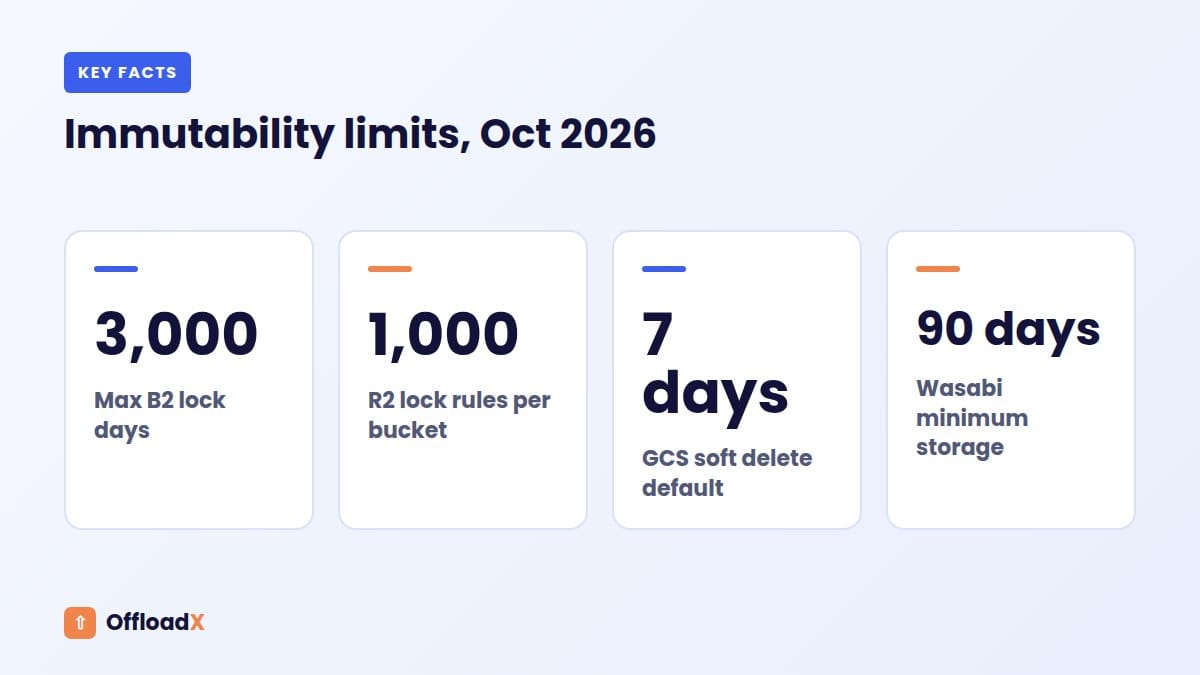
| Google Cloud Storage | Own Object Versioning, plus soft delete | Soft delete is on by default with 7-day retention, adjustable to 7 to 90 days |
| Cloudflare R2 | No | PutBucketVersioning is listed as unimplemented; use bucket locks and a second copy |
Where versioning falls short
Versioning lives inside the same bucket and the same account. Anyone holding keys with permission to delete specific versions can wipe the history too. Treat versioning as an “undo button”, not a backup on its own.
Layer 2: Object Lock and Immutability
Object Lock stores objects in a write-once-read-many (WORM) state for a set period. During that period, nobody can overwrite or delete the protected version, even with valid keys. This is the layer that stops ransomware and stolen credentials.
Amazon S3 Object Lock
The S3 Object Lock documentation describes two modes. Governance mode blocks deletes unless a user has the special s3:BypassGovernanceRetention permission. Compliance mode blocks everyone, including the root user, until the retention date passes. Legal holds lock an object with no end date until someone removes the hold.
Object Lock needs versioning, and AWS now allows it on existing buckets. Once enabled, you cannot disable Object Lock or suspend versioning on that bucket.
Backblaze B2 Object Lock
B2 supports governance and compliance modes plus legal holds, with retention between 1 and 3,000 days, per its Object Lock documentation. It can be turned on for an existing bucket but not turned off afterwards. Lifecycle rules that try to delete a locked file will fail.
Wasabi Object Lock
Wasabi’s object locking guide says Object Lock can only be enabled when the bucket is created, and versioning must be on first. It offers governance and compliance modes. Wasabi also has a separate bucket “Compliance” feature, which is automatically disabled on buckets that use Object Lock.
Cloudflare R2 bucket locks
R2 does not implement S3 Object Lock. Instead, R2 bucket locks prevent deletion and overwriting for a set number of days, until a date, or indefinitely. Rules can target a prefix, apply to existing objects as well as new ones, override lifecycle rules, and up to 1,000 rules fit on one bucket.
Lock the backup, not the live bucket
Here is the trap. WordPress needs to delete and overwrite objects in the live bucket: when you delete an image from the Media Library, edit an image, or regenerate thumbnails. A strict lock on the primary bucket will make those actions fail.
The safer pattern is to keep the live bucket flexible and put the lock on the backup bucket at a second provider or in a second account. The backup then holds a protected copy that no WordPress key can touch.
Key point: Lock the copy, not the original. Immutability belongs on the backup bucket, where nothing needs to delete files day to day.
Layer 3: A Copy at a Second Provider
The off-site copy in 3-2-1 means a copy outside the reach of your primary account. When you back up WordPress media, that usually means a second S3-compatible provider, with keys that never appear in WordPress.
Option A: Native replication (Amazon S3 only)
S3 Replication copies objects automatically to another S3 bucket in the same or a different region. Live replication only handles new and changed objects; S3 Batch Replication covers objects that existed before. Destinations must be S3 buckets, so this does not reach other providers.
AWS made two choices that help backups. With the current configuration format, delete markers are not replicated unless you turn that on. And deletes of a specific version ID are never replicated, which AWS says protects data from malicious deletions. Pair this with a destination in a separate AWS account for the strongest isolation.
Option B: rclone to any provider
For R2, Wasabi, B2, Spaces and the rest, rclone is the common tool. It speaks to dozens of S3-compatible providers and can run on a schedule from a small server or a CI job. The command matters:
| Command | What it does | Use for backups? |
|---|---|---|
rclone copy | Adds new and changed files; never deletes at the destination | Yes, the safe default |
rclone sync | Makes destination match source, including deleting files | Only with --backup-dir or a versioned, locked destination |
rclone check | Compares sizes and hashes; changes nothing | Yes, after every run |
The rclone sync documentation warns it can cause data loss and recommends testing with --dry-run. If an attacker empties your live bucket, a nightly sync would faithfully empty the backup too. Use copy, or keep sync’s deletions in a dated folder with --backup-dir.
A typical nightly job looks like this:
rclone copy live:media-bucket backup:media-backup --transfers 16 --fast-list
rclone check live:media-bucket backup:media-backup --one-way
Option C: One-time copies are not backups
Cloudflare’s Super Slurper copies a bucket from another provider into R2 as a one-off migration job, and Sippy copies objects into R2 as they are requested. Both are migration tools. Neither runs on a schedule to keep a backup current, so do not rely on them for ongoing protection.
Keys and isolation
- Create the backup bucket in a different account, or ideally a different provider.
- Give rclone a read-only key for the live bucket and a write key for the backup bucket.
- Never store the backup provider’s keys in WordPress or on the web server.
- Turn on multi-factor sign-in for both provider dashboards.
Lifecycle Rules for Old Versions
Versioning without cleanup grows forever. Lifecycle rules delete old versions automatically after a set time, which keeps costs predictable.
Amazon S3 and compatible providers
On S3, the NoncurrentVersionExpiration action deletes old versions after a number of days (NoncurrentDays), and can keep a minimum number of newer versions (NewerNoncurrentVersions). Add ExpiredObjectDeleteMarker to clean up leftover delete markers, and AbortIncompleteMultipartUpload to remove failed uploads. AWS’s lifecycle examples show each one.
Backblaze B2
B2 uses its own lifecycle rules with daysFromHidingToDeleting to remove hidden (old or deleted) versions after a number of days, and daysFromUploadingToHiding to hide files on a schedule. Without a rule, B2 keeps every version.
Cloudflare R2
R2 lifecycle rules can delete objects by age, move them to Infrequent Access, and abort unfinished multipart uploads. Every bucket gets a default rule that expires multipart uploads seven days after they start. Bucket lock rules override lifecycle rules.
Suggested retention windows
| Layer | Suggested window | Why |
|---|---|---|
| Old versions in live bucket | 30 days | Long enough to notice most mistakes |
| Lock on backup bucket | 30 to 90 days | Covers attacks that go unnoticed for weeks |
| Old versions in backup bucket | Lock period plus 7 days | Lets versions expire cleanly after the lock lifts |
| Incomplete uploads | 7 days | Removes failed video uploads you pay for but cannot use |
On Wasabi, remember that objects deleted within 90 days are billed for the remaining days, so very short version windows save less than you might expect.
Disaster Scenarios and How Each Layer Helps
A backup plan is only as good as the problems it solves. Here are the failures we see most with offloaded media, and which layer recovers each one.
| Scenario | Versioning | Lock on backup | Second-provider copy |
|---|---|---|---|
| You delete the wrong images in the Media Library | Recovers | Recovers | Recovers |
| A plugin overwrites originals with low-quality versions | Recovers | Recovers, if changes are copied as new versions | Recovers, if the copy ran before the overwrite |
| Leaked keys used to delete every object and every version | Lost | Recovers | Recovers, if backup keys were not leaked |
| Ransomware encrypts files in place | Recovers, unless versions were also deleted | Recovers | Recovers, with copy (not sync) |
| Provider account suspended or closed | Lost | Lost, if lock is at same provider | Recovers |
| Regional outage at the provider | No help | No help | Lets you switch delivery |
Accidental deletion: the recovery path
- Stop any scheduled sync jobs so the deletion does not spread.
- List the deleted keys. On S3-style APIs, look for objects whose latest version is a delete marker; rclone can list old versions with
--s3-versions. - Remove the delete markers, or copy the files back from the backup bucket with
rclone copy. - Restore the matching database rows from your WordPress backup if the attachments were deleted in WordPress too.
- Clear your CDN cache and check a few pages.
Ransomware or stolen keys: the recovery path
- Revoke every key for the live bucket, then create new ones.
- Check your web server and WordPress admin for how the keys leaked.
- Restore from the locked backup into a clean bucket, rather than the possibly tampered one.
- Point WordPress at the clean bucket with the new keys. If you serve media from a custom domain, repoint it; otherwise, update the URLs in the database.
Restores happen at the bucket level with your provider’s tools or rclone. Because an offload plugin rewrites URLs to point at the bucket, putting an object back at its original key brings the image back on the site without touching WordPress.
How to Back Up WordPress Media by Site Size
Not every site needs every layer. Use this table as a starting point, then adjust for how much your media is worth to you. The sizes refer to the total bucket, including thumbnails.
| Site profile | Live bucket | Backup copy | Lock | Restore test |
|---|---|---|---|---|
| Small blog, under 20 GB | Versioning if supported, 30-day cleanup | Weekly rclone copy to a free or low-cost tier | Optional | Twice a year |
| Business site, 20 to 200 GB | Versioning, 30-day cleanup | Nightly rclone copy to a second provider | 30 days on backup | Quarterly |
| Store or publisher, 200 GB to 2 TB | Versioning, 30-day cleanup | Nightly copy to second provider, separate account | 60 to 90 days, governance mode | Quarterly, timed |
| Large archive, over 2 TB | Versioning, 30-day cleanup | Replication or nightly copy, plus a cold archive tier | 90 days, compliance mode where policy requires | Monthly sample, yearly full |
If you run R2 as your live bucket, skip the versioning column, because R2 does not offer it. The second-provider copy then becomes the essential layer rather than an extra.
Worked Cost Example
Here is the monthly cost to back up WordPress media for a realistic site. Prices are list prices checked October 2026; your bill will vary with usage.
The site
- 200 GB media bucket on Cloudflare R2, Standard storage.
- About 1 million objects (originals plus thumbnails, averaging around 200 KB).
- About 10 GB of new or changed files each month.
- Nightly
rclone copyto a second provider.
The primary bucket
R2 charges $0.015 per GB-month with the first 10 GB free (R2 pricing). That is 190 GB × $0.015 = $2.85 per month. R2 has no egress fees, so reading the data out for backups costs nothing in bandwidth.
The cost of reading for backups
R2 bills listing as a Class A operation ($4.50 per million) and reads as Class B ($0.36 per million). Listing 1 million objects at 1,000 per request takes about 1,000 list calls per night, so roughly 30,000 a month: about $0.14 if it falls outside the free tier. Copying 10 GB of new files is tens of thousands of reads, well inside the 10 million free Class B operations.
The backup bucket: four options
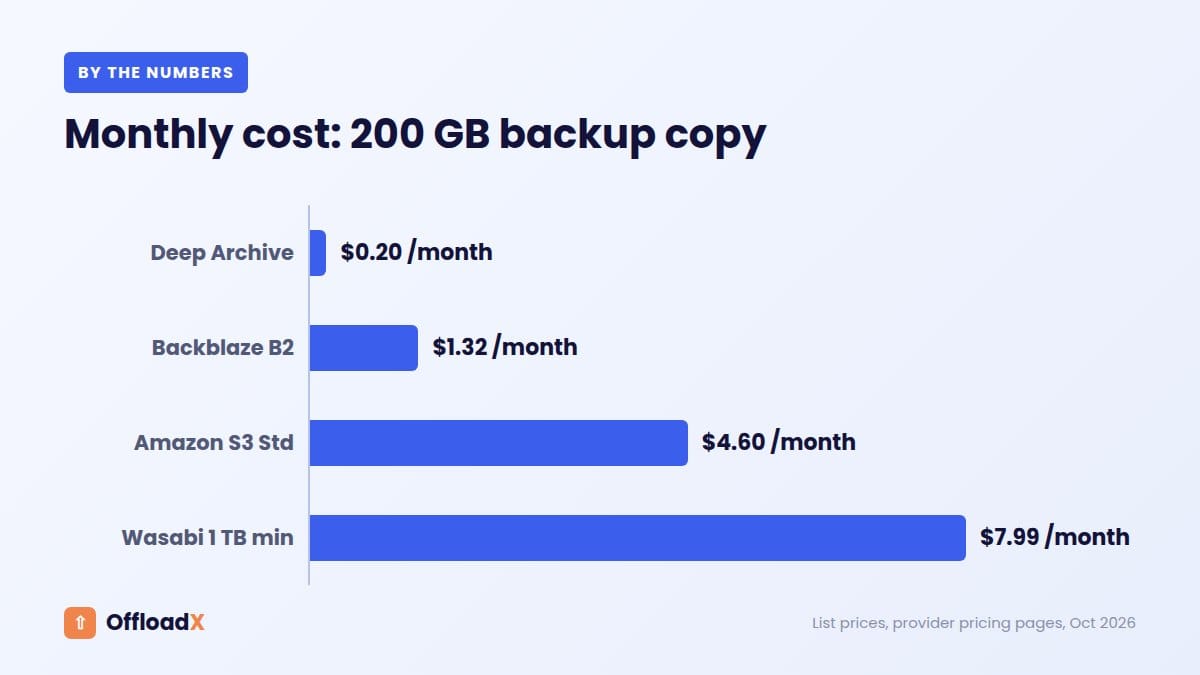
| Backup destination | List price (Oct 2026) | Monthly cost for 200 GB | Catch |
|---|---|---|---|
| Backblaze B2 | $6.95 per TB-month, first 10 GB free | About $1.32 | Egress free up to 3× stored data, then $0.01/GB |
| Amazon S3 Standard | $0.023 per GB-month (US East, first 50 TB) | About $4.60 plus requests | Egress charges when you restore beyond the free allowance |
| Wasabi | $7.99 per TB-month, 1 TB minimum | $7.99 (minimum charge) | 90-day minimum storage duration |
| S3 Glacier Deep Archive | $0.00099 per GB-month | About $0.20 plus requests | 180-day minimum; retrieval takes 12 to 48 hours |
Sources: B2 pricing, Wasabi pricing FAQ, S3 Glacier storage classes.
Putting it together
Choose B2 for the backup and keep 30 days of old versions there. Versions add roughly the monthly change, so about 210 GB is stored: 200 GB × $6.95 per TB is about $1.39 per month. B2 does not charge for Class A, B or C API calls on pay-as-you-go, so the nightly uploads and listings are free.
Total cost of protection: about $1.39 for storage plus up to $0.14 in R2 list calls, so roughly $1.50 per month on top of the $2.85 live bucket. For a store, that is less than the cost of one lost product photo shoot.
Deep Archive looks cheaper, but for media you might need back today, a 12 to 48 hour wait is a real cost. It suits a second, long-term archive copy for large libraries, not your main restore path. Our guide to egress fees in WordPress explains the restore-side charges in more detail.
Restore Testing: Prove It Works
Whatever method you use to back up WordPress media, a backup you have never restored is a hope, not a plan. The “0” in 3-2-1-1-0 stands for zero errors in recovery tests, and it is the step most sites skip.
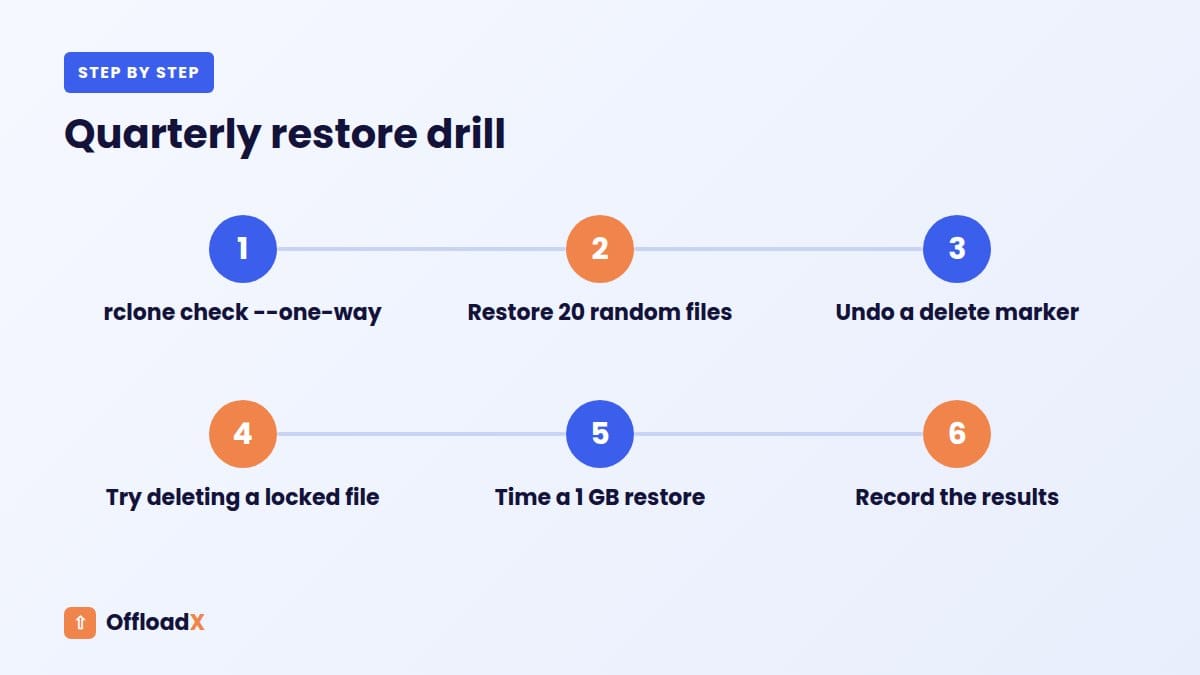
A 30-minute quarterly restore drill
- Verify the copy: run
rclone check live:media-bucket backup:media-backup --one-way. It compares sizes and hashes and reports anything missing from the backup. - Sample restore: pick 20 random keys from different years, copy them from the backup into a test bucket, and open them in a browser.
- Version restore: on a versioned bucket, delete a test file, then restore it by removing the delete marker.
- Lock test: try to delete a locked object in the backup bucket with your normal key. It should fail. If it succeeds, your lock is not doing its job.
- Time it: note how long a 1 GB restore takes, then multiply up to your full library. That is your realistic recovery time.
- Write it down: record the date, results and any fixes in your site notes.
What to check after a real restore
- Images load on a sample of old and new posts.
- Thumbnails and responsive sizes load, not just originals.
- The Media Library shows the restored files (database records match).
- CDN cache is cleared so visitors do not see cached 404s.
Set-Up Checklist
Use this checklist to back up WordPress media from scratch. Most sites can complete it in an afternoon.
- Confirm your WordPress database backup runs daily and is stored off the server.
- Turn on versioning on the live bucket, if the provider supports it.
- Add a lifecycle rule to expire old versions after 30 days and abort stale uploads after 7.
- Create a backup bucket at a second provider or in a separate account.
- Turn on Object Lock or bucket lock on the backup bucket, with a 30 to 90 day retention.
- Create a read-only key for the live bucket and a write key for the backup bucket.
- Schedule a nightly
rclone copyfollowed byrclone check, with alerts on failure. - Export and save your bucket settings: CORS, public access, custom domain, lifecycle rules.
- Book a quarterly restore drill in your calendar.
If you have not offloaded yet, our guides for Cloudflare R2, Backblaze B2 and Wasabi cover the live bucket set-up. Cleaning out files you no longer need first, as described in deleting unused media in WordPress, makes every backup smaller and cheaper.
Where OffloadX fits
OffloadX handles the offload side: it moves media to Cloudflare R2, Amazon S3, Wasabi, Google Cloud, DigitalOcean Spaces, Bunny Storage or any S3-compatible service, and rewrites URLs. It does not back up or restore your bucket. Use the provider features and rclone jobs in this guide for that, and the connection tester in OffloadX to confirm WordPress can still reach the live bucket after a restore.
Frequently Asked Questions
Does my WordPress backup plugin back up offloaded media?
Usually not. Most backup plugins copy the database and files on the server. If your offload plugin removes local copies, those files are only in the bucket, so you need a separate way to back up WordPress media there.
Is versioning enough on its own?
It covers everyday mistakes, but not stolen keys or a closed account. Anyone with permission to delete versions can erase the history. Add a locked copy or a second provider for real protection.
Does Cloudflare R2 support versioning?
No. As of October 2026, R2’s S3 API lists versioning as unimplemented. Use R2 bucket locks for retention and keep a copy at another provider.
Should I use rclone sync or rclone copy?
Use copy for backups. Sync deletes files at the destination to match the source, so a mass deletion in the live bucket would spread to the backup.
Can I put Object Lock on my live media bucket?
You can, but it will block WordPress from deleting or overwriting files during the retention period, which breaks Media Library deletes and image edits. Lock the backup bucket instead.
How often should I back up WordPress media?
Match it to how often you upload. Daily suits most business sites and stores; weekly is fine for a blog that publishes a few posts a month. Always back up before a bulk migration or a provider switch.
Is S3 Replication a backup?
It can be part of one. Replication to a separate AWS account, with delete marker replication left off, keeps a copy that ordinary deletes do not reach. It only works between S3 buckets, so it is not an off-provider copy.
Can OffloadX restore files from my bucket to my server?
No. OffloadX does not include a restore-to-server feature. Restores happen at the bucket level with your provider’s tools or rclone, and putting objects back at their original keys brings them back on the site.
Conclusion
To back up WordPress media after offloading, think in layers: versioning for quick undo, a locked copy for ransomware and stolen keys, and a second provider for account-level failures. For a 200 GB library, that protection costs roughly $1.50 a month at October 2026 prices. Set it up once, test a restore every quarter, and your media will survive the mistakes that durability alone cannot fix.
See OffloadX Plans →Sources: Amazon S3, Backblaze B2, Wasabi, Cloudflare R2, Google Cloud Storage and rclone documentation and pricing pages linked above. Prices and features checked October 2026. The cost example uses list prices and an assumed object count; check current pricing before you decide.