
Cloudflare R2 WordPress errors look alarming, but most have simple fixes. Most Cloudflare R2 problems in WordPress come down to one of a few causes: a key that was copied wrong, a token with the wrong permissions, a bucket that isn’t public, or a cache still serving old URLs. This guide lists the errors you’re most likely to see, what each one means, and how to fix it.
Table of Contents
- Cloudflare R2 WordPress Errors: Quick Diagnosis
- SignatureDoesNotMatch
- InvalidAccessKeyId
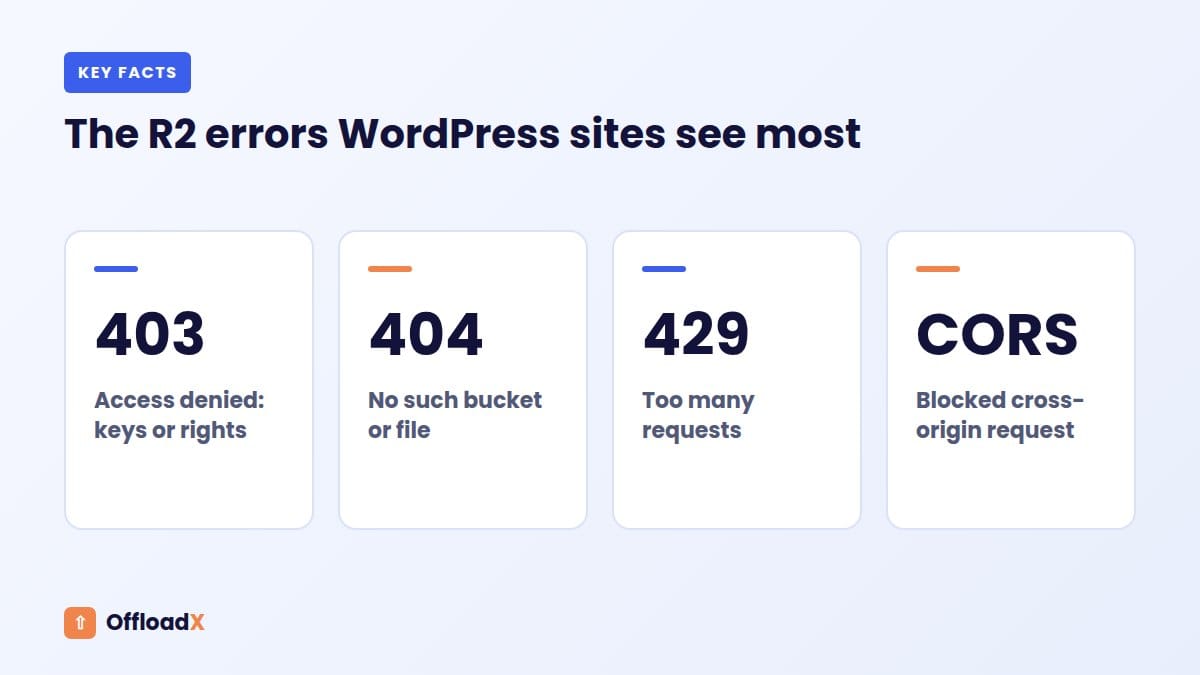
- 403 Forbidden / AccessDenied
- NoSuchBucket or 404 Not Found
- 429 Too Many Requests on r2.dev
- Images Still Load from the Old URL
- CORS Errors (Fonts, Video, Scripts)
- Bulk Migration Stalls or Times Out
- Custom Domain Not Working
Cloudflare R2 WordPress Errors: Quick Diagnosis
| What you see | Most likely cause | Quick fix |
|---|---|---|
| SignatureDoesNotMatch | Secret key copied wrong, or wrong region or endpoint | Re-create the token; use region auto |
| InvalidAccessKeyId | Wrong or deleted Access Key ID | Paste the key again, or create a new token |
| 403 on uploads | Token is read-only or limited to another bucket | Give the token Object Read & Write on this bucket |
| 403 on images in the browser | Bucket isn’t publicly readable | Connect a custom domain, or enable public access |
| NoSuchBucket | Bucket name typo, or wrong account endpoint | Check the bucket name and Account ID |
| 429 Too Many Requests | Serving from the rate-limited r2.dev address | Switch to a custom domain |
| Old image URLs | Page cache or saved URLs | Purge cache, then run URL replacement |
| CORS error in the console | No CORS policy on the bucket | Add a GET/HEAD CORS policy |
SignatureDoesNotMatch
R2 rejected the request because the signature your site calculated doesn’t match. That almost always means the Secret Access Key is wrong.
- Hidden spaces. Copying from the Cloudflare dashboard can pick up a trailing space or line break. Paste the key into a plain-text editor first to check.
- Mixed-up keys. The Access Key ID and Secret Access Key look similar, so check each is in the right field.
- Wrong region. R2 uses the region
auto. If a plugin asks for an S3 region, enterauto, notus-east-1. - Lost secret. Cloudflare shows the Secret Access Key only once. If you’re not sure you have the right one, delete the token and create a new one.
InvalidAccessKeyId
The Access Key ID doesn’t exist, usually because the token was deleted or rolled, or the key was pasted incompletely. Go to R2 → Manage R2 API Tokens, check the token still exists, and paste the Access Key ID again. If in doubt, create a new token and update both keys in your plugin.
403 Forbidden / AccessDenied
When uploading from WordPress
The API token doesn’t have write access to this bucket. Edit the token (or create a new one) with Object Read & Write permission and include the bucket under Specify bucket(s). Tokens scoped to a different bucket are the most common cause.
When loading images in the browser
The bucket isn’t publicly readable, so visitors can’t load the files. Connect a custom domain under the bucket’s Settings → Custom Domains. That’s the production option. Or enable the r2.dev public address for testing. See our custom R2 domain guide.
NoSuchBucket or 404 Not Found
- Bucket name typo. Bucket names are case-sensitive and permanent, so check them letter by letter.
- Wrong account. The endpoint includes your Account ID (
https://ACCOUNT_ID.r2.cloudflarestorage.com). If you have more than one Cloudflare account, make sure the ID matches the account that owns the bucket. - A 404 on one file only means the object isn’t in the bucket. Check that the file was offloaded, or re-run the offload for that item.
429 Too Many Requests on r2.dev
Cloudflare rate-limits the r2.dev public address and says it’s for development only (Cloudflare docs). On a live site with real traffic, images start failing. The fix is permanent: connect a custom domain and point your plugin’s delivery URL at it.
Images Still Load from the Old URL
- Purge every cache layer: your caching plugin (LiteSpeed, WP Rocket, W3 Total Cache), your host’s cache, and Cloudflare’s cache for your main domain.
- Check that URL rewriting is on in your offload plugin.
- Rewrite saved URLs. Page builders and some themes save the full image URL in the database. Use a database URL replacement tool that handles serialized data, and run a dry run first.
- Check CSS background images. Images set in theme or page-builder CSS may need regenerating. In Elementor, use Tools → Regenerate CSS & Data.
CORS Errors (Fonts, Video, Scripts)
If the browser console shows “blocked by CORS policy”, the page is loading a font, video or script-fetched file from your R2 domain without permission. Add a CORS policy in the bucket’s Settings → CORS Policy:
[{"AllowedOrigins": ["https://yoursite.com"], "AllowedMethods": ["GET", "HEAD"]}]
Changes can take up to 30 seconds to apply (Cloudflare CORS docs). Clear your browser cache before testing again.
Bulk Migration Stalls or Times Out
- Server limits. Shared hosting often limits PHP run time and memory. Use a smaller batch size, or turn on background mode if your plugin has it.
- WP-Cron not firing. Background jobs depend on WP-Cron, which only runs when someone visits the site. On quiet sites, set up a real server cron job to call
wp-cron.php. - Resume, don’t restart. OffloadX’s bulk migrator can pause and resume, so a stalled run can pick up where it stopped.
- Large files. Very large videos may need higher PHP upload and memory limits. Check with your host.
Custom Domain Not Working
- Different account. The domain has to be a zone in the same Cloudflare account as the bucket.
- Still pending. A new connection can take a few minutes to go live. Check its status in the bucket’s Custom Domains list.
- Existing DNS record. If
cdn.yoursite.comalready has a DNS record, remove it before connecting, so Cloudflare can create its own. - CNAME to r2.dev. Cloudflare doesn’t support this. Use the built-in Connect Domain button instead.
How to Find the Exact Error Message
Fixing Cloudflare R2 WordPress errors is much faster when you know the exact message. Here’s where to look, from easiest to most detailed.
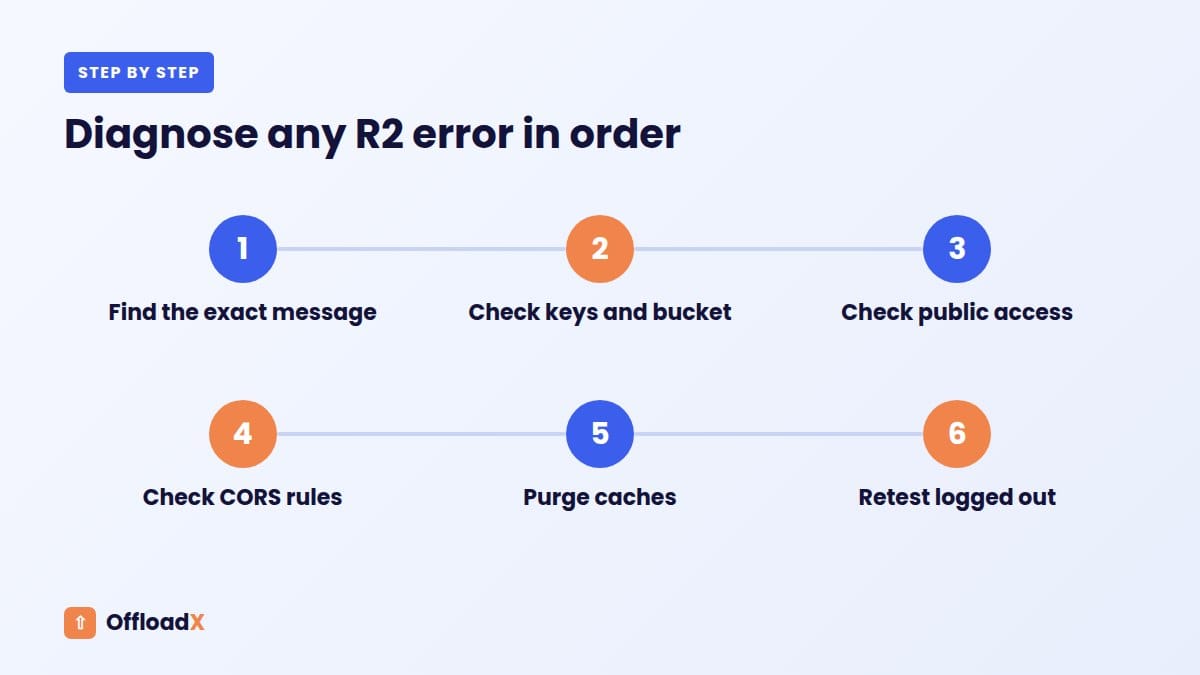
- Your offload plugin’s screen. Connection tests and migration logs usually show the error code R2 returned. In OffloadX, run the connection tester and note the message.
- The browser console. Press F12 and open the Console tab. CORS and mixed-content errors appear here.
- The Network tab. Filter by images and look for red rows. The status code (403, 404, 429) tells you which section below applies.
- The WordPress debug log. Add
define( 'WP_DEBUG', true );anddefine( 'WP_DEBUG_LOG', true );towp-config.php, reproduce the problem, then readwp-content/debug.log. Turn debugging off again afterwards.
RequestTimeTooSkewed and Other Clock Errors
S3-compatible APIs, including R2, sign every request with a timestamp. If your server’s clock is off by more than a few minutes, R2 rejects the request, sometimes with a message that looks like a signature problem.
If your keys are definitely correct but uploads still fail, ask your host to check the server time and make sure it syncs automatically (NTP). This is rare on managed hosting, but common on self-managed servers and some containers.
Uploads Fail for Large Files Only
If small images offload but large videos or PDFs don’t, the limit is usually on your server rather than R2.
- PHP upload limits.
upload_max_filesizeandpost_max_sizecap how big an upload can be. Your host can raise them. - Memory and run time. Large files need more
memory_limitandmax_execution_time, especially during bulk migration. - Proxy timeouts. Some hosts cut long requests. Background processing avoids this, because files are uploaded outside the page request.
Images Load Slowly From R2
Not an error message, but a common complaint. The usual causes:
- Serving from r2.dev. It has no Cloudflare cache. Switch to a custom domain.
- No cache rule. Without one, every request may go back to R2. Add a cache rule for your media hostname and check for
cf-cache-status: HIT. - Oversized images. Offloading doesn’t compress. A 4 MB photo is slow from anywhere. Compress images and use WebP where you can.
Thumbnails Missing After Offload
If full-size images load but some thumbnails don’t, those sizes may not exist in the bucket. This happens when a theme registers new image sizes after files were offloaded.
- Regenerate thumbnails with a regeneration plugin or WP-CLI.
- Make sure your offload plugin sends newly generated sizes to R2.
- Purge caches and reload the page.
Mixed Content Warnings
If your site is on HTTPS but some media URLs use http://, browsers block them or show a warning. Check that the custom CDN URL in your plugin starts with https://, then replace any saved http:// media URLs in your database.
Errors After Changing Bucket or Account
Moving to a new bucket or Cloudflare account can bring back several Cloudflare R2 WordPress errors at once, because the keys, endpoint and domain all change together.
- Create a new API token in the new account, scoped to the new bucket.
- Update the Account ID, not just the keys. The endpoint depends on it.
- Connect the custom domain to the new bucket, and remove it from the old one first.
- Copy the files across before switching, so existing URLs keep working.
How to Prevent Cloudflare R2 WordPress Errors
Most problems can be avoided with a careful first setup. It takes a few extra minutes on day one, and it saves hours of troubleshooting later, especially on busy sites where broken images are noticed quickly by customers and search engines alike. Work through these habits every time you connect a new site:
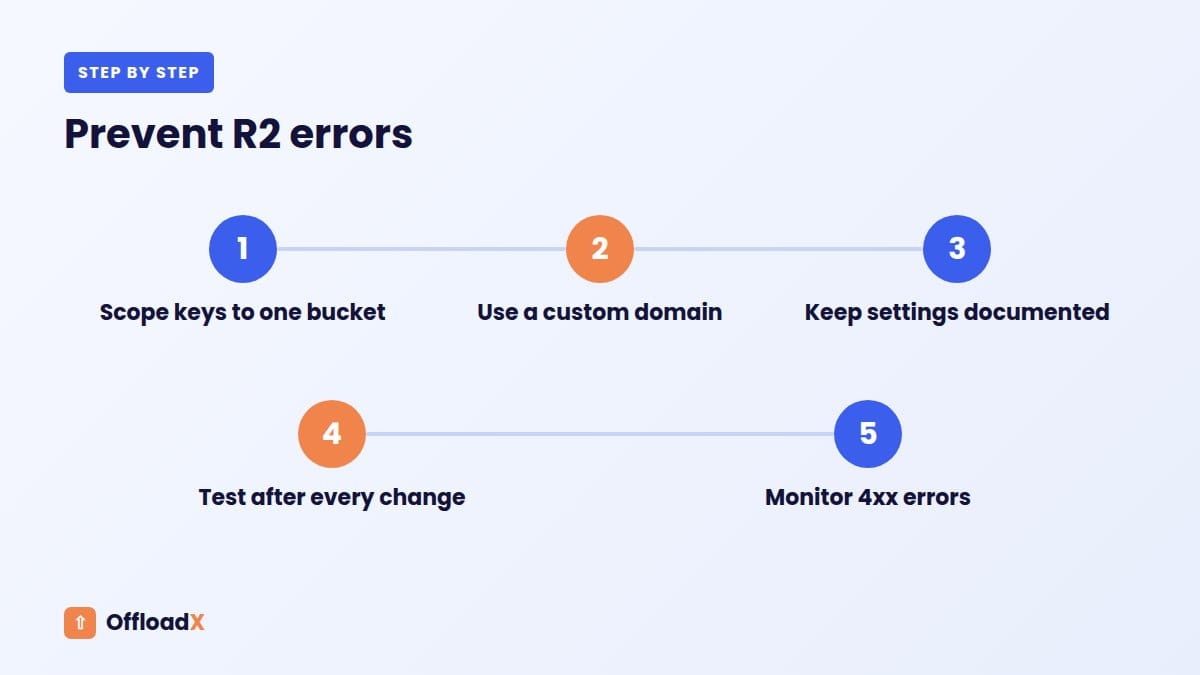
- Create one API token per site, with Object Read & Write on one bucket only.
- Save the Secret Access Key in a password manager the moment Cloudflare shows it.
- Use a custom domain from day one, never
r2.devin production. - Add a CORS policy if you serve fonts, video or script-loaded files.
- Test with a few files before any bulk migration, and keep local copies until you’ve checked the site.
- Purge every cache layer after changes.
More Questions About Cloudflare R2 WordPress Errors
Why do errors appear only for some visitors?
Usually caching. Some visitors get an old cached page with old image URLs. Purge caches and the problem goes away.
Can a security plugin cause R2 errors?
Yes. Firewalls that block outgoing requests, or rewrite URLs, can interfere. Allow requests to r2.cloudflarestorage.com and test again.
How long should I wait before assuming a fix didn’t work?
Most changes apply within a minute. New tokens work immediately, and CORS rules can take up to 30 seconds to spread. Cached pages are the exception: purge every cache layer and test in a private window before deciding a fix has failed.
Do Cloudflare R2 WordPress errors affect my SEO?
Only if they last. A few hours of broken images won’t hurt rankings, but images that fail for days can drop out of Google Images and make pages look worse to visitors. Fix errors promptly, and check Search Console for image crawl errors afterwards.
Should I switch plugins if I keep getting errors?
First check the setup. Almost every recurring error comes from the token, the endpoint, the domain or caching, and would follow you to a new plugin. If the plugin itself is failing, its support team or logs will usually show why.
Can I test my R2 settings without affecting visitors?
Yes. Use a staging copy of your site, or offload a single test image and check its URL directly before turning on URL rewriting for the whole site.
Is my data at risk when I see an error?
Errors almost always mean a request was refused, not that files were lost. Your local copies and bucket contents stay as they were, so you can fix the setting calmly and try again.
Cloudflare R2 WordPress Errors by HTTP Status Code
If all you have is a status code from the Network tab, this table points you to the likely cause.
| Status | Usually means | Where to look |
|---|---|---|
| 400 Bad Request | Malformed request, often a wrong region or endpoint setting | Plugin connection settings; use region auto |
| 401 / 403 | Credentials refused, or the file isn’t publicly readable | API token permissions; custom domain or public access |
| 404 Not Found | The object isn’t at that path, or the bucket name is wrong | Bucket name, path prefix, whether the file was offloaded |
| 429 Too Many Requests | Rate limit, usually on r2.dev | Switch to a custom domain |
| 5xx | Temporary problem on the storage side | Retry; check Cloudflare’s status page if it persists |
Checking an Image From the Command Line
If you’re comfortable with a terminal, curl shows exactly what the server returns for one image, without any browser caching in the way:
curl -I https://cdn.yoursite.com/wp-content/uploads/2026/09/example.jpg
The -I flag asks only for headers, so the command is quick even for large files. Look at the first line for the status code and at cf-cache-status for caching. A 200 with HIT means the image is fine and cached. A 403 or 404 tells you which section of this guide to read. Running the same command against the old URL helps confirm whether a problem is on the new domain or in your content.
Three Real-World Examples
“Everything worked yesterday”
A site owner rotated their Cloudflare API tokens as part of a security review. The next morning, new uploads failed with InvalidAccessKeyId. The fix was to paste the new Access Key ID and Secret Access Key into the offload plugin. Existing images kept loading, because reads went through the custom domain, not the API keys.
“Only the fonts are broken”
After offloading theme assets, icons turned into empty squares. The console showed a CORS error for .woff2 files. Adding a GET/HEAD CORS policy for the site’s domain fixed it within a minute.
“Images vanish during sales”
A store served images from r2.dev. On normal days it was fine, but during a promotion some images returned 429. Connecting cdn. as a custom domain and rewriting URLs removed the rate limit and added caching.
When to Contact Support, and What to Send
If you’ve worked through this guide and the problem remains, it’s time to ask for help. A clear, complete report gets a faster answer than a one-line message, because support can start testing straight away instead of asking follow-up questions. Send your plugin’s support team:
- The exact error message, copied as text
- When it happens: on upload, during bulk migration, or when pages load
- The result of the plugin’s connection test
- One example image URL that fails, and what
curl -Ior the Network tab shows for it - What changed recently: new keys, a new domain, a plugin update, or a hosting move
Never send your Secret Access Key in a support ticket. If support needs to test the connection, create a temporary token and delete it afterwards.
Still Stuck?
If none of these fixes it, note the exact error message and when it happens — during upload, bulk migration, or when a page loads. That narrows it down quickly. OffloadX users can contact support with the output of the built-in connection tester.
Contact OffloadX Support →New to R2? Start with our Cloudflare R2 WordPress setup guide.