
If you need to regenerate thumbnails on a WordPress site whose media lives in Cloudflare R2, Amazon S3 or another bucket, the usual one-click advice can fail or quietly do nothing. The reason is simple: WordPress builds every new image size from the original file on your server, and after offloading, that original may no longer be there.
This guide explains when you need to regenerate thumbnails, which tools to use, why offloaded media changes the process, and a safe step-by-step method that keeps your originals intact, pushes the new image sizes to the cloud and leaves no broken images behind. We also look at what the extra files cost in storage.
Table of Contents
- When You Need to Regenerate Thumbnails
- How WordPress Creates Image Sizes
- Tools to Regenerate Thumbnails
- Why Offloaded Media Complicates Regeneration
- A Safe Process to Regenerate Thumbnails With Offloaded Media
- Regenerating for WebP
- What Extra Image Sizes Cost in Storage
- Troubleshooting Common Problems
- Pre-Flight Checklist
- Frequently Asked Questions
When You Need to Regenerate Thumbnails
WordPress creates resized copies of each image at the moment you upload it. Those copies match the image sizes that are registered at that time. If the registered sizes change later, old uploads do not update themselves.
The WordPress developer reference for add_image_size() makes the same point: after new sizes are added, existing images have to be regenerated, and it points to the Regenerate Thumbnails plugin or wp media regenerate.
Common reasons to run a regeneration
| Situation | What goes wrong without regeneration | Scope needed |
|---|---|---|
| You switch to a new theme | The theme asks for sizes that old images do not have, so WordPress serves a larger file or a badly cropped one | Only the theme’s new sizes |
| A plugin registers new sizes (for example a shop or gallery plugin) | Product grids or galleries load oversized images | Only the plugin’s sizes |
| You change dimensions in Settings → Media | Existing thumbnail, medium and large files keep the old dimensions | The changed sizes |
| You want WebP versions of sub-sizes | Old sub-sizes stay in JPEG or PNG | All sizes of affected images |
| You changed a crop setting (hard crop on or off) | Old crops stay as they were | The changed size |
| Files were lost or partly uploaded | Missing sizes return 404 errors | Only missing sizes |
Notice how often the right answer is “only some sizes”. Regenerating everything is the slowest, most expensive option, and on an offloaded site it creates the most work afterwards.
How WordPress Creates Image Sizes
Understanding what WordPress stores makes the rest of this guide easier to follow. Every image upload is an attachment post with metadata that lists each generated size and its file name.
The default image sizes
| Size name | Default dimensions | Where it is set |
|---|---|---|
| thumbnail | 150 × 150 (cropped) | Settings → Media |
| medium | 300 × 300 (max) | Settings → Media |
| medium_large | 768 wide | Core |
| large | 1024 × 1024 (max) | Settings → Media |
| 1536×1536 | 1536 × 1536 (max) | Core, since WordPress 5.3 |
| 2048×2048 | 2048 × 2048 (max) | Core, since WordPress 5.3 |
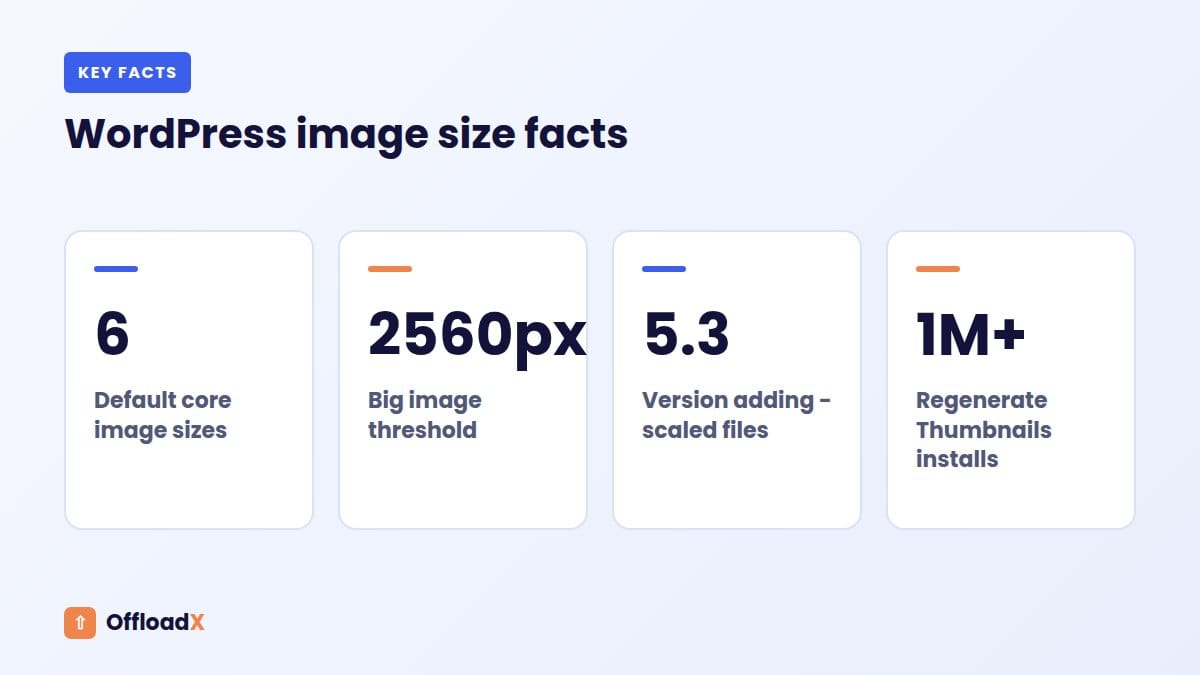
The two larger sizes come from the core function _wp_add_additional_image_sizes(), added in WordPress 5.3 to improve srcset on high-density screens. Your theme and plugins usually add more image sizes on top of these six.
The “-scaled” file and the original
Since WordPress 5.3, very large uploads are scaled down automatically. The WordPress core announcement says the default threshold is 2560 pixels, filterable with big_image_size_threshold. The scaled copy gets a -scaled suffix, and the untouched original stays in the uploads folder, with its name recorded in the original_image metadata key.
This matters for regeneration. The function wp_get_original_image_path() returns the original upload, and WP-CLI’s media command uses it when it looks for the source file. So for a big image, the tool wants the original file, not just the -scaled copy.
Key point: To regenerate thumbnails, WordPress needs the source image on local disk. For large images that is usually the original file, which your offload plugin may have removed from the server.
Tools to Regenerate Thumbnails
There are two tools most people use. Both work on files that exist locally; neither reads directly from your bucket.
The Regenerate Thumbnails plugin
The Regenerate Thumbnails plugin on WordPress.org has more than a million active installations. It was created by Alex Mills and is now maintained by Automattic and the community. You can process the whole library from Tools, or a single image from its Media Library screen.
Its two most useful options are the ability to skip existing, correctly sized thumbnails and to delete old, unregistered thumbnail sizes. Its own description recommends WP-CLI for large libraries because it is faster.
WP-CLI: wp media regenerate
For sites with thousands of images, wp media regenerate runs on the server without browser timeouts. These are the flags from the official WP-CLI documentation:
| Flag | What it does | When to use it |
|---|---|---|
<attachment-id>… | Regenerates only the listed attachments | Testing on a few images first |
--image_size=<name> | Regenerates only one image size | A theme or plugin added one size |
--only-missing | Only generates thumbnails for images missing image sizes | After adding sizes, or to repair gaps |
--skip-delete | Keeps the old thumbnail files instead of deleting them | Old sizes are linked from places you do not control |
--delete-unknown | Only deletes thumbnails for old, unregistered image sizes | Cleaning up after a theme change |
--yes | Answers yes to the confirmation prompt | Scripts and cron jobs |
Some practical examples:
wp media regenerate 123 124 125regenerates three images so you can check the result.wp media regenerate --image_size=large --yesrebuilds only the large size across the library.wp media regenerate --only-missing --yesfills in sizes that are missing from attachment metadata.
Two details are easy to miss. First, --only-missing checks the attachment metadata (it uses wp_get_missing_image_subsizes()), so it looks for sizes that were never recorded, not for files that were deleted from disk. Second, without --skip-delete, WP-CLI removes the old thumbnail files it replaces, so old URLs that point to those files can break.
Which tool should you pick?
| Regenerate Thumbnails plugin | wp media regenerate | |
|---|---|---|
| Needs SSH access | No | Yes |
| Single image from the admin | Yes | By ID |
| One image size only | No (all sizes, with skip option) | Yes |
| Large libraries | Runs in the browser | Faster, runs on the server |
| Delete old unregistered sizes | Yes | Yes (--delete-unknown) |
Why Offloaded Media Complicates Regeneration
On a normal site, the originals sit in wp-content/uploads and regeneration just works. Offloaded media adds three complications.
1. The originals may not be on the server
Most offload plugins can remove local copies after upload to save disk space, which is often the reason people offload in the first place (see our guide on a WordPress site running out of disk space). If the source file is gone, WP-CLI stops with a “Can’t find” message for that attachment, and the plugin reports an error.
Some offload plugins try to handle this for you. In a GitHub issue on WP Offload Media, a Delicious Brains team member explained that when files have been removed from the server, the plugin downloads them from S3 during regeneration and then removes them again. The same thread shows it did not work on that user’s site, so test before relying on it.
The Advanced Media Offloader listing says it is compatible with wp media regenerate and the Regenerate Thumbnails plugin, and that regenerated thumbnails offload automatically. It also warns that with its Full Cloud Migration policy you would need to re-download your files first.
2. New sizes are created locally, not in the bucket
Regeneration writes new files to wp-content/uploads. Your offload plugin then has to notice them and upload them. Some plugins hook into regeneration; others only act on new uploads or when you run a bulk offload. Until the new files reach the bucket, pages that request those sizes can show broken images.
3. Old sizes may still be referenced
Post content often contains the exact URL of a specific size, such as photo-1024x683.jpg. If regeneration deletes that size locally and your plugin mirrors deletions to the bucket, those links break. If it does not mirror deletions, the old files stay in the bucket and keep costing a little storage.
| Local file policy | Can you regenerate directly? | What to do |
|---|---|---|
| Keep local copies | Yes | Regenerate, then push the new sizes to the bucket |
| Keep originals, remove sizes | Usually yes | Regenerate from the originals, then push new sizes |
| Remove all local files | No, unless your plugin fetches originals | Restore originals to the server first, or test the plugin’s fetch feature |
A Safe Process to Regenerate Thumbnails With Offloaded Media
This method works with any offload plugin because it does not depend on special integrations. Plan it for a quiet period and try it on a staging copy first if you can.
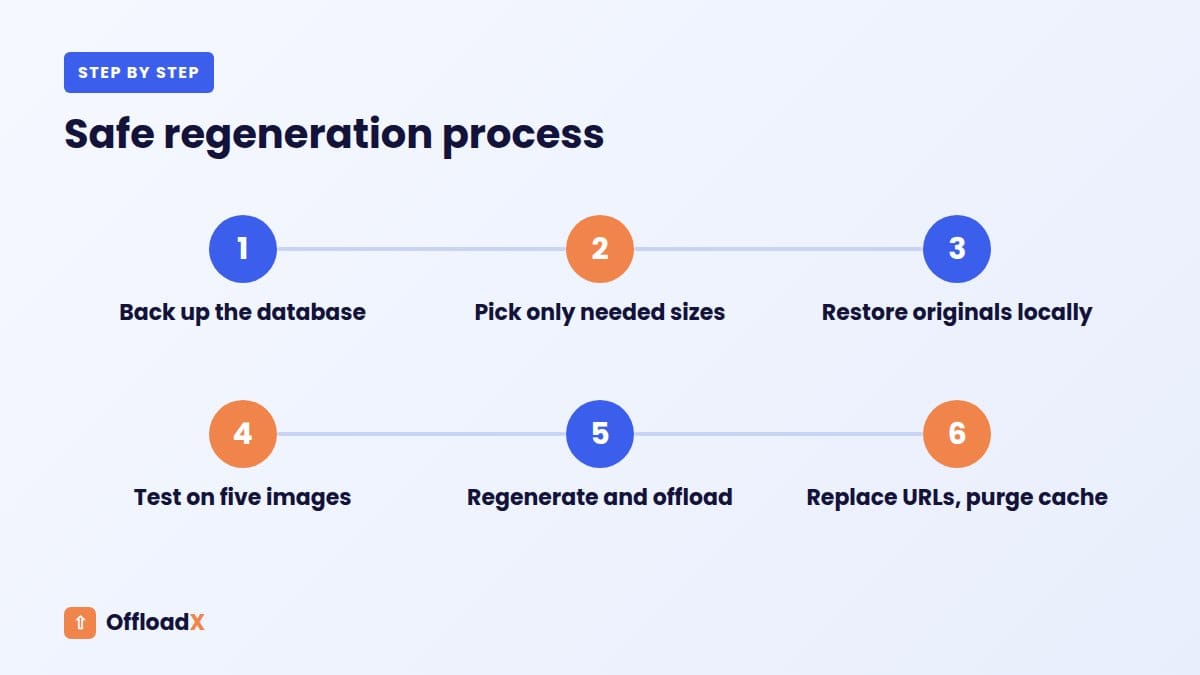
Step 1: Back up the database and note your settings
Regeneration rewrites attachment metadata. A database backup lets you roll back if something goes wrong. Also write down your offload plugin’s local file setting and any URL rewriting or delivery domain settings.
Step 2: Decide which image sizes you really need
Run wp media image-size to list every registered size. If only one new size was added, you can regenerate just that one and skip most of the work. Fewer sizes means fewer files to create, upload and pay for.
Step 3: Make sure the originals are on the server
If your plugin keeps local copies, check a few attachments by path. If local copies were removed, copy the originals back from the bucket into wp-content/uploads, keeping the same year/month folder structure. You can do this with your provider’s tools, for example rclone with Cloudflare R2 or the AWS CLI for S3.
You only need the originals, not every size. If disk space is tight, download them in batches (for example one year folder at a time) and regenerate each batch before moving on.
Key point: Restoring files from the bucket to your server is not part of OffloadX’s published feature list. Use your storage provider’s tools for that step, then let the plugin handle the upload side.
Step 4: Test on a few images
Pick five images of different types: a large photo with a -scaled copy, a PNG, a small image, and one used as a featured image. Run wp media regenerate with their IDs and check that the new files appear on disk and in the attachment metadata.
Step 5: Regenerate thumbnails for the full library
Use the narrowest command that does the job, for example --image_size= for one size or --only-missing after adding sizes. Add --skip-delete if old size URLs may be linked from emails, other sites or hard-coded content.
Step 6: Offload the new sizes
Push the new files to your bucket. In OffloadX, the Bulk Migration screen (Starter and above) moves existing media, and Scheduled Offload can run it daily. Whichever plugin you use, confirm in the bucket that a sample of new size files are really there before you remove anything locally.
Step 7: Update URLs in content
If regeneration changed file names or formats (for example JPEG sub-sizes becoming WebP), content that hard-codes old size URLs needs updating. OffloadX includes instant URL rewriting on every plan and a DB URL Replacer on Starter and above, found under URL Replace. Other plugins have similar tools, and WP-CLI’s search-replace works for manual fixes.
Step 8: Purge caches and test pages
Clear page caches, CDN caches and any page builder CSS caches. Then open key pages in a private window and check image requests in the browser’s network panel for 404s. Our guide to Cloudflare R2 WordPress errors covers the most common delivery failures.
Step 9: Remove local copies again (optional)
Only after everything checks out, remove the local originals you restored, if your policy is to keep the server lean. Keep the database backup for a few weeks in case a missing size shows up later.
Regenerating for WebP
WebP is a common reason to regenerate thumbnails. WordPress has the image_editor_output_format filter (introduced in 5.8) that maps one image type to another when the image editor saves files. The reference shows mapping image/jpeg to image/webp.
Because the filter applies when WordPress saves images, a regeneration run after you add it creates sub-sizes in the new format. Keep in mind:
- File names change from
.jpgto.webp, so hard-coded URLs in posts need replacing. - The old JPEG sizes may be deleted locally unless you use
--skip-delete. - Your bucket will hold both formats until you clean up the old files.
- Test a few images first, because not every server’s image library supports WebP.
There is also a way to avoid regenerating image sizes at all. OffloadX Starter and above include WebP and Cloudflare Images support, and a CDN image service can resize and convert on the fly. Our article on offloading WordPress media and speed explains how delivery affects load time.
What Extra Image Sizes Cost in Storage
Every new size is another file in your bucket. The cost per file is tiny, but it adds up on large libraries, and upload requests are billed too on some providers.
Provider prices (checked September 2026)
| Provider | Storage price | Upload (write) requests |
|---|---|---|
| Cloudflare R2 Standard | $0.015 per GB-month (first 10 GB-month free) | $4.50 per million Class A operations such as PutObject (first 1 million per month free) |
| Amazon S3 Standard, US East | $0.023 per GB (first 50 TB) | $0.005 per 1,000 PUT requests |
A worked example
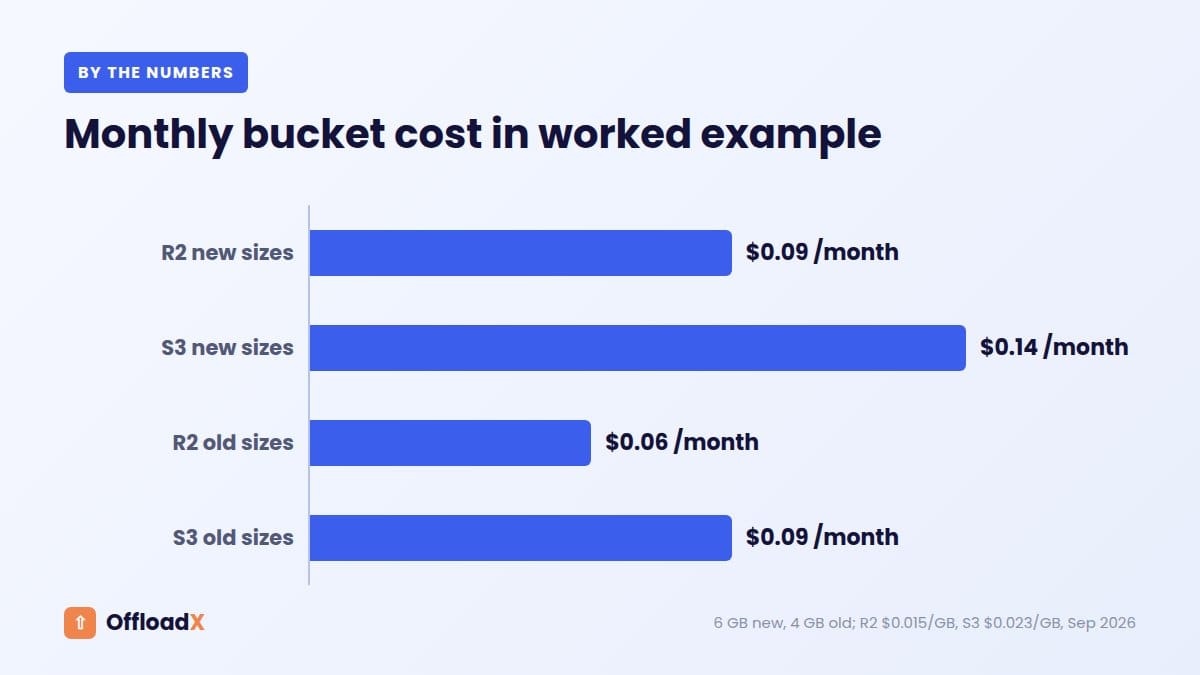
Imagine a store with 20,000 images. A new theme adds three image sizes, and together those new files take 6 GB.
| Item | Cloudflare R2 | Amazon S3 |
|---|---|---|
| Extra storage (6 GB) per month | $0.09 | $0.14 |
| 60,000 uploads (one time) | $0.27, or $0 inside the free monthly allowance | $0.30 |
| Old sizes left in the bucket (say 4 GB) | $0.06/month | $0.09/month |
The money is small, so do not let cost stop you from creating the image sizes your theme needs. The larger costs are time and risk: regenerating everything when one size would do, or deleting sizes that content still uses. For a wider cost view, see Cloudflare R2 vs Amazon S3 for WordPress.
Ways to keep the number of sizes down
- Regenerate one size with
--image_sizeinstead of all sizes. - Remove sizes your theme no longer uses, then use
--delete-unknownafter a backup. - Check whether plugins register sizes you never display.
- Consider on-the-fly resizing through a CDN image service for new layouts.
Troubleshooting Common Problems
| Symptom | Likely cause | Fix |
|---|---|---|
| WP-CLI says “Can’t find” for an attachment | The source file is not on local disk | Restore the original from the bucket, then rerun for that ID |
| Regeneration finishes but pages show old crops | Page or CDN cache | Purge caches and check in a private window |
| New sizes return 404 | Files created locally but not uploaded to the bucket | Run your plugin’s bulk offload and check the bucket |
| Old image URLs in posts return 404 | Old sizes deleted during regeneration | Rerun with --skip-delete or replace URLs in content |
--only-missing does nothing | Sizes are in metadata but files are missing | Run a normal regeneration for the affected IDs |
| Browser plugin run stalls | PHP timeouts on large images | Use WP-CLI, or process in smaller batches |
| Big images regenerate from a small source | Only the -scaled copy was restored | Restore the original file listed in original_image |
If images load from the wrong domain after the process, check your delivery settings. Our guide to a Cloudflare R2 custom domain for WordPress explains how the delivery URL should be set.
Pre-Flight Checklist
- Database backup taken and tested.
- List of registered image sizes reviewed with
wp media image-size. - Decision made: one size, missing sizes, or all image sizes.
- Local file policy of your offload plugin noted.
- Originals present on disk (including files named in
original_image). - Enough free disk space for originals plus new sizes.
- Test run on five images passed.
- Decision made on
--skip-delete. - Plan for pushing new files to the bucket and verifying them.
- URL replacement plan if file names or formats change.
- Cache purge list ready: page cache, CDN, builder CSS.
Frequently Asked Questions
Can I regenerate thumbnails directly from files in my bucket?
Not with the standard tools. The Regenerate Thumbnails plugin and wp media regenerate read the source file from local disk. Some offload plugins download originals temporarily during regeneration, but you should test that on a few images first.
Does wp media regenerate –only-missing check files on disk?
No. It checks attachment metadata for sizes that were never generated. If a size is listed in metadata but the file was deleted, run a normal regeneration for that attachment.
Will regenerating break images already in my posts?
It can. By default, WP-CLI deletes the old thumbnail files it replaces. If posts link to those exact files, use --skip-delete or update the URLs afterwards.
Do I need the original or the -scaled file?
For images above the big image threshold, WordPress keeps both, and WP-CLI looks for the original through wp_get_original_image_path(). Restore the original to get the best quality sub-sizes.
How long does it take to regenerate thumbnails?
It depends on the number of images, their size and your server’s CPU. Test on a batch of 100 and multiply. WP-CLI avoids browser timeouts, so it is the better choice for big libraries.
Does OffloadX restore my files to the server?
Restoring files is not on OffloadX’s published feature list, so plan to use your storage provider’s tools, such as rclone or the AWS CLI, to copy originals back. OffloadX helps on the upload and URL side with Bulk Migration and URL Replace on paid plans.
Should I delete old image sizes from the bucket?
Only once you are sure nothing links to them. Search your database for the old file names first. The storage saved is usually small, so there is no rush.
Is regeneration needed for WebP?
If you want WordPress itself to create WebP sub-sizes, yes, after adding the output format filter. A CDN image service that converts on delivery is an alternative that avoids storing extra files.
Conclusion
To regenerate thumbnails safely on an offloaded site, get the originals onto the server, regenerate only the image sizes you need, push the new files to your bucket and replace any changed URLs. Test on a handful of images first and keep a backup, and the process becomes routine rather than risky.
See OffloadX Plans →Sources: WordPress developer reference, WP-CLI documentation, WordPress.org plugin listings, the WP Offload Media GitHub repository, and Cloudflare and AWS pricing pages. Prices and plugin details checked September 2026.