
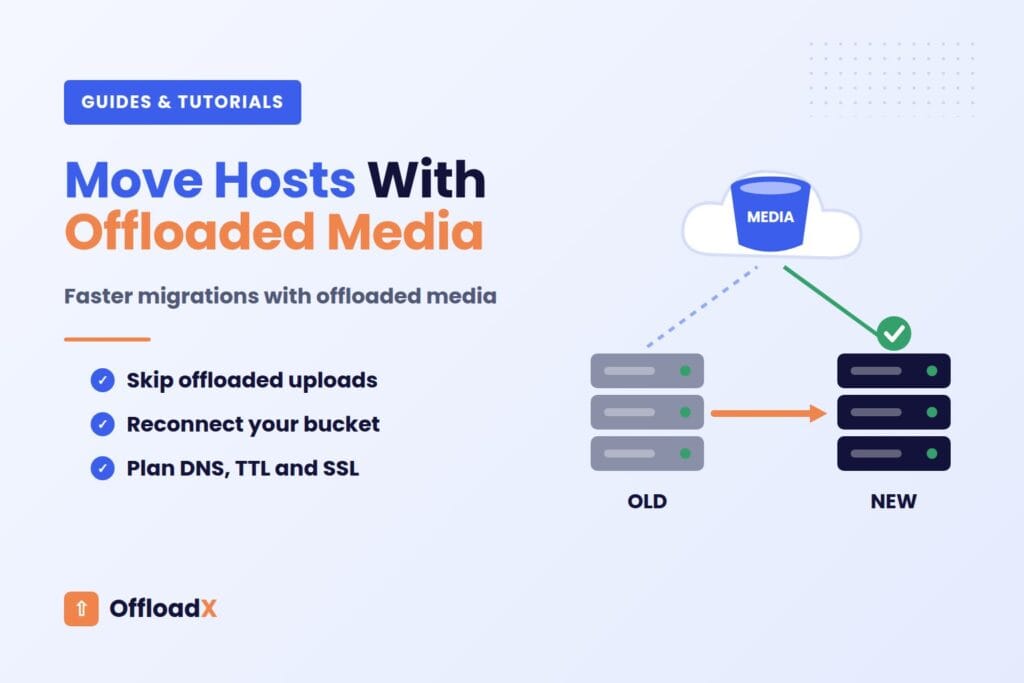
When you move WordPress to a new host, the uploads folder is usually the slowest, heaviest part of the job. If your images and files already live in Cloudflare R2, Amazon S3 or another bucket, most of that weight stays where it is, and the move becomes a much smaller transfer of code, database and settings.
Offloaded media does add its own checks, though. Credentials, URL rewriting, delivery domains, files that never reached the bucket and SSL all need attention. This guide gives you a full checklist, compares popular migration tools, shows how to exclude uploads safely and lists the pitfalls we see most often.
Table of Contents
Why Offloaded Media Makes a Host Move Faster
On a typical site, wp-content/uploads holds far more data than WordPress core, themes and plugins put together. Every image upload is stored with several resized copies, so the folder grows quickly. That is the part that makes backups large, archive uploads fail and transfers take hours.
When media is offloaded and local copies are removed, those files are already in the bucket. The new host does not need them on its disk at all. The page HTML keeps pointing to the bucket or your media domain, so visitors see the same images before and after the move.
| Part of the site | Normal site | Site with offloaded media |
|---|---|---|
| WordPress core, themes, plugins | Copy | Copy |
| Database | Copy and update URLs | Copy and update URLs |
| Uploads folder (media) | Copy everything | Copy only what is not in the bucket |
| Media URLs in content | Change if the domain changes | Usually unchanged (bucket or media domain) |
| Offload plugin settings | Not applicable | Check credentials and delivery settings |
A smaller transfer also means a smaller backup archive, which matters with tools that cap import size by your host’s PHP upload limit. If your server disk was the reason to leave your old host, our guide on a WordPress site running out of disk space explains how offloading helps.
Key point: Offloaded media only shrinks the move if the files are really in the bucket. Confirm that before you leave anything behind.
Before You Move WordPress to a New Host
A little preparation prevents almost every problem later. Do these checks a few days before the move.
1. Confirm what is offloaded
Compare the number of attachments in WordPress with what your offload plugin reports as offloaded. In OffloadX, the Dashboard and Manage Files screens (file manager on Pro and above) help here. Files uploaded before the plugin was installed, or beyond a plan’s file limit (OffloadX Free covers up to 100 files), may still be local only.
You can count attachments with WP-CLI: wp post list --post_type=attachment --format=count. If numbers do not match, run a bulk offload first. OffloadX’s Bulk Migration tool is included from Starter upwards.
2. Record plugin settings and credentials
Most offload plugins store settings in the database, so they move with it. Some allow defining settings in wp-config.php instead. For example, WP Offload Media documents an AS3CF_SETTINGS constant for this. If your keys live in wp-config.php, the new host’s config file needs the same lines.
Keep a secure note of your bucket name, region, access key ID and delivery URL. Store secrets in a password manager, never in a ticket or chat message.
3. Lower your DNS TTL
A day or two before the move, lower the TTL on your domain’s A or CNAME records so the switch spreads faster. We cover the details in the DNS section below.
4. Check for non-media files inside uploads
The uploads folder often holds files that no offload plugin moves. Examples include page builder CSS caches, plugin exports, logs and protected shop downloads. WooCommerce, for instance, stores protected downloadable files in wp-content/uploads/woocommerce_uploads, according to its digital product guide. Those files must be copied to the new host.
| Folder in uploads | What it is | Copy it? |
|---|---|---|
2024/, 2025/ and other year folders | Media, possibly offloaded | Only files not in the bucket |
woocommerce_uploads/ | Protected product downloads | Yes |
elementor/css/ | Generated Elementor CSS | Optional, can be regenerated |
bb-plugin/cache/ | Beaver Builder CSS and JS cache | Optional, can be regenerated |
| Other plugin folders | Forms, backups, fonts, logs | Check each one |
Migration Tools Compared
You can move a site with a plugin, with WP-CLI, or by hand over SFTP and phpMyAdmin. These are the options most people use, with the facts that matter for offloaded sites.
All-in-One WP Migration
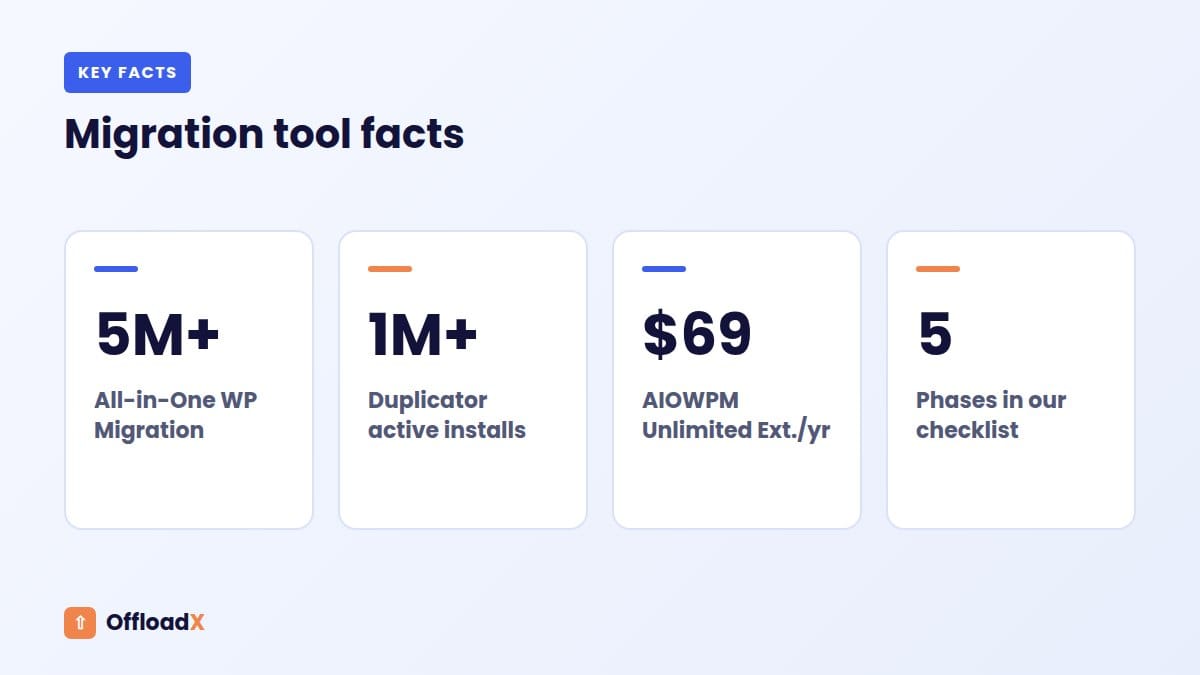
All-in-One WP Migration has more than 5 million active installations. It exports the site as one file and replaces URLs and paths on import.
- Its export screen has an advanced option called “Do not export media library (files)”, which leaves out the uploads folder.
- Excluding specific folders or database tables needs a premium extension.
- ServMask says the plugin has no hard-coded size limit; the import limit you see is your host’s PHP upload cap (
upload_max_filesizeandpost_max_size), as explained on the ServMask blog. - The Unlimited Extension, which uses chunked transfer to get around those limits, costs $69 per year for 50 sites (checked September 2026).
Duplicator
Duplicator has more than a million active installations. It packages files and database into an archive and gives you an installer.php file to run on the new host.
- The free version uses a chunked engine that splits the work into small steps, so larger backups can finish on shared hosting.
- The free version does not support multisite; that needs Pro.
- Pro adds scheduled backups, cloud storage destinations (including Amazon S3 and S3-compatible providers), drag-and-drop import and server-to-server transfers.
WP-CLI
If both hosts give you SSH access, WP-CLI is the fastest and most controllable route. The main commands are wp db export, wp db import and wp search-replace.
wp db exportrunsmysqldumpwith your WordPress credentials and supports--exclude_tablesand--add-drop-table.wp search-replacehandles PHP serialized data and supports--dry-run,--precise,--all-tablesand--skip-columns.- Files move with
rsyncor SFTP, where you can exclude the uploads year folders easily.
Side-by-side
| All-in-One WP Migration | Duplicator | WP-CLI + rsync | |
|---|---|---|---|
| Skill level | Beginner | Beginner to intermediate | Comfortable with SSH |
| Exclude media library | Yes, free option | Check your version’s filters | Yes, with rsync excludes |
| Size limit | Host PHP upload cap unless using a paid extension | Chunked engine in free version | None from the tool |
| URL replacement | Automatic | In the installer | wp search-replace |
| Multisite | Premium extension | Pro only | Yes (--network) |
| Cost | Free; extensions paid | Free; Pro paid | Free |
Many managed hosts also offer free migration services or their own plugins. Those work too, but ask whether they can skip the uploads folder so the job stays small.
How to Exclude Uploads Safely
Leaving the media behind is the big win, but only when the bucket really holds everything. Follow this order.
- Run a bulk offload so every attachment is in the bucket.
- Check a sample of old and new images load from the bucket or media domain.
- List non-media folders inside uploads (see the table above) and plan to copy them.
- Export with “Do not export media library”, or exclude the year folders in rsync.
- Copy the non-media folders separately.
- Keep the old host running until testing is finished.
An rsync example that skips year folders but keeps everything else looks like this: rsync -avz --exclude='wp-content/uploads/20*/' ./ user@newhost:/path/. Test with --dry-run first to see what would move.
Key point: If your offload plugin keeps local copies, you can still skip them in the move, but only after checking that every file is in the bucket. The new host will then have no local copies, so treat it like a “remove local files” setup.
Step-by-Step Migration Checklist
This is the order we recommend when you move WordPress to a new host with offloaded media.
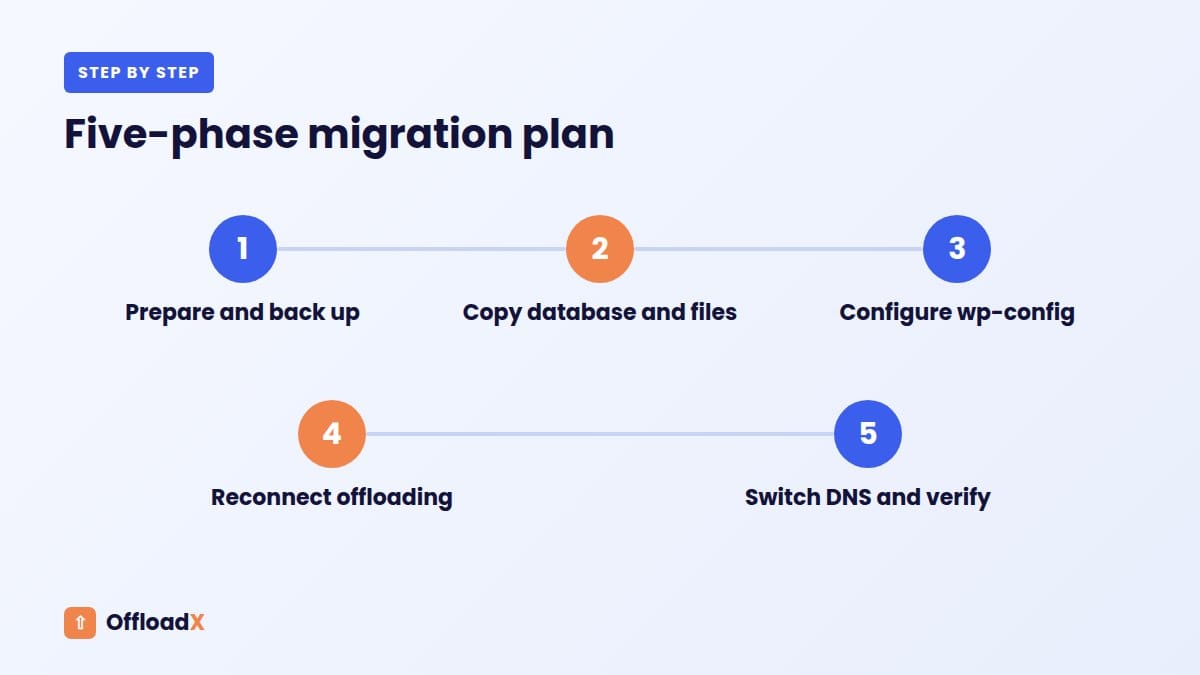
Phase 1: Prepare
- Full backup of files and database on the old host, stored off the server.
- Offload status confirmed; bulk offload run for anything local.
- Credentials, bucket, region and delivery URL noted securely.
- DNS TTL lowered.
- PHP version on the new host matched or newer than the old one.
Phase 2: Copy
- Database exported (plugin archive or
wp db export). - Files copied without uploads year folders.
- Non-media upload folders copied.
- Database imported on the new host.
Phase 3: Configure
wp-config.phpupdated with the new database name, user, password and host.- Any offload constants copied into the new
wp-config.php. - If the domain changes, run
wp search-replacewith--dry-runfirst, then for real, with--skip-columns=guid. - Permalinks saved once under Settings → Permalinks to refresh rewrite rules.
Phase 4: Reconnect offloading
- Open the offload plugin and check credentials. In OffloadX, go to Credentials and run the connection tester.
- Check Behaviour settings are unchanged (for example, whether local copies are removed).
- Check the License screen shows your licence as active on the new server.
- Upload a test image and confirm it lands in the bucket and loads from the right URL.
Phase 5: Switch and verify
- Test the new host with a hosts-file entry or temporary URL before DNS changes.
- Issue SSL on the new host.
- Change DNS records.
- Purge page caches and CDN caches.
- Run the testing checklist below.
What about the media domain?
If you serve media from a custom domain such as media.example.com that points at your bucket, that record does not change when you switch web hosts. Only the records for the website itself move. This is one of the quiet benefits of offloading: image URLs in thousands of posts stay valid. See our guide to a Cloudflare R2 custom domain for WordPress for the setup.
About the GUID column
The official WordPress guide to moving WordPress warns that the GUID column is used by feed readers and should not be changed. That is why the WP-CLI examples skip it. The same guide warns against plain SQL find-and-replace because serialized data stores string lengths.
DNS, TTL and SSL
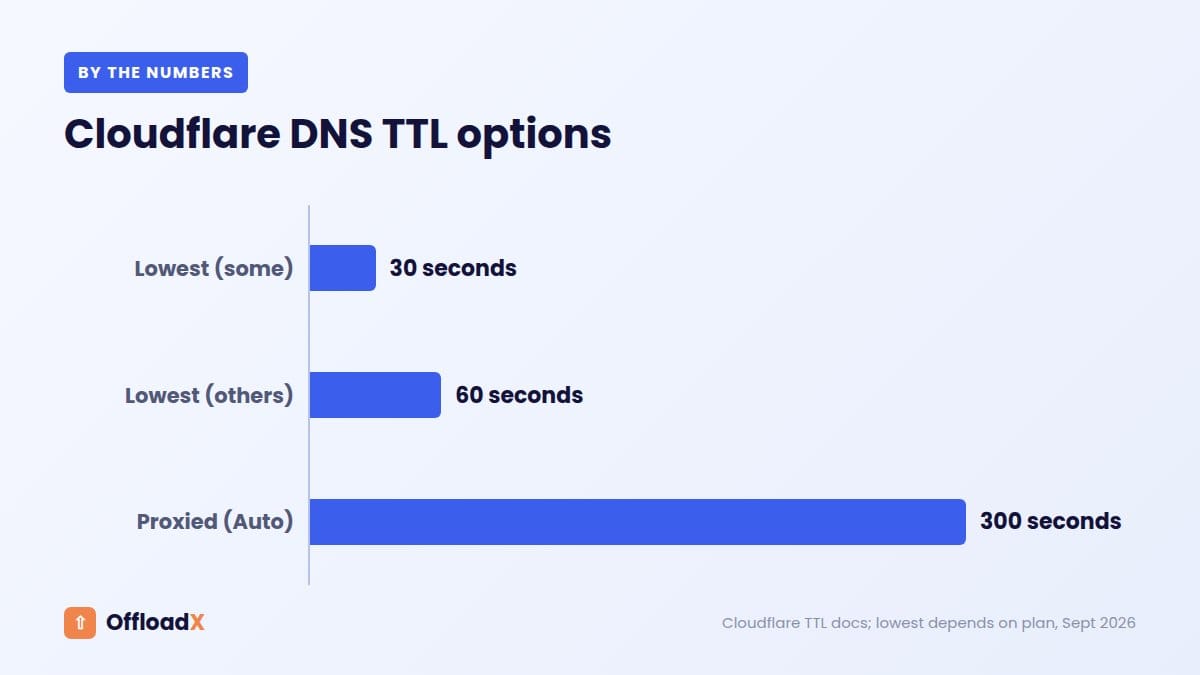
DNS decides when visitors reach the new host. TTL controls how long resolvers cache a record. Cloudflare’s TTL documentation gives useful reference points.
| Record type (Cloudflare) | TTL | What it means for the move |
|---|---|---|
| Proxied (orange cloud) | Auto, fixed at 300 seconds | Changing the origin IP takes effect quickly at Cloudflare’s edge |
| DNS only, lowest | 30 or 60 seconds, depending on plan | Set this a day before the move |
| DNS only, highest | 1 day | Visitors may reach the old host for up to a day |
Cloudflare also notes that local DNS caches can take longer to update than the TTL suggests. Keep the old host serving the site for a few days so late visitors still see a working page.
SSL certificates
Many hosts issue free certificates from Let’s Encrypt. According to Let’s Encrypt’s challenge types, the HTTP-01 check needs a file served over port 80 at your domain, so it usually only works after DNS points to the new host. The DNS-01 check uses a TXT record and can be done before the switch if your DNS provider has an API.
- If your host only supports HTTP-01, expect a few minutes without a valid certificate after switching, or use Cloudflare’s proxy with an origin certificate.
- Your media domain has its own certificate at the storage or CDN side, so image HTTPS is unaffected by the move.
- After SSL is live, check for mixed content warnings in the browser console.
Common Pitfalls With Offloaded Media
| Pitfall | What you see | How to avoid or fix it |
|---|---|---|
| Some files never reached the bucket | 404s on older images after the move | Bulk offload before moving; copy the missing files from the old host |
Keys defined in wp-config.php not copied | Plugin shows no connection; new uploads stay local | Copy the constants; run the connection test |
| URL rewriting disabled or plugin inactive | Pages request images from the new host’s empty uploads folder | Activate the plugin and check rewriting settings |
| Domain changed but media domain not updated in plugin | Mixed URLs, some pointing at the old site | Check delivery URL settings and search the database |
| Page builder CSS cached with old URLs | Missing background images | Regenerate builder CSS on the new host |
| Protected downloads left behind | Customers cannot download purchases | Copy woocommerce_uploads and similar folders |
| SSL not ready on switch | Browser security warnings | Plan the certificate method in advance |
| Old host cancelled too early | No way to recover a missed file | Keep it for at least a week |
If you see provider errors such as access denied or signature mismatches after the move, our guide to Cloudflare R2 WordPress errors walks through the usual causes.
Should you change storage providers at the same time?
It is tempting to switch host and storage provider in one weekend. We suggest doing one at a time, so if something breaks you know which change caused it. If you are still choosing a provider, our comparison of the best cloud storage for WordPress can help you plan the second step.
Testing After the Move
Test before and after DNS changes. Use a private window so your own cache does not hide problems.
Front-end checks
- Home page, a recent post, an old post and a page built with your page builder.
- Image URLs in the network panel point to the bucket or media domain, not the new host.
- No 404s or mixed content warnings in the console.
- Responsive images (
srcset) load the expected sizes. - Shop pages, cart, checkout and a test download if you run a store.
Back-end checks
- Media Library thumbnails display.
- A new upload is offloaded and appears in the bucket.
- Editing and deleting an image works as expected.
- Scheduled tasks and email delivery work on the new host.
- Offload plugin dashboard shows no errors.
Performance checks
- Compare page load times with the old host.
- Confirm page cache and CDN are active.
- Check that images are served from the CDN edge, not straight from the bucket, if you use one. Our explainer on media offload vs CDN covers how the two work together.
Frequently Asked Questions
Do I need to copy my uploads folder if media is offloaded?
Only the files that are not in the bucket, plus non-media folders such as protected downloads. Confirm offload status first; if everything is offloaded, the year folders can stay behind.
Will my image URLs change when I switch hosts?
Not if they point to your bucket or a custom media domain. Those URLs do not depend on where WordPress runs. If you change the site’s own domain too, run a search-replace for the site URL.
Do I need to reconnect my offload plugin?
If settings are in the database, they move with it, but always run a connection test. If keys are defined in wp-config.php, copy those lines to the new server.
Can All-in-One WP Migration skip media?
Yes. Its advanced export options include “Do not export media library (files)”. Excluding other specific folders needs a premium extension.
What TTL should I use before a move?
The lowest your DNS provider allows for unproxied records, set a day before the move so old cached values expire. On Cloudflare that is 30 or 60 seconds depending on plan; proxied records are fixed at 300 seconds.
Should I change the GUID column?
No. The WordPress migration guide says never to change it, because feed readers use it to track items. Use --skip-columns=guid with WP-CLI.
How long should I keep the old host?
At least a week after the switch. It gives DNS time to settle and lets you recover any file you missed.
Conclusion
Offloaded media turns the hardest part of a host move into a non-event, because your images stay in the bucket while you move WordPress to a new host with a much smaller copy. Confirm everything is offloaded, copy the non-media folders, reconnect and test the plugin, and plan DNS and SSL, and the switch can be quick and calm.
See OffloadX Plans →Sources: WordPress.org plugin pages, WordPress developer and WP-CLI documentation, ServMask, WooCommerce, Cloudflare, Let’s Encrypt and Delicious Brains documentation. Prices and plugin details checked September 2026.