
A large WordPress media library does not fail all at once. It slows down quietly: the Media Library grid takes longer to load, uploads stall, backups run for hours, and one day your host emails to say you have hit a file limit you did not know existed. Most of that pain comes from the same root cause, which is that every upload creates far more files and database rows than the single item you see in the admin.
This guide explains what actually breaks as a library grows from 10,000 to 100,000 and then 1,000,000 attachments, with a worked example of how many files 10,000 uploads really become. You will get a scale-stages table, database and folder fixes, a safe batch migration plan for moving to object storage, and a monitoring checklist you can reuse every quarter.
Table of Contents
- What Changes in a Large WordPress Media Library
- Worked Example: How 10,000 Uploads Become 169,000 Files
- Scale Stages: 10k, 100k and 1M Attachments
- The Database Side: wp_posts and wp_postmeta
- Why the Media Library Grid Slows Down
- Inode Limits: The Hosting Wall Nobody Mentions
- Folder Structure and the Year/Month Setting
- Cut the Files Created per Upload
- Backups and Restores at Scale
- Moving a Large WordPress Media Library to Object Storage
- Migrating in Batches Without Breaking the Site
- Monitoring Checklist
- Troubleshooting Common Problems
- Frequently Asked Questions
What Changes in a Large WordPress Media Library
WordPress handles small libraries effortlessly. The trouble starts when a few design decisions that are sensible at 500 items begin to multiply. Five things grow at once, and each one hits a different limit.
| What grows | Why it grows | What it eventually hits |
|---|---|---|
| Files on disk | Each image is saved in several sizes, plus any WebP or AVIF copies | Disk quota and inode (file count) limits |
Rows in wp_posts | Every attachment is a post of type attachment | Slower admin queries and larger database dumps |
Rows in wp_postmeta | At least two meta rows per image, more from plugins | Slow meta queries, bigger backups |
| Files per folder | Uploads land in one folder per month, or one folder in total | Slower directory scans on every upload |
| Backup size and time | Backups copy every file and every row | Host time-outs and restore windows you cannot accept |
Key point: the number you see in Media → Library is the smallest number in this table. Disk files, database rows and backup objects all grow faster than the attachment count.
The rest of this guide takes each of these in turn. First, though, it helps to see the multiplication with real numbers.
Worked Example: How 10,000 Uploads Become 169,000 Files
Imagine a magazine-style site that has published 10,000 uploads over five years. The mix below is typical of a content site, and the file counts follow the default WordPress behaviour documented in our guide to WordPress image sizes explained.
Step 1: core WordPress sizes
WordPress core registers six sub-sizes, and the big_image_size_threshold filter adds a -scaled copy when an image is wider or taller than 2,560 pixels. WordPress never upscales, so smaller images get fewer sizes.
| Upload type | Count | Files each | Files total |
|---|---|---|---|
| Large photos (longest side over 2,560 px) | 6,000 | 8 (original, scaled, 6 sizes) | 48,000 |
| Mid-sized images (about 1,600 px wide) | 3,000 | 6 (original plus 5 sizes) | 18,000 |
| PDFs, ZIPs and videos | 1,000 | 1 | 1,000 |
| Subtotal | 10,000 | 67,000 |
Step 2: theme and plugin sizes
Now add a theme that registers two extra sizes, say a card and a hero crop, generated for each of the 9,000 images. That is another 18,000 files, taking the total to 85,000.
Step 3: modern formats
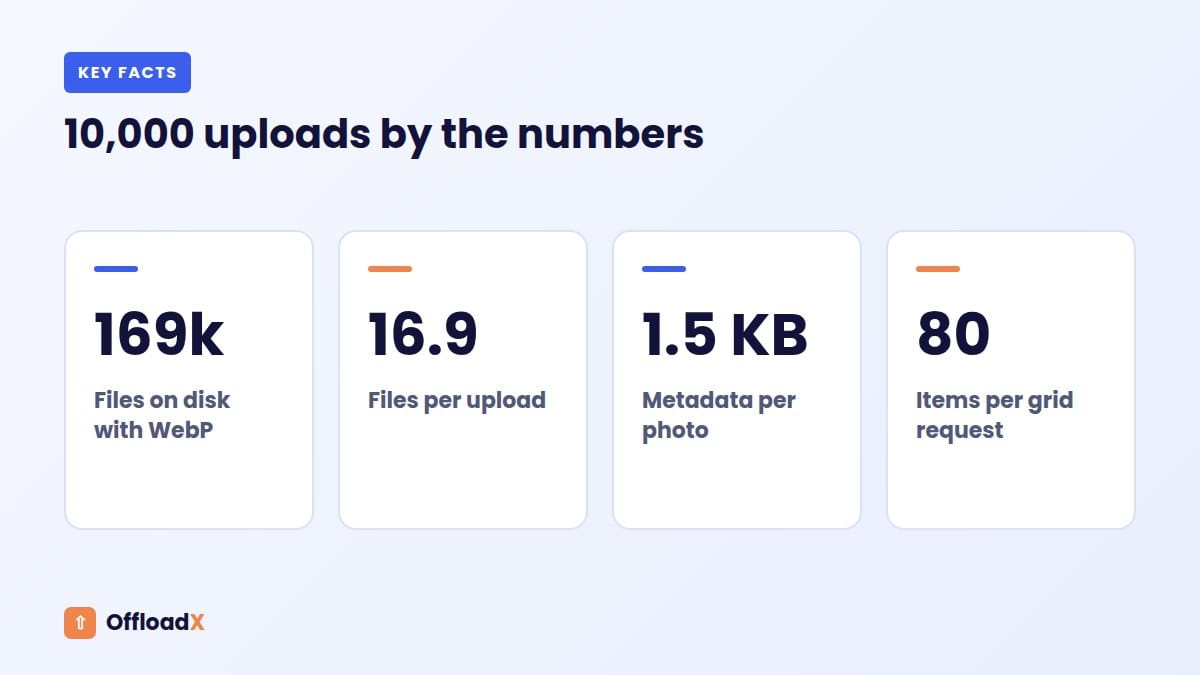
Finally, add an optimisation plugin that saves a WebP copy next to every image file. The 84,000 image files each gain a twin, which brings the library to 169,000 files on disk.
- Files per upload: about 8.5 with core and theme sizes, about 16.9 with WebP copies.
- Database rows: 10,000 in
wp_postsand at least 20,000 inwp_postmeta(the_wp_attached_fileand_wp_attachment_metadatakeys), before alt text and plugin meta. - Folders: about 65 year and month folders, each holding 1,000 to 3,000 files.
How big is the metadata? We built a representative _wp_attachment_metadata array for one photo with the six core sizes, its EXIF block and the original image name, and serialised it in PHP. It came to about 1.5 KB. Multiply that by 9,000 images and you have roughly 13 MB of serialised text, which is modest at this stage but grows in step with the library.
Key point: in this example 10,000 uploads became 169,000 files. A host that allows 100,000 or 200,000 files would already be close to, or past, its limit.
Scale Stages: 10k, 100k and 1M Attachments
Using the same ratios as the worked example, here is what each stage of a large WordPress media library looks like. Treat the numbers as estimates for planning; your own ratio depends on image sizes, formats and plugins.
| 10,000 attachments | 100,000 attachments | 1,000,000 attachments | |
|---|---|---|---|
| Files (core + theme sizes) | ~85,000 | ~850,000 | ~8.5 million |
| Files with WebP copies | ~169,000 | ~1.7 million | ~17 million |
| Core attachment meta rows | 20,000+ | 200,000+ | 2 million+ |
| Serialised metadata (≈1.5 KB/image) | ~13 MB | ~135 MB | ~1.3 GB |
| Typical first symptom | Shared-host file limits, slower backups | Slow grid and search, multi-hour backups | Database tuning, migrations measured in days |
| Where files should live | Server is fine; plan offload | Object storage strongly advised | Object storage plus a CDN, as a requirement |
| Database work | Clean orphans yearly | Review indexes, avoid meta_value searches | Dedicated database resources, index tuning, query monitoring |
How to work out your own ratio
- Count attachments:
wp post list --post_type=attachment --format=count. - Count files: run
find wp-content/uploads -type f | wc -lover SSH. - Divide files by attachments. That is your multiplier for every future planning sum.
If your multiplier is above 15, the quickest wins are usually in the image sizes and format copies covered later, not in hardware.
The Database Side: wp_posts and wp_postmeta
In a large WordPress media library, the database often hurts before the disk does. Every attachment is a row in wp_posts with post_type = 'attachment'. Its file path is stored in wp_postmeta under _wp_attached_file, and the list of generated sizes, dimensions and EXIF data lives in _wp_attachment_metadata as a serialised PHP array.
What the core indexes cover
The WordPress schema gives wp_postmeta a primary key on meta_id, an index on post_id and an index on the first 191 characters of meta_key. There is no index on meta_value, which is a longtext column.
- Fast: “give me all meta for attachment 12345”, because it uses the
post_idindex. - Slow: “find the attachment whose file is 2021/04/photo.jpg”, because it has to compare
meta_valueacross every_wp_attached_filerow. - Slowest:
LIKE '%photo%'searches on meta values, which cannot use an index at all.
That is why plugins that look up attachments by URL or filename feel fine on a small site and sluggish on a big one. WordPress itself stopped searching attachment filenames by default in version 6.0.3; the wp_allow_query_attachment_by_filename filter now defaults to false. Think twice before turning it back on for a large WordPress media library.
Better indexes
On sites with hundreds of thousands of meta rows, compound indexes help. The free Index WP MySQL For Speed plugin adds high-performance keys to wp_posts, wp_postmeta and other core tables, and it supports WP-CLI so the change can run without web time-outs. Take a database backup first and run it on staging before production.
Clean-up that is safe to do
- Orphaned meta: meta rows whose
post_idno longer exists inwp_posts. Find them with aLEFT JOINwhere the post ID is null, review the count, then delete. - Meta from removed plugins: old offload, optimisation or gallery plugins often leave a meta key on every attachment. Group by
meta_keyto spot them. - Unused attachments: rows and files nobody uses. Our guide to deleting unused media in WordPress covers how to do this without breaking pages.
Check table sizes before and after with wp db size --tables, so you can see whether a clean-up was worth the effort.
Why the Media Library Grid Slows Down
The grid view loads attachments over AJAX. In the WordPress JavaScript source, the attachment query defaults to 80 items per request, and each request runs a WP_Query for attachments plus the meta needed to build each thumbnail.
Infinite scrolling is back
WordPress 5.8 replaced infinite scrolling with a “Load more” button. According to the Make WordPress Core announcement, WordPress 7.1 turns infinite scrolling back on by default, with a per-user opt-out under Users → Profile. The media_library_infinite_scrolling filter still decides the final behaviour.
On a very large library, editors who scroll a long way trigger many requests in a row. If that strains your server, keep “Load more” for heavy users or set the filter site-wide.
Expensive queries you can switch off
| Filter | What it skips | Since |
|---|---|---|
media_library_months_with_files | The query that builds the month drop-down; the reference says it “can be expensive for large media libraries” | 4.7.4 |
media_library_show_video_playlist | The check for whether any videos exist (default true since 4.8, so the query no longer runs) | 4.7.4 |
media_library_show_audio_playlist | The same check for audio files | 4.7.4 |
Returning a fixed list of months from media_library_months_with_files is one of the simplest speed-ups for libraries in the hundreds of thousands. It is documented on the developer reference.
Inode Limits: The Hosting Wall Nobody Mentions
An inode is a file system entry. Every file and every folder uses one, regardless of size. SiteGround puts it plainly: a folder with thousands of small files can reach an inode limit “while barely using any disk space”.
Published limits from real hosts (as of October 2026)
| Host | What they publish | Source |
|---|---|---|
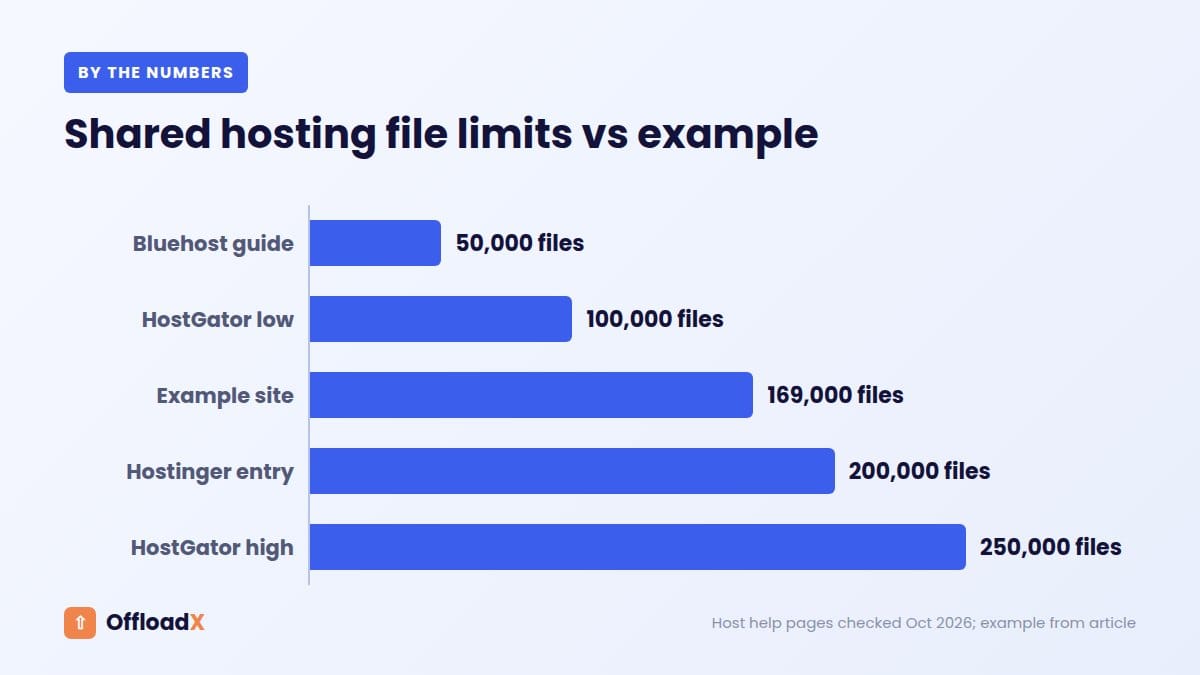
| Bluehost shared | 50,000 inodes for optimal performance; over 1,000,000 files breaches the terms | Bluehost help |
| HostGator shared | A 100k/250k inode limit on shared accounts | HostGator help |
| Hostinger | 200,000 to 600,000 on web hosting plans; 2 to 5 million on cloud plans; unlimited on VPS | Hostinger support |
| SiteGround shared | Limits on all shared plans, rising with the tier | SiteGround KB |
Compare those with the worked example. A large WordPress media library reaches these numbers sooner than most owners expect: 169,000 files from 10,000 uploads is past Bluehost’s 50,000 guideline and into HostGator’s range, before counting WordPress core, plugins, caches and email.
What happens when you hit the inode limit
- Hostinger says you cannot create new files or folders, even with free disk space.
- SiteGround lists exclusion from backups, failed uploads, email problems and site access issues.
- Some hosts treat it as an acceptable-use issue and may review or suspend the account.
Uploads failing with vague errors is often the first sign. If you see that, check inode usage in your control panel before debugging PHP. Our guide to a WordPress site running out of disk space covers the disk-quota side of the same problem.
Folder Structure and the Year/Month Setting
Settings → Media has a checkbox labelled “Organize my uploads into month- and year-based folders”. The Media Settings documentation explains that a file uploaded in June 2018 lands in wp-content/uploads/2018/06. Leave it ticked on any site that could become a large WordPress media library.
Why a flat uploads folder hurts
When you upload a file, wp_unique_filename() checks for name clashes. In current versions it also guards against collisions with sub-size file names, and to do that it reads the target folder with scandir() unless a plugin supplies the list through the pre_wp_unique_filename_file_list filter (added in 5.5).
- With monthly folders, that scan covers one month: a few thousand files.
- With a flat folder, it covers everything: 850,000 files at the 100k-attachment stage.
- File managers, FTP clients and some backup tools also struggle to list folders with hundreds of thousands of entries.
Can you change it later?
Switching the setting only affects new uploads. Existing files stay where they are, and their paths remain in _wp_attached_file. Moving old files into dated folders means rewriting every stored path and every URL in post content, which is a migration project in its own right. For most sites the better move is to leave old files alone and keep the setting on from now.
Key point: dated folders do not reduce the file count, but they keep each folder small enough that uploads, listings and tools stay quick.
Cut the Files Created per Upload
The cheapest file is the one WordPress never creates, and that matters most in a large WordPress media library. Because every size multiplies across the whole library, trimming one unused size on a 100,000-attachment site can remove up to 100,000 files.
Audit before you remove
- List registered sizes with
wp media image-size. - Match each one to a template, block or plugin that actually uses it.
- Remove unused ones from future uploads with the
intermediate_image_sizes_advancedfilter. - Decide whether to delete old files for removed sizes, or leave them.
Our image sizes guide has the safe code and the list of core sizes. At this scale, avoid regenerating the whole library in one go. WP-CLI’s wp media regenerate accepts specific attachment IDs, --only-missing and --image_size, so you can work in slices.
Format copies
Saving a WebP or AVIF twin next to every JPEG doubles the file count. If your optimisation plugin can convert on upload and serve only the modern format, or deliver formats through a CDN, you avoid storing two versions. Our comparison of WebP vs AVIF for WordPress helps you pick one format rather than both.
Backups and Restores at Scale
Backups slow down for two reasons: the size of the data and the number of files. Many small files are slower to copy, compress and upload than one large file of the same total size, because each one has its own read, metadata and transfer overhead.
| Library stage | What usually happens with full-site backups | Better approach |
|---|---|---|
| 10k attachments | Works, but archives get large | Exclude cache folders; keep media in backups |
| 100k attachments | Plugin backups time out or split into many parts | Back up media separately, or offload it |
| 1M attachments | Full restores take too long to be practical | Database-only backups plus versioned object storage |
Once media lives in object storage, your site backup can shrink to the database and code. You then protect the media with the storage provider’s own tools, such as versioning or bucket locks. We cover that model in detail in how to reduce WordPress backup size.
Moving a Large WordPress Media Library to Object Storage
Object storage such as Cloudflare R2, Amazon S3, Wasabi or Bunny Storage removes the inode problem entirely, because objects in a bucket are not files on your server’s file system. It also takes media out of server backups and puts it behind a CDN.
What scale changes in object storage
- Request charges matter. Uploading a million files means at least a million write requests.
- Listing is paged. Amazon’s ListObjectsV2 returns up to 1,000 keys per request, so checking 8.5 million objects needs about 8,500 list calls.
- Throughput is high. AWS documents at least 3,500 write and 5,500 read requests per second per prefix, with no limit on the number of prefixes, so
year/monthpaths spread the load naturally.
One-time upload cost at each stage (as of October 2026)
| Files to upload | Cloudflare R2 (Class A, $4.50/million, first 1M free each month) | Amazon S3 Standard (PUT, $0.005 per 1,000) |
|---|---|---|
| 85,000 | $0 (inside free tier) | $0.43 |
| 850,000 | $0 (inside free tier) | $4.25 |
| 8.5 million | About $33.75 if done in one month | $42.50 |
Prices are from Cloudflare R2 pricing and Amazon S3 pricing (US East). Uploads are cheap; ongoing storage and delivery matter more. R2 charges $0.015 per GB-month with free egress, while S3 Standard is $0.023 per GB-month plus $0.09 per GB transferred out after the first 100 GB. Our R2 vs S3 comparison and egress fees guide go deeper.
Where OffloadX fits
OffloadX offloads new uploads automatically and rewrites their URLs, on every plan including Free (which covers up to 100 files). For an existing large WordPress media library, the Starter plan and above add the bulk migrator, scheduled daily offload, the CDN safety checker and the database URL replacer. The Business plan adds parallel migration lanes and a background offload mode, which help when the job runs to hundreds of thousands of files, plus storage analytics to track growth. Setup for R2 is covered in our Cloudflare R2 offload guide.
Migrating in Batches Without Breaking the Site
Moving a large WordPress media library fails when it tries to do everything in one request, one evening or one step. Break it up so each stage can be checked and, if needed, paused.
A batch plan that scales
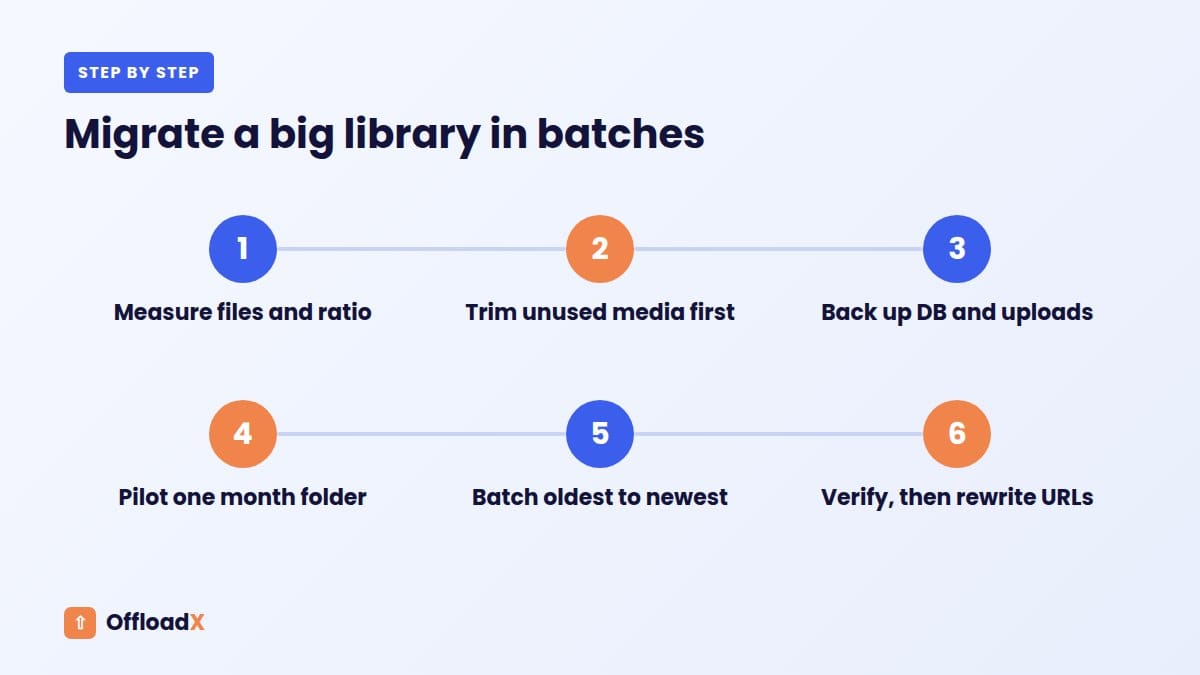
- Measure. Record attachments, files, total size and your files-per-upload ratio.
- Trim first. Remove unused attachments and unused sizes before moving anything. Every file you delete is one you do not upload, store or pay requests for.
- Back up. Take a full database backup and a copy of
wp-content/uploads. - Pilot. Offload one month folder and check pages, galleries, srcset and downloads.
- Batch by date. Work oldest to newest in month or year slices. Old content gets fewer visits, so any issue affects fewer readers.
- Run off-peak. Schedule batches overnight or in the background so editors and visitors are not competing with the migration for server resources.
- Verify each batch. Compare object counts in the bucket with file counts on disk for that slice.
- Rewrite URLs last. Update stored URLs in content once files are confirmed in the bucket.
- Keep local copies until you have run the site from the bucket for a few weeks.
How long will it take?
Speed depends on your server’s upload bandwidth, PHP limits and the number of parallel workers, so we will not promise a figure. A useful approach is to time your pilot batch, divide the files in that batch by the minutes it took, and use that rate to plan the rest. For a million-attachment site, expect days rather than hours, and plan for that in your editorial calendar.
Monitoring Checklist
A large WordPress media library is easier to manage when you watch a few numbers regularly. Run this checklist every quarter, or monthly on fast-growing sites.
| Metric | How to check | Warning sign |
|---|---|---|
| Attachment count | wp post list --post_type=attachment --format=count | Growth much faster than published posts |
| Files on disk | find wp-content/uploads -type f | wc -l | Above 80% of your host’s inode limit |
| Files per upload | Files ÷ attachments | Rising after a theme or plugin change |
| Table sizes | wp db size --tables | wp_postmeta growing faster than wp_posts |
| Grid load time | Browser dev tools, Network tab, admin-ajax.php requests | Each batch of 80 taking several seconds |
| Backup duration | Backup plugin or host logs | Approaching your host’s time-out |
| Bucket objects and size | Provider dashboard | Unexpected jumps after a bulk job |
Hostinger’s Resource Usage page starts showing advice at 80% of the inode or disk limit, which is a sensible threshold for your own alerts too.
Troubleshooting Common Problems
Uploads fail but disk space is free
Check inode usage first. If you are at the limit, delete caches and old backups stored on the server, then remove unused media or offload it.
The Media Library grid spins forever
Open the Network tab and look at the admin-ajax.php request with action=query-attachments. A PHP error or time-out there usually points to a plugin filtering the query. Disable media-related plugins one at a time on staging.
Regenerating thumbnails times out
Run WP-CLI in slices by attachment ID, or use --only-missing. If your media is offloaded, read our guide to regenerating thumbnails for offloaded media first.
Frequently Asked Questions
How many files can a WordPress media library hold?
WordPress has no fixed limit on attachments. The practical limits come from your host’s inode cap, disk quota, database performance and backup time. Sites with millions of attachments run fine when files live in object storage and the database is tuned.
When should I move a large WordPress media library to object storage?
Plan it once your file count passes about half of your host’s inode limit, or when backups start timing out. At 100,000 attachments and above, object storage is strongly advised on almost any host.
Does deleting image sizes break old posts?
It can, if a template or post still references a removed size. Stop generating unused sizes for new uploads first, check templates, and only then delete old files for those sizes.
Why is wp_postmeta bigger than wp_posts?
Each image stores at least two meta rows, including a serialised array of every generated size. Plugins often add more keys per attachment, and removed plugins can leave theirs behind.
Does offloading reduce database size?
Not by itself. Attachments remain in wp_posts and wp_postmeta after offloading. It reduces disk usage, file counts and backup size; database size falls only when you clean up unused attachments and orphaned meta.
Is infinite scrolling bad for big libraries?
Not inherently, since each request still loads 80 items. It does make it easy to fire many requests quickly. If editors scroll deep into a huge library, the “Load more” opt-out in their profile can ease server load.
How much does it cost to upload a million files to R2?
As of October 2026, R2 includes one million Class A operations free each month and charges $4.50 per million after that. A one-million-file upload spread across a month could cost little or nothing in requests, plus storage at $0.015 per GB-month.
Conclusion
A large WordPress media library grows faster on disk and in the database than the attachment count suggests, so measure your files-per-upload ratio, trim sizes and format copies, and keep dated folders on. Once you approach your host’s inode limit or backups start to struggle, move media to object storage in measured batches and monitor the numbers every quarter.
See OffloadX Plans →Sources: WordPress developer documentation and core source code, Make WordPress Core, Bluehost, HostGator, Hostinger and SiteGround help centres, Cloudflare R2 and Amazon S3 pricing and documentation. Prices and hosting limits checked October 2026 and may change. File counts in the worked example are estimates based on documented default WordPress behaviour.