
Offloading WordPress media is often sold as an instant speed boost. The truth is more useful: offloading can make a WordPress site noticeably faster, but only when it is paired with a CDN and a few correct settings. Done carelessly, it can even make your most important image load slower.
In this guide we look at what the 2025 HTTP Archive Web Almanac data says about images, Core Web Vitals and WordPress, explain exactly how offloading WordPress media affects load time, and give you a checklist that turns the move into a real performance win.
Table of Contents
- What the Data Says About Images and Speed
- Where WordPress Stands on Core Web Vitals
- How Offloading WordPress Media Affects Speed
- When Offloading WordPress Media Makes Sites Faster
- When It Can Make Things Slower
- Protecting Your LCP Image After Offloading
- The Fast Offload Checklist
- 5 Myths About Offloading WordPress Media
- A Typical Before-and-After
- How to Measure the Real Impact
- Benefits Beyond Page Speed
- Frequently Asked Questions
What the Data Says About Images and Speed
The HTTP Archive Web Almanac 2025 analyses millions of real web pages every year. Its findings on images explain why media handling matters so much for speed.
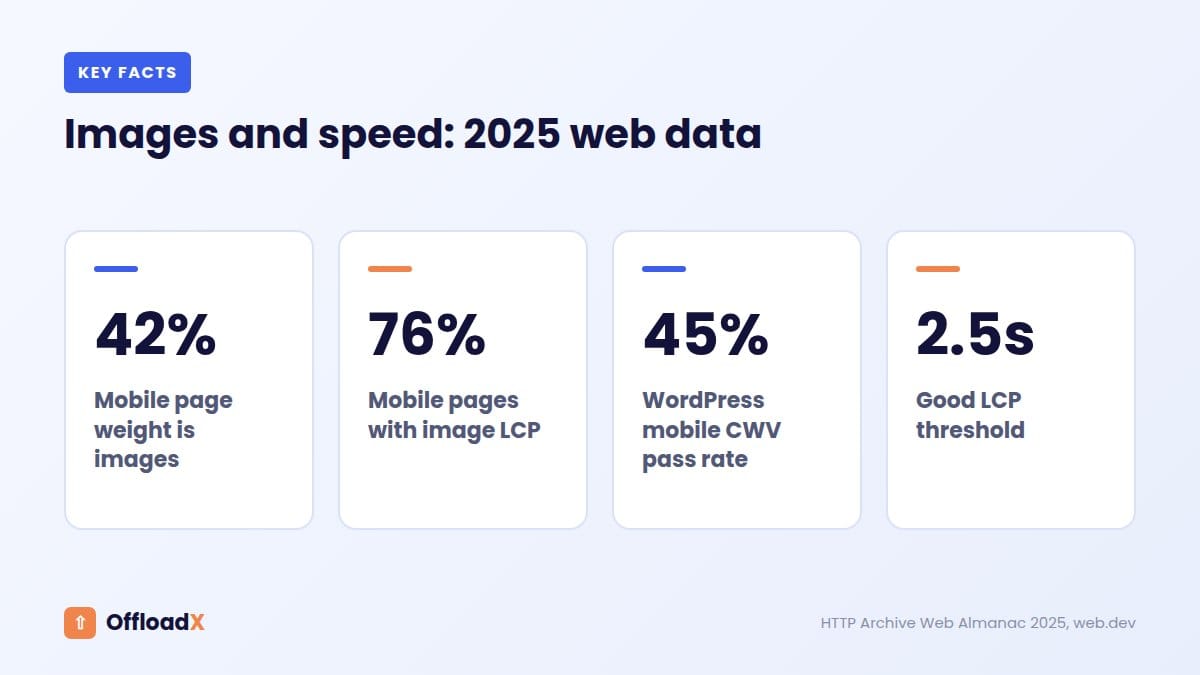
| Finding (2025) | Desktop | Mobile |
|---|---|---|
| Median page weight | 2,412 KB | 2,164 KB |
| Image bytes on the median page | 1,058 KB | 911 KB |
| Images’ share of page weight | About 44% | About 42% |
| Pages where the LCP element is an image | 85.3% | 76% |
| Pages with a good LCP | 74% | 62% |
Images are the single largest type of content on the web, ahead of JavaScript and fonts. And on most pages, the largest visible element is an image, which means image delivery directly controls Largest Contentful Paint (LCP), one of Google’s three Core Web Vitals.
A quick reminder about LCP
LCP measures how long the biggest visible element takes to appear. According to web.dev, a good LCP is 2.5 seconds or less and a poor one is over 4 seconds, measured at the 75th percentile of page loads. In other words, three out of four visits need to be fast, not just yours on office Wi-Fi.
Where WordPress Stands on Core Web Vitals
WordPress powers roughly 64% of CMS-driven sites, according to the Web Almanac CMS chapter. It is also one of the platforms that struggles most with Core Web Vitals.
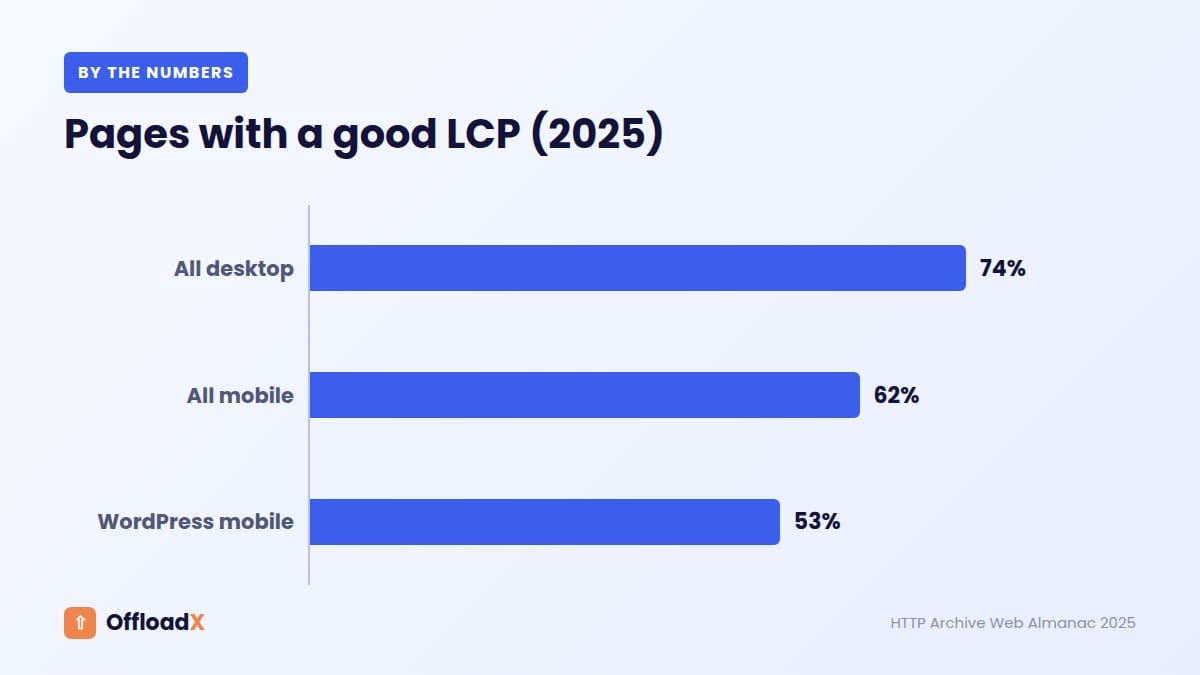
- 45% of WordPress sites pass all Core Web Vitals on mobile, one of the lowest rates among major CMSs.
- 53% of WordPress sites pass LCP on mobile.
Put those numbers next to the image data and the picture is clear. If nearly half of WordPress sites fail LCP on mobile, and the LCP element is usually an image, then how you store and deliver images is one of the biggest speed levers you have.
Key takeaway: For most WordPress sites, the slowest part of the page is an image. Speeding up image delivery is usually the fastest route to a better LCP.
How Offloading WordPress Media Affects Speed
Offloading WordPress media means moving files from your server’s disk to cloud object storage, such as Cloudflare R2, Amazon S3, Wasabi, Bunny Storage or DigitalOcean Spaces, and rewriting their URLs so visitors load them from there.
That change affects speed in four ways:
- Distance. With a CDN in front of the storage, images come from an edge server near the visitor rather than from your one hosting location.
- Server load. Your web server no longer handles dozens of image requests per page view, so it can respond faster to the HTML and scripts it still serves.
- New connections. Images now come from a different hostname, and the browser has to open a new connection to it. That costs time unless you plan for it.
- File size. Offloading moves bytes; it does not shrink them. A 900 KB image is still 900 KB in the cloud unless you compress or convert it.
The first two make your site faster. The third can slow it down. The fourth means offloading alone will not fix oversized images. The rest of this guide is about getting the first two while neutralising the other two.
When Offloading WordPress Media Makes Sites Faster
Your visitors are far from your server
If your host is in one country and your audience is spread across continents, every image travels a long way. A CDN-backed storage setup puts cached copies close to each visitor, cutting that distance dramatically.
You are on shared or small hosting
Budget hosting plans limit CPU, memory and simultaneous connections. A single article page can request 20 to 50 images. Moving those requests to cloud storage leaves your hosting resources for generating pages, which can improve Time to First Byte under load.
You have traffic spikes
A post that goes viral or a store sale can multiply image requests in minutes. Object storage and CDNs are built for that kind of load; a small server is not.
You combine it with image optimisation
The biggest wins come when offloading is combined with compression and modern formats such as WebP. OffloadX, for example, includes WebP, Cloudflare Images support and image compression from the Starter plan, so files are smaller as well as closer.
When It Can Make Things Slower
Offloading WordPress media is not automatically faster. These are the four situations where it can backfire.
| Situation | Why it is slower | Fix |
|---|---|---|
| Serving straight from a bucket with no CDN | Every visitor downloads from one storage region, possibly far away | Use your provider’s CDN or a custom domain behind a CDN. |
| New media hostname with no preconnect | The browser needs extra DNS, TCP and TLS steps before the first image | Add a preconnect hint for your media domain. |
| Short cache lifetimes | Repeat visitors re-download images they already have | Set long cache times; WordPress media rarely changes. |
| Lazy-loaded hero image | The browser delays the LCP image until layout is known | Never lazy-load the main above-the-fold image. |
The Web Almanac found that about 16% to 17% of pages lazy-load their LCP image, which is one of the most common and most avoidable LCP mistakes. It also found that 16% to 18% of pages already load their LCP image from a different origin, so cross-origin images are normal; they just need the right hints.
Protecting Your LCP Image After Offloading
Because the LCP element is so often an image, this is where offloading WordPress media wins or loses on Core Web Vitals.
1. Preconnect to your media domain
Add a preconnect hint in your page head so the browser opens the connection to your media hostname early:
<link rel="preconnect" href="https://media.yoursite.com" crossorigin>
Many performance plugins let you add this without editing theme files.
2. Give the hero image high priority
The fetchpriority="high" attribute tells the browser to download an image before other, less important ones. Since WordPress 6.3, core tries to add it automatically to the image it thinks is the LCP element. Check your page source to make sure your theme or page builder has not removed it. The Web Almanac found only about 16% to 17% of pages with an LCP image use it.
3. Do not lazy-load above the fold
Lazy-loading is excellent for images further down the page, but harmful for the first large image. Check that your main banner or featured image does not carry loading="lazy".
4. Serve the right size
WordPress generates multiple sizes of each image and uses srcset so phones can download smaller versions. Make sure your offload plugin moves all sizes and rewrites every srcset URL, not only the original file.
The Fast Offload Checklist
Use this checklist when offloading WordPress media, and your site should get faster, not slower.
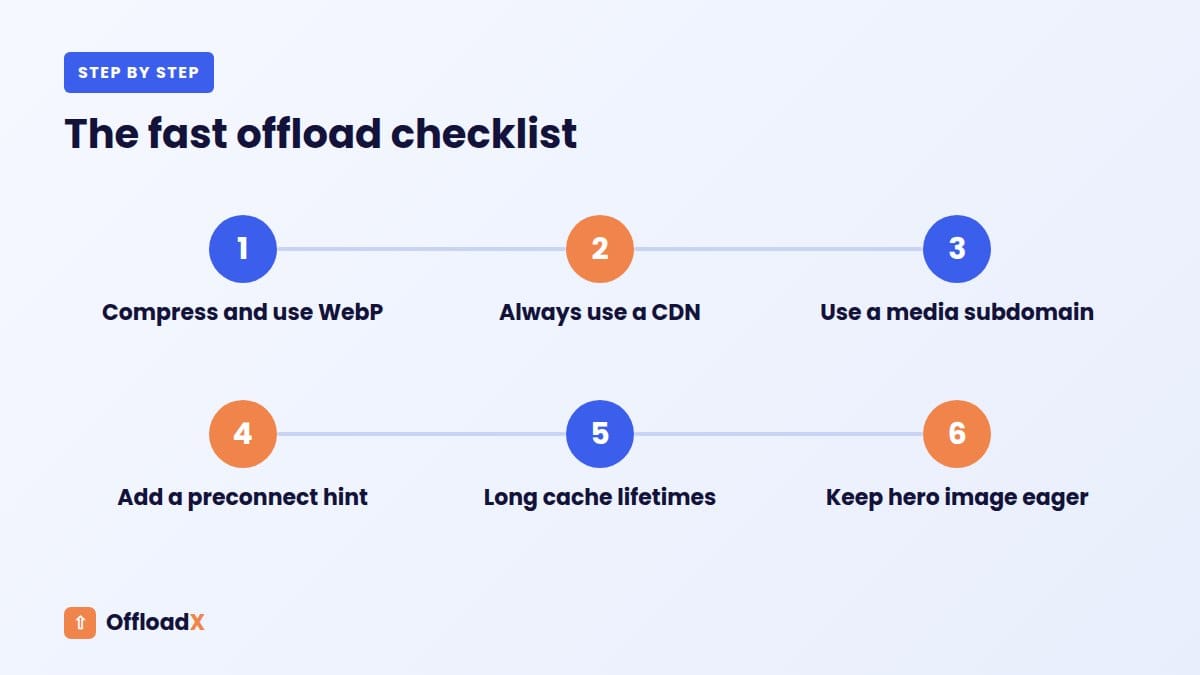
- Compress and convert first. Shrink images and use WebP before or during the offload.
- Always use a CDN. Cloudflare in front of R2, a Bunny pull zone, the DigitalOcean Spaces CDN or CloudFront in front of S3.
- Use your own media subdomain, such as media.yoursite.com. It keeps URLs stable if you ever change provider (see our custom domain guide).
- Add a preconnect hint for that subdomain.
- Set long cache lifetimes on the CDN.
- Keep fetchpriority on the hero image and never lazy-load it.
- Check every thumbnail size loads from the new domain, including srcset entries.
- Replace old URLs in the database so older posts benefit too.
- Purge your page cache after the switch.
Which storage provider is fastest?
With a CDN in front, the storage provider matters far less than the CDN and your settings. Choose on cost, features and where your visitors are. Our best cloud storage for WordPress guide compares prices, and Cloudflare R2 vs Amazon S3 looks at the two most popular choices in detail.
5 Myths About Offloading WordPress Media
Myth 1: “Offloading makes every page faster.”
Only image delivery changes. If your slowest element is a large script, a web font or a slow database query, offloading will not fix it. Check what your LCP element actually is in PageSpeed Insights before expecting a big jump.
Myth 2: “Cloud storage is automatically a CDN.”
A storage bucket lives in one region. Without a CDN, a visitor in Sydney loading images from a bucket in Virginia waits just as long as they would from a server in Virginia. Storage and CDN are separate layers, even when one company sells both.
Myth 3: “Offloading shrinks my images.”
Files are copied as they are. Compression, resizing and WebP conversion are separate steps, and they are where most page weight savings come from.
Myth 4: “A separate image domain hurts SEO.”
Google indexes images from other hostnames all the time; many large sites serve media from a dedicated domain. What matters is that URLs stay stable, pages keep correct alt text and image sitemaps point to the right addresses.
Myth 5: “If PageSpeed does not improve on day one, it did not work.”
Lab scores vary between runs, and the field data Google uses updates over 28 days. Compare several runs, and judge real-user results after a month.
A Typical Before-and-After
Consider a common setup: a WordPress blog on shared hosting in Europe, with half its readers in North America and Asia. Each article has a large featured image and a dozen images in the body.
- Before: every image is served from the European server. Visitors in Asia wait for each request to cross continents, and during busy hours the shared server slows down under image requests.
- After offloading WordPress media to R2 behind Cloudflare, with WebP enabled: readers load images from nearby edge servers, the images are smaller, and the shared server only builds pages.
The size of the improvement depends on your audience, hosting and images, which is why measuring your own pages matters more than any headline figure. The direction, though, is predictable: shorter distances, smaller files and a less busy server all push LCP down.
How to Measure the Real Impact
Measure before and after, using the same pages and tools.
Before offloading
- Run PageSpeed Insights on your homepage, a popular article and, for stores, a product page. Save the LCP and total page weight.
- Note the “field data” section if it appears. That is real-user data from Chrome, measured at the 75th percentile.
- Record your server’s disk use and average response time if your host shows them.
After offloading
- Run the same tests on the same pages. Lab results update immediately.
- Field data is based on the previous 28 days, so give it about four weeks to reflect the change fully.
- In the network panel of your browser’s developer tools, confirm images load from your CDN domain and show cache hits on repeat visits.
What good results look like
| Metric | What to expect with a good setup |
|---|---|
| LCP | Lower, especially for visitors far from your server |
| Page weight | Lower only if you also compressed or converted images |
| Server response time | Steadier under load, since images no longer hit your server |
| Disk usage | Much lower once local copies are removed |
A note on mobile visitors
Mobile is where the gains matter most. The Web Almanac found good LCP on 62% of mobile pages against 74% on desktop, and mobile visitors are more likely to be on slower, higher-latency connections. Every extra connection, oversized image or distant server costs more on a phone. When you test, always check the mobile results first; that is also the version Google uses for indexing.
Benefits Beyond Page Speed
Even where speed gains are modest, offloading WordPress media pays off in other ways:
- Disk space: media is usually the biggest part of a WordPress install. Moving it off the server can solve storage limits for good. See our guide on fixing a WordPress site running out of disk space.
- Smaller, faster backups: backups without gigabytes of uploads finish quickly and restore faster.
- Easier migrations: moving to a new host means moving code and a database, not years of images.
- Cheaper hosting: you may be able to stay on, or move down to, a smaller hosting plan.
Frequently Asked Questions
Does offloading WordPress media improve page speed?
Usually, when you serve files through a CDN and keep the right settings. Offloading to a bucket with no CDN can be slower for distant visitors.
Will offloading media improve my Core Web Vitals?
It can improve LCP, because the LCP element is an image on 76% of mobile pages. Preconnect to your media domain and keep the hero image at high priority to get the benefit.
Does offloading reduce page weight?
Not by itself. It moves files, it does not shrink them. Combine it with compression and WebP to reduce the bytes visitors download.
Is a CDN plugin enough without offloading?
A CDN alone speeds up delivery but keeps files on your server, so it does not free disk space or shrink backups. Offloading with a CDN does both.
Can offloading hurt SEO?
Not when done properly. Keep image URLs stable with a custom domain, replace old URLs in the database and check that images still load. Faster LCP can help, as Core Web Vitals are part of Google’s page experience signals.
How long until I see results?
Lab tests like PageSpeed Insights show changes immediately. Real-user field data takes about 28 days to fully update.
Do I need to remove local copies to see a speed gain?
No. Speed comes from serving files from the CDN. Removing local copies frees disk space and shrinks backups, which is a separate benefit.
Which offload provider gives the best speed?
With a CDN in front, differences between providers are small. Choose on cost and features, then focus on CDN settings, image size and LCP hints, which have a much bigger effect.
Does offloading help with Time to First Byte?
Indirectly. Your server handles fewer requests, which can keep response times steadier during busy periods, especially on shared hosting.
Conclusion
Offloading WordPress media is one of the most effective speed upgrades for image-heavy sites, but only with a CDN, compressed images and a protected LCP image. Follow the checklist, measure before and after, and you will get faster pages, a lighter server and smaller backups.
See OffloadX Plans →Statistics from the HTTP Archive Web Almanac 2025 (Page Weight, Performance and CMS chapters) and web.dev, checked September 2026.