
If your backups take hours, fail halfway or fill your remote storage, you can almost always reduce WordPress backup size without backing up any less of what matters. Most oversized backups are carrying things that never needed to be there: old backup archives, cache files, log files and years of database clutter, plus a media library that could live somewhere safer.
This guide shows you how to find out what is actually inside your backups, what to exclude in UpdraftPlus, Duplicator and All-in-One WP Migration, how to clean the database, how offloading media changes the picture, and how to protect the files you move to the cloud. It ends with a worked example and a restore test, because a small backup is only useful if it restores.
Table of Contents
- Why WordPress Backups Balloon
- Measure Before You Cut
- Files and Folders You Can Safely Exclude
- Shrink the Database
- How to Exclude Folders in Popular Backup Plugins
- Offload Media to Reduce WordPress Backup Size
- Backing Up the Bucket Separately
- A Before and After Example
- Test Your Restores
- Common Problems and Fixes
- Frequently Asked Questions
Why WordPress Backups Balloon
A WordPress backup has two parts: the files (mostly wp-content) and the database. Either can grow far beyond what the site needs to run.
The usual suspects
| Culprit | Where it lives | Why it grows |
|---|---|---|
| Media uploads | wp-content/uploads | Every image plus several thumbnail sizes, PDFs, audio and video |
| Old backups | Folders such as wp-content/updraft or wp-content/ai1wm-backups | Local archives kept on the server, then backed up again by the next run |
| Cache files | Often wp-content/cache | Page and minified asset caches that are rebuilt automatically |
| Log files | wp-content/debug.log and plugin log folders | Debug logs left switched on for months |
| Post revisions | Database | WordPress keeps every saved revision unless you limit it |
| Transients | Database options table | Expired temporary data that is not always cleaned up promptly |
| Spam and trash | Database | Spam comments and trashed posts waiting to be emptied |
The backup-inside-a-backup problem
The worst case is a backup plugin storing its archives inside wp-content, and another tool (or the host) backing up that folder. Each new backup then contains every previous backup. Size grows with every run, not with the site.
All-in-One WP Migration, for example, stores its backups in wp-content/ai1wm-backups, according to the ServMask user guide. If a second backup tool includes that folder, you are paying to store the same data twice.
Key point: the uploads folder is usually the largest single part of a WordPress backup, and old backup archives are usually the most wasteful. Tackle those two first.
Measure Before You Cut
Guessing leads to excluding the wrong things. Spend ten minutes measuring and you will know exactly where the space goes.
Measure the files over SSH
du -sh wp-content/* | sort -hranks the top-level folders inwp-contentby size.du -sh wp-content/uploads/* | sort -hshows which years of uploads are largest.find wp-content -name "*.zip" -size +50Mfinds large archives hiding in plugin folders.find wp-content -name "*.log" -size +10Mfinds oversized log files.
Measure the database with WP-CLI
wp db size --human-readableshows the total database size.wp db size --tableslists each table, so you can spot a bloated options, postmeta or plugin log table.
Both commands are documented in the WP-CLI db size reference. No SSH? Most hosts show folder sizes in their file manager, and phpMyAdmin shows table sizes.
Write it down
| Item | Size today | Needed in backup? | Action |
|---|---|---|---|
| uploads | … | Yes, somewhere | Offload or keep |
| Backup archive folders | … | No | Exclude and move off-server |
| cache | … | No | Exclude |
| Logs | … | No | Exclude, rotate or delete |
| Database | … | Yes | Clean, then keep |
Files and Folders You Can Safely Exclude
Anything WordPress or a plugin can rebuild automatically does not belong in a backup. Anything you cannot recreate does.
Usually safe to exclude
- Other backup archives: folders such as
updraft,ai1wm-backupsor any folder of.zip,.wpressor.tararchives. - Cache folders: page caches and minified CSS and JavaScript, typically under
wp-content/cache. - Log files:
debug.logand plugin log folders. WordPress writes the debug log towp-content/debug.logby default whenWP_DEBUG_LOGis on, per the WordPress debugging guide. - Upgrade leftovers: the
wp-content/upgradefolder holds temporary files during updates. - Development folders:
node_modulesor.gitfolders accidentally deployed inside a theme.
Never exclude
- The database.
wp-config.php, if your tool backs up the site root.- Custom themes and child themes you have edited.
- Must-use plugins in
wp-content/mu-plugins. - Media uploads, unless they are already stored and protected somewhere else.
Probably exclude, with care
Premium plugins and themes can be downloaded again, but only if your licence is active and you know the exact version. If you exclude them to save space, keep a list of versions and licence keys with your backups.
Shrink the Database
The database is usually smaller than the uploads folder, but it is backed up more often, so every megabyte counts. Clean it before you tune your backup plugin.
Limit post revisions
WordPress keeps revisions indefinitely by default. The wp-config.php documentation shows how to cap them:
define( 'WP_POST_REVISIONS', 3 );keeps only the last three revisions of each post.define( 'WP_POST_REVISIONS', false );turns revisions off entirely (not usually recommended).
This only limits future revisions. Existing ones stay until you delete them with a database cleanup plugin or WP-CLI.
With WP-CLI, wp post list --post_type=revision --format=count tells you how many revisions you have. If the number is large and you have a fresh backup, wp post delete $(wp post list --post_type=revision --format=ids) --force removes them in one go. Run it on staging first on a big site, because a very long list of IDs can be slow.
Clear expired transients
Transients are temporary cached values, stored in the options table unless an object cache is in use. The Transients API documentation notes they can be removed at any time, so deleting them is safe. With WP-CLI, wp transient delete --expired removes expired ones.
Empty spam and trash
- Delete spam comments in bulk from the Comments screen.
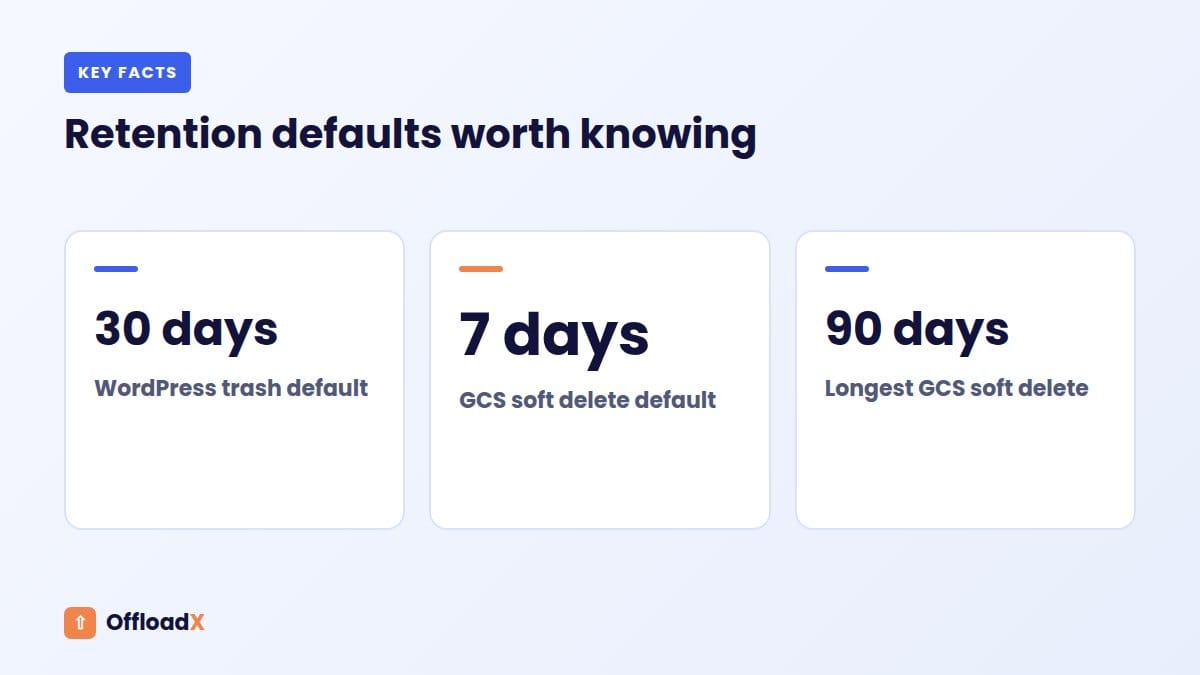
- WordPress empties trash after 30 days by default, set by
EMPTY_TRASH_DAYS. A shorter value keeps the database leaner.
Check plugin tables
Security, analytics, redirect and form plugins often keep logs in their own tables. wp db size --tables will show them. Many have a setting to limit how long logs are kept; use it rather than deleting tables by hand.
Key point: always take a backup before cleaning the database, and test the site afterwards. Cleanup tools delete data permanently.
How to Exclude Folders in Popular Backup Plugins
Each backup plugin handles exclusions differently. These are the options documented by the vendors, checked September 2026.
UpdraftPlus
In UpdraftPlus settings, the Include in files backup section lets you untick whole groups, such as plugins, themes, uploads or other folders in wp-content. Each group has an exclusion box, and the UpdraftPlus exclusion FAQ documents these rules:
- Separate entries with commas and no spaces.
- Use a wildcard at the start or end, for example
backup*. - Exclude by extension with
ext:mp4,ext:zip, or by filename prefix withprefix:abc. - Place an empty file named
.donotbackupin any folder to exclude it and its subfolders. - Developers can use the
updraftplus_exclude_directoryandupdraftplus_exclude_filefilters.
UpdraftPlus also lets you set how many backups to retain, so old archives are deleted automatically. Excluding a database table is possible too, but through a filter in a must-use plugin rather than a settings screen.
Duplicator
Duplicator Pro has file filters under Backups, Add New, then Filters. Its data migration guide says you can enter full folder paths, separated by semicolons, and suggests excluding large media to reduce backup size. It also recommends database-only backups on a frequent schedule alongside less frequent full backups.
All-in-One WP Migration
The export screen’s advanced options include Do not export spam comments, Do not export post revisions and Do not export media library. The ServMask guide notes that skipping spam and revisions should not affect a migration, while skipping the media library leads to an incomplete one unless media is stored elsewhere.
| Plugin | Exclude uploads | Exclude by pattern or extension | Skip revisions or spam |
|---|---|---|---|
| UpdraftPlus | Untick Uploads | Wildcards, ext:, prefix:, .donotbackup | Via database cleanup, not the backup |
| Duplicator Pro | Folder path filter | Folder paths and file filters | Not covered in the guide cited |
| All-in-One WP Migration | Do not export media library | Do not include the selected files | Yes, export options |
Offload Media to Reduce WordPress Backup Size
Excluding caches and old archives trims the fat. Offloading media removes the biggest piece altogether, because your images and files move to object storage and no longer sit in wp-content/uploads.
How offloading changes your backups
| Without offloading | With offloading and local copies removed |
|---|---|
| Every backup copies the whole media library | Backups contain the database, themes and plugins |
| Backups grow with every upload | Backups grow slowly, with content and settings |
| Large archives time out on shared hosting | Smaller archives finish faster |
| Remote backup storage fills quickly | Remote storage lasts much longer |
A plugin such as OffloadX uploads new media automatically and rewrites URLs, and on Starter and above its bulk migrator moves your existing library. It works with Cloudflare R2, Amazon S3, Wasabi, Google Cloud, DigitalOcean Spaces, Bunny Storage and other S3-compatible services. Our guide to offloading WordPress media to Cloudflare R2 shows a full setup.
Order matters
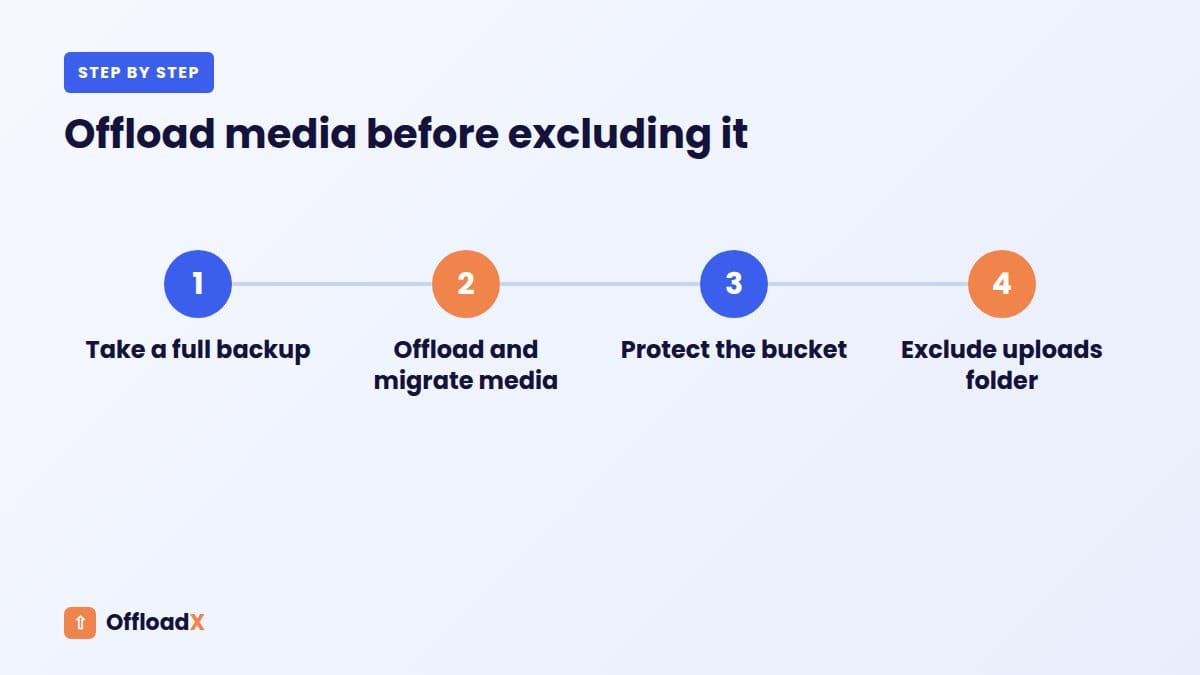
- Take a full backup, including uploads, and keep it safely off-server.
- Offload and migrate media, then check the site thoroughly.
- Set up protection for the bucket (see the next section).
- Only then remove local media copies and exclude uploads from future backups.
Offloading also frees disk space and helps page speed when paired with a CDN. See how offloading media affects speed for the performance side.
Backing Up the Bucket Separately
Once media lives in a bucket, the bucket is your media backup’s source of truth. Cloud providers store data redundantly, but redundancy does not protect you from deleting or overwriting files by mistake. You still need a recovery plan.
Provider features that help
| Provider | Feature | What it does |
|---|---|---|
| Amazon S3 | Versioning | Keeps previous versions when objects are overwritten; deletes add a delete marker instead of removing data |
| Amazon S3 | Replication | Copies new objects to another bucket; both buckets must have versioning enabled |
| Google Cloud Storage | Soft delete | On by default with 7-day retention, configurable from 7 to 90 days |
| Google Cloud Storage | Object Versioning | Keeps noncurrent versions until lifecycle rules remove them |
| Cloudflare R2 | Bucket locks | Prevents deletion and overwriting for a set period or indefinitely |
Sources: S3 Versioning, S3 replication requirements, GCS soft delete and R2 bucket locks.
Which of these features you get depends on where the media lives, so it is worth weighing them when you pick a provider. Our Cloudflare R2 vs Amazon S3 comparison covers the wider trade-offs.
Watch the costs
- AWS says every stored version is billed as a full object, not a diff.
- Google says soft-deleted objects keep accruing storage charges until their retention ends.
- S3 live replication does not copy objects that existed before you set it up; AWS offers Batch Replication for those.
- Add lifecycle rules so old versions expire instead of piling up.
An independent copy
For the strongest protection, copy the bucket to a second provider or account that your WordPress credentials cannot touch. A scheduled rclone copy job does this well. Be careful with rclone sync: the rclone documentation warns it deletes destination files missing from the source, and recommends testing with --dry-run first.
Key point: a copy that the same access key can delete is not a real backup. Keep at least one copy out of reach of the keys stored in WordPress.
A Before and After Example
Here is an illustrative example for a typical content site. The sizes are hypothetical, but the pattern is one you will recognise when you measure your own site.
| Component | Before | After cleanup | After offloading |
|---|---|---|---|
| uploads | 18 GB | 18 GB | 0 GB (in bucket) |
| Old backup archives in wp-content | 9 GB | 0 GB | 0 GB |
| Cache folders | 1.2 GB | 0 GB | 0 GB |
| Logs | 0.8 GB | 0 GB | 0 GB |
| Themes and plugins | 0.6 GB | 0.6 GB | 0.6 GB |
| Database | 1.4 GB | 0.5 GB | 0.5 GB |
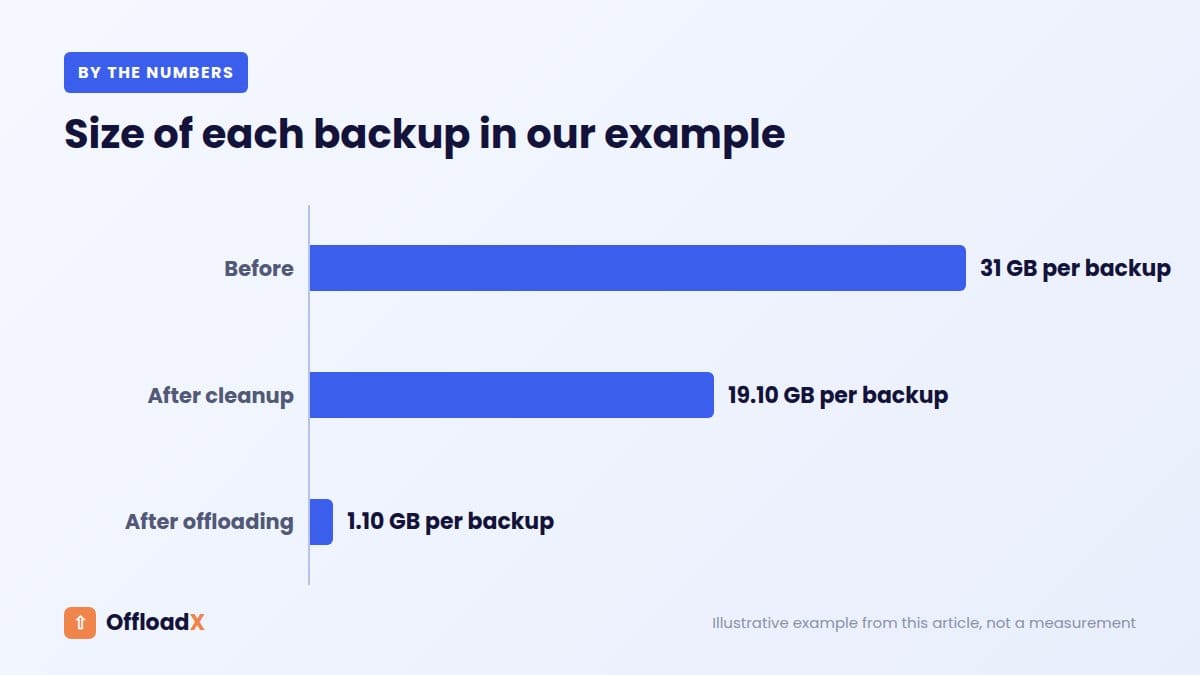
| Total per backup | 31 GB | 19.1 GB | 1.1 GB |
What changed at each stage
- Cleanup removed old archives, caches and logs from the backup, and trimmed revisions, transients and spam from the database. That cut about 12 GB.
- Offloading moved 18 GB of media into a versioned bucket with its own protection. Each daily backup dropped to about 1 GB.
- With 30 daily backups retained, remote backup storage fell from about 930 GB to about 33 GB in this example.
The media still has protection, but it happens once in the bucket rather than being copied into every daily archive.
Test Your Restores
A backup you have never restored is a hope, not a plan. After changing exclusions, test a restore, because it is easy to exclude something important by accident.
Restore test checklist
- Create a staging site or local copy that is not publicly indexed.
- Restore the latest backup using your plugin’s normal restore process.
- Log in, check the dashboard, and visit the home page, a post, a page and a product if you run a shop.
- Confirm images load from the bucket or CDN URLs.
- Check forms, menus and widgets.
- Restore one file from the bucket’s versioning, soft delete or copy to prove that path works too.
- Record how long the restore took.
How often to test
- After any change to exclusions or backup settings.
- After moving media to cloud storage.
- At least every few months on important sites.
Common Problems and Fixes
| Problem | Likely cause | Fix |
|---|---|---|
| Backup keeps growing every run | Old backups stored in wp-content are included | Exclude backup folders and move archives off-server |
| Backup times out on shared hosting | Uploads folder too large for PHP limits | Offload media, or split into database and files schedules |
| Restored site has no images | Uploads excluded without media stored elsewhere | Keep uploads in backups until media is offloaded and protected |
| Database backup still large after cleanup | Plugin log tables or autoloaded options | Check wp db size --tables and reduce plugin log retention |
| Exclusions ignored in UpdraftPlus | Spaces between entries | Use commas only, with no spaces |
| Remote storage bill rising | Too many backups retained, or versions never expire | Set retention in the plugin and lifecycle rules on the bucket |
If disk space is the real emergency, our guide to a WordPress site running out of disk space covers quick wins.
Frequently Asked Questions
What is the fastest way to reduce WordPress backup size?
Remove old backup archives from wp-content and exclude cache and log folders. That often cuts size immediately without any risk to your content.
Is it safe to exclude the uploads folder?
Only if your media is stored and protected somewhere else, such as an offloaded bucket with versioning or an independent copy. Otherwise, uploads must stay in your backups.
Why is my WordPress backup bigger than my site?
Usually because the backup includes earlier backup archives stored on the server, or large cache and log folders. Measure wp-content folder by folder to find the cause.
Does deleting post revisions make backups smaller?
Yes, a little, because revisions live in the database. Limit future revisions with WP_POST_REVISIONS and clean existing ones with a database tool, after taking a backup.
Can UpdraftPlus exclude specific file types?
Yes. Its documentation shows the ext: syntax, such as ext:mp4,ext:zip, and a UPDRAFTPLUS_EXCLUDE_EXTENSIONS constant for wp-config.php.
How do I back up offloaded media?
Use your provider’s versioning, soft delete, replication or bucket locks, and ideally keep a scheduled copy in a second account or provider that WordPress credentials cannot reach.
Should the database be backed up more often than files?
Usually, yes. Posts, orders and comments change daily, while themes and plugins change rarely. Duplicator’s guide suggests frequent database-only backups alongside less frequent full backups, which also keeps each run small.
How often should I test a restore?
After any change to what you back up, and at least every few months on important sites. Include one test of restoring a file from the bucket.
Related Guides
Conclusion
To reduce WordPress backup size, measure first, exclude what can be rebuilt, clean the database, and move media into protected object storage. Then prove it works with a restore test, so your smaller backups are also reliable ones.
See OffloadX Plans →Backup plugin options and cloud provider features are based on vendor documentation checked September 2026. The before and after figures are an illustrative example, not measurements from a specific site.