
If you want to delete unused media in WordPress before moving your library to the cloud, you are making a smart choice: every file you remove is one less file to back up, upload, store and pay for. The hard part is knowing which files are really unused, because WordPress itself does not track where most images appear.
This guide explains why cleaning up before offloading pays off, why “unused” is so difficult to detect on sites with page builders and custom fields, and what the Media Library’s “Unattached” filter actually means. We look at Media Cleaner and its caveats, manual checks, WP-CLI commands, orphaned thumbnails, and a worked example of how much storage a clean-up can save.
Table of Contents
- Why Clean Up Before You Offload
- Why “Unused” Is Hard to Detect
- Back Up Before You Delete Anything
- The “Unattached” Filter and Its Caveats
- Tools to Delete Unused Media in WordPress
- Manual Checks Before Deleting
- A Safe Clean-Up Process
- WP-CLI Approaches
- Orphaned Thumbnails and Files on Disk
- How Much Storage Will You Save?
- Frequently Asked Questions
Why Clean Up Before You Offload
Offloading copies every file in your library to a bucket such as Cloudflare R2 or Amazon S3. If a third of those files are old drafts, duplicates and images from a theme you stopped using years ago, you pay to move and store them all.
Cleaning up first has practical benefits that go beyond the storage bill:
- Faster migration: a bulk offload of 20,000 files takes longer than one of 12,000. Fewer files means fewer API requests and fewer chances for a timeout.
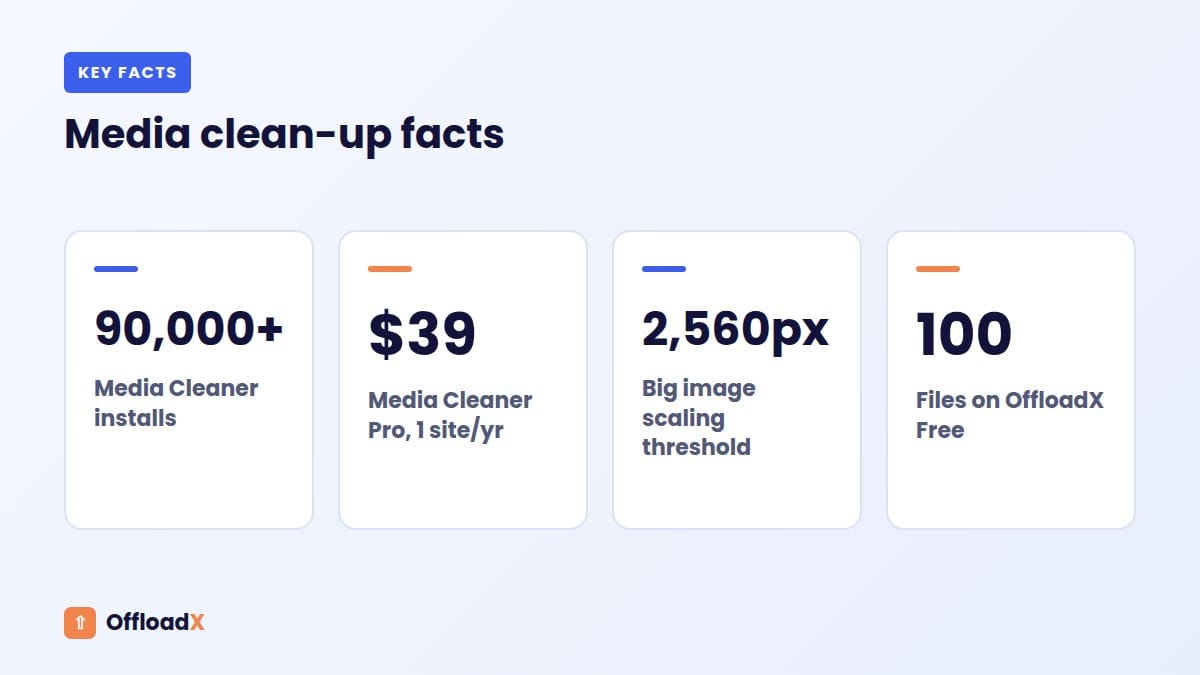
- Plan limits: some plugins limit how many files you can offload. OffloadX Free, for example, covers up to 100 files; paid plans are unlimited.
- Smaller backups: a smaller uploads folder makes every backup quicker and cheaper.
- Cleaner bucket: deleting files after offloading means cleaning in two places. Check how your offload plugin handles deletions before relying on it to remove bucket copies.
- Less disk pressure: if your host’s disk is nearly full, removing unused media buys time. Our guide to a WordPress site running out of disk space covers other causes too.
Key point: Cleaning before offloading means you clean once, in one place. Cleaning afterwards means dealing with the server, the database and the bucket.
Why “Unused” Is Hard to Detect
WordPress stores each upload as an attachment post, but it does not keep a list of every place an image is used. An image can be referenced in many ways, and a simple search of post content will miss several of them.
| Where an image is used | How it is stored | Easy to detect? |
|---|---|---|
| Classic or block editor content | URL and wp-image-ID class in post_content | Yes |
| Featured image | _thumbnail_id post meta | Yes |
| Page builders (Elementor, Divi, WPBakery and others) | Builder-specific data, often JSON or shortcodes in meta or content | Only with builder support |
| Custom fields (for example ACF image fields) | Attachment ID in post meta | Only if the tool reads that field |
| Theme options and Customizer (logo, header, background) | Options table | Sometimes |
| Widgets and menus | Options table | Sometimes |
| CSS files (theme, builder or custom CSS) | url() values in files or options | Rarely |
| WooCommerce product galleries | List of attachment IDs in product meta | Only with WooCommerce support |
| Emails, newsletters and other websites | Outside WordPress entirely | No |
Custom fields
Advanced Custom Fields is a common example. Its Image field documentation explains that the field can return an image array, a URL or an ID, but what is saved is the attachment ID. A tool that looks for image URLs in content will not see it, and may flag that image as unused.
Page builders and CSS
Page builders often store images in their own formats, and many write background images into generated CSS files. An image used only as a section background can look completely unused to a tool that does not understand the builder.
External links
Newsletters, social posts, PDFs and other sites may link straight to your media URLs. No plugin can see those. If you delete the file, those links break. Think carefully before deleting images you have shared publicly, such as infographics or press kit files.
Back Up Before You Delete Anything
Deleting media is one of the few WordPress jobs that cannot be undone from the dashboard. WordPress’s wp_delete_attachment() reference explains that a forced delete removes the database records and the files from the filesystem, along with the attachment’s metadata.
What your backup must include
- The full database, since attachment records and metadata live there.
- The whole
wp-content/uploadsfolder, including all year and month folders. - A copy stored away from the server, such as cloud storage or your computer.
- A tested restore: open the backup and confirm files are actually inside it.
Media Cleaner’s own tutorial makes the same point, telling users to back up both the database and the uploads directory before cleaning. Keep that backup for at least a few weeks, because a missing image on a rarely visited page may not be noticed straight away.
Consider a media trash
By default, deleting media in WordPress skips the trash. The same developer reference notes that without a forced delete, an attachment goes to the trash when trash for media is enabled. That is controlled by the MEDIA_TRASH constant, which you can set to true in wp-config.php to add a safety net during clean-up.
The “Unattached” Filter and Its Caveats
The Media Library’s list view has a filter that many people use to find unused files. WordPress’s Media Library Screen documentation describes it as showing media “Unattached to any Posts nor Pages”, and explains that the “Uploaded to” column shows the post or page the media belongs to.
The catch is what “attached” means. An attachment is linked to the post it was first uploaded to. That link says nothing about where the image is used today.
| Situation | Shown as | Actually used? |
|---|---|---|
| Uploaded straight to Media → Add New, then inserted in a post | Unattached | Yes |
| Uploaded while editing Post A, later used in Post B | Attached to Post A | Yes, in Post B |
| Uploaded to a post, then removed from its content | Attached | No |
| Site logo uploaded through the Customizer | Often unattached | Yes |
| Image used only in a page builder background | Depends on how it was uploaded | Yes |
Key point: “Unattached” does not mean unused, and “attached” does not mean used. Never bulk-delete everything in the Unattached view.
The filter is still useful as a starting point. It narrows the list of candidates, which you can then check one by one or with a scanning tool.
Tools to Delete Unused Media in WordPress
Several plugins scan for unused media. The best known is Media Cleaner by Jordy Meow, so we look at it in detail. Whatever tool you choose, the same caveats apply.
Media Cleaner
Media Cleaner on WordPress.org has more than 90,000 active installations (checked September 2026). It works in three phases: scan, move flagged items to its own trash, then clean up permanently once you confirm.
| Feature | Free | Pro |
|---|---|---|
| Media Library scan | Yes | Yes |
| Internal trash with restore | Yes | Yes |
| Ignore list for false positives | Yes | Yes |
| Filesystem scan of the uploads folder | No | Yes |
| Advanced support for builders and plugins such as ACF, Elementor, Divi and WPBakery | Limited | Yes |
| Live site scan | No | Yes |
| WP-CLI support | No | Yes |
According to the Media Cleaner Pro page, yearly licences cost $39 for 1 site, $69 for 5 sites and $119 for 20 sites, with lifetime options from $299 (prices checked September 2026).
Media Cleaner caveats
- It is not one-click: its tutorial describes it as an advanced tool that needs knowledge of how WordPress works.
- Parser support matters: the tutorial warns that builders and gallery plugins with their own storage formats cause false positives unless Media Cleaner has a parser for them. Check its list of supported plugins before your first clean-up.
- Trash still uses space: files moved to its trash still take up space until you empty it.
- Library and filesystem are different jobs: the free Library scan checks Media Library entries; only Pro scans the uploads folder for files the library does not know about.
- Test before emptying the trash: browse the site, especially pages built with a builder, before making deletions permanent.
Choosing an approach
| Approach | Best for | Main risk |
|---|---|---|
| Manual review in the Media Library | Small libraries, a few hundred files | Slow; easy to miss builder usage |
| Media Cleaner (free) | Block editor sites with few plugins | False positives from unsupported plugins |
| Media Cleaner Pro | Builder sites and large libraries | Still needs careful review |
| WP-CLI scripts | Developers who can check the logic | Deletes exactly what you tell it to |
Manual Checks Before Deleting
Whatever the scan says, spot-check a sample of flagged files before you delete unused media in WordPress for good. Ten minutes of checks can prevent a broken home page.
Quick checks for any flagged image
- Search the file name: copy the file name without the extension and search for it in the database with a
wp search-replacedry run or a database search tool. - Check key templates: header, footer, logo, favicon (Site Icon), 404 page and any popups.
- Check builder pages: open a few important builder pages and look for backgrounds and sliders.
- Check custom fields: team members, testimonials, portfolio items and other custom post types often use ACF or similar fields.
- Check WooCommerce: product gallery images and variation images.
- Check publicly shared files: PDFs, infographics and press images linked from outside the site.
Files you should usually keep
- The site logo and Site Icon.
- Original images that have a
-scaledversion (see below). - Legal documents, downloadable guides and anything linked in emails.
- Images used in old but still-visited blog posts.
A Safe Clean-Up Process
This is the order we suggest to delete unused media in WordPress without breaking the site.
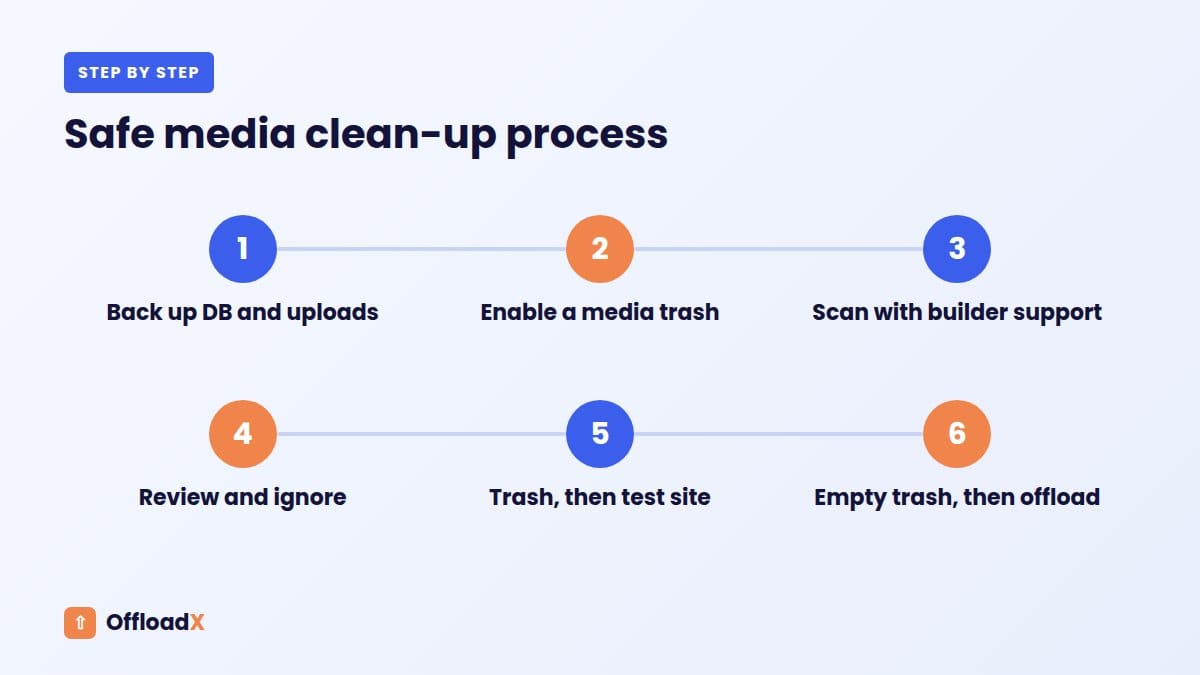
- Back up the database and uploads folder, and store the copy off the server.
- Work on staging if your host offers it.
- Enable a media trash with
MEDIA_TRASH, or use a tool with its own trash. - Scan with a tool that supports your builder and plugins.
- Review the results and add false positives to the ignore list.
- Move to trash rather than deleting permanently.
- Test the site in a private window for a few days.
- Empty the trash once you are confident, then offload the clean library.
Once the library is clean, offloading is the natural next step. Our guides to offloading WordPress media to Cloudflare R2 and offloading to Amazon S3 walk through the setup.
WP-CLI Approaches
WP-CLI is a useful way to delete unused media in WordPress at scale, but only with care. It does not decide what is unused; it only does what you tell it. Use it to gather data and act on lists you have already checked.
| Command | What it does |
|---|---|
wp post list --post_type=attachment --format=count | Counts all attachments |
wp post list --post_type=attachment --post_parent=0 --format=ids | Lists IDs of unattached media (candidates, not proof) |
wp post list --post_type=attachment --post_mime_type=application/pdf --fields=ID,post_title,guid | Lists PDFs for review |
wp media image-size | Lists image sizes registered by WordPress, your theme and plugins |
wp post delete 123 456 --force | Permanently deletes the listed attachments and their files |
wp db export before-cleanup.sql | Exports the database before you delete anything |
The wp post list documentation confirms that --post_parent and other WP_Query arguments can be passed as filters, and that --format=ids and --format=count are supported.
A cautious workflow
- Export the list of candidate IDs to a file.
- Check each ID against content, meta and options, or with a scanning tool.
- Remove any ID you are unsure about from the list.
- Export the database.
- Delete the checked IDs in small batches, testing the site between batches.
Key point: Never pipe the output of--post_parent=0straight intowp post delete --force. That deletes every unattached file, including many that are in use.
Orphaned Thumbnails and Files on Disk
Not all waste shows up in the Media Library. Two kinds of “hidden” files often take up more space than unused attachments.
Thumbnails for sizes you no longer use
WordPress creates resized copies for every registered image size when you upload. If you change themes or remove plugins, the files for their sizes remain on disk. Run wp media image-size to see what is registered now.
The wp media regenerate documentation says the command deletes the old thumbnails by default when it regenerates, and offers --skip-delete to keep them if they are linked from sources outside your control. Regenerating on a site with many images takes time, so test on staging first.
Files with no library entry
Failed uploads, FTP uploads and deleted plugins can leave files in the uploads folder that WordPress knows nothing about. The Media Library cannot show them. A filesystem scan, such as the one in Media Cleaner Pro, compares the folder with the library to find them.
Do not delete original images behind -scaled files
Since WordPress 5.3, images larger than 2,560 pixels get a scaled copy with a -scaled suffix, while the original is kept, as described in the WordPress 5.3 big image announcement. The original is not a duplicate. WordPress uses it, for example when generating new sizes, and it can be found with wp_get_original_image_path().
| Hidden file type | How to find it | Safe to delete? |
|---|---|---|
| Thumbnails for unregistered sizes | Compare file suffixes with wp media image-size | Usually, after checking nothing links to them directly |
| Files with no library entry | Filesystem scan | Often, after review |
Original behind a -scaled file | Same name without -scaled | No |
| Plugin folders inside uploads | Folder names such as elementor or woocommerce_uploads | No, unless the plugin is removed and you know what they hold |
How Much Storage Will You Save?
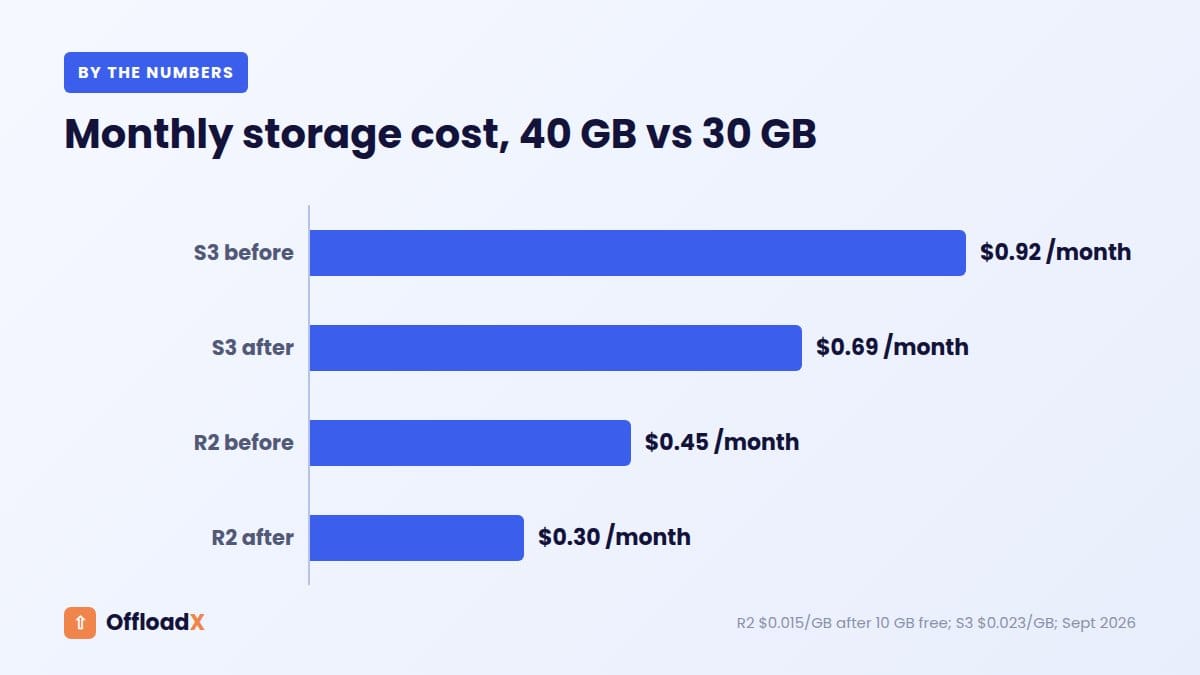
Here is a worked example. A site has a 40 GB uploads folder. After a careful scan, 6 GB of unused attachments and 4 GB of thumbnails for old theme sizes are removed, leaving 30 GB.
| Library | Size | Cloudflare R2 ($0.015/GB-month) | Amazon S3 Standard ($0.023/GB-month) |
|---|---|---|---|
| Before clean-up | 40 GB | $0.45 (after 10 GB free) | $0.92 |
| After clean-up | 30 GB | $0.30 (after 10 GB free) | $0.69 |
| Monthly saving | 10 GB | $0.15 | $0.23 |
Prices come from the Cloudflare R2 and Amazon S3 pricing pages, checked September 2026; the S3 figure uses the US East rate for the first 50 TB.
The real savings are elsewhere
The storage bill barely moves. The bigger wins are a 25% smaller migration, 25% smaller backups, fewer files counted against any plan limit, and more free disk space on your host. For a comparison of provider costs at larger scale, see our Cloudflare R2 vs Amazon S3 guide.
Frequently Asked Questions
What is the safest way to delete unused media in WordPress?
Back up the database and uploads folder, scan with a tool that supports your builder and plugins, move flagged files to a trash, test the site for a few days, then delete permanently.
Can I delete everything in the Unattached filter?
No. Unattached only means the file was not uploaded to a specific post. Many unattached images are used in content, logos or builder layouts.
Does WordPress have a trash for media?
Not by default. Setting the MEDIA_TRASH constant to true in wp-config.php enables one, so deleted media goes to the trash first.
Is Media Cleaner safe?
It includes a trash and an ignore list, which make it safer than deleting directly. Its own docs warn about false positives with unsupported builders and recommend a backup first.
Will deleting media remove it from my cloud bucket?
That depends on your offload plugin’s settings. Cleaning up before you offload avoids the question, because the unused files never reach the bucket.
Should I delete old thumbnail sizes?
Files for sizes your theme no longer uses are usually safe to remove after a backup, unless something outside the site links to them. wp media regenerate removes old thumbnails by default.
Can I delete the original of a -scaled image?
No. WordPress keeps the original on purpose and uses it, for example to create new image sizes.
Conclusion
Taking time to delete unused media in WordPress before you offload leaves you with a smaller, cleaner library that is quicker to migrate and back up. Back up first, treat “Unattached” as a hint rather than proof, use a scanner that understands your builder, and test before anything is deleted for good.
See OffloadX Plans →Sources: WordPress.org documentation and developer reference, WP-CLI documentation, the WordPress 5.3 big image announcement, Media Cleaner’s WordPress.org page, tutorial and Pro pricing, ACF documentation, and Cloudflare R2 and Amazon S3 pricing, all checked September 2026.