
If you want to offload WordPress media to Wasabi, the pitch is easy to like: flat pricing per terabyte, no egress fees and no API request fees. For a site with a large media library, that can be the cheapest way to get images, PDFs and videos off your hosting plan. But Wasabi has three rules that most setup guides skip, and one of them decides whether your images will load at all.
This guide explains how to offload WordPress media to Wasabi step by step, what Wasabi really costs for a WordPress site, why new Wasabi accounts cannot simply make a bucket public, and how to serve your files through a CDN so the setup stays fast and inside Wasabi’s free egress policy.
Table of Contents
- Why Offload WordPress Media to Wasabi?
- 3 Wasabi Rules Every WordPress Site Should Know
- The Public Access Catch (Accounts After March 2023)
- What Wasabi Costs for WordPress vs R2 and S3
- Who Should Offload WordPress Media to Wasabi?
- How to Offload WordPress Media to Wasabi, Step by Step
- Serving Wasabi Files Through a CDN
- Moving Your Existing Media Library
- Testing Checklist After the Move
- Common Wasabi WordPress Problems and Fixes
- Frequently Asked Questions
Why Offload WordPress Media to Wasabi?
Every image you upload to WordPress is stored several times. WordPress core creates a set of resized copies for each image, and themes, page builders and WooCommerce usually add more. A library of 5,000 uploads can easily turn into 30,000 or more files on disk.
That growth is what fills hosting plans, slows down backups and makes site migrations painful. Moving the media to object storage fixes all three. Your server keeps the WordPress code and database, and the files live in a bucket built to hold millions of objects.
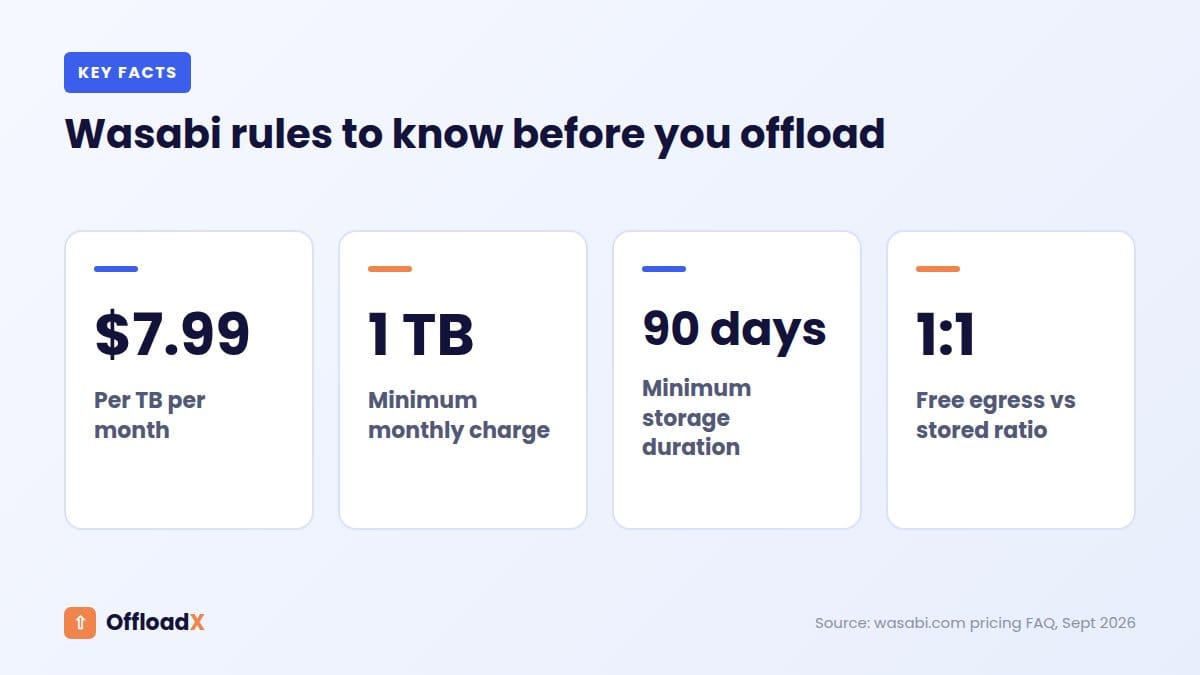
Wasabi stands out among object storage providers for one reason: its pricing is simple. According to Wasabi’s pricing page, pay-as-you-go storage starts at $7.99 per TB per month, with no fees for egress or API requests. There are no separate charges for downloads, list requests or uploads.
Compare that with Amazon S3, where storage, requests and data transfer are all billed separately. For a site that stores a lot and serves a lot, Wasabi’s model is much easier to predict.
What moves to Wasabi and what stays on your server
- Moves to Wasabi: images and all their resized versions, PDFs, audio, video and other files in the Media Library.
- Stays on your server: WordPress core, themes, plugins and the database. Your posts still live in WordPress; only the file URLs change.
3 Wasabi Rules Every WordPress Site Should Know
Wasabi’s low price comes with conditions. None of them are hidden, but they sit in the pricing FAQ rather than on the main page. Before you offload WordPress media to Wasabi, check each one against your site.
Rule 1: There is a 1 TB minimum monthly charge
Wasabi’s pay-as-you-go model has a minimum monthly charge equal to 1 TB of active storage. If your Media Library is 40 GB, you still pay for 1 TB. For small sites, this single rule makes Wasabi more expensive than Cloudflare R2 or even Amazon S3.
Rule 2: Files are billed for at least 90 days
On pay-as-you-go, Wasabi applies a 90-day minimum storage duration. If you delete a file before it is 90 days old, Wasabi adds a “Timed Deleted Storage” charge for the remaining days.
For most WordPress sites this is a small cost. It matters if you regenerate thumbnails often, run test migrations and wipe the bucket, or upload and delete large video files regularly.
Rule 3: Free egress has a fair-use ratio
Wasabi’s free egress policy fits your use case if your monthly egress is less than or equal to your active storage. In plain terms: if you store 1 TB, you should serve about 1 TB or less per month directly from Wasabi.
A busy blog with 200 GB of images that serves 2 TB a month would break that ratio. The fix is to put a CDN in front of Wasabi. The CDN caches your files, so most visitors never touch Wasabi at all, and your egress stays low. We cover that setup below.
Quick rule of thumb: Wasabi works best for WordPress sites that store a lot (hundreds of gigabytes or more) and serve their files through a CDN.
The Public Access Catch (Accounts After March 2023)
This is the rule that breaks most Wasabi WordPress setups, and very few guides mention it.
WordPress media needs to be publicly readable, because every visitor’s browser downloads your images directly. With Amazon S3, you do that with a bucket policy. With Wasabi, it depends on when your account was created.
According to Wasabi’s documentation, trial accounts and accounts created after March 13, 2023 cannot enable public access using the Console or CLI. Wasabi recommends other methods, such as presigned URLs, and asks customers who need public buckets to contact support.
So if you sign up for Wasabi today, create a bucket and paste a public-read policy, your images will still return “Access Denied”. It is not a plugin problem, and no plugin setting can fix it.
You have two working options
- Put a CDN in front of a private bucket (recommended). The CDN signs its requests to Wasabi with your keys, and the bucket stays private. Wasabi documents this setup for BunnyCDN and for Amazon CloudFront. Visitors only ever see the CDN address.
- Ask Wasabi Support to enable public access. This can work, but it depends on their review and still leaves every visitor downloading straight from Wasabi, which pushes you towards the egress ratio above.
Option 1 is better on every count: it is faster for visitors, it keeps egress low, and your bucket is never exposed to the whole internet.
What Wasabi Costs for WordPress vs R2 and S3
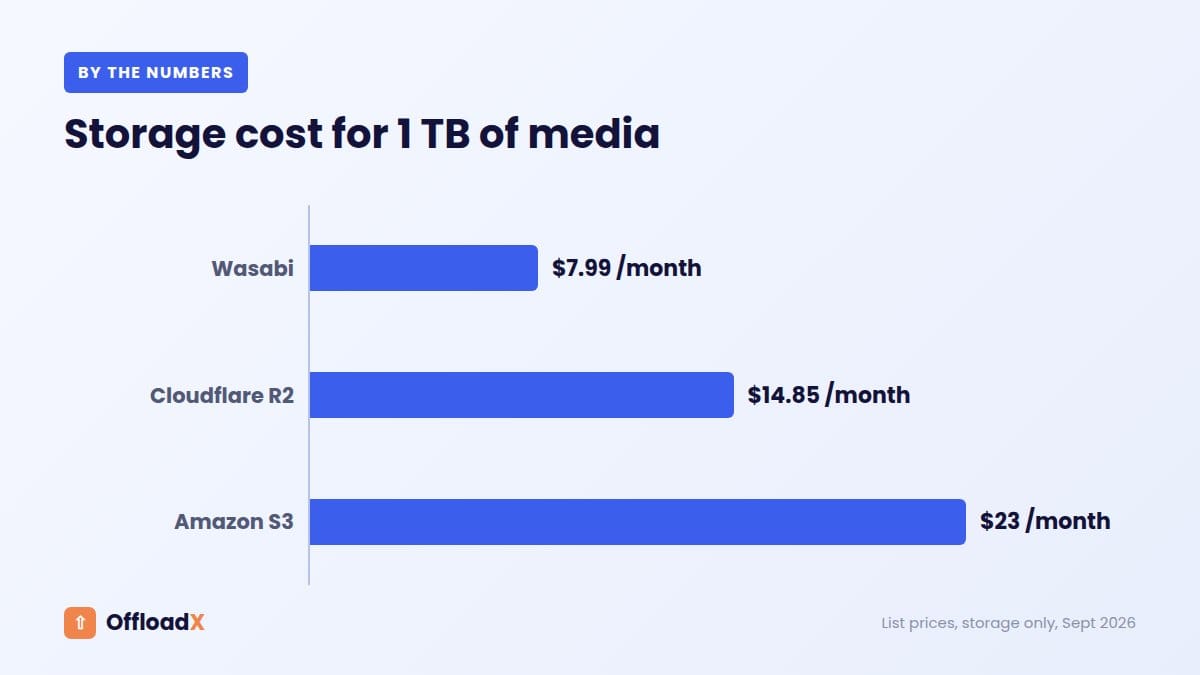
Here is what storage alone costs at list prices checked in September 2026. We treat 1 TB as 1,000 GB for simple maths. Cloudflare R2 charges $0.015 per GB-month with 10 GB free and no egress fees (R2 pricing). Amazon S3 Standard in us-east-1 is about $0.023 per GB-month, plus data transfer.
| Media stored | Wasabi | Cloudflare R2 | Amazon S3 (storage only) |
|---|---|---|---|
| 50 GB | $7.99 (1 TB minimum) | $0.60 | $1.15 |
| 250 GB | $7.99 (1 TB minimum) | $3.60 | $5.75 |
| 1 TB | $7.99 | $14.85 | $23.00 |
| 5 TB | $39.95 | $74.85 | $115.00 |
| 10 TB | $79.90 | $149.85 | $230.00 |
Two things stand out. Below about 500 GB, Wasabi’s minimum charge makes it the most expensive choice. Above 1 TB, it is roughly half the price of R2 and a third of S3 storage.
Amazon S3 also bills data transfer: the first 100 GB per month is free across AWS, then roughly $0.09 per GB for the first 10 TB. Serving 1 TB a month straight from S3 adds about $81. Neither Wasabi nor R2 charges for that. For a fuller comparison of providers, see our guide to the best cloud storage for WordPress.
Do not forget the CDN cost
If you follow the recommended setup and serve Wasabi files through a CDN, add the CDN’s bandwidth price. BunnyCDN’s standard network, for example, starts at $0.01 per GB in Europe and North America (Bunny CDN pricing). A site serving 500 GB a month in those regions would pay about $5 for delivery.
Who Should Offload WordPress Media to Wasabi?
Wasabi is an excellent fit for some WordPress sites and a poor one for others. Use this table to decide quickly.
| Your site | Good fit for Wasabi? | Why |
|---|---|---|
| Small blog or business site under 250 GB | No | The 1 TB minimum costs more than R2 or S3. |
| Photography, portfolio or stock site with 1 TB+ | Yes | Large libraries get the best per-TB price. |
| Video or podcast hosting on WordPress | Yes, with a CDN | Big files, but the CDN keeps egress inside the ratio. |
| Agency storing many client sites in one account | Often yes | Combined storage clears the 1 TB minimum easily. |
| Site that deletes and re-uploads files constantly | Be careful | The 90-day minimum adds charges for early deletions. |
If your library is small, offloading to Cloudflare R2 is usually the better value, and you can move to Wasabi later when the library grows.
How to Offload WordPress Media to Wasabi, Step by Step
These steps use OffloadX, which supports Wasabi on every plan, including the free one. The same Wasabi-side steps apply to any S3-compatible plugin.
Step 1: Create a Wasabi bucket
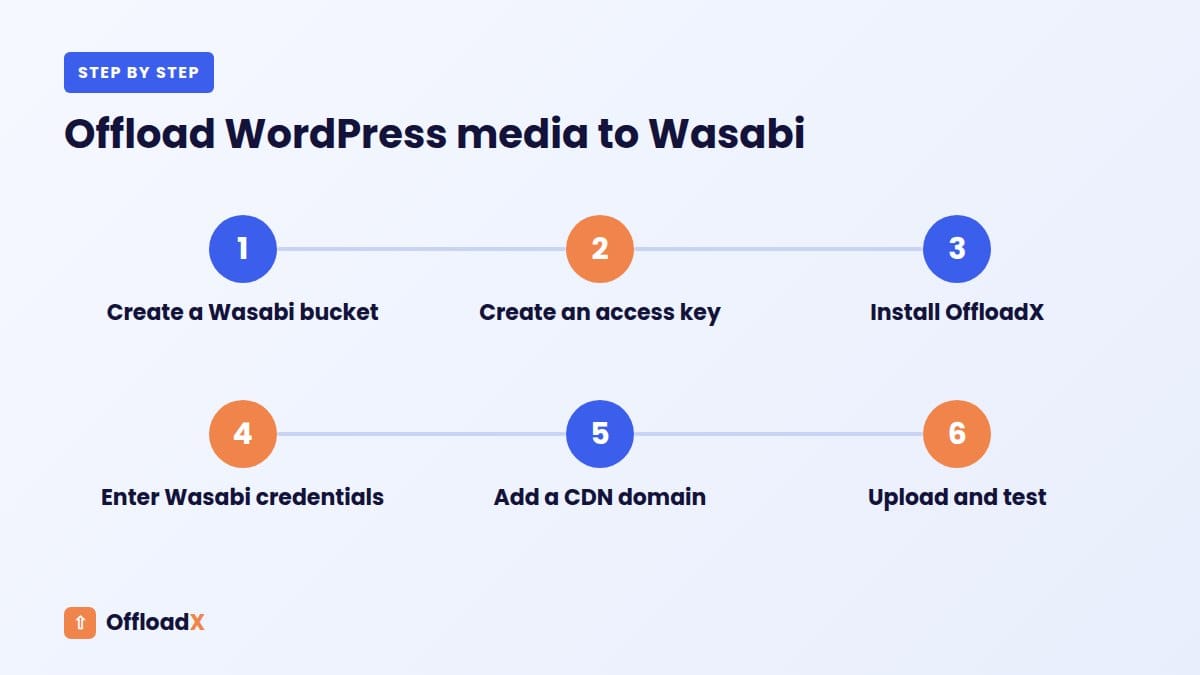
Sign in to the Wasabi console at console.wasabisys.com and create a bucket. Pick a region close to most of your visitors or your server, for example us-east-1, eu-central-1 or ap-southeast-1. Write down the exact bucket name and region, because both must match in your plugin settings.
Step 2: Create an access key
In the Wasabi console, create an access key and save the Access Key ID and Secret Access Key. The secret is shown only once. For better security, create a dedicated user whose policy only allows access to this one bucket.
Step 3: Install OffloadX
Download OffloadX from offloadx.com, then go to Plugins → Add New → Upload Plugin in WordPress, upload the ZIP file and activate it.
Step 4: Enter your Wasabi credentials
Open the OffloadX Credentials screen, choose Wasabi as the provider and fill in:
- Bucket Name: exactly as created.
- Region: the bucket’s region, such as
us-east-1. - Access Key ID and Secret Access Key.
- Custom CDN Domain: your CDN hostname, if you are using one (see the next section).
Run the built-in connection tester. It confirms that the plugin can reach the bucket and write to it before you move a single file.
Step 5: Turn on automatic offloading
In Behaviour, enable offloading for new uploads. From now on, every file you upload goes to Wasabi automatically, and OffloadX rewrites its URL so pages load it from Wasabi or your CDN.
Step 6: Upload a test image
Upload one image, insert it in a draft post and preview it. Right-click the image and open it in a new tab. The address should show your CDN domain (or the Wasabi endpoint). If it loads, your setup works.
Serving Wasabi Files Through a CDN
Because of the public access rule and the egress ratio, a CDN is not an optional extra with Wasabi. It is the part that makes the setup work. Here is the approach Wasabi documents for BunnyCDN.
- Create a pull zone in your Bunny dashboard.
- Set the origin URL to your Wasabi bucket endpoint.
- Turn on S3 authentication and enter your Wasabi access key, secret key and bucket region. This lets the CDN read from a private bucket.
- Optionally add your own hostname, such as
media.yoursite.com, and enable its free SSL certificate. - Enter that hostname as the Custom CDN Domain in OffloadX.
Visitors now load images from the CDN edge closest to them. The CDN fetches each file from Wasabi once, caches it, and serves every following request from its cache. That keeps your Wasabi egress far below your stored volume.
Using your own subdomain has another benefit: if you ever switch storage providers, your image URLs do not have to change. We explain the idea in more detail in our custom domain guide.
Moving Your Existing Media Library
New uploads are only half the job. Most sites also want to move years of existing media. On OffloadX paid plans, the Bulk Migration tool uploads your whole library in the background and the URL Replace tool updates links saved in your database.
Before you start
- Take a full backup of files and database.
- Optimise images first. Compressing before you upload means you never store or serve the heavier versions.
- Run it once. Remember the 90-day rule: uploading the whole library, deleting it and uploading it again means paying for both copies for three months.
How long it takes
Speed depends mainly on your host’s upload bandwidth and the number of files. Small sites finish in minutes. Libraries with tens of thousands of files can take a few hours. Let the migration run in the background and keep local copies until you have checked the site.
Testing Checklist After the Move
- Open your homepage, a few recent posts and one old post, and confirm every image loads.
- Check image addresses use your CDN domain rather than your old /wp-content/uploads/ path.
- Test responsive images on a phone, since each screen size may load a different thumbnail.
- Open a PDF and play any audio or video files.
- Log out, or use a private window, so you see the site as visitors do.
- Run your homepage through PageSpeed Insights and compare it with a pre-migration result.
- After a week, check the Wasabi dashboard to confirm egress is well below your stored volume.
Common Wasabi WordPress Problems and Fixes
| Problem | Likely cause | Fix |
|---|---|---|
| Images show “Access Denied” | New accounts cannot make buckets public | Serve through a CDN with S3 authentication, or ask Wasabi Support. |
| Connection test fails | Region does not match the bucket | Copy the exact region code from the Wasabi console. |
| “Signature does not match” | Wrong or incomplete secret key | Create a new key pair and paste it again with no spaces. |
| Bill higher than expected | 1 TB minimum or 90-day deletions | Check storage vs minimum, and avoid repeated test uploads. |
| Old images still load from your server | Database URLs not replaced | Run URL Replace after bulk migration, then clear page cache. |
| New images slow for the first visitor | CDN cache is empty | Normal: the first request fills the cache; later ones are fast. |
For more general troubleshooting, many of the fixes in our R2 error guide apply to Wasabi too, since both use the S3 API.
Frequently Asked Questions
Is Wasabi good for WordPress?
Yes, for sites with large media libraries. It has flat per-TB pricing and no egress or API fees. For small sites, the 1 TB minimum charge makes Cloudflare R2 cheaper.
Can I offload WordPress media to Wasabi for free?
The plugin side can be free: the OffloadX Free plan supports Wasabi for up to 100 files. Wasabi itself is a paid service with a minimum monthly charge equal to 1 TB of storage, after any trial.
Why do my Wasabi images return “Access Denied”?
Accounts created after March 13, 2023 cannot enable public access from the Console or CLI. Serve files through a CDN that authenticates to your bucket, or contact Wasabi Support.
Does Wasabi really have no egress fees?
There is no per-GB egress fee, but the free egress policy expects monthly egress to be no more than your stored volume. A CDN in front of Wasabi keeps most sites well inside that.
Can I switch from Amazon S3 to Wasabi later?
Yes. Wasabi is S3-compatible, so you can copy your files across and point the plugin at the new bucket. Using your own media subdomain from the start makes switching much simpler.
Does Wasabi work with WooCommerce?
Yes, as storage. In OffloadX, WooCommerce product image support is included on the Business and Agency plans. See our WooCommerce offload guide for what to keep private.
Conclusion
If you offload WordPress media to Wasabi with a large library and a CDN in front, you get some of the lowest storage costs available and no surprise bandwidth bills. Check the 1 TB minimum against your library size first, and plan for the public access rule before you start.
See OffloadX Plans →Pricing and policy details checked September 2026 from Wasabi, Cloudflare, AWS and bunny.net. Providers change prices and rules from time to time, so confirm current terms on their websites.