
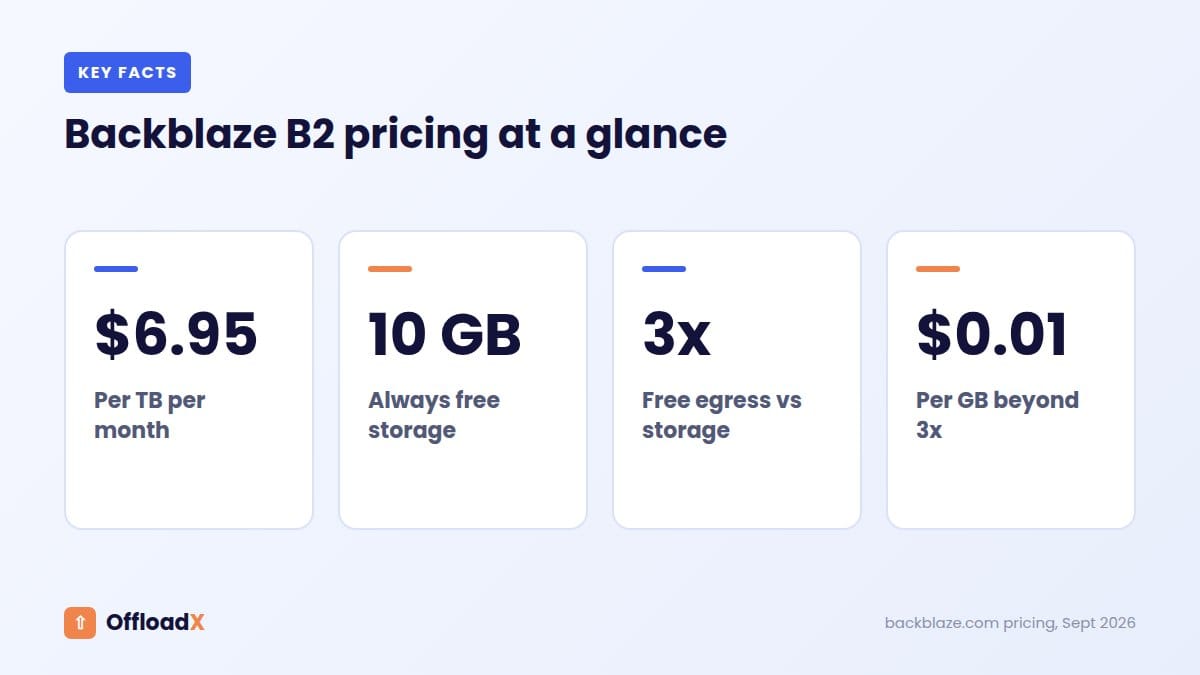
A Backblaze B2 WordPress setup is one of the cheapest ways to store a media library in the cloud. Storage costs $6.95 per TB per month, the first 10 GB are free, there is no minimum storage period, and downloads are free up to three times the amount you store. Put a partner CDN such as Cloudflare or bunny.net in front, and delivery through that CDN is free as well.
This guide covers everything you need for a Backblaze B2 WordPress setup: real costs compared with Wasabi, Cloudflare R2 and Amazon S3, the free egress rules, the one limitation around public and private files, and a step-by-step setup using the S3-compatible API.
Table of Contents
- What Is Backblaze B2?
- Backblaze B2 Pricing for WordPress
- How B2 Free Egress Works
- Backblaze B2 vs Wasabi, R2 and S3
- Who Should Use a Backblaze B2 WordPress Setup?
- Public Buckets and Other B2 Limitations
- Real Monthly Cost Examples
- How to Set Up Backblaze B2 for WordPress
- Adding a Free-Egress CDN
- Keeping Your B2 Setup Secure
- Moving Your Existing Media
- Common Problems and Fixes
- Frequently Asked Questions
What Is Backblaze B2?
Backblaze is best known for its computer backup service. B2 Cloud Storage is its object storage product: buckets that hold files and serve them over the internet, much like Amazon S3.
B2 offers an S3-compatible API, which means WordPress offload plugins that speak the S3 protocol can upload to B2 with the right endpoint and keys. For WordPress sites, that makes B2 a low-cost home for images, PDFs, audio and video.
Why WordPress owners choose B2
- Low storage price: among the cheapest per-TB rates from a major provider.
- No minimum storage period: unlike some rivals, you can delete files at any time without extra charges.
- Generous free egress: downloads are free up to three times your stored data each month.
- CDN partnerships: free, unlimited egress to partners including Cloudflare, Fastly and bunny.net.
Backblaze B2 Pricing for WordPress
These are the pay-as-you-go prices on Backblaze’s pricing page, checked in September 2026.
| Item | Price |
|---|---|
| Storage | $6.95 per TB per month |
| Free storage | First 10 GB, always |
| Egress (downloads) | Free up to 3x your average monthly storage, then $0.01 per GB |
| Egress through partner CDNs | Free and unlimited |
| Most API calls (Class A, B and C) | Free |
| Class D calls | $0.004 per 10,000, with 2,500 free per day |
| Minimum file size or storage duration | None |
For a typical WordPress site, that means the bill is almost entirely storage. A 100 GB media library costs about $0.63 a month after the free 10 GB.
How B2 Free Egress Works
Egress means data downloaded from your bucket, which for WordPress means images and files loaded by visitors. B2 gives you two kinds of free egress.
1. The 3x allowance
Each month, you can download up to three times your average stored data for free. Store 200 GB, and the first 600 GB of downloads are free. Beyond that, B2 charges $0.01 per GB, which is still far below Amazon S3’s typical rates.
2. Unlimited free egress to partner CDNs
Backblaze lists free, unlimited egress to partners including Fastly, Cloudflare, bunny.net, CacheFly, CoreWeave, Equinix Metal, Vultr and phoenixNAP. If you serve your WordPress media through one of these CDNs, traffic from B2 to the CDN does not count against you at all.
Best practice: A Backblaze B2 WordPress setup works best with Cloudflare or bunny.net in front. You get free egress from B2, a global CDN for visitors and a faster site.
Backblaze B2 vs Wasabi, R2 and S3
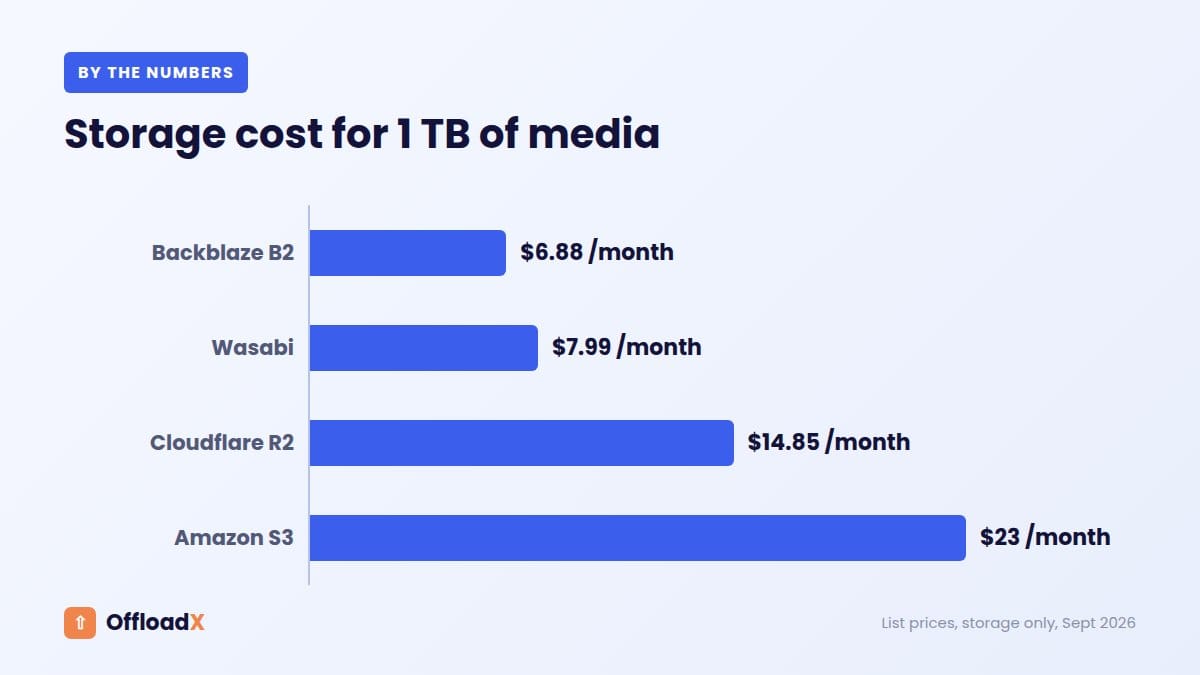
Here is what storage alone costs at list prices checked in September 2026. We treat 1 TB as 1,000 GB for simple maths.
| Stored | Backblaze B2 | Wasabi | Cloudflare R2 | Amazon S3 |
|---|---|---|---|---|
| 50 GB | $0.28 | $7.99 (1 TB minimum) | $0.60 | $1.15 |
| 1 TB | $6.88 | $7.99 | $14.85 | $23.00 |
| 5 TB | $34.68 | $39.95 | $74.85 | $115.00 |
Cloudflare R2 charges $0.015 per GB-month with 10 GB free and no egress fees (R2 pricing). Wasabi charges $7.99 per TB with a 1 TB minimum and a 90-day minimum storage period. Amazon S3 Standard is about $0.023 per GB-month plus data transfer.
How they compare beyond price
| Backblaze B2 | Wasabi | Cloudflare R2 | |
|---|---|---|---|
| Minimum charge | None | 1 TB per month | None |
| Minimum storage period | None | 90 days | None |
| Egress | Free up to 3x storage; free to partner CDNs | Free if egress is at most your storage | Free |
| Public bucket for new accounts | Bucket-level public or private | Restricted for accounts after March 2023 | Via r2.dev or custom domain |
B2 is the cheapest per TB of the four and has no minimums, which makes it attractive for both small and large libraries. R2 wins if you want to serve huge amounts of traffic directly without a CDN. See our Wasabi guide and Cloudflare R2 guide for the details on those providers.
Who Should Use a Backblaze B2 WordPress Setup?
| Your site | Good fit for B2? | Why |
|---|---|---|
| Small blog under 50 GB | Yes | 10 GB free, pennies after that, no minimum. |
| Photography or portfolio site with 1 TB+ | Yes | Lowest per-TB price here. |
| High-traffic site already on Cloudflare | Yes | Free egress from B2 to Cloudflare. |
| Site serving many terabytes with no CDN | Compare with R2 | Egress over 3x storage costs $0.01/GB. |
| Site needing per-file private access | Plan carefully | B2 permissions are set per bucket, not per file. |
Public Buckets and Other B2 Limitations
B2’s S3-compatible API covers what WordPress offloading needs, but there are differences from Amazon S3 worth knowing before you start. From Backblaze’s S3-compatible API documentation:
Access is set per bucket
A B2 bucket is either public or private. If the bucket is private, the bucket and every file in it are private; if it is public, everything in it is public-read. Object-level ACLs are not supported.
For WordPress this means:
- Public bucket: the simplest option. Visitors can load images directly or through a CDN.
- Private files: paid downloads or member-only documents should go in a separate private bucket, or stay on your server. Do not mix them into a public media bucket.
Other unsupported S3 features
- IAM roles (use B2 application keys instead)
- Object tagging
- Website configuration
- Browser-based POST uploads to pre-signed URLs
None of these are needed for standard media offloading, but they matter if your plugin or workflow depends on one of them.
Real Monthly Cost Examples
Here is what a Backblaze B2 WordPress setup costs for three typical sites, including egress. We treat 1 TB as 1,000 GB.
| Site | Stored | Served per month | B2 storage | B2 egress | Total B2 bill |
|---|---|---|---|---|---|
| Blog, no CDN | 30 GB | 60 GB | $0.14 | $0 (under 3x) | $0.14 |
| Magazine, no CDN | 200 GB | 1,000 GB | $1.32 | $4.00 (400 GB over 3x) | $5.32 |
| Magazine, via Cloudflare | 200 GB | 1,000 GB | $1.32 | $0 (partner CDN) | $1.32 |
The last two rows show why a partner CDN matters: the same site pays four times less once traffic flows through Cloudflare, and visitors get faster images too.
Compared with serving from your host
Many hosting plans charge for extra disk space or push you to a bigger plan when media grows. Moving 200 GB of media to B2 for about $1.32 a month is often far cheaper than the next hosting tier. It also shrinks your backups, which our guide to a WordPress site running out of disk space explains in more detail.
How to Set Up Backblaze B2 for WordPress
These steps use OffloadX’s S3-compatible option, available on every plan including Free. The Backblaze side is the same for any S3-compatible offload plugin.
Step 1: Create a bucket
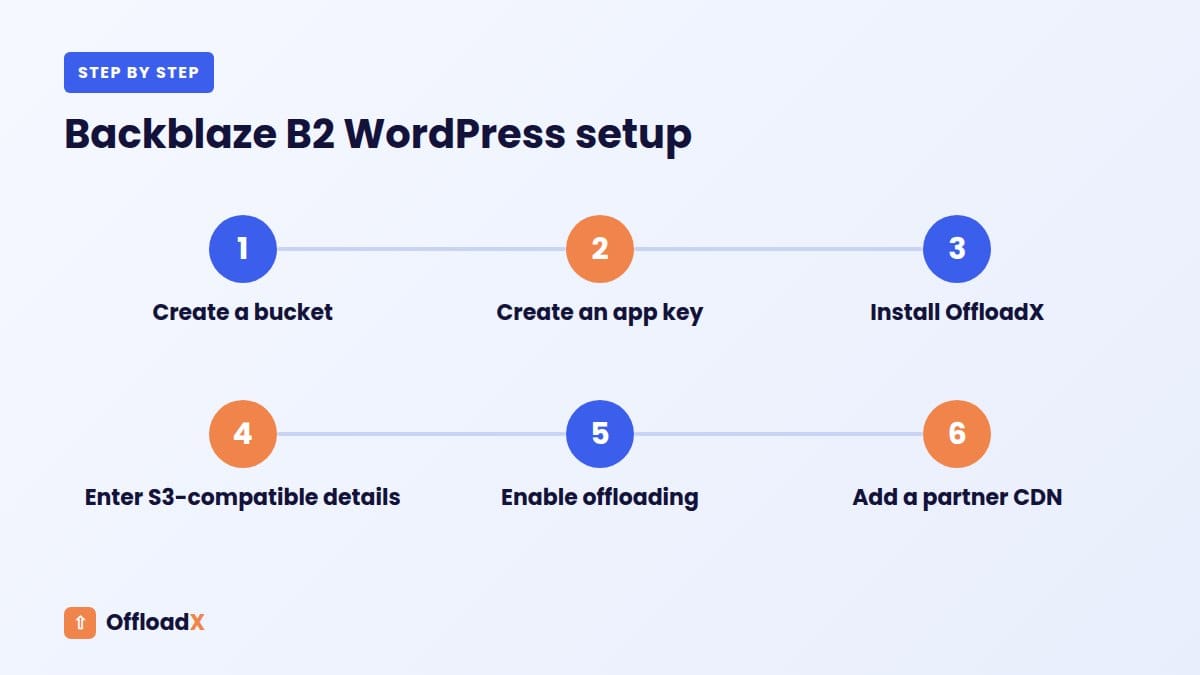
Sign in to Backblaze, open B2 Cloud Storage → Buckets and create a bucket. Choose Public if you want files served directly or through a CDN. Note the bucket name and the Endpoint shown on the bucket, which looks like s3.us-west-004.backblazeb2.com. The part after s3. and before .backblazeb2.com is your region.
Step 2: Create an application key
Go to Application Keys and add a new key. Limit it to your media bucket and give it read and write access. Save the keyID (your Access Key ID) and applicationKey (your Secret Access Key). The application key is shown only once.
Step 3: Install OffloadX
Download OffloadX from offloadx.com, then go to Plugins → Add New → Upload Plugin, upload the ZIP file and activate it.
Step 4: Enter your B2 details
In OffloadX Credentials, choose the S3-compatible provider and enter:
- Endpoint: for example
https://s3.us-west-004.backblazeb2.com - Region: for example
us-west-004 - Bucket name
- Access Key ID: the keyID
- Secret Access Key: the applicationKey
- CDN or delivery domain: your CDN hostname, if you use one
Run the connection tester to confirm the plugin can write to the bucket.
Step 5: Enable offloading and test
Turn on automatic offloading in Behaviour. Upload one image, add it to a draft post and preview. Open the image in a new tab and confirm its address uses B2 or your CDN domain.
Adding a Free-Egress CDN
Serving images straight from B2 works, but a CDN makes your Backblaze B2 WordPress setup faster for visitors and moves egress to the free partner route.
Option 1: Cloudflare
If your domain already uses Cloudflare, you can serve B2 files through a proxied subdomain such as media.yoursite.com. Cloudflare caches the files at its edge, and traffic from B2 to Cloudflare is free under the partnership. B2 download addresses include the bucket in the path, so this setup usually needs a Cloudflare rewrite rule; follow Backblaze’s own Cloudflare integration guide for the exact settings, then test a few image URLs before switching your site over.
Option 2: bunny.net
Create a pull zone with your B2 bucket’s download URL as the origin, and optionally add your own hostname with free SSL. Bunny charges for its own CDN bandwidth, starting at $0.01 per GB in Europe and North America, but egress from B2 to Bunny is free.
Enter your CDN hostname in OffloadX so image URLs use it. Using your own subdomain also means you can change storage provider later without changing image URLs, as explained in our custom domain guide.
Keeping Your B2 Setup Secure
- Use a bucket-restricted application key. If the key ever leaks, it cannot touch other buckets, such as your backups.
- Keep backups in a separate private bucket. Many people already use B2 for site backups. Never store backups in the public media bucket.
- Never share keys in support tickets, chats or code repositories. If one leaks, delete it and create a new one.
- Turn on two-factor authentication for your Backblaze account.
- Check the bucket settings after creating it, so only the media bucket is public.
B2 for backups and media: keep them apart
It is tempting to put everything in one bucket. Don’t. A media bucket must be public for visitors to see images; a backup bucket must be private because it contains your database. Two buckets with two separate keys keep one mistake from exposing everything.
Moving Your Existing Media
On OffloadX paid plans, Bulk Migration uploads your existing Media Library in the background and URL Replace updates links saved in your database. Because B2 has no minimum storage period, test runs cost almost nothing, even if you delete and re-upload.
- Back up files and database first.
- Compress images before migrating to save storage and bandwidth.
- Test on staging if your site uses a page builder.
- Browse the site logged out after the move and check older posts, not just new ones.
- Once everything loads correctly, remove local copies to free disk space.
Performance tips for B2 media
- Choose a region near your server so uploads from WordPress are quick.
- Set long cache times on your CDN. WordPress media rarely changes once uploaded, because edited images get new file names.
- Add a preconnect hint for your media domain so browsers open the connection early.
- Keep the hero image eager. Never lazy-load the main image at the top of the page.
Our guide to offloading WordPress media for speed explains each of these in detail, with data on how images affect Core Web Vitals.
Common Problems and Fixes
| Problem | Likely cause | Fix |
|---|---|---|
| Connection test fails | Wrong endpoint or region | Copy the endpoint exactly from the bucket details page. |
| Access denied on upload | Key limited to another bucket or read-only | Create a key with read and write access to this bucket. |
| Images return 401 or 403 to visitors | Bucket is private | Make the media bucket public, or serve through an authenticated CDN. |
| Egress charges appear | Downloads above 3x storage without a partner CDN | Serve through Cloudflare or bunny.net. |
| Old posts still load local images | Database URLs not replaced | Run URL Replace, then clear page and CDN caches. |
Frequently Asked Questions
Is Backblaze B2 good for WordPress?
Yes. It is S3-compatible, costs $6.95 per TB per month with 10 GB free, and has no minimum storage period. With a partner CDN, delivery egress is free.
Does B2 charge for bandwidth?
Downloads are free up to 3x your average monthly storage, then $0.01 per GB. Egress to partner CDNs like Cloudflare and bunny.net is free and unlimited.
Is Backblaze B2 cheaper than Wasabi?
Yes on list price, and B2 has no 1 TB minimum or 90-day retention period. That makes B2 much cheaper for small and medium libraries.
Can I make individual files private on B2?
No. Access is set per bucket. Use a separate private bucket for protected files.
Does OffloadX support Backblaze B2?
Yes, through its S3-compatible provider option, which is available on every plan, including Free.
What region should I choose?
The region closest to your WordPress server or main audience. With a CDN in front, the storage region matters less for visitors.
Do I need a CDN with Backblaze B2?
Not strictly, but it is recommended. A partner CDN makes egress free and delivers images from servers near your visitors.
Can I switch from B2 to another provider later?
Yes. B2 has no minimum storage period, so there is no penalty for deleting files. Copy them to the new provider, update your plugin and replace URLs. A custom media domain makes the switch invisible to visitors.
Is the 10 GB free tier enough for a small site?
For many new blogs, yes. Remember that WordPress stores several resized copies of every image, so a library grows faster than the number of uploads suggests.
Does B2 work with WooCommerce product images?
Yes, as storage for public product images. In OffloadX, WooCommerce support is on the Business and Agency plans. Keep paid downloads in a private bucket or on your server.
How is B2 different from Backblaze Computer Backup?
Computer Backup is a flat-price service for backing up PCs and Macs. B2 is general cloud storage with an API, which is what WordPress offload plugins need.
Where do I find my B2 endpoint?
Open the bucket in the Backblaze dashboard. The S3 endpoint is shown in the bucket details, and the region is the part between “s3.” and “.backblazeb2.com”.
Can I use B2 on the OffloadX Free plan?
Yes. The Free plan covers one site and up to 100 files with every provider option, including S3-compatible services like B2. It is a good way to test the setup before moving a full library.
Conclusion
A Backblaze B2 WordPress setup gives you some of the lowest storage costs available, no minimums and free egress through partner CDNs. Use a public bucket for media, keep private files separate, and put Cloudflare or bunny.net in front for a fast, low-cost setup.
See OffloadX Plans →Pricing and API details checked September 2026 from Backblaze, Cloudflare, Wasabi, AWS and bunny.net. Confirm current rates on their websites.