
If you sell ebooks, software, courses or stock files, learning to secure WooCommerce digital downloads is one of the most valuable jobs on your store. A single leaked download link can be shared on forums and used by hundreds of people who never paid. The good news is that WooCommerce already includes solid protection, as long as you pick the right settings.
This guide walks through WooCommerce’s three file download methods and what each one means for security, the Approved Download Directories feature, protecting the woocommerce_uploads folder, download limits and expiry, and how to store large files in Amazon S3 or Cloudflare R2 with signed links. We also explain why paid files should never go into a public media offload bucket.
Table of Contents
- How Paid Downloads Get Leaked
- The 3 WooCommerce File Download Methods
- Which Download Method Should You Use?
- Protecting the woocommerce_uploads Folder
- Approved Download Directories
- Download Limits, Expiry and Access Rules
- Storing Large Downloads in S3 or R2
- Keep Paid Files Out of Public Offload Buckets
- Recommended Settings to Secure WooCommerce Digital Downloads
- How to Test Your Download Security
- Troubleshooting Download Problems
- Frequently Asked Questions
How Paid Downloads Get Leaked
Before changing settings, it helps to know how files actually escape. Most leaks are not clever hacks. They come from ordinary settings that expose a permanent, public file URL.
| Leak route | What happens | Main fix |
|---|---|---|
| Direct file URL | A buyer copies the real file URL and posts it | Use a secure download method so the real URL is never shown |
| Media Library upload | The file sits in the public uploads folder | Upload through the product’s downloadable file field |
| Unprotected folder on Nginx | .htaccess rules are ignored, so files are reachable | Add the Nginx rule WooCommerce provides |
| Unlimited links | Links work forever and for any number of downloads | Set download limits and expiry |
| Public cloud bucket | The file has a public cloud or CDN URL | Use a private bucket with signed, expiring links |
Each section below tackles one of these routes.
The 3 WooCommerce File Download Methods
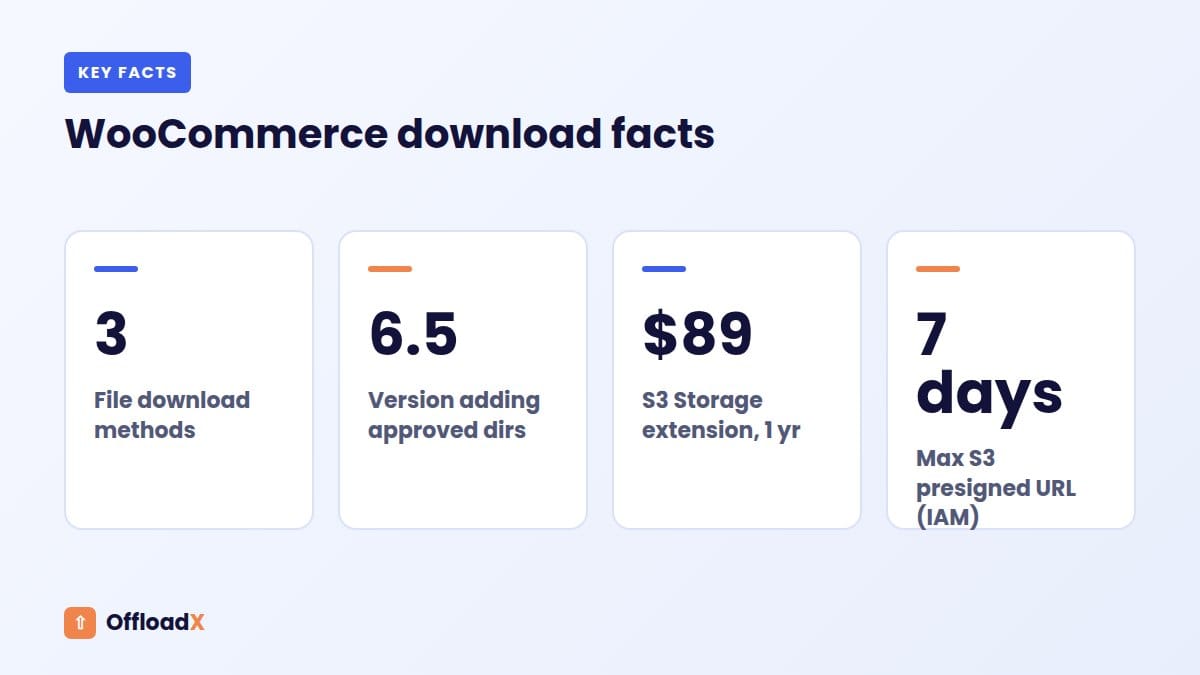
WooCommerce lets you choose how files are delivered at WooCommerce → Settings → Products → Downloadable products. The option is called File download method, and it has three choices. The descriptions below come from WooCommerce’s own digital and downloadable product handling guide.
1. Force downloads
Files are delivered through PHP, which prevents direct linking. The customer never sees the real file location. WooCommerce notes that this method needs the PHP allow_url_fopen setting and can time out on underpowered servers when files are large.
2. X-Accel-Redirect/X-Sendfile
WooCommerce checks permission, then hands the file to the web server (Nginx or Apache) to deliver directly. This is secure and efficient, because PHP does not have to stream the whole file. It needs the relevant server module installed and enabled, so check with your host.
3. Redirect only (Insecure)
Customers are redirected straight to the file URL. WooCommerce’s docs are blunt about the risk: anyone with the URL can access the file, even if they are not logged in. This method exposes the real location of your product.
The fallback checkbox
There is also an option called Allow using redirect mode (insecure) as a last resort. If the main method fails, WooCommerce falls back to redirecting. It keeps downloads working, but it carries the same risk as Redirect only whenever it triggers.
| Method | Real file URL hidden? | Server load | Large files | Security |
|---|---|---|---|---|
| Force downloads | Yes | Higher (PHP streams file) | May time out | Good |
| X-Accel-Redirect/X-Sendfile | Yes | Low (web server delivers) | Handles well | Good |
| Redirect only (Insecure) | No, for local files | Lowest | Handles well | Weak for local files |
Which Download Method Should You Use?
For files stored on your own server, the answer is simple: use X-Accel-Redirect/X-Sendfile if your host supports it, and Force downloads if not. Avoid Redirect only for local files.
There is one exception worth understanding. If your files live in a private cloud bucket and the link WooCommerce redirects to is a short-lived signed URL, redirecting is no longer the weak point. The signed link itself expires, so sharing it does little harm. The WooCommerce Amazon S3 Storage extension recommends Redirect only for S3 files for exactly this reason, as we cover below.
| Where files are stored | Best method | Fallback |
|---|---|---|
| Local server, Nginx with X-Accel support | X-Accel-Redirect/X-Sendfile | Force downloads |
| Local server, Apache with X-Sendfile module | X-Accel-Redirect/X-Sendfile | Force downloads |
| Local server, no module available | Force downloads | None; keep fallback off |
| Private S3 or R2 bucket with signed URLs | As recommended by your storage extension | Check the extension’s docs |
Key point: Redirect only is insecure when it points at a permanent file URL. It is acceptable only when the target is a short-lived signed link.
Protecting the woocommerce_uploads Folder
When you upload a file through a product’s downloadable file field, WooCommerce stores it in wp-content/uploads/woocommerce_uploads/. WooCommerce describes this folder as not publicly accessible, unlike normal Media Library uploads.
On Apache
WooCommerce adds an .htaccess file to the folder to block direct access. Its docs add a fair warning: this does not guarantee protection in every server configuration. Always test it.
On Nginx
Nginx does not read .htaccess files, so the folder may be wide open unless you add a rule. WooCommerce’s Nginx uploads protection snippet offers two versions:
- For Force downloads or X-Accel-Redirect: a location block for
/wp-content/uploads/woocommerce_uploads/that returns 403 unless the request carries an internalX-Accel-Redirect, and marks the locationinternal. - For Redirect only: a location block that turns
autoindex off, which only stops directory listing. Files remain reachable by URL.
WooCommerce suggests placing these rules towards the end of the server block. If you are on managed hosting and cannot edit Nginx, ask your host to add the rule for you.
Append a unique string to file names
The setting Append a unique string to filename for security is enabled by default. It adds random characters to uploaded file names, making URLs much harder to guess. Leave it on.
Approved Download Directories
Introduced in WooCommerce 6.5, Approved Download Directories control where downloadable files are allowed to live. You will find them at WooCommerce → Settings → Products → Approved download directories.
According to WooCommerce’s approved download directories documentation:
- The
woocommerce_uploadsfolder is included and enabled by default. - Non-admin users, such as shop managers, cannot add files from unapproved locations.
- Rules can be enabled or disabled one by one, in bulk, or all at once with the Stop / Start Enforcing Rules button.
- Rules check the file URL saved on the product, not any location that URL redirects to.
Why this matters for security
WooCommerce points out that linking to files on domains you do not control introduces security risks. A compromised shop manager account, for example, could otherwise swap a product file for a link to something malicious. Approving only your own folders and your own storage domain reduces that risk.
Adding a cloud storage location
If you serve files from S3 or R2 by URL, add that bucket’s URL prefix as an approved directory. Keep the list short: your local woocommerce_uploads folder plus the exact storage locations you use.
Download Limits, Expiry and Access Rules
Even with a secure method, a download link that works forever is an open invitation to share. WooCommerce gives you per-product limits in the product’s Downloadable section, described in its virtual and downloadable products guide.
| Setting | What it does | If left blank | Suggested value |
|---|---|---|---|
| Download limit | Maximum number of downloads per purchase | Unlimited | 3 to 5 for most products |
| Download expiry | Days until the link stops working after purchase | Never expires | 7 to 30 days, or longer for software with updates |
Choose limits that suit your customers. Someone buying a large course may need to download on two devices; someone buying a single PDF rarely needs more than a few attempts. Clear wording on the product page avoids support tickets.
Store-wide access settings
- Downloads require login: stops guests from downloading, even with a valid link. Note that it only works if customers have accounts, so guest checkout needs thought.
- Grant access to downloadable products after payment: allows downloads once an order is Processing, rather than waiting for Completed.
Storing Large Downloads in S3 or R2
Big files, such as video courses, software installers and high-resolution asset packs, are hard on a small server. Force downloads can time out, and every download uses your hosting bandwidth. Moving those files to a private cloud bucket and handing buyers a signed, expiring link solves both problems.
The Amazon S3 Storage extension
The official Amazon S3 Storage extension on WooCommerce.com, built by Kestrel, serves downloads from cloud storage using signed URLs. Key facts from its product page and documentation, checked September 2026:
- Price: $89 for a 1-year subscription.
- Requirements: WordPress 6.3+, WooCommerce 8.2+, PHP 7.4+.
- How it works: it generates a fresh signed URL on every download request, so buyers never get a permanent link.
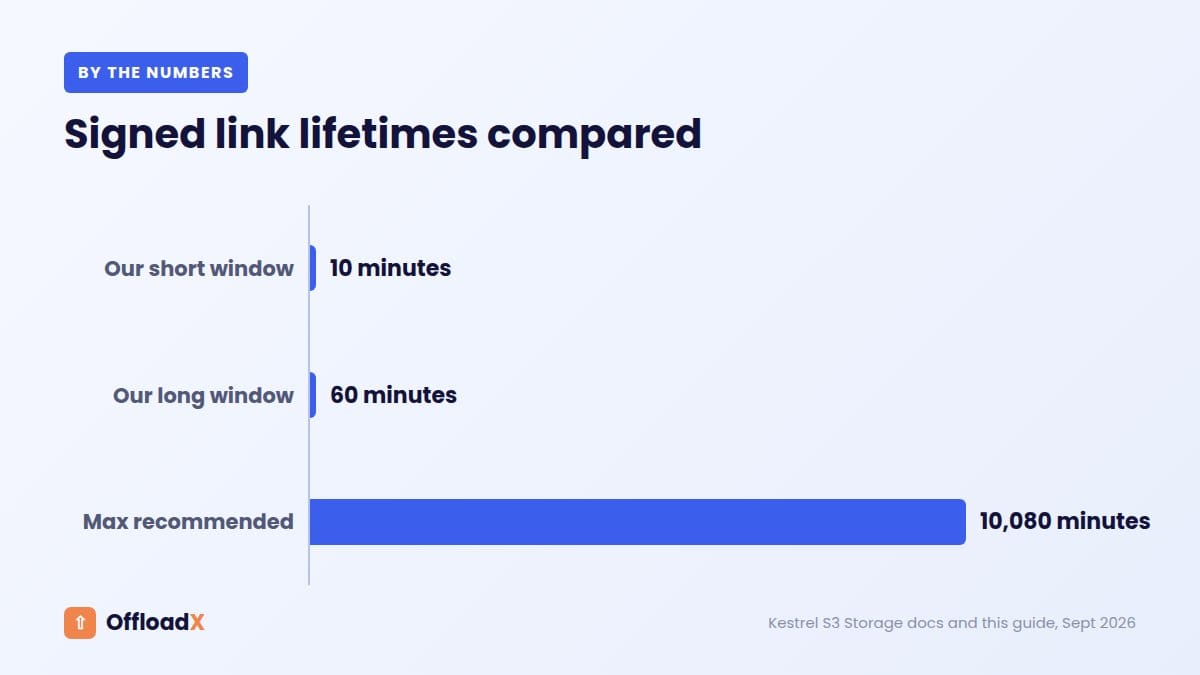
- Link lifetime: a URL validity period set in minutes. The docs recommend 10 to 10,080 minutes (7 days). Leaving it blank allows unlimited validity, which you should avoid.
- Shortcode: you add files as
[amazon_s3 object=path/filename.ext], optionally withbucketandregionparameters, in the product’s file URL field. - Download method: its docs recommend Redirect only for S3 files, because the redirect goes to a temporary, expiring URL.
- Other providers: the product page lists Amazon S3 and Cloudflare R2. The documentation describes R2, Backblaze B2, DigitalOcean Spaces and Wasabi support as experimental, so test before relying on it.
Why signed links matter
A signed URL contains a signature and an expiry time. Once it expires, it returns an error. Amazon’s S3 presigned URL documentation gives a maximum of 7 days for links created with an IAM user through the SDK. Cloudflare’s R2 docs give a range of 1 second to 7 days.
Shorter is better. A 10 to 60 minute window is plenty, because a new link is generated every time the buyer clicks download from their account.
Setting up the bucket safely
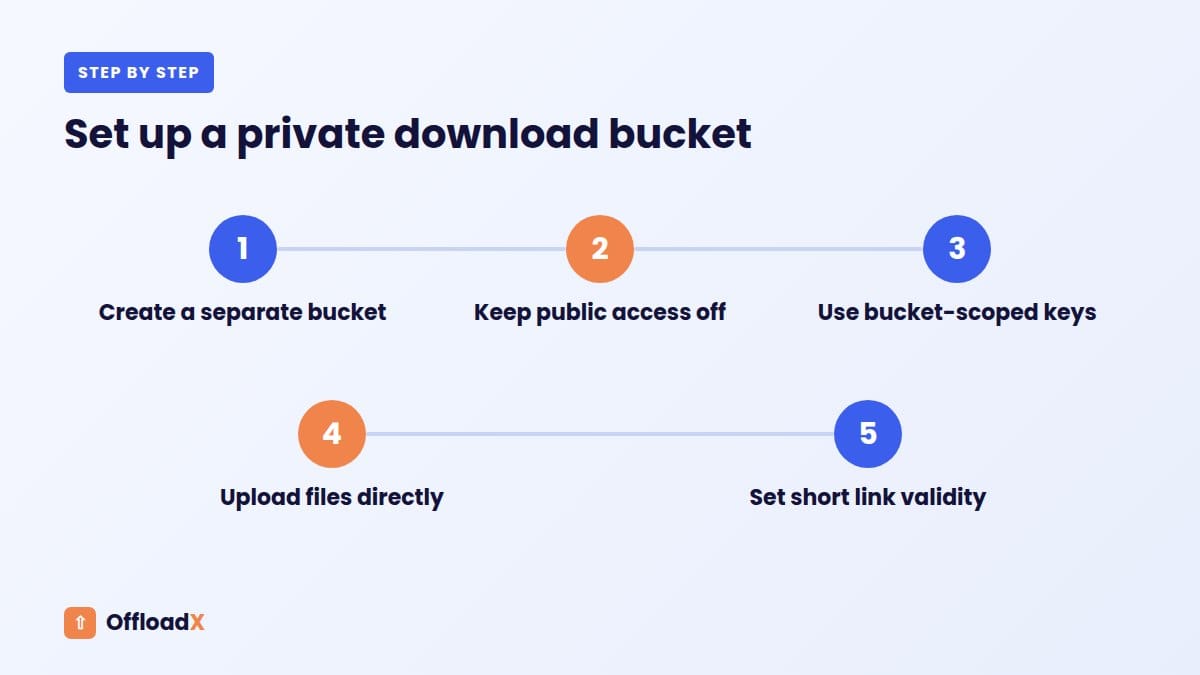
- Create a dedicated, private bucket for paid downloads. Do not reuse your public media bucket.
- Leave public access blocked. On R2, do not enable the public development URL or attach a custom domain to this bucket.
- Create API credentials limited to that bucket, with read access for downloads.
- Upload product files directly to the bucket, not through the WordPress Media Library.
- Set a short URL validity period in the extension.
For a wider look at running a store on R2, including product images and costs, see our guide to Cloudflare R2 for WooCommerce. If you are weighing providers, our Cloudflare R2 vs Amazon S3 comparison covers egress and storage costs.
Keep Paid Files Out of Public Offload Buckets
Media offload plugins copy your uploads to cloud storage and rewrite URLs so images load from a bucket or CDN. For that to work, the bucket must be publicly readable. That is exactly what you want for product photos, and exactly what you do not want for paid files.
If a paid PDF or ZIP is uploaded through the normal Media Library, an offload plugin may copy it to the public bucket along with everything else. It then has a permanent public URL, and possibly a cached CDN copy, which completely bypasses WooCommerce’s download protection. Our explainer on media offload vs CDN shows how bucket and CDN copies relate.
Where OffloadX fits
OffloadX is our media offload plugin. Its WooCommerce support, on the Business plan and above, is designed for product media such as product images, so your catalogue loads from cloud storage. It does not secure digital downloads, and it does not create signed or private URLs.
- Use OffloadX (or any offload plugin) for public product media.
- Use WooCommerce’s protected folder or a signed-URL storage extension for paid files.
- On the Agency plan, selective MIME filtering lets you choose which file types are offloaded, which helps keep document and archive types out of the public bucket.
If you are offloading for the first time, read our guide to offloading WordPress media to Cloudflare R2 and plan your bucket layout so public and private files never mix.
Key point: Public offload buckets are for public media. Paid files belong in woocommerce_uploads or a separate private bucket with signed links.Recommended Settings to Secure WooCommerce Digital Downloads
Here is a practical baseline that suits most stores. Adjust limits to your products.
| Setting | Where | Recommended |
|---|---|---|
| File download method | Settings → Products → Downloadable products | X-Accel-Redirect/X-Sendfile, or Force downloads |
| Redirect as last resort | Same screen | Off for local files |
| Downloads require login | Same screen | On, if customers have accounts |
| Grant access after payment | Same screen | On for instant delivery |
| Append unique string to filename | Same screen | On (default) |
| Approved download directories | Settings → Products → Approved download directories | Enforced; only your folders and buckets |
| Download limit | Each product | A small number, such as 3 to 5 |
| Download expiry | Each product | A set number of days |
| Nginx rule | Server config | WooCommerce’s protection snippet |
| Large files | Cloud storage | Private bucket, signed links of minutes |
How to Test Your Download Security
- Buy one of your own products with a test order, or create a manual order for a test customer.
- Click the download link from the customer account and note the URL in the address bar or download manager.
- Log out, open a private browser window and paste the direct file URL (for example
/wp-content/uploads/woocommerce_uploads/...). It should return 403 or fail. - Paste the WooCommerce download link while logged out. With “Downloads require login” on, it should ask you to log in.
- Download until you pass the limit. The next attempt should be refused.
- If you use signed cloud links, wait past the validity period and try the old link. It should return an error.
- Search your offload bucket for product file names to make sure none were copied there.
Troubleshooting Download Problems
Large downloads fail or stop partway
With Force downloads, PHP may hit a time or memory limit. Switch to X-Accel-Redirect/X-Sendfile if your host supports it, or move large files to private cloud storage with signed links.
“File not found” after switching to X-Accel-Redirect
The server module or Nginx configuration is missing. Ask your host to confirm X-Accel-Redirect or X-Sendfile is enabled, then check the Nginx location block.
Shop manager cannot add a file
The file’s location is not in Approved Download Directories. An administrator must approve the folder or bucket first.
Direct file URL still works on Nginx
The .htaccess file is being ignored. Add WooCommerce’s Nginx rule for woocommerce_uploads and test again in a private window.
Signed cloud link says Access Denied straight away
Check the server clock, the bucket name and region in the shortcode, and that the credentials can read the object. A space in the file name should be written as + in the shortcode, according to the extension’s docs.
Frequently Asked Questions
What is the most secure WooCommerce download method?
For files on your own server, X-Accel-Redirect/X-Sendfile and Force downloads both hide the real file URL. X-Accel-Redirect/X-Sendfile is usually better for large files because the web server delivers the file instead of PHP.
Why is Redirect only called insecure?
It sends customers straight to the file URL, so anyone with that URL can download the file without logging in. It is only reasonable when the target is a short-lived signed cloud link.
Where does WooCommerce store downloadable files?
Files uploaded through a product’s downloadable file field go to wp-content/uploads/woocommerce_uploads/. Files uploaded through the Media Library go to the normal public uploads folders.
How do I secure WooCommerce digital downloads on Nginx?
Add WooCommerce’s Nginx rule for the woocommerce_uploads folder, because Nginx ignores .htaccess. Then test the direct file URL in a logged-out private window.
Can I sell downloads from Amazon S3 or Cloudflare R2?
Yes. The Amazon S3 Storage extension on WooCommerce.com generates signed, expiring links for files in a private bucket. Its docs describe R2 and other S3-compatible services as experimental, so test first.
Does OffloadX protect WooCommerce downloads?
No. OffloadX’s WooCommerce support is for product media. Keep paid files in WooCommerce’s protected folder or a private bucket with signed links.
What download limit should I set?
Most stores use a small number, such as 3 to 5, with an expiry of a few weeks. Products with regular updates may need longer expiry.
Do approved download directories stop piracy?
Not on their own. They control where files may be stored, which protects against risky or malicious file links. You still need a secure download method, limits and expiry.
Conclusion
To secure WooCommerce digital downloads, use X-Accel-Redirect/X-Sendfile or Force downloads, protect woocommerce_uploads on Nginx, enforce approved directories and set download limits and expiry. For large files, use a private S3 or R2 bucket with short-lived signed links, and keep paid files well away from any public offload bucket.
WooCommerce settings, the Amazon S3 Storage extension price and requirements, and S3 and R2 signed URL limits were checked in WooCommerce, AWS and Cloudflare documentation in September 2026. Extension details can change with new releases.