
If you need to protect private WordPress files, the first thing to know is that the Media Library was never built to keep secrets. Every file you upload gets a plain, permanent URL, and anyone who has that URL can open the file without logging in. That is perfect for blog images and awkward for invoices, course videos and paid PDFs.
This guide explains why uploads are public by default, which files deserve protection, and the main ways to lock them down: server rules, membership plugins, private cloud buckets with pre-signed URLs, and CloudFront signed URLs or cookies. We also cover a trap many site owners fall into after moving media to the cloud: putting private files in a public offload bucket.
Table of Contents
- Why Media Library Files Are Public by Default
- What Needs Protecting
- 5 Ways to Protect Private WordPress Files
- Option 1: Server-Level Rules
- Option 2: Membership and Course Plugins
- Option 3: Private Buckets with Pre-Signed URLs
- Option 4: CloudFront Signed URLs and Cookies
- Keep Private Files Out of Public Offload Buckets
- Where OffloadX Fits (and Where It Does Not)
- Which Approach Should You Choose?
- Private File Security Checklist
- Troubleshooting Common Problems
- Frequently Asked Questions
Why Media Library Files Are Public by Default
When you upload a file, WordPress saves it in wp-content/uploads/, usually inside a year and month folder. The file then gets a direct URL such as https://example.com/wp-content/uploads/2026/09/invoice-1042.pdf.
Requests for that URL are normally answered by the web server (Apache, Nginx or LiteSpeed) as a static file. WordPress itself does not load, so it never gets the chance to ask “is this visitor logged in?” or “has this person paid?”.
Private posts do not make attachments private
Marking a post or page as Private, or putting it behind a password, hides the page content. It does not move or lock the files attached to it. If someone has the file URL, from an email, a browser history, a shared link or a search engine, the file still opens.
Guessable URLs make it worse
Upload folders follow a predictable pattern, and file names are often descriptive. A file called course-module-3.pdf in /2026/09/ is easy to guess once someone has seen course-module-2.pdf. Directory listing, if your host has it switched on, can expose entire folders.
Key point: In WordPress, “hidden” is not the same as “protected”. A file is only private if every request for it is checked before it is served.
What Needs Protecting
Most media on a typical site should stay public: product photos, blog images, logos and theme assets. Locking those down would only slow your site and break sharing. The files worth protecting fall into a few groups.
| File type | Example | Risk if exposed |
|---|---|---|
| Member content | Premium PDFs, templates, research reports | Lost revenue; content shared for free |
| Online courses | Lesson videos, worksheets, audio | Course pirated or reposted |
| Invoices and receipts | Generated PDF invoices, order summaries | Personal data leak; privacy complaints |
| Client files | Contracts, proofs, design drafts | Breach of confidentiality |
| Form uploads | CVs, ID scans, application documents | Serious personal data exposure |
| Paid downloads | Ebooks, software, stock files | Direct revenue loss |
Anything containing personal data deserves extra care. Invoices, CVs and ID scans are exactly the files that should never have a permanent public URL.
5 Ways to Protect Private WordPress Files
There is no single switch that will protect private WordPress files on every host. Instead, there are several approaches, and many sites combine two of them. Here is a quick overview before we go through each one.
| Approach | Where files live | How access is checked | Best for |
|---|---|---|---|
| Server-level rules | Your server | Web server blocks direct URLs; PHP serves allowed files | Small numbers of private files |
| Membership or course plugin | Usually your server | Plugin checks the user’s membership | Member sites and courses |
| Private bucket + pre-signed URLs | S3, R2 or similar | Your code signs a short-lived link | Large files, downloads, video |
| CloudFront signed URLs or cookies | S3 behind CloudFront | CloudFront verifies the signature at the edge | High-traffic video and downloads |
| Separate storage for private files | Anywhere except the public bucket | Depends on the method above | Any site that offloads media |
Option 1: Server-Level Rules
The simplest way to protect files that stay on your own server is to move them to a folder the web server refuses to serve directly. A PHP script, running inside WordPress, then checks the visitor and sends the file only if they are allowed.
On Apache
On Apache 2.4, you can place an .htaccess file in the private folder containing Require all denied. Direct requests then return 403 Forbidden, while PHP can still read the file from disk and stream it to approved users.
On Nginx
Nginx ignores .htaccess, so the rule goes in your server block. Marking a location as internal means it can only be reached through an internal redirect, which is how WooCommerce protects its own woocommerce_uploads folder with the X-Accel-Redirect header. The WooCommerce Nginx snippet is a good model to copy for your own private folder.
Pros and cons
- Pro: no extra services, no extra cost.
- Pro: works with any logic you can write in PHP.
- Con: your server does all the work. Large files and many downloads use its bandwidth and PHP workers.
- Con: managed hosts may not let you edit Nginx rules, so check with support first.
- Con: private files still count against your disk quota. If space is already tight, see our guide on a WordPress site running out of disk space.
Option 2: Membership and Course Plugins
Membership and LMS plugins are the most common way people protect member content. They decide who can see a page, lesson or download based on a plan, purchase or role.
The catch is that restricting a page is not the same as restricting a file. Some plugins only hide the page that links to a PDF, while the PDF itself keeps its public Media Library URL. Others include dedicated file protection that moves files to a protected folder and serves them through a checked download link.
Questions to ask before you trust a plugin
- Does it protect the file URL itself, or only the page that links to it?
- If I paste the direct file URL into a private browser window, does it load?
- Does its file protection work on Nginx, or only on Apache with
.htaccess? - Can it serve files from cloud storage, or only from the local server?
- What happens to protected files if I deactivate the plugin?
The private browser test is the one that matters. Log out, open an incognito window, paste the file URL and see what happens. If the file opens, it is not protected.
Option 3: Private Buckets with Pre-Signed URLs
For larger files, the cleanest approach is to store private files in a cloud bucket that is not public, then give each authorised visitor a temporary link. These links are called pre-signed URLs (or signed URLs). They include a cryptographic signature and an expiry time in the query string, and they stop working once the time passes.
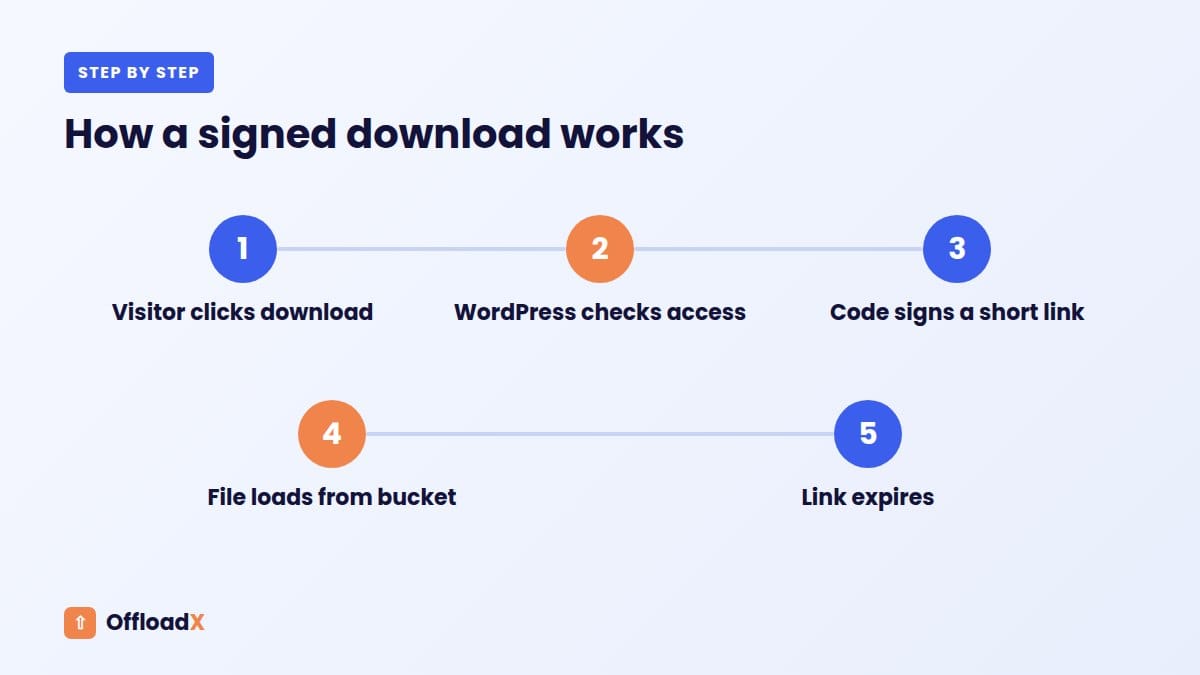
Your WordPress code (or a plugin) checks the user first, then generates the link on demand. The file never needs a permanent public address.
Amazon S3 pre-signed URL limits
According to the Amazon S3 documentation on presigned URLs:
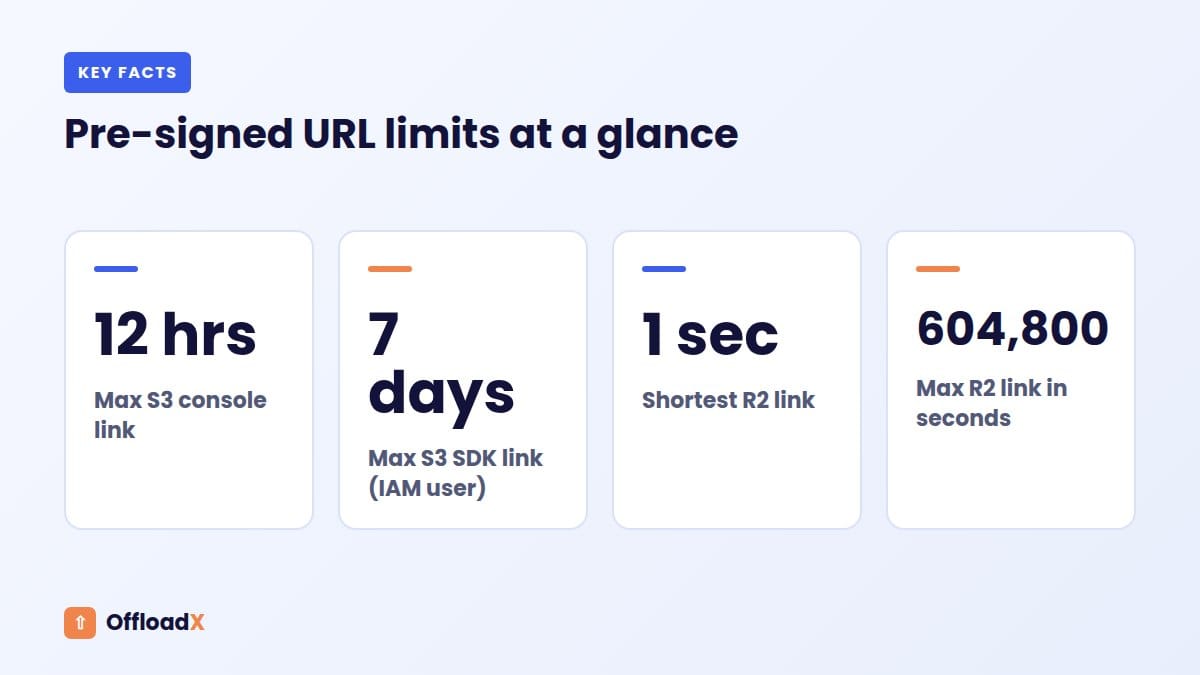
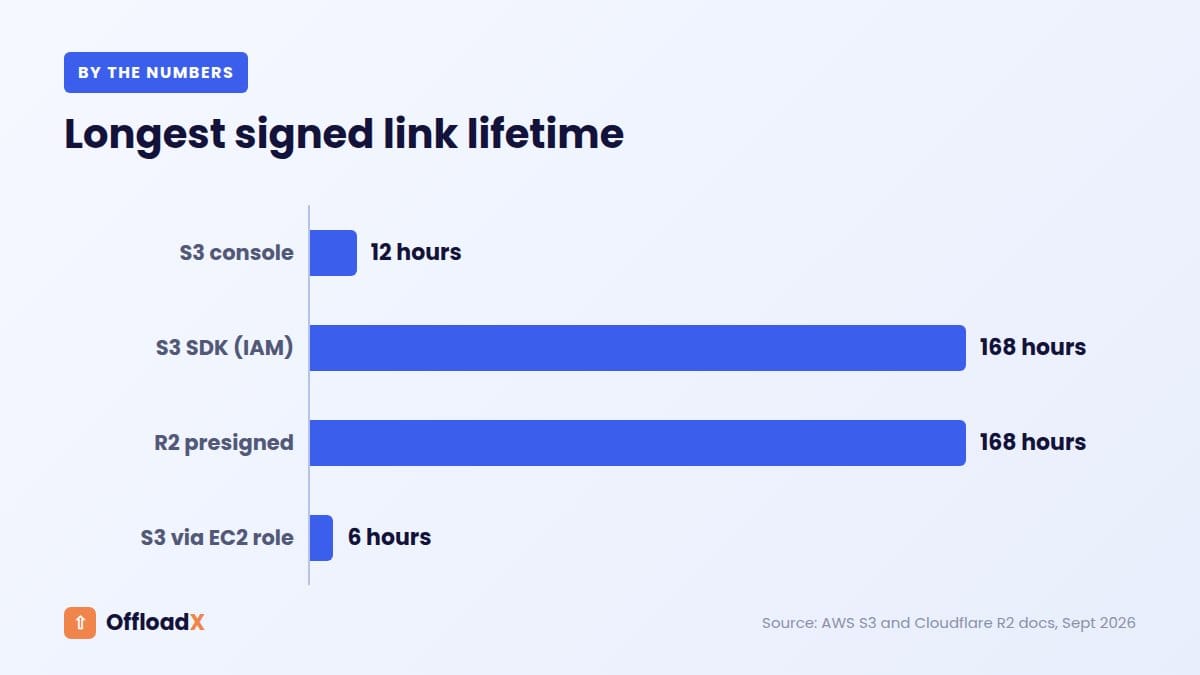
- Links created in the S3 console can last between 1 minute and 12 hours.
- Links created with the AWS CLI or SDKs can last up to 7 days when signed with an IAM user’s credentials using Signature Version 4.
- Links signed with temporary credentials (an IAM role or STS) expire when those credentials expire, even if you asked for longer. On EC2, role credentials typically last about 6 hours.
- A link expires at its set time or when its credentials are revoked, whichever comes first.
AWS also notes that new buckets do not allow public access by default, which is the starting point you want for private files.
Cloudflare R2 pre-signed URL limits
The Cloudflare R2 presigned URL docs say R2 links can last from 1 second to 7 days (604,800 seconds). They support GET, HEAD, PUT and DELETE, but not POST form uploads.
One important detail: R2 pre-signed URLs work only on the S3 API endpoint (<ACCOUNT_ID>.r2.cloudflarestorage.com), not on custom domains. If you need authentication on a custom domain, Cloudflare points to WAF HMAC token validation, which requires a Pro plan or above.
| Service | Maximum link lifetime | Custom domain? |
|---|---|---|
| Amazon S3 (console) | 12 hours | Not applicable |
| Amazon S3 (CLI/SDK, IAM user, SigV4) | 7 days | Via CloudFront signed URLs instead |
| Amazon S3 (temporary credentials) | Until credentials expire | Via CloudFront signed URLs instead |
| Cloudflare R2 | 7 days (604,800 s) | No; S3 API domain only |
How long should a link last?
Shorter is safer. A link that lasts 7 days can be forwarded, posted on a forum and used by strangers for a week. For most downloads, a few minutes to an hour is plenty, because the link is generated fresh each time a logged-in user clicks the button.
Key point: A pre-signed URL is only as secure as the check that happens before it is created. Always confirm the user’s access in WordPress first, then sign the link.
Option 4: CloudFront Signed URLs and Cookies
If your files live in S3 and you want them delivered from a CDN, Amazon CloudFront can enforce access at the edge. You keep the bucket private with Origin Access Control, then tell CloudFront to require a valid signature for certain paths.
Signed URLs vs signed cookies
The CloudFront documentation gives clear guidance:
- Use signed URLs to restrict access to individual files, such as a software installer, or when the client does not support cookies.
- Use signed cookies to give access to many restricted files at once, such as all the video segments in a course or a whole subscriber area, and when you do not want to change your URLs.
If both are present, the signed URL takes precedence. AWS recommends using trusted key groups (public keys you upload to CloudFront) rather than the older root-account key pairs.
Canned vs custom policies
| Feature | Canned policy | Custom policy |
|---|---|---|
| Expiry date and time | Yes | Yes |
| Start date and time | No | Yes (optional) |
| Restrict by IP address | No | Yes (optional) |
| Reuse for multiple files (wildcards) | No | Yes |
| URL length | Shorter | Longer |
CloudFront checks the expiry when a request starts. A large download that began before expiry will finish, but new range requests after expiry fail with a 403.
If you are new to putting a CDN in front of S3, our guide to offloading WordPress media to Amazon S3 covers the bucket side first.
Keep Private Files Out of Public Offload Buckets
Media offload plugins copy your uploads to cloud storage and rewrite the URLs so visitors load them from the bucket or a CDN. For that to work, the bucket (or its CDN) must serve files publicly. That is the whole point: your images need to load for every visitor.
This creates a real risk for private files. If a private PDF sits in your Media Library and your offload plugin copies everything, that PDF now has a public cloud URL too. It may also be cached at CDN edge locations, where it can outlive the original.
How private files end up in public buckets
- An offload plugin is set to copy every upload, and a member PDF is uploaded through the Media Library.
- A bulk migration moves all existing uploads, including old invoices, to the cloud.
- A form plugin saves uploads inside
wp-content/uploads, where the offload plugin picks them up. - A bucket is set up with public access for convenience, then reused for private files later.
How to prevent it
- Use a separate, private bucket for private files, with no public access, no public development URL and no CDN attached.
- Upload private files through the tool that protects them (your membership, course or download plugin), not through the general Media Library.
- Before a bulk migration, search your uploads for PDFs, ZIPs and documents that should not be public.
- Limit which file types your offload tool copies, so documents stay local or go through your protection tool instead.
- On Cloudflare R2, remember that public access applies to the whole bucket, not individual files, according to Cloudflare’s public buckets docs.
Key point: Public media and private files should never share a public bucket. Keep the offload bucket for images and assets that everyone is meant to see.
Where OffloadX Fits (and Where It Does Not)
OffloadX is our WordPress media offload plugin, so it is fair to be clear about its role here. OffloadX moves public Media Library files to cloud storage such as Cloudflare R2, Amazon S3, Wasabi, Google Cloud, DigitalOcean Spaces, Bunny Storage or any S3-compatible service, and rewrites URLs so they load from the cloud.
OffloadX does not generate signed or private URLs, and it does not provide per-file privacy. If you need to protect private WordPress files, use one of the approaches above for those files, and let OffloadX handle your public media.
How the two work together
- Public images and assets: offloaded by OffloadX to a public bucket or CDN, for speed and disk savings.
- Private files: kept on the server behind rules, managed by your membership plugin, or stored in a separate private bucket served through pre-signed URLs.
- File type control: on the Agency plan, selective MIME filtering lets you choose which file types are offloaded, which helps keep document types out of the public bucket.
For the public side, our guides to offloading WordPress media to Cloudflare R2 and connecting a Cloudflare R2 custom domain walk through the setup.
Which Approach Should You Choose?
| Your situation | Suggested approach |
|---|---|
| A handful of private PDFs, small site | Server-level rules or your membership plugin’s file protection |
| Membership site with gated downloads | Membership plugin that protects file URLs, tested in incognito |
| Large downloads or video, low server resources | Private S3 or R2 bucket with short-lived pre-signed URLs |
| Course video at scale, global audience | S3 + CloudFront with signed cookies |
| Invoices and personal documents | Keep off public storage entirely; serve through a checked PHP download |
| You offload media for speed | Offload public media only; store private files separately |
Private File Security Checklist
- List every type of file on your site that should not be public.
- Open a few of those files in a private browser window while logged out. Note which ones load.
- Choose a protection method for each group (server rules, plugin, private bucket, CloudFront).
- Make sure private buckets have public access blocked and no public development URL or CDN attached.
- Set short expiry times on pre-signed URLs, and generate them only after checking the user.
- Rename files so names are not guessable, and turn off directory listing.
- Check your offload plugin settings so private file types are not copied to a public bucket.
- Search for old copies: CDN caches, backups, staging sites and earlier buckets.
- Re-test in incognito after every change.
Troubleshooting Common Problems
“The file still opens when I am logged out”
The file is still being served as a static file. Check that it has actually moved to the protected folder, that the server rule applies (Nginx ignores .htaccess), and that no CDN has a cached copy. If you use a CDN, purge the old URL.
“My pre-signed URL returns Access Denied”
Common causes include an expired link, a clock difference on the server, credentials that lack read permission, or a link signed for the wrong region or bucket. On S3, remember that links signed with temporary credentials die when the session ends.
“My R2 signed link fails on my custom domain”
This is expected. R2 pre-signed URLs only work on the S3 API domain. Either use the r2.cloudflarestorage.com endpoint for signed links or use Cloudflare’s WAF token authentication on the custom domain.
“CloudFront returns 403 for signed URLs”
Check that the cache behaviour requires the right trusted key group, that the private key matches the public key in that group, and that you did not add query parameters after signing. Adding parameters afterwards breaks the signature.
“Downloads time out on big files”
Streaming large files through PHP can hit time limits on smaller servers. Moving those files to a private bucket and handing out pre-signed URLs lets the storage provider do the heavy lifting.
Frequently Asked Questions
Are WordPress Media Library files public?
Yes. By default, every file in the Media Library has a direct URL that anyone can open without logging in. Making the post private does not change that.
What is the easiest way to protect private WordPress files?
For a few files, use a membership or download plugin that protects the file URL itself, then test it in a logged-out private window. For large files, a private bucket with short-lived pre-signed URLs is usually easier on your server.
How long can an S3 pre-signed URL last?
Up to 7 days when created with the CLI or SDK using an IAM user and Signature Version 4, and up to 12 hours from the console. Links signed with temporary credentials expire when those credentials do.
Can I use R2 pre-signed URLs with my custom domain?
No. Cloudflare’s docs say R2 pre-signed URLs only work with the S3 API domain. For custom domains, Cloudflare suggests WAF HMAC token validation on a Pro plan or above.
Should I use CloudFront signed URLs or signed cookies?
Signed URLs suit single files, such as one download. Signed cookies suit many files at once, such as a full course or members’ area, and let you keep your existing URLs.
Does OffloadX support signed URLs?
No. OffloadX offloads public media and rewrites URLs. Keep private files out of the public offload bucket and protect them with one of the methods in this guide.
Can a private file leak through a CDN cache?
Yes, if it was ever served publicly. Purge the URL from the CDN, delete the public copy, and move the file to protected storage.
Is renaming files enough to protect them?
No. Random file names make guessing harder, but anyone who gets the URL can still open the file. Use renaming as an extra layer, not the main protection.
Related Guides
- CloudFront + S3 WordPress setup
- Media offload vs CDN vs image optimisation
- WordPress multisite media offload
Conclusion
To protect private WordPress files, stop relying on hidden pages and start checking every request, using server rules, a plugin that guards file URLs, pre-signed URLs from a private bucket, or CloudFront signatures. Keep your public offload bucket for public media only, and store private files somewhere visitors cannot reach without permission.
See OffloadX Plans →Pre-signed URL limits and CloudFront behaviour are taken from Amazon S3, Amazon CloudFront and Cloudflare R2 documentation, checked September 2026. Limits can change, so confirm them in the linked docs before building on them.