
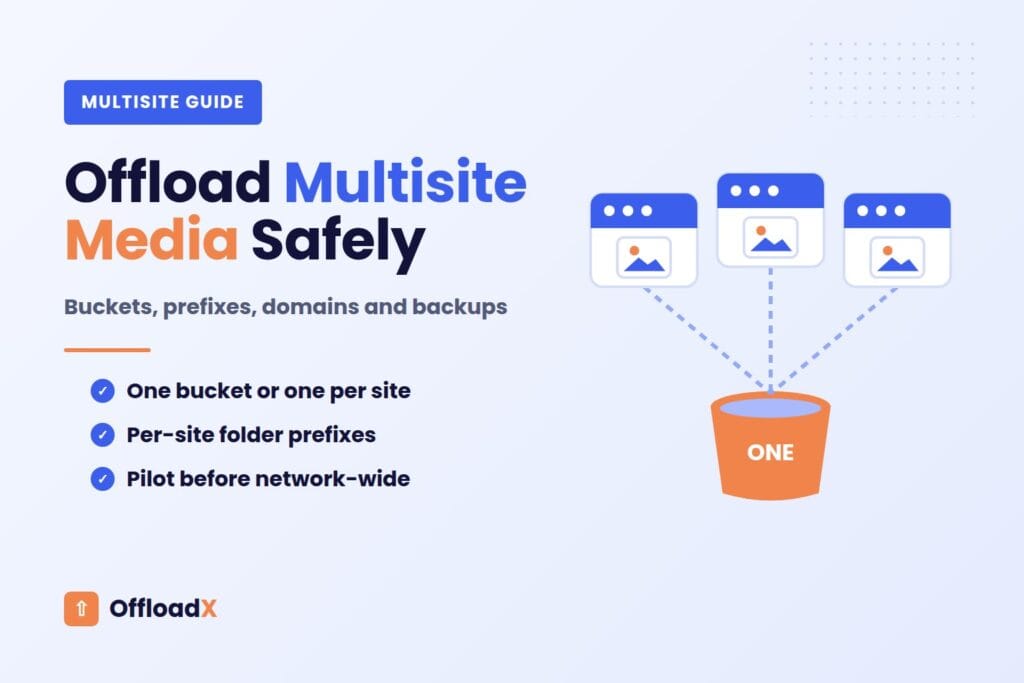
WordPress multisite media offload moves the uploads of every site in a network into cloud storage, so one shared server disk stops carrying the images of dozens or hundreds of sites. It solves the same problem as offloading a single site, but the planning is different: you have to decide how sites share buckets, how folders are separated, how licences count, and how to test without breaking a network that other people depend on.
This guide explains how a WordPress multisite network stores uploads today, why networks outgrow their disks faster than single sites, the trade-offs between one bucket and a bucket per site, and a safe rollout plan that covers domain mapping, CDN domains and backups.
Table of Contents
- How WordPress Multisite Stores Uploads
- Why Networks Outgrow Their Disks
- Measure Media Per Site Before You Start
- One Bucket or a Bucket Per Site?
- Folder Prefixes and Path Design
- Choosing Storage for a Multisite Network
- Licensing and Plan Considerations
- A Safe WordPress Multisite Media Offload Rollout
- Domain Mapping and CDN Domains
- Backups After Offloading a Network
- Common Problems and Fixes
- Frequently Asked Questions
How WordPress Multisite Stores Uploads
In a WordPress multisite network, every site shares one WordPress installation, one database and one wp-content folder. Uploads are still kept apart on disk, though, using the site ID.
According to the WordPress multisite administration handbook, the first site on a fresh install puts files in the traditional /wp-content/uploads/ folder. Every later site uses /wp-content/uploads/sites/, in its own subfolder named after the site number.
| Site | Site ID | Upload path on disk |
|---|---|---|
| Main site | 1 | wp-content/uploads/2026/09/photo.jpg |
| Second site | 2 | wp-content/uploads/sites/2/2026/09/photo.jpg |
| Fifteenth site | 15 | wp-content/uploads/sites/15/2026/09/photo.jpg |
The wp_upload_dir() reference confirms that on multisite the site number is appended to the upload paths, while the year and month subfolders still apply beneath it.
Older networks: blogs.dir and ms-files.php
Networks created before WordPress 3.5 used a different layout: files in wp-content/blogs.dir/{id}/files/, served through a PHP handler at URLs containing /files/. Some long-running networks still use it.
If your media URLs look like example.com/files/2012/05/photo.jpg, you are on the legacy layout. Plan that migration separately, because offloading on top of a rewritten URL scheme adds another layer that can break.
Key point: the main site’s files are not in sites/1/. Any offload plan, backup rule or exclusion must treat site 1 separately from every other site.Why Networks Outgrow Their Disks
A single site grows at the pace of one editorial team. A multisite network grows at the pace of every team at once, all sharing the same disk.
Common causes of runaway growth
- Many uploaders: a university, franchise or agency network can have hundreds of people adding images.
- Thumbnail multiplication: every image creates several resized copies, and themes on different subsites may register different sizes.
- Duplicate media: the same logo or stock photo uploaded separately on dozens of sites.
- Abandoned sites: archived or test subsites that nobody cleans up but still hold years of media.
- Large files: PDFs, audio and video uploaded by users who do not know the file size.
Network upload quotas help, but only a little
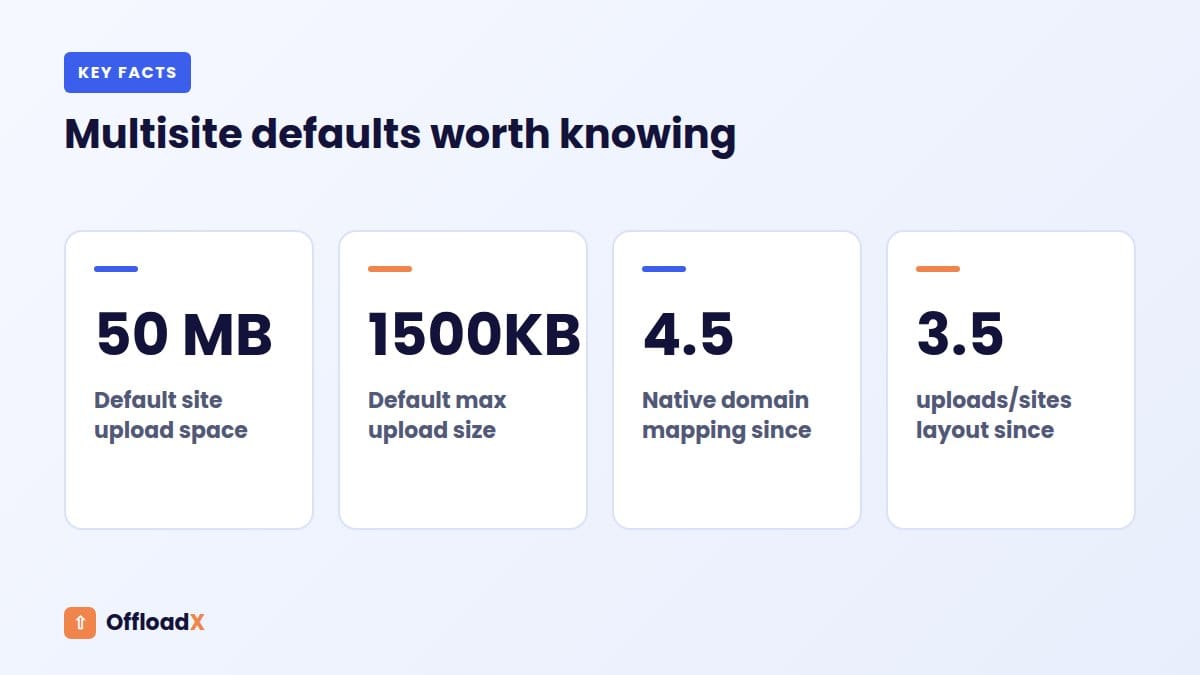
WordPress includes network-level upload controls. The Network Admin Settings documentation lists a Site upload space limit (50 MB in the documented default) and a Max upload file size (1,500 KB by default). These limit abuse, but they do not solve growth, and many networks raise or disable them.
When the shared disk fills, every site on the network fails at once: uploads stop, caches cannot write, and updates may fail. Our guide on what to do when a WordPress site runs out of disk space covers the emergency steps.
Measure Media Per Site Before You Start
Before choosing a bucket layout, find out which sites hold the most media. The answer often surprises network admins, because a few sites usually account for most of the space.
Quick commands over SSH
du -sh wp-content/uploads/sites/* | sort -hlists each subsite’s folder by size.du -sh --exclude=sites wp-content/uploadsmeasures the main site on its own.wp site list --fields=blog_id,urlmaps site IDs to URLs so you know which folder belongs to which site.
What to record
| Column | Why it matters |
|---|---|
| Site ID and URL | Links a folder to a site and its owner |
| Uploads size | Shows where storage and migration time will go |
| File count | Drives upload operations and bulk migration time |
| Mapped domain | Flags sites that need extra URL testing |
| Active or archived | Archived sites may be candidates for deletion rather than offload |
| Owner or client | Decides whether the site needs its own bucket or billing |
This spreadsheet becomes your migration plan. Offload the largest active sites first for the biggest disk win, and leave fragile or high-profile sites until you trust the process.
One Bucket or a Bucket Per Site?
This is the biggest design decision in any WordPress multisite media offload project, and it is hard to change later. Both approaches work; they suit different kinds of networks.
| Factor | One shared bucket | Bucket per site |
|---|---|---|
| Setup effort | Low: one set of credentials | High: credentials and settings per site |
| Isolation | By folder prefix only | Full: separate permissions and keys |
| Billing per client | Hard to split | Easy, especially with separate accounts |
| Handing a site to a client | Needs copying files out | Transfer the bucket or account |
| CDN setup | One CDN domain for all | A domain per bucket |
| Risk if a key leaks | Whole network’s media exposed to changes | One site affected |
| Best for | Company, school or publisher networks | Agencies hosting client sites |
When one bucket is right
A single bucket suits networks run by one organisation: a university with department sites, a newspaper with regional editions, or a company with country sites. Everyone shares a brand, a budget and an IT team.
When separate buckets are right
Separate buckets suit networks where sites belong to different clients or have different compliance needs. They also make it easier to move one site off the network later, because its media is already self-contained.
A middle path
Some networks use one bucket for most sites and separate buckets only for the few that need isolation, such as a client with strict contractual terms. Whether a given plugin supports mixed setups depends on the plugin, so confirm before planning around it.
Folder Prefixes and Path Design
With a shared bucket, folder prefixes are what keep sites apart. A clear, stable prefix scheme makes every later task easier: cleanups, audits, migrations and backups.
Common prefix patterns
| Pattern | Example object key | Pros | Cons |
|---|---|---|---|
| Mirror WordPress paths | wp-content/uploads/sites/15/2026/09/photo.jpg | Matches disk layout; simple URL rewriting | Long keys; site 1 differs from others |
| Site ID prefix | site-15/2026/09/photo.jpg | Short, uniform for every site | Needs a lookup table to know which site is which |
| Site slug prefix | london-office/2026/09/photo.jpg | Readable in the storage console | Breaks if a site is renamed |
Site IDs never change, which makes ID-based prefixes the safest long-term choice. Slugs and domains do change, especially on agency networks.
Rules that prevent pain later
- Decide the scheme before the first upload; changing prefixes later means moving every object.
- Keep site 1 in its own clearly named prefix rather than mixing it into the root.
- Never let two sites write to the same prefix.
- Document the scheme where the next admin will find it.
On OffloadX, per-site folder isolation is part of the Agency plan. On other plans, check how your chosen plugin structures object keys on a network before you migrate anything.
Choosing Storage for a Multisite Network
A multisite network multiplies whatever your provider charges for. Storage grows with every subsite, and bandwidth grows with the combined traffic of the whole network, so pricing models matter more than on a single site.
| Network profile | What to prioritise | Providers to look at |
|---|---|---|
| High combined traffic | Low or zero egress fees | Cloudflare R2, Bunny Storage |
| Large archive, modest traffic | Low price per TB stored | Wasabi, Backblaze B2 |
| Enterprise or compliance needs | IAM, audit logs, regions | Amazon S3, Google Cloud |
| Agency with client sites | Separate accounts or buckets per client | Any S3-compatible provider |
Each provider has its own quirks. Wasabi, for example, has minimum storage rules worth reading before a large migration; our Wasabi guide for WordPress explains them, and our comparison of the best cloud storage for WordPress puts the main options side by side.
Questions to settle before you pick
- Will one team pay for the whole WordPress multisite, or does each client pay for their own storage?
- Do any subsites have data residency requirements that force a specific region?
- How much traffic does the busiest subsite serve compared with the rest?
- Who will hold the provider account if the network changes hands?
Licensing and Plan Considerations
Offload plugins count sites differently, and multisite is where that matters most. A network of 40 sites could count as one installation or as 40 sites, depending on the vendor.
Questions to ask any vendor
- Does a multisite network count as one site or as one per subsite?
- Is multisite support included on the plan you are considering?
- Are features such as folder isolation or bulk migration limited to higher tiers?
- What happens to offloaded media if the licence lapses?
How OffloadX plans relate to multisite
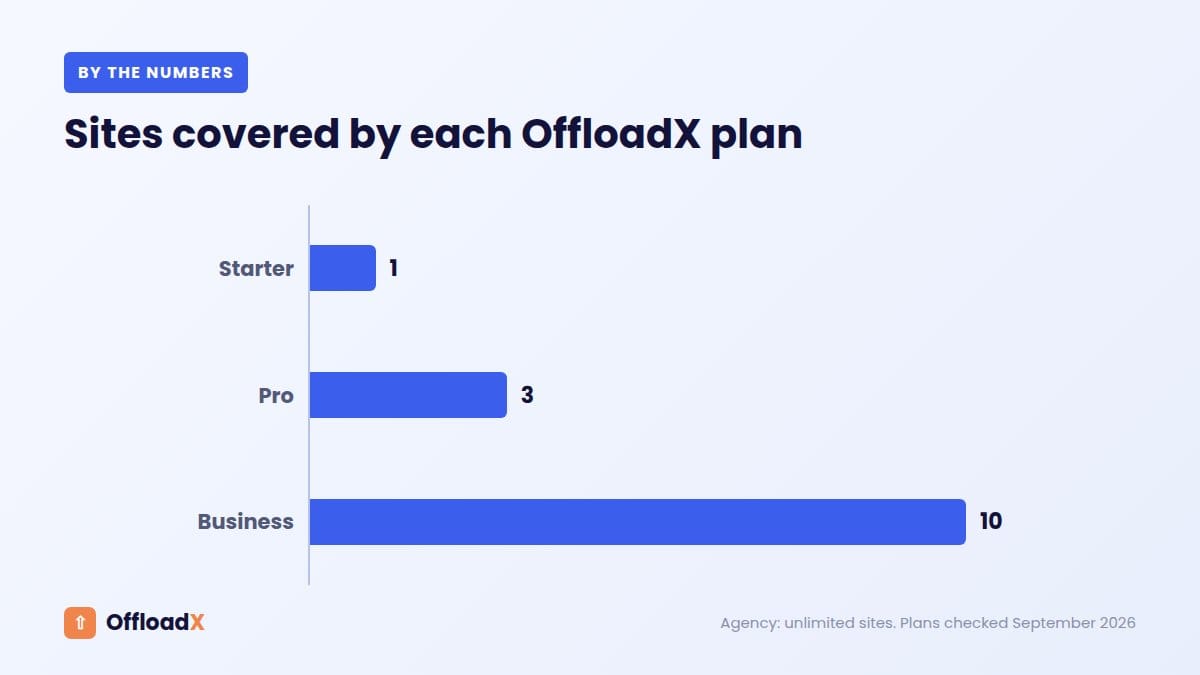
| Plan | Annual price | Sites | Multisite-relevant features |
|---|---|---|---|
| Free | $0 | 1 (up to 100 files) | Multisite not included |
| Starter | $96/yr | 1 | Multisite supported, bulk migrator, DB URL replacer |
| Pro | $204/yr | 3 | Adds file manager, audit log per file |
| Business | $348/yr | 10 | Adds parallel migration lanes, background offload, storage analytics |
| Agency | $528/yr | Unlimited | Adds per-site folder isolation, white label, MIME filtering |
Because networks vary so much, confirm with OffloadX how your network’s sites count against a plan before buying. Every plan has a 14-day money-back guarantee, which gives you time to test on a staging copy. If you are comparing costs with other plugins, see our breakdown of WP Offload Media pricing.
A Safe WordPress Multisite Media Offload Rollout
WordPress multisite media offload touches every site at once, so treat it like an infrastructure change, not a plugin install. This plan keeps risk low.
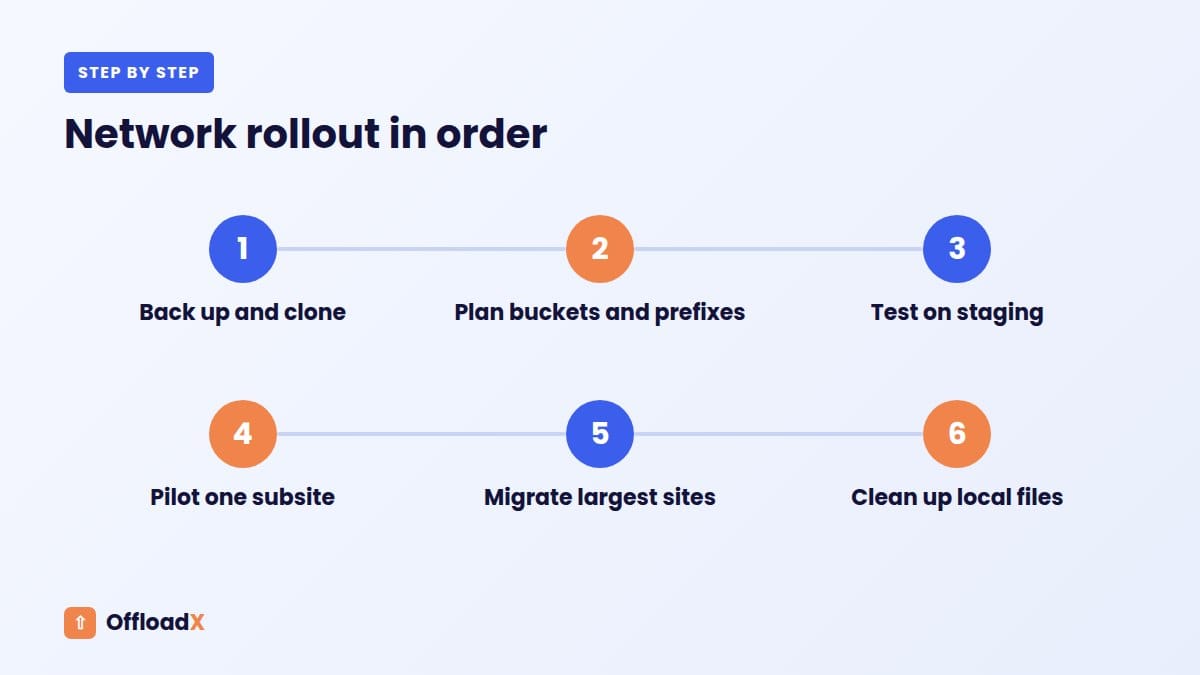
Phase 1: Prepare
- Take a full backup of files and the database, and confirm it restores.
- Clone the network to a staging environment, including mapped domains if possible.
- Create your bucket or buckets and decide the prefix scheme.
- Set up the CDN domain and confirm a test file loads over HTTPS.
Phase 2: Test on staging
- Install and configure the offload plugin on the staging network.
- Upload new images on the main site and on at least two subsites, including one with a mapped domain.
- Check the object keys in the bucket match your prefix plan.
- Run a bulk migration for one small subsite and check every page type: posts, galleries, products, PDFs.
Phase 3: Pilot in production
- Enable offloading for new uploads first, so nothing existing changes.
- Migrate one low-traffic subsite and watch it for a few days.
- Then migrate the largest active sites from your measurement spreadsheet.
- Finish with the main site and any high-profile sites.
Phase 4: Clean up
- Keep local copies until every site has been checked and a new backup exists.
- Only then remove local files, site by site, and confirm disk usage drops.
- Search the database for old upload URLs that page builders may have stored.
Key point: never migrate all sites in one run. A network-wide failure is much harder to unwind than a problem on one pilot site.
Network-wide WordPress multisite media offload checklist
- Media Library grid and list views load thumbnails on every tested site.
- Image blocks, galleries and featured images use the cloud URL.
srcsetattributes point to the cloud for every size.- Media inserted into widgets, menus and page builder layouts still loads.
- RSS feeds and email newsletters use the new URLs.
- New uploads on a freshly created subsite offload correctly.
If you use WP-CLI, the global --url parameter runs a command against one subsite, which is handy for checking a site at a time during the pilot.
Domain Mapping and CDN Domains
Domain mapping has been built into WordPress since version 4.5, according to the domain mapping handbook page. A subsite can run on client-brand.com while living inside network.example.com.
How offloading interacts with mapped domains
Once media is offloaded, image URLs point at the bucket or CDN domain rather than the site’s own domain. That actually simplifies things: mapped domains no longer need to serve media, and the same CDN can deliver files for every site.
Choosing CDN domains for a network
| Approach | Example | When to use it |
|---|---|---|
| One network media domain | media.network.example.com | Single-brand networks |
| A media domain per brand | media.client-brand.com | Client sites where branding matters |
| Provider default domain | *.r2.dev or similar | Testing only; not recommended for production |
A per-brand media domain usually means a separate bucket or CDN configuration per brand. For Cloudflare R2, our guide to connecting a custom domain to R2 walks through the DNS side.
Fonts, CORS and mixed content
- If themes load fonts or SVGs from the media domain, the bucket may need CORS rules allowing each mapped domain.
- Make sure every CDN domain has a valid certificate, or browsers will block images on HTTPS sites.
- Test at least one mapped domain in every browser you support.
Backups After Offloading a Network
Backups are often the first thing to break as a multisite network grows. Once media lives in the cloud, backups shrink dramatically, but you need a plan for the bucket itself.
What to back up where
| Data | Where it lives after offloading | How to protect it |
|---|---|---|
| Database (all sites) | Server | Your usual backup plugin or host backups, daily |
| Themes, plugins, mu-plugins | Server | Backup plugin or version control |
| Media files | Bucket | Versioning, soft delete or copies to a second bucket |
Protecting the bucket
- Versioning: on providers that support it, keeps older copies when objects are overwritten or deleted. Each version is billed as storage.
- Replication: copies objects to a second bucket, ideally in another region or account.
- Scheduled copies: a tool such as rclone can copy the bucket to another provider on a schedule.
- Least-privilege keys: the WordPress key should not be able to delete your backup bucket.
With a shared bucket, one mistaken bulk delete can hit every site. That alone is a good reason to keep an independent copy of the bucket somewhere the WordPress credentials cannot reach.
Common Problems and Fixes
| Symptom | Likely cause | Fix |
|---|---|---|
| Main site images missing, subsites fine | Site 1 uses uploads/, not uploads/sites/1/ | Check prefix and URL rules for the main site |
| Two sites show each other’s images | Sites writing to the same prefix | Separate prefixes or buckets; re-migrate affected files |
| Images break on a mapped domain only | CORS rules or certificate missing for that domain | Add the domain to CORS and check HTTPS on the CDN |
| Old URLs remain in page builder layouts | Serialised or custom data not rewritten | Use a database URL replacement tool with serialisation support |
| Bulk migration times out | Large sites and PHP time limits | Migrate site by site, in smaller batches or in the background |
| Disk usage did not drop | Local copies still kept | Remove local files only after verifying and backing up |
Legacy /files/ URLs broken | Pre-3.5 network layout | Plan an ms-files migration before or separately from offloading |
For provider-specific errors, such as access denied or signature mismatches on R2, see our list of common Cloudflare R2 WordPress errors.
Frequently Asked Questions
Where does WordPress multisite store uploads?
The main site uses wp-content/uploads/. Every other site uses wp-content/uploads/sites/{site ID}/, with the usual year and month folders inside. Networks created before WordPress 3.5 may still use blogs.dir.
Should each subsite have its own bucket?
Only if sites need real isolation, such as client sites with separate billing or ownership. Networks run by one organisation are usually simpler with one bucket and a clear prefix per site.
Can I offload media for only some sites in a network?
That depends on the plugin and how it is configured. Test the behaviour on staging before relying on it, especially if the plugin is network-activated.
Does domain mapping break offloaded media?
Usually not, because offloaded media is served from the bucket or CDN domain. Check CORS rules and HTTPS certificates if a mapped site loads fonts or SVGs from the media domain.
Does OffloadX support WordPress multisite?
Yes. Multisite is supported from the Starter plan upwards, and per-site folder isolation is included on the Agency plan. Confirm how your network’s sites count against your plan before buying.
Will offloading make network backups smaller?
Yes, once local copies are removed, because the uploads folder is usually the largest part of a network backup. You then protect the bucket separately with versioning, replication or scheduled copies.
How long does a network migration take?
It depends on file count, file size and server limits. Migrating site by site, largest first, spreads the load and lets you check each site before moving on.
Conclusion
A successful WordPress multisite media offload starts with measurement, a clear bucket and prefix plan, and a pilot on one subsite before the rest of the network. Get those right, protect the bucket with its own backups, and the shared disk stops being the thing that holds your network back.
See OffloadX Plans →WordPress behaviour is based on the WordPress.org developer handbooks; OffloadX plan details and prices checked September 2026. Plugin licensing rules for multisite vary by vendor, so confirm them before you buy.