
This guide shows how to move from WP Offload Media to Cloudflare R2 safely. WP Offload Media is a reliable plugin, but it officially supports only Amazon S3, DigitalOcean Spaces and Google Cloud Storage. It also charges per media item. If you want Cloudflare R2’s free egress, or you’ve outgrown your media-item limit, this guide shows how to move a WP Offload Media site to R2 without breaking a single image.
We’ll cover two routes — one for sites that kept local copies of their media and one for sites that didn’t — plus a checklist for switching over safely.
Table of Contents
Why Move From WP Offload Media to Cloudflare R2?
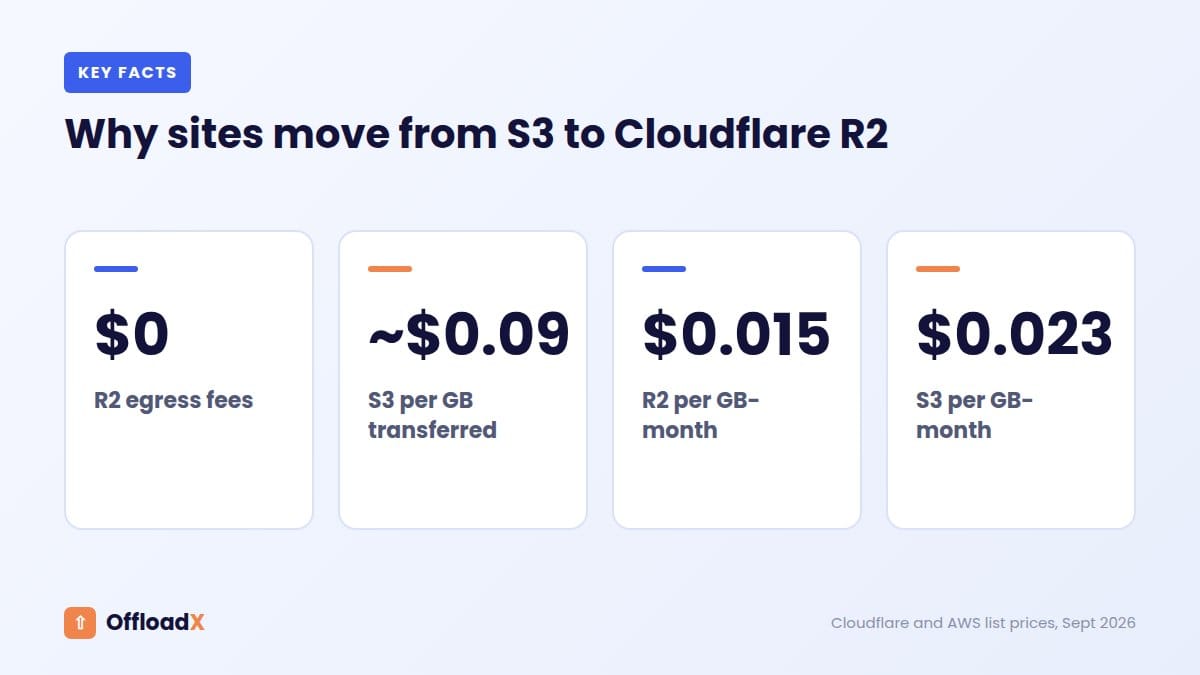
- Bandwidth costs. Amazon S3 charges $0.09/GB for data out to the internet after the first 100 GB a month. R2 charges nothing for egress (AWS, Cloudflare).
- Media-item limits. WP Offload Media plans are priced by the number of media items: Bronze covers 2,000 items for $39/year, and Unlimited costs $1,199/year. A growing library means regular upgrades.
- No official R2 support. WP Offload Media’s provider documentation doesn’t list Cloudflare R2, so connecting it means custom code.
Before You Start
- Back up your database and files. This is the step you’ll be glad you took.
- Check where your media lives. In WP Offload Media’s settings, see whether Remove Local Media was turned on. If it was off, you still have local copies (Route A). If it was on, your files only exist in S3 (Route B).
- Note your current media URL. Open any image on your site and copy its address. It will look like
https://yourbucket.s3.amazonaws.com/wp-content/uploads/...or a CloudFront or custom domain. You’ll need this to rewrite URLs later. - Create your R2 bucket and API token. Follow Steps 1–2 of our Cloudflare R2 WordPress guide.
- Try it on staging first if your host offers a one-click staging site.
Important: Don’t deactivate WP Offload Media or delete anything from S3 until your site is fully serving from R2. Your S3 bucket is your safety net.
Route A: You Kept Local Copies
This is the simpler route. Your server already has every file, so you just need to push them to R2.
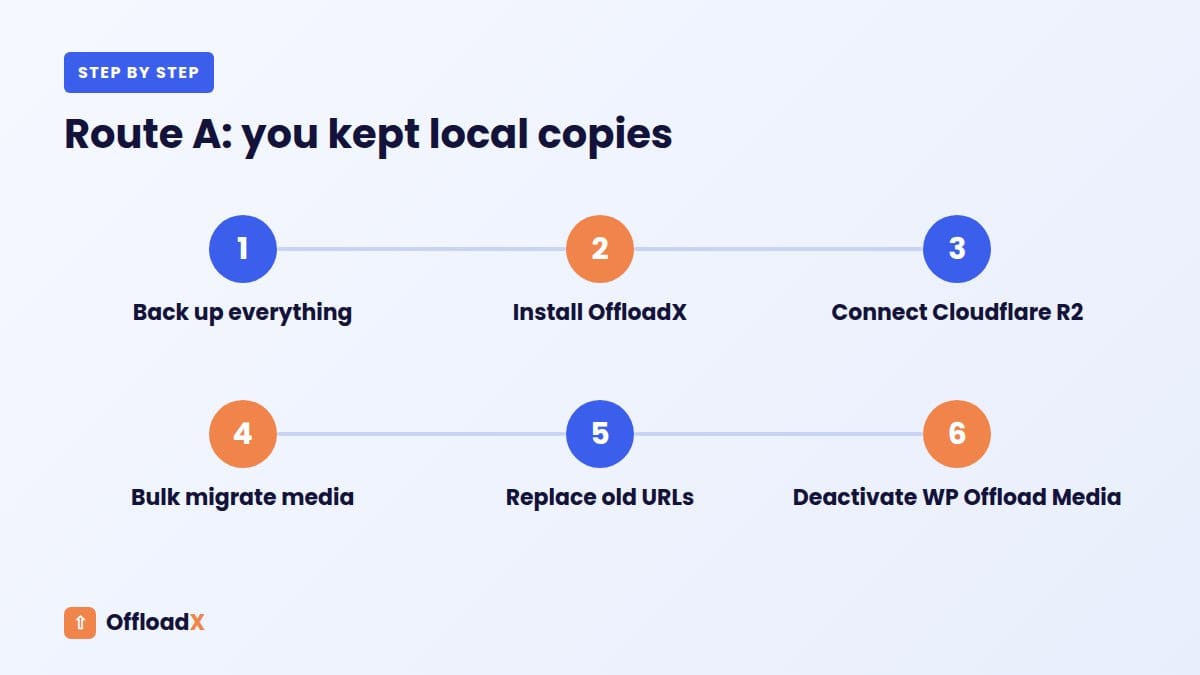
- Install OffloadX and connect it to your R2 bucket (Cloudflare R2 provider, Account ID, Access Key ID, Secret Access Key). Use Verify Credentials to test the connection.
- Connect a custom domain to the bucket, such as
cdn.yoursite.com, and enter it as the delivery URL in OffloadX. See our guide to custom R2 domains. - Deactivate WP Offload Media so two plugins aren’t rewriting URLs at the same time. Your pages will temporarily fall back to local URLs, which still work because the files are on your server.
- Run the OffloadX bulk migrator to upload your library to R2 and switch URLs to the new domain.
- Rewrite hard-coded S3 URLs left in post content (see below).
Route B: Media Only Exists in S3
If WP Offload Media removed your local files, copy the bucket straight from S3 to R2 with Cloudflare’s free migration tool, Super Slurper.
- Create a read-only IAM user in AWS with access to your media bucket. Cloudflare recommends narrow read permissions.
- In the Cloudflare dashboard, open R2 → Data Migration → Migrate files. Choose Amazon S3 as the source, enter the bucket name and IAM credentials, then pick your R2 bucket as the destination.
- Start the migration. Super Slurper copies the objects and doesn’t delete anything from the source bucket (Cloudflare docs). Objects in Glacier storage classes are skipped.
- Keep the same folder structure. WP Offload Media usually stores files under
wp-content/uploads/YYYY/MM/, and sometimes adds a version folder. Copying the bucket as-is keeps the paths identical, so only the domain part of each URL has to change. - Connect a custom domain to the R2 bucket and check that a few images load at
https://cdn.yoursite.com/wp-content/uploads/.... - Rewrite URLs from the old S3 or CloudFront domain to your R2 domain (next section).
Rewriting Old S3 URLs
Posts, pages, page-builder data and widgets may contain the full S3 or CloudFront URL. Swap the old domain for your new R2 domain:
| Find | Replace with |
|---|---|
https://yourbucket.s3.amazonaws.com | https://cdn.yoursite.com |
https://d1234abcd.cloudfront.net | https://cdn.yoursite.com |
OffloadX’s database URL replacement tool supports a dry run, so you can see how many rows will change before you commit. Its rollback history lets you undo a replacement. If you use a different search-and-replace tool, pick one that handles serialized data safely — page builders like Elementor store serialized data, and a plain SQL replace can break it.
Switch-Over Checklist
- Homepage, a few posts and a product page (if you run WooCommerce) show images from
cdn.yoursite.com - No images in your browser’s developer tools still load from
amazonaws.comorcloudfront.net - Page cache and CDN cache purged
- WP Offload Media deactivated, with its settings kept until you’re confident
- S3 bucket kept for 30 days as a fallback, then deleted to stop storage charges
- Your sitemap and a few key pages re-checked in Google Search Console
Frequently Asked Questions
Will I lose SEO when my image URLs change?
Moving to your own subdomain is good for SEO long-term. If your old images were indexed on a CloudFront or S3 domain, Google will pick up the new URLs as it re-crawls your pages. Keep the old bucket online for a few weeks so nothing breaks in between.
Can I use WP Offload Media with R2 instead of switching plugins?
Some developers do it with custom filters, but it isn’t officially supported, so updates could break it. A plugin with built-in R2 support avoids that risk.
How long does migration take?
Super Slurper copies buckets on Cloudflare’s side, so your server isn’t involved. A local bulk migration depends on your hosting and library size — usually minutes to a few hours.
What does R2 cost after the move?
Storage is $0.015 per GB-month with the first 10 GB free, and there are no egress charges. Most small and medium sites pay a few dollars a month or less.
Plan Your Move From WP Offload Media to Cloudflare R2
A calm migration follows a simple timeline. Nothing here needs downtime, and every step before the last one can be undone.
| When | What to do |
|---|---|
| Day 0 | Full backup. Create the R2 bucket, API token and custom domain. Test on staging if you can. |
| Day 1 (morning) | Copy files into R2 (Route A: bulk migrate from local; Route B: Super Slurper from S3). |
| Day 1 (quiet hours) | Switch plugins, rewrite URLs, purge caches, run the checklist. |
| Days 2–30 | Watch for broken images and 404s. Keep S3 and WP Offload Media settings as a fallback. |
| Day 30+ | Delete the S3 bucket and IAM user, and remove WP Offload Media. |
Most small and medium sites finish the active part in an afternoon. Large libraries mostly wait on the file copy.
Pick a quiet period for the switch itself, such as early morning in your main market. If something needs a second look, fewer visitors will notice, and you have the rest of the day to check pages calmly before traffic picks up again.
How WP Offload Media Stores Your Files
Knowing where WP Offload Media puts files makes the move from WP Offload Media to Cloudflare R2 much easier to reason about.
- Folder paths. By default, files live under a path that mirrors WordPress, such as
wp-content/uploads/2026/05/. - Object versioning. If versioning was on, WP Offload Media adds an extra timestamp-style folder to each path so a replaced file gets a new URL. Copying the bucket as-is keeps those folders, so URLs still line up.
- Its own records. WP Offload Media tracks which files it offloaded in its own database records. Another plugin won’t read those, which is why the routes above rely on either local copies or an exact bucket copy.
- Delivery domain. Your media URL is either the S3 bucket address, a CloudFront distribution, or a custom domain you set up. That’s the domain you’ll replace.
What the Move Costs
Two costs are easy to overlook when you plan a move from WP Offload Media to Cloudflare R2.
S3 data transfer during the copy
Copying files out of S3 counts as data transferred out of AWS. AWS includes 100 GB of free transfer out per month, then charges $0.09 per GB for most regions (AWS pricing). For a 50 GB library, the copy is usually free. For 500 GB, budget roughly $36 for the one-time transfer.
Overlap period
For about a month you’ll pay for storage in both S3 and R2. At $0.023 per GB-month on S3 Standard and $0.015 on R2, that’s small for most sites and worth it for the safety net.
After that, the ongoing saving is the bandwidth. R2 has no egress fees, so the cost of serving images to visitors drops to zero.
If You Used CloudFront With WP Offload Media
Many WP Offload Media sites deliver files through a CloudFront distribution, sometimes on a custom domain like cdn.yoursite.com.
- CloudFront on its own domain (
d1234abcd.cloudfront.net): connect a new custom domain to R2 and replace the CloudFront domain in your content. - CloudFront on your own subdomain: you can reuse the same subdomain for R2. Make sure your domain is on Cloudflare, remove the old CNAME, then connect the subdomain to the R2 bucket. Images keep the same URLs, so no content rewrite is needed.
Reusing the subdomain is the smoothest option when it’s available: search engines and cached pages keep working because nothing in the URL changes.
Test the Switch Page by Page
Before you announce anything, walk through the pages that matter most:
- Your homepage and main landing pages.
- Your three most-visited blog posts (check your analytics).
- A page built with your page builder.
- A product page, cart and checkout if you run WooCommerce.
- An image-heavy gallery or portfolio page.
On each page, open your browser’s developer tools, go to the Network tab, and filter by images. Every image should come from your new R2 domain and return a 200 status.
Rolling Back If Something Goes Wrong
A move from WP Offload Media to Cloudflare R2 is low-risk as long as you haven’t deleted anything yet. If images break:
- Use OffloadX’s rollback history to undo the database URL replacement.
- Reactivate WP Offload Media. Its settings and records are still in place.
- Purge all caches.
Your site is then back to serving from S3 exactly as before. Fix the issue, and try the switch again. Most failed switches come down to a missed cache layer or a typo in the new domain, so check those first before changing anything else.
After the Migration: Clean Up
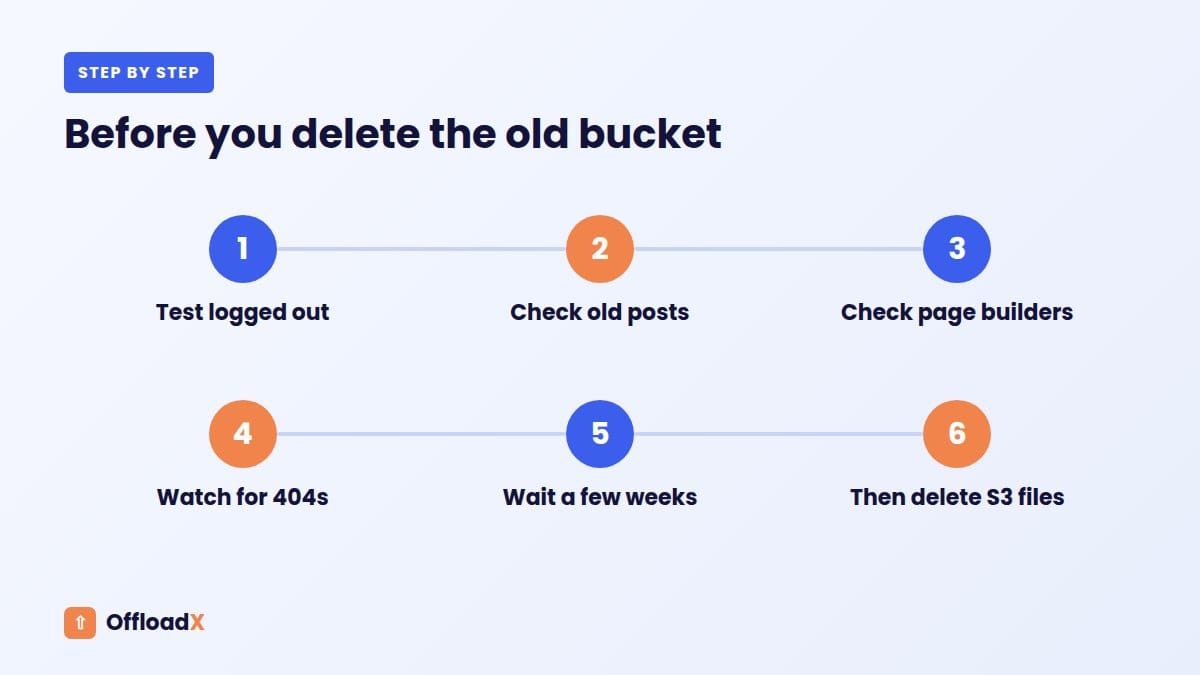
- Delete the S3 bucket once you’re confident, usually after 30 days, to stop storage charges.
- Remove the IAM user you created for Super Slurper, and any old IAM keys WP Offload Media used.
- Deactivate and delete WP Offload Media.
- Turn off CloudFront if you used it and no longer need it.
- Re-check Google Search Console for crawl errors on image URLs over the following weeks.
More Questions About Moving From WP Offload Media to Cloudflare R2
Can I move only part of my library?
It’s possible, but it’s harder to manage. Mixed setups make it easy to lose track of where files live. A full move is simpler.
Will my image URLs change?
Only the domain part changes, unless you reuse the same custom subdomain, in which case nothing changes at all.
Do I need downtime?
No. Files are copied while your site keeps serving from S3. The switch itself takes minutes.
Does the move affect my WordPress backups?
In a good way. Once media lives in R2 and local copies are removed, backups only need your database and code, so they run faster and take less space. Keep a separate note of your R2 bucket so your restore plan covers media too.
Can I keep using my existing image optimisation plugin?
Usually, yes. Most optimisers compress images when they are uploaded, before they are offloaded. Check that the optimiser runs before the offload plugin sends files to R2, and test a few uploads to confirm the compressed version is the one stored.
What if my library is several hundred gigabytes?
Use Super Slurper so the copy runs on Cloudflare’s side, and budget for S3 transfer-out charges above the free 100 GB.
Route A or Route B: Which Should You Use?
If you still have local copies, you can choose either route. Here’s how they compare.
| Route A: upload from local copies | Route B: copy the bucket with Super Slurper | |
|---|---|---|
| Needs local files | Yes | No |
| Where the work happens | Your web server | Cloudflare’s side |
| Server load | Moderate during migration | None |
| AWS transfer charges | None | Free up to 100 GB/month, then $0.09/GB |
| URL paths stay identical | Depends on plugin settings | Yes, when copied as-is |
| Best for | Small and medium libraries on decent hosting | Large libraries, or sites with no local copies |
For libraries under about 20 GB on reasonable hosting, Route A is usually simplest. For anything larger, or on shared hosting with tight limits, Route B keeps the heavy lifting off your server.
Checklist Before You Delete Anything in S3
Deleting the S3 bucket is the only step that can’t be undone. Work through this list first:
- At least 30 days have passed since the switch, with no image complaints.
- Google Search Console shows no rise in crawl errors for image URLs.
- A search of your database for
amazonaws.comandcloudfront.netfinds no remaining media URLs. - Old newsletters or emails that embed images have been considered. They’ll show broken images once S3 is gone.
- You’ve downloaded a final backup of the bucket, or confirmed R2 holds every object.
- R2’s object count and total size roughly match what S3 reported.
If everything checks out, empty and delete the bucket in the AWS console, then remove any IAM users and keys you no longer need.
Multisite and Agency Considerations
Agencies often run WP Offload Media across many client sites. The move to R2 is the same for each site, but a little planning saves time.
- One bucket per client, or folders per site. Separate buckets keep billing and access tidy. If you share a bucket, use a folder per site. OffloadX’s Agency plan includes per-site folder isolation.
- Scoped tokens. Give each site its own R2 API token, limited to its bucket or folder, so one leaked key can’t touch other clients.
- Batch the switches. Migrate one pilot site first, write down what you did, then repeat the steps on the rest.
- Tell clients what changes. Usually nothing visible, but let them know image URLs may move to a
cdnsubdomain.
Related Guides
More From the Blog
Conclusion
Moving from WP Offload Media to Cloudflare R2 comes down to three things: get your files into R2, point your URLs at a custom domain, and keep S3 as a fallback until everything checks out. You get zero egress fees, and no media-item limits.
Compare OffloadX Plans →WP Offload Media details come from Delicious Brains’ pricing page and documentation, checked September 2026.