

Using Cloudflare R2 for WooCommerce is the simplest way to stop a store running out of disk space. WooCommerce stores fill up disk space faster than almost any other kind of WordPress site. Every product photo gets resized into several extra images, every gallery adds more, and every variation can have its own picture. Moving that media to Cloudflare R2 takes the load off your hosting and removes bandwidth fees entirely.
This guide explains how to offload WooCommerce product images to Cloudflare R2: what gets moved, what should stay on your server, how much it costs, and the settings that keep your store fast after the switch.
Table of Contents
Why WooCommerce Stores Run Out of Disk Space
When you upload one product photo, WordPress and WooCommerce don’t store one file. They create a set of resized copies: the standard WordPress sizes plus WooCommerce’s own woocommerce_thumbnail, woocommerce_single and woocommerce_gallery_thumbnail sizes. Your theme and plugins often add more.
A single upload can easily turn into 8–12 files. Multiply that by a product gallery of five photos, then by hundreds of products, and a modest catalogue ends up with tens of thousands of image files. The problems show up quickly:
- Disk quota warnings on shared and managed hosting plans
- Slower backups, because every backup copies the whole uploads folder
- Higher server load on sale days, when your server serves images as well as running checkout
- Bandwidth bills on hosts that meter traffic
Why Use Cloudflare R2 for WooCommerce?
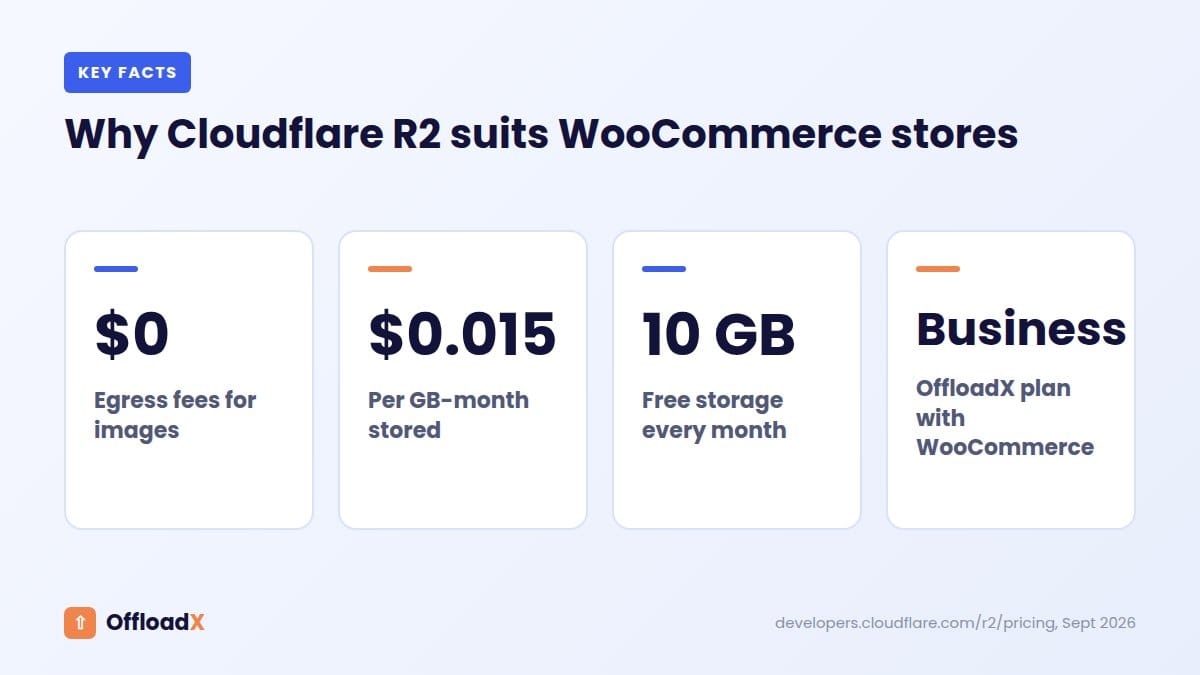
Cloudflare R2 is S3-compatible object storage with one big difference: no egress fees. You pay for storage and operations, not for the bandwidth your visitors use to load images. For a store, where product pages are image-heavy and traffic spikes during promotions, that removes the most unpredictable part of the bill.
| What you pay for | Cloudflare R2 (Standard) |
|---|---|
| Storage | $0.015 per GB-month (first 10 GB free) |
| Writes (Class A) | $4.50 per million (first 1 million free) |
| Reads (Class B) | $0.36 per million (first 10 million free) |
| Egress (bandwidth) | Free |
Prices from Cloudflare’s R2 pricing page. Serve R2 through a custom domain and your images also get Cloudflare’s CDN cache in front of them.
What to Offload (and What to Keep Local)
Offload these
- Product featured images and every generated size
- Product gallery images
- Variation images (colour and size swatches)
- Category thumbnails, banners and blog images
Keep these off public storage
Downloadable product files — e-books, software, audio — should not sit in a public bucket where anyone with the link can fetch them. Keep them on WooCommerce’s protected download path, or in private storage with signed URLs. Only offload files that are meant to be public.
Tip: Run a full backup of your files and database before you offload anything. It takes minutes and makes every later step reversible.
What Cloudflare R2 for WooCommerce Costs vs Amazon S3
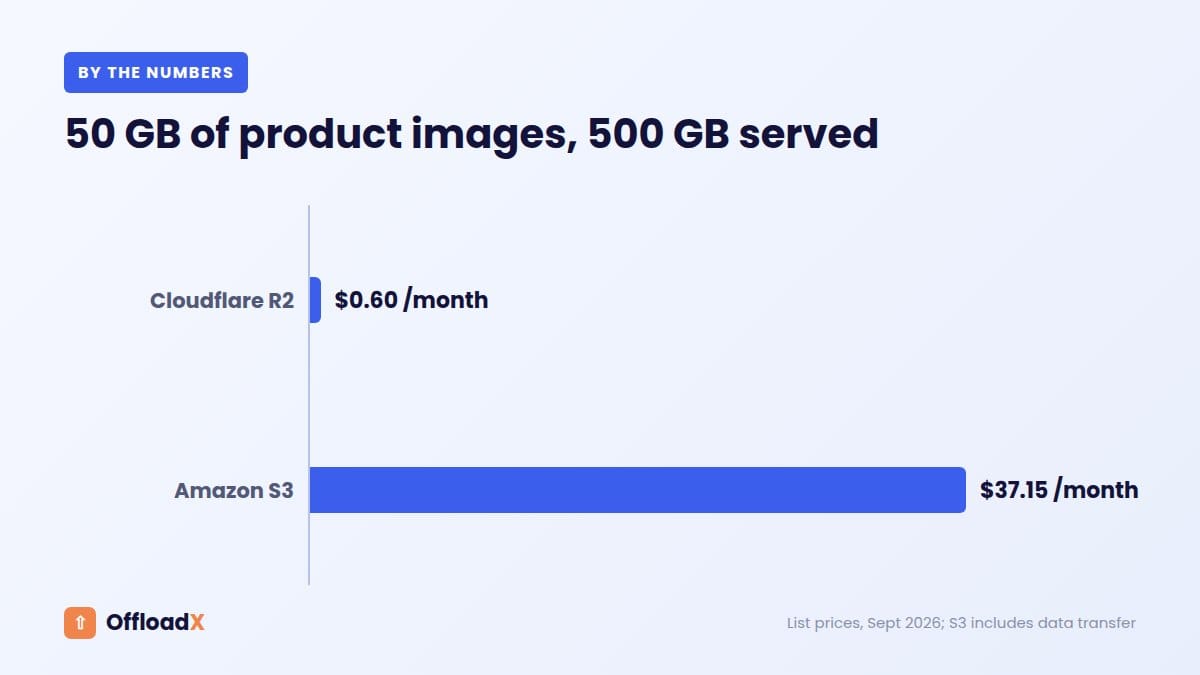
Here’s a worked example for a mid-sized store: 100 GB of product images, 1 TB (1,000 GB) of image traffic a month, and about 2 million image requests a month.
| Monthly cost | Cloudflare R2 | Amazon S3 (us-east-1) |
|---|---|---|
| Storage | 90 GB billable × $0.015 = $1.35 | 100 GB × $0.023 = $2.30 |
| Bandwidth | $0 | 900 GB billable × $0.09 = $81.00 |
| Read requests | $0 (inside free 10 million) | 2 million × $0.0004 per 1,000 = $0.80 |
| Total | ≈ $1.35 | ≈ $84.10 |
S3 figures use AWS’s published S3 Standard pricing with the 100 GB monthly free data transfer. Putting CloudFront in front of S3 changes the bandwidth maths, but it adds another service to configure and pay for. With R2, bandwidth is free by default.
How to Set Up Cloudflare R2 for WooCommerce
The full R2 setup — creating the bucket, generating API keys and connecting the plugin — is covered step by step in our Cloudflare R2 WordPress setup guide. Here is the WooCommerce-specific version:
- Create an R2 bucket for your store, for example
yourstore-media. - Create an R2 API token with Object Read & Write permission, limited to that bucket.
- Install OffloadX and connect it to R2 with your Account ID, Access Key ID and Secret Access Key. WooCommerce support is included on the Business and Agency plans.
- Connect a custom domain such as
cdn.yourstore.comto the bucket. Don’t serve store images from ther2.devaddress: Cloudflare rate-limits it and recommends it for development only. - Turn on auto-offload and URL rewriting, so new product uploads go straight to R2 and product pages point at the new URLs.
- Run the bulk migrator on your existing library. Test first on a staging copy, or with a small batch, then run the rest. Migration runs in batches and can be paused and resumed.
- Decide on local copies. Keep them until you’ve checked the store, then remove them to free disk space.
After the Move: Cache, Speed and SEO Checks
- Purge your page cache (LiteSpeed, WP Rocket, W3 Total Cache and so on) so cached pages stop pointing at old image URLs.
- Check a product page, a category page and the cart. Look at thumbnails, zoom and gallery sliders, and variation swatches.
- Check order emails. Product images in WooCommerce emails should load from the new domain.
- Run a speed test before and after. Product pages usually improve most, because your server no longer handles image requests.
- Use your own subdomain for SEO. Serving images from
cdn.yourstore.comkeeps them on your brand’s domain in Google Images.
Frequently Asked Questions
Will offloading break my product images?
No, as long as URL rewriting is on. The plugin rewrites image URLs so product pages, galleries and emails load from R2. Keep local copies until you’ve checked the store, and you can switch back if anything looks wrong.
Does R2 work with WooCommerce image zoom and galleries?
Yes. Zoom and lightbox scripts load the same image URLs, just from R2. If a script loads images from JavaScript on another domain, you may need a CORS rule on the bucket. Our guide to R2 errors and fixes covers this.
Should I offload downloadable products?
Not to a public bucket. Keep paid downloads protected so only customers who bought them can get the file.
How long does migrating a large store take?
It depends on library size and server speed. Thousands of images usually take minutes to a few hours. Run it in the background during a quiet period.
Cloudflare R2 for WooCommerce vs Keeping Images on Your Host
Most stores start with product photos on the same server that runs WordPress. That works until the catalogue grows. Here’s how the two setups compare day to day.
| Images on your hosting | Cloudflare R2 for WooCommerce | |
|---|---|---|
| Disk space | Counts against your hosting quota | Stored in R2; your quota stays free for WordPress |
| Bandwidth | Served by your server; may be metered | No egress fees from R2 |
| Delivery | One origin server | Cloudflare’s global network with a custom domain |
| Backups | Every backup copies the uploads folder | Backups shrink to the database and code |
| Sale-day load | Server handles checkout and images | Server handles checkout only |
| Hosting upgrades | Often needed for storage alone | Usually not needed for storage |
The biggest difference shows up on busy days. When a promotion drives traffic, every product page loads a dozen or more images. On a single server, those requests compete with checkout. With Cloudflare R2 for WooCommerce, image requests go to Cloudflare instead.
How Many Files Does Your Store Really Have?
Before you migrate, it helps to know the size of the job. The Media Library shows attachments, not the resized copies, so the real file count is several times higher.
Three quick ways to check:
- Hosting file manager. Open
wp-content/uploadsand check the folder size. Most file managers show this in the properties panel. - WP-CLI. If your host offers SSH,
wp post list --post_type=attachment --format=countcounts media items. - Your offload plugin. OffloadX’s dashboard shows how many files are local and how many are already in the cloud.
As a rough guide, multiply the number of media items by 6–10 to estimate total files, depending on how many image sizes your theme registers.
Knowing the total also helps you plan the bulk migration. A store with 2,000 products might have 50,000–100,000 files. That’s fine for a batched migration, but it’s worth running overnight.
Optimise WooCommerce Product Images Before You Offload
Offloading moves files. It doesn’t make them smaller. A little clean-up first means less to store and faster pages afterwards.
Compress and convert
Large JPEGs straight from a camera or supplier can be several megabytes each. Compress them, and consider WebP, which is usually much smaller than JPEG at the same quality. OffloadX paid plans include image compression and WebP support.
Remove unused image sizes
Themes and plugins register image sizes you may never use. Every extra size is another file for each upload. Review your registered sizes, remove the ones your theme doesn’t display, and you cut the file count before migration.
Delete unused media
Old products, test uploads and duplicate images add up. Clear them out before you offload so you’re not paying to store files nobody sees.
Regenerate thumbnails if you changed sizes
If you’ve changed WooCommerce image sizes under Appearance → Customize → WooCommerce → Product Images, regenerate thumbnails before migrating. That way the correct sizes are the ones that go to R2.
Product Imports, Bulk Uploads and New Products
Once auto-offload is on, every new upload goes to R2 automatically. That includes images added in a few ways stores often forget about.
- CSV product imports. WooCommerce’s importer downloads image URLs into the Media Library. With auto-offload on, those images are sent to R2 as they’re imported.
- Supplier or dropshipping plugins. Plugins that pull product images from a supplier usually add them to the Media Library too, so they’re offloaded the same way.
- Page-builder uploads. Images uploaded through Elementor or the block editor go through the Media Library and are offloaded as normal.
One exception: images that a plugin saves outside the Media Library, straight into a custom folder, won’t be offloaded. Check any plugin that stores its own files.
Staging and Testing Checklist
If your host offers staging, test Cloudflare R2 for WooCommerce there first. If not, test on a handful of products before the full run.
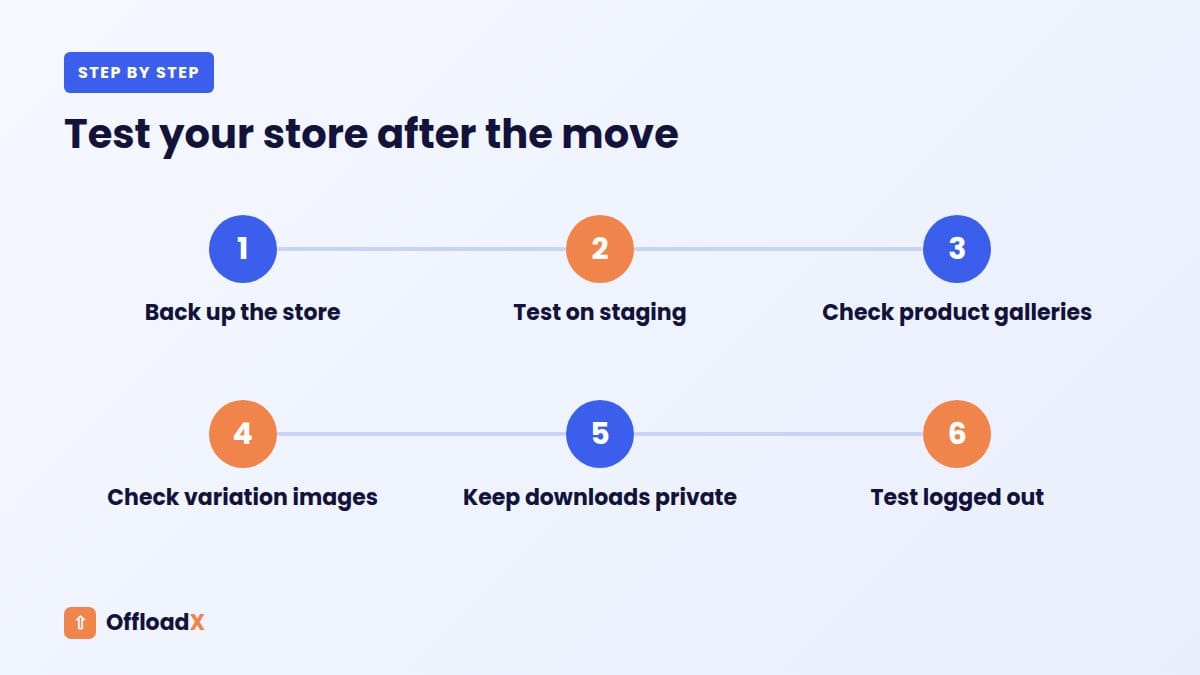
- Pick five products with galleries and variations.
- Offload just those images and open each product page.
- Check the main image, gallery thumbnails, zoom and lightbox.
- Switch between variations and confirm each variation image loads.
- Add a product to the cart and check the cart and checkout thumbnails.
- Place a test order and check the images in the order email.
- Open the page in a private window to make sure you’re not seeing a cached copy.
When all of that looks right, run the bulk migration for the rest of the library.
Common Problems With Cloudflare R2 for WooCommerce
Some thumbnails still load from the old URL
This is almost always caching. Purge your page cache, your host’s cache and any CDN cache for the main domain. Then check the page again in a private window.
Images missing in the cart or mini-cart
Cart fragments are often cached separately. Clear the cache, then check that URL rewriting is on for all output, not just post content.
3D viewers, 360° spins or zoom scripts fail
Scripts that fetch images with JavaScript from another domain need a CORS rule on the bucket. Add a GET/HEAD rule for your store’s domain. Our guide to Cloudflare R2 WordPress errors shows the exact policy.
Old image URLs in order emails
Emails for orders placed before the move keep the image URLs they were sent with. Keep local copies, or keep the old URLs working, for a while after migrating.
Image SEO for WooCommerce Product Images on R2
Product images can bring in traffic from Google Images and shopping searches. Moving them to R2 doesn’t change that, as long as you keep a few basics in place.
- Use your own subdomain. Serving from
cdn.yourstore.comkeeps images tied to your brand. See our guide to using a custom R2 domain. - Keep descriptive filenames.
blue-linen-shirt-front.jpgtells search engines more thanIMG_4821.jpg. - Write alt text. Describe the product in each image, including colour and style.
- Don’t block the image domain. Make sure your CDN subdomain isn’t disallowed in robots.txt.
More Questions About Cloudflare R2 for WooCommerce
Do I need a paid OffloadX plan for WooCommerce?
WooCommerce support is included on the Business and Agency plans. The free plan lets you test the R2 connection on up to 100 files.
Will offloading affect my product feeds for Google Shopping?
Feeds use your product image URLs. After the move they’ll point to your R2 domain, which is fine as long as the images are publicly reachable and load quickly.
Can I go back to local images later?
Yes. OffloadX can revert URLs to local paths. If you kept local copies, images serve from your server again straight away.
Is Cloudflare R2 for WooCommerce worth it for a small store?
For a store with a few hundred images, the main benefit is disk space and faster pages rather than cost. R2’s free tier covers 10 GB of storage, which is plenty for many small stores.
What Cloudflare R2 for WooCommerce Costs by Store Size
R2 pricing is simple enough to estimate in your head: $0.015 per GB-month of storage after the first 10 GB, and no charge for bandwidth. Here are rough monthly storage costs for different catalogue sizes, before any image optimisation.
| Store size | Typical image storage | Approx. R2 storage cost / month |
|---|---|---|
| Small (under 200 products) | 2–8 GB | $0 (inside the 10 GB free tier) |
| Medium (200–2,000 products) | 10–50 GB | $0–$0.60 |
| Large (2,000–10,000 products) | 50–200 GB | $0.60–$2.85 |
| Very large (10,000+ products) | 200 GB+ | From about $2.85 |
Storage sizes vary a lot with image quality, gallery size and the number of registered image sizes, so treat these as ballpark figures. Operation charges are small for most stores: reads are free for the first 10 million a month, and with a custom domain many requests are served from Cloudflare’s cache before they reach R2.
The bigger saving is usually indirect. Stores that move images off their hosting often avoid an upgrade to a larger plan that they’d otherwise need for disk space alone. Check what your host charges for the next storage tier, and compare it with the R2 numbers above.
You can confirm your own numbers after migrating: the R2 dashboard in Cloudflare shows total storage and monthly operations for each bucket.
Conclusion
Switching to Cloudflare R2 for WooCommerce frees disk space, lightens your server on busy days and removes bandwidth fees. Serve images from your own subdomain, keep paid downloads private, and check your key store pages after the move.
See OffloadX Plans →Pricing figures checked September 2026. Cloudflare and AWS change prices from time to time, so confirm current rates on their pricing pages.