
If your site still runs the Media Cloud plugin, now is the time to plan your move. Media Cloud was closed on WordPress.org on August 20, 2026, and the good news is that you can migrate from Media Cloud without losing a single image. The catch is that switching is not as simple as installing another plugin and deactivating the old one. Done in the wrong order, that shortcut breaks every image on your site.
This guide explains how to migrate from Media Cloud safely: why the plugin closed, what happens to your files, the one question that decides your migration path, and a step-by-step plan for both situations, with commands, checklists and fixes.
Table of Contents
- What Happened to Media Cloud?
- Do You Need to Migrate From Media Cloud Right Now?
- Why You Cannot Just Swap Plugins
- The One Question That Decides Your Path
- Before You Migrate From Media Cloud
- Path A: Local Copies Still on Your Server
- Path B: Local Copies Were Deleted
- A Safe Two-Week Migration Timeline
- Replacing Media Cloud’s Extra Features
- After the Move: Testing Checklist
- Common Problems and Fixes
- Frequently Asked Questions
What Happened to Media Cloud?
Media Cloud, by Interfacelab, was one of the most feature-rich media offload plugins for WordPress. It supported Amazon S3, Cloudflare R2, Google Cloud Storage, DigitalOcean Spaces, Bunny CDN and more, and added image editing and dynamic image tools on top.
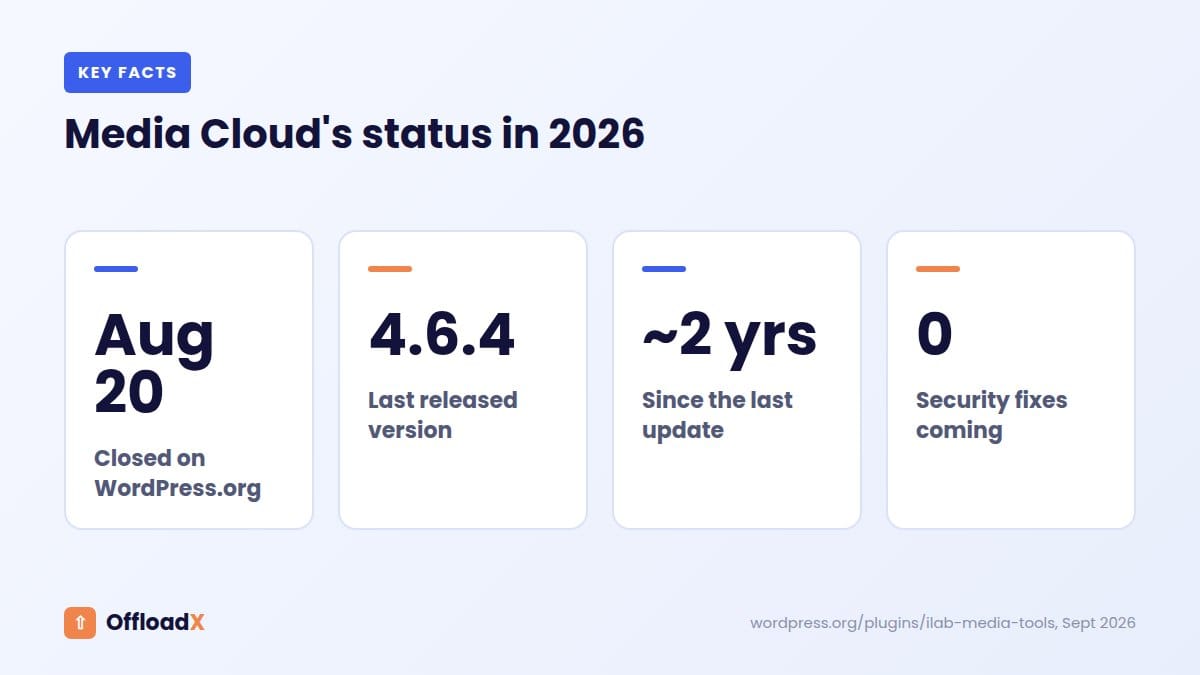
According to its WordPress.org listing, the plugin was closed on August 20, 2026 and is unavailable for download pending a full review. Its last update was about two years earlier, at version 4.6.4, and recent reviews describe unanswered support requests and billing complaints.
What “closed” means for you
- No new installs: nobody can download the plugin from WordPress.org.
- No updates: no security fixes and no compatibility updates for new WordPress or PHP versions.
- Existing installs keep running: closing a plugin does not switch it off on your site. Your images still load today.
That last point is important. You do not need to panic, but you do need a plan, because the plugin rewrites every media URL on your site and nobody is maintaining it.
Do You Need to Migrate From Media Cloud Right Now?
You do not need to migrate from Media Cloud tonight, but you should not wait for something to break. Three kinds of change can stop an unmaintained offload plugin from working:
- WordPress updates. WordPress 7.1, released on August 19, 2026, changed how images are processed on upload in supported browsers. Plugins that hook deep into the upload process are exactly the kind that need testing after changes like this. We explain the details in our guide to WordPress 7.1 media processing.
- PHP upgrades. Hosts regularly retire old PHP versions. Code that has not been updated for two years is more likely to throw errors on newer PHP.
- Security issues. If a vulnerability is found in a closed plugin, there is no one to fix it.
Our advice: Plan to migrate from Media Cloud within the next few weeks, test on a staging copy first, and keep Media Cloud active until the new setup is proven.
Why You Cannot Just Swap Plugins
Your files are safe in your own bucket. Closing Media Cloud did not delete anything from Amazon S3, R2 or any other provider. So why not install a new plugin and point it at the same bucket?
Because every offload plugin keeps its own record, in the WordPress database, of which attachment lives where in the cloud. A new plugin cannot read Media Cloud’s records. A support reply from the developers of another offload plugin put it plainly in a WordPress.org forum thread: even with files already in the cloud, their database has no mapping for those media URLs, so the media must be synced through the new plugin.
What happens if you deactivate first
When you deactivate an offload plugin, its URL rewriting stops. WordPress goes back to looking for files in /wp-content/uploads/ on your server.
- If local copies still exist, images keep working from your server.
- If Media Cloud deleted local copies after upload, every image that exists only in the cloud breaks.
That is why the order of steps matters more than the choice of new plugin.
The One Question That Decides Your Path
Are your media files still on your server?
Media Cloud had an option to delete uploaded files from the server after offloading them. Whether you turned it on decides everything.
How to check
- Open your hosting file manager, or connect over SFTP.
- Go to
wp-content/uploads/and open a recent year and month folder, such as2026/08/. - Compare it with what you see in the Media Library for that month.
| What you find | Your path |
|---|---|
| Folders contain your images and their resized versions | Path A: straightforward |
| Folders are empty or missing | Path B: download from the bucket first |
| Recent months empty, older months full | Path B for the missing months, then Path A |
Also check the size of the uploads folder against your bucket’s size in the provider dashboard. If the bucket is much larger, some files probably exist only in the cloud.
Before You Migrate From Media Cloud
- Take a full backup of your database and files, and download a copy.
- Create a staging site if your host offers one. Test the whole migration there first.
- Write down your Media Cloud settings: provider, bucket name, region, the folder prefix used inside the bucket, and any CDN or custom domain.
- Note your image URLs. Open a few images in a new tab and record their addresses. You will compare these after the move.
- List page builder pages. Elementor and similar builders often save full image URLs in their own data, so test them specifically.
- Pick your new provider. You can stay on the same bucket or use the move to switch, for example to Cloudflare R2 to remove bandwidth fees. Our cloud storage cost comparison can help.
Path A: Local Copies Still on Your Server
This is the easier way to migrate from Media Cloud. WordPress still has every file, so the new plugin can upload and map them itself.
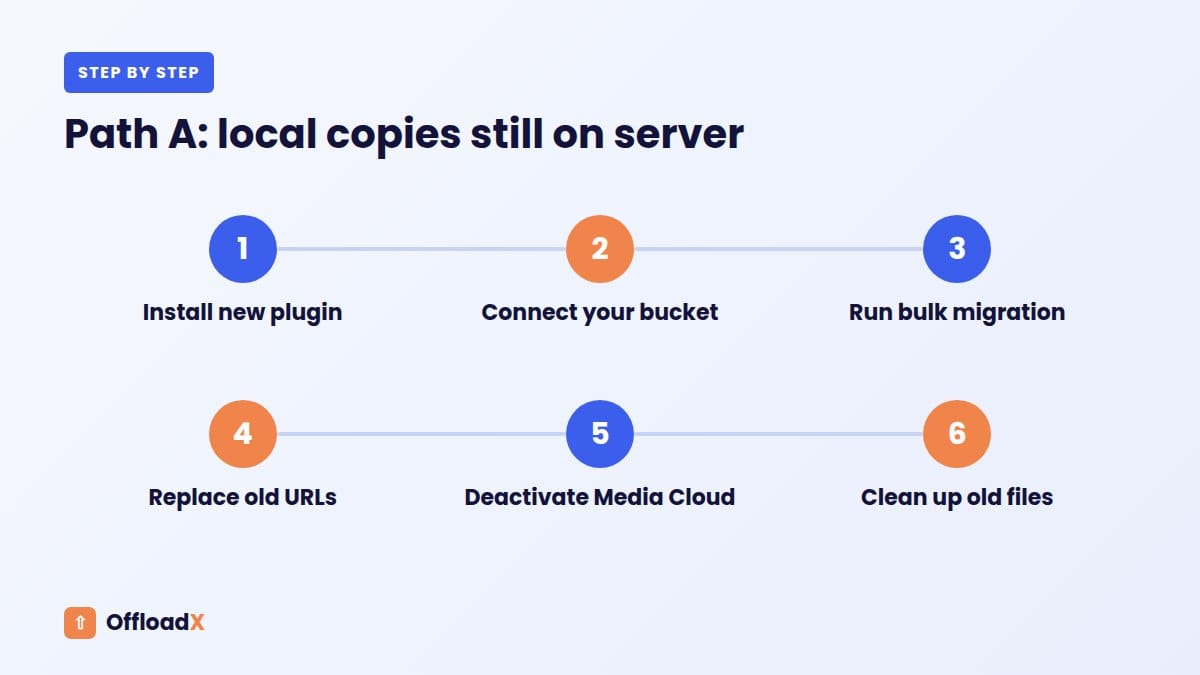
Step 1: Install the new plugin (keep Media Cloud active)
Install your new offload plugin. With OffloadX, download it from offloadx.com and upload it under Plugins → Add New → Upload Plugin. OffloadX supports every provider Media Cloud’s main users relied on: Cloudflare R2, Amazon S3, Google Cloud, DigitalOcean Spaces, Bunny Storage, Wasabi and other S3-compatible services.
Step 2: Connect your bucket
Enter your provider credentials and run the connection tester. You can use the same bucket as before with a new folder prefix, or a fresh bucket. A fresh folder or bucket keeps the old and new copies clearly separate.
Step 3: Run the bulk migration
Use the Bulk Migration tool (available on OffloadX paid plans) to upload your existing library. This creates the database mapping the new plugin needs.
Step 4: Replace old URLs in the database
Posts, pages and page builder data may contain hard-coded Media Cloud URLs. Use the URL Replace tool to point them at the new locations. Run a dry run or test on staging first.
Step 5: Deactivate Media Cloud
Only now deactivate Media Cloud. Clear every cache: your page cache plugin, your host’s cache and any CDN cache. Then test the site logged out.
Step 6: Clean up
Once everything has worked for a week or two, delete Media Cloud and remove its old files from the bucket, if you moved them. Old files left in a bucket keep costing storage fees every month.
Path B: Local Copies Were Deleted
If Media Cloud removed files from your server, you need to bring them back before changing plugins. Keep Media Cloud active throughout this path so your live site keeps working.
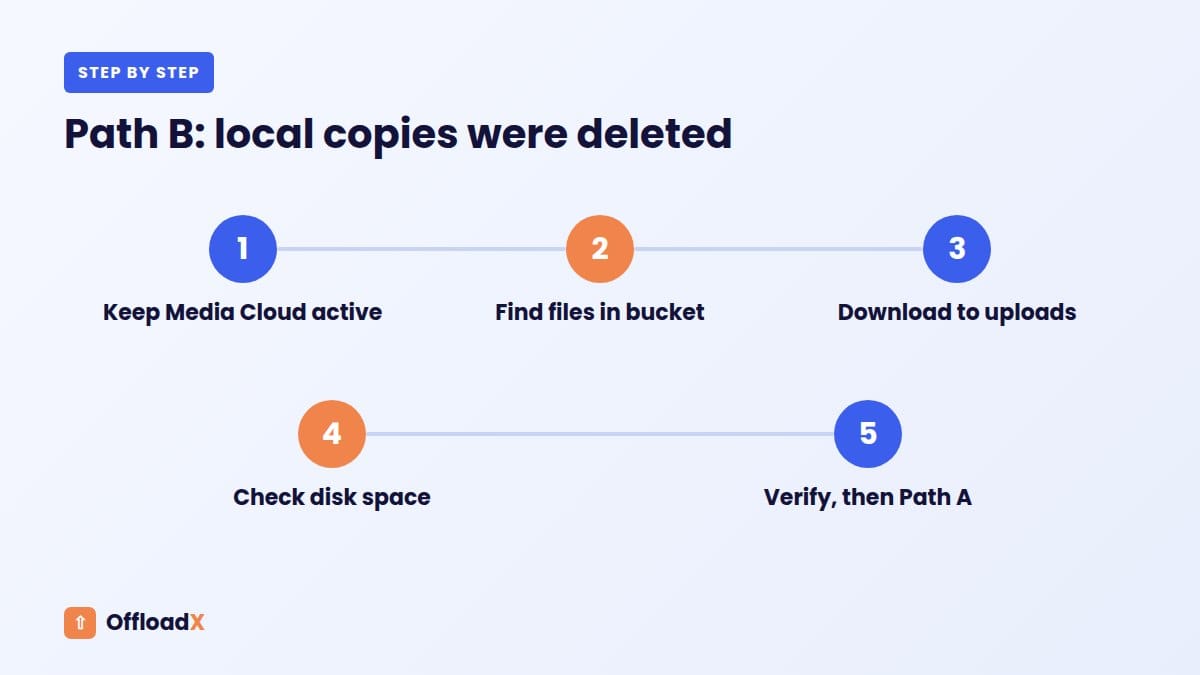
Step 1: Find your files in the bucket
Open your bucket in the provider dashboard and find the folder prefix Media Cloud used. Files are usually organised by year and month, mirroring wp-content/uploads.
Step 2: Download the files back to your server
For small libraries, you can download folders from the provider dashboard. For larger ones, use a command-line sync tool. Two common options:
AWS CLI (works with S3 and most S3-compatible providers by adding their endpoint):
aws s3 sync s3://your-bucket/your-prefix/ ./wp-content/uploads/ --endpoint-url https://your-provider-endpoint
rclone (supports S3, R2, Google Cloud, Spaces, Wasabi, Bunny and more):
rclone copy remote:your-bucket/your-prefix ./wp-content/uploads --progress
Run these on your server over SSH if your host allows it, or on your computer and upload the result. Check that the folder structure matches what WordPress expects, for example wp-content/uploads/2026/08/photo.jpg.
Step 3: Check disk space first
You are temporarily bringing the whole library back to your server. Make sure your hosting plan has room. If it does not, migrate in batches of months, or use a staging server with more space.
Step 4: Verify, then follow Path A
Spot-check a few files from different years on the server. Once the library is complete, follow Path A from Step 1. After the new plugin has offloaded everything and you have tested the site, you can remove local copies again to free the space.
If disk space is tight, our guide to a WordPress site running out of disk space covers quick ways to make room.
A Safe Two-Week Migration Timeline
| When | What to do |
|---|---|
| Day 1 | Check local copies, record Media Cloud settings, take a full backup. |
| Days 2–3 | Set up staging. Download missing files if you are on Path B. |
| Days 3–4 | Install the new plugin on staging, migrate, replace URLs, test. |
| Day 5 | Repeat on the live site during a quiet period. |
| Days 6–12 | Keep Media Cloud’s old files in place; monitor for broken images and errors. |
| Day 14 | Delete Media Cloud and clean up old cloud files. |
Smaller sites can compress this into a day or two. The important part is the order, and keeping a way back until you are sure.
Should you switch storage provider at the same time?
Migrating plugins is a natural moment to reconsider your provider, because you are re-uploading media anyway.
| If Media Cloud used… | Consider | Why |
|---|---|---|
| Amazon S3 | Cloudflare R2 | No egress fees; S3 data transfer is billed per GB |
| Google Cloud Storage | R2 or keep GCS | Keep GCS if the rest of your stack is on Google Cloud |
| DigitalOcean Spaces | Keep Spaces | Simple $5 plan with built-in CDN |
| Bunny CDN storage | Keep Bunny Storage | Free storage-to-CDN traffic |
| A large library on any provider | Backblaze B2 or Wasabi | Lowest per-TB storage prices |
Changing provider adds one more thing to test, so only do it if the savings are meaningful. Our guides to DigitalOcean Spaces and Bunny Storage cover those setups.
Replacing Media Cloud’s Extra Features
Media Cloud did more than offloading. Before you migrate from Media Cloud, list the features you used and plan a replacement for each.
| If you used Media Cloud for… | Replace it with… |
|---|---|
| Offloading to S3, R2, Google Cloud, Spaces or Bunny | An actively maintained offload plugin such as OffloadX |
| Serving through a CDN or custom domain | Your new plugin’s CDN or custom domain setting |
| WebP conversion and compression | OffloadX Starter and above, or a dedicated image optimisation plugin |
| Dynamic image resizing services | Your CDN’s image resizing feature, or WordPress’s own image sizes |
| Direct uploads to cloud storage | Test your new plugin’s upload flow on large files |
Comparing replacement plugins? Our roundup of WP Offload Media alternatives covers the main options still maintained in 2026.
What about SEO during the move?
Image URLs change when you switch plugins or buckets. Search engines handle this well if the new URLs work, pages still reference them correctly, and nothing returns errors. To protect rankings:
- Keep alt text and file names unchanged.
- Use a custom media subdomain if you can, so future moves do not change URLs again.
- Leave the old files in place for a few weeks, so any cached or shared links still resolve.
- Watch Search Console for image and crawl errors after the switch.
After the Move: Testing Checklist
- Browse the homepage, recent posts, old posts and key landing pages in a private window.
- Open images in new tabs and confirm the addresses use your new bucket or CDN domain.
- Check responsive images on a phone, since each screen size may load a different thumbnail.
- Test page builder layouts, galleries and sliders.
- For stores, open product pages, galleries and variation images.
- Upload a new image and confirm it offloads automatically.
- Run a broken-link check or crawl to find any missed URLs.
- Check Google Search Console over the following weeks for image or crawl errors.
Common Problems and Fixes
| Problem | Likely cause | Fix |
|---|---|---|
| All images broke after deactivating Media Cloud | Local copies had been deleted | Reactivate Media Cloud, then follow Path B. |
| New plugin shows 0 files offloaded | It has no mapping for Media Cloud’s files | Run the new plugin’s bulk migration. |
| Some pages still load old URLs | Hard-coded URLs in content or builder data | Run URL Replace, then clear all caches. |
| Thumbnails missing, originals fine | Only originals were downloaded back | Sync the full folders, including resized files. |
| Storage bill doubled | Old and new copies both in the cloud | Delete the old prefix once the new setup is verified. |
Frequently Asked Questions
Why was Media Cloud closed?
WordPress.org lists it as closed on August 20, 2026, pending a full review. It had not been updated for about two years.
Will my images stop working immediately?
No. The plugin keeps running on existing sites. The risk is future breakage from WordPress or PHP updates, and unpatched security issues.
Can I keep my existing bucket?
Yes. Your files stay in your bucket. The new plugin still needs to sync or map them, so plan a bulk migration either way.
How long does it take to migrate from Media Cloud?
Small sites can finish in an hour. Large libraries, especially on Path B where files must be downloaded first, can take several hours or more.
Do I need a developer?
Not for Path A. Path B is easier with SSH access and a sync tool like rclone, so some sites may want help for that step.
What is the best Media Cloud alternative?
Choose an actively maintained plugin that supports your provider. OffloadX supports all the main providers Media Cloud did, with unlimited files from the Starter plan.
Can I migrate from Media Cloud to a different bucket?
Yes. Many sites use the move to switch provider, for example from Amazon S3 to Cloudflare R2. Test on staging first, and keep the old bucket until the new setup is verified.
What if I no longer have access to the bucket?
Recover access through your storage provider’s account first. Without bucket access, you cannot download files that exist only in the cloud, so do this before changing any plugin.
Is Media Cloud Sync the same plugin?
No. Media Cloud Sync is a different plugin by a different developer, despite the similar name. It cannot read the original Media Cloud’s records either.
Should I delete Media Cloud’s files from my bucket?
Only after the new setup has run without problems for a week or two. Until then, the old files are your safety net.
Conclusion
You can migrate from Media Cloud safely if you do it in the right order: check whether local copies exist, bring files back if needed, let the new plugin map and upload them, replace old URLs, and only then deactivate Media Cloud.
See OffloadX Plans →Plugin status checked on WordPress.org in September 2026. Always back up your site before changing media plugins.