
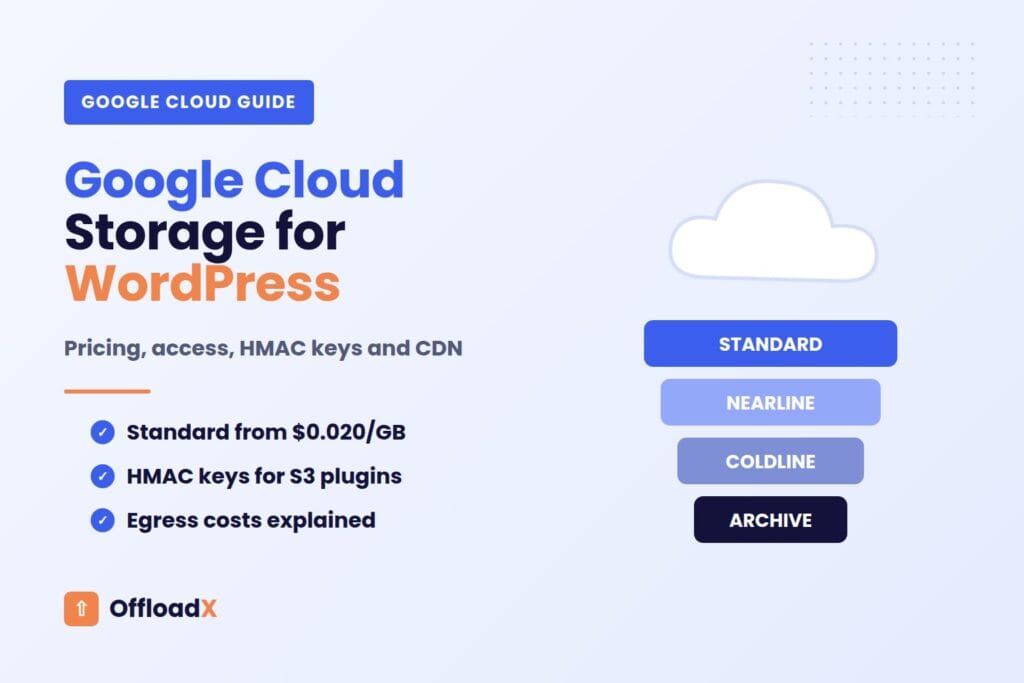
A Google Cloud Storage WordPress setup lets you keep your media library in the same infrastructure that runs YouTube and Gmail, and serve it from Google’s network instead of your web server. Standard storage starts at $0.020 per GB per month in regions such as Iowa and South Carolina, there is a small Always Free tier, and every bucket speaks an S3-compatible XML API. The catch is that internet egress costs $0.12 per GB, so the way you deliver files matters as much as where you store them.
Most guides assume you will use WP-Stateless, the free Google-only plugin. This guide takes a different route: it explains how to prepare a GCS bucket so any S3-compatible offload plugin can use it, which storage class and access model to pick, what the bill really looks like, and when Cloudflare R2 or Amazon S3 would serve you better.
Table of Contents
- Why Use Google Cloud Storage for WordPress?
- Google Cloud Storage Pricing Explained
- Storage Classes: Why Live Media Belongs in Standard
- Uniform vs Fine-Grained Access and Public Objects
- HMAC Keys and S3-Compatible Access
- Google Cloud Storage WordPress Setup, Step by Step
- Should You Add Cloud CDN?
- Google Cloud Storage vs Cloudflare R2 vs Amazon S3
- Monthly Cost Examples
- Using GCS Without WP-Stateless
- Common Problems and Fixes
- Frequently Asked Questions
Why Use Google Cloud Storage for WordPress?
Google Cloud Storage (GCS) is Google’s object storage service. You create buckets, upload objects, and each object gets a URL that browsers can load directly. In a Google Cloud Storage WordPress setup, that means images, PDFs, audio and video live outside the server’s disk.
Moving media off the server has the same benefits on GCS as on any other provider. Backups get smaller, disk space stops running out, and your host no longer serves every image request. If your server is already close to full, our guide on what to do when a WordPress site runs out of disk space explains the wider picture.
Who GCS suits best
- Teams already on Google Cloud: billing, IAM and audit logs sit in one console you already use.
- Sites hosted on Google Cloud: WordPress on Compute Engine or a managed host that runs on Google’s network can upload to a bucket in the same region.
- Agencies with Google credits: startup or partner credits apply to storage too.
- Sites with modest traffic: where egress stays small, the low storage price is the main cost.
Who should look elsewhere
If your site serves a lot of bandwidth and you have no Google Cloud relationship, a provider with free or cheap egress usually wins on price. We compare the options in our guide to the best cloud storage for WordPress, and the numbers later in this post show why.
Google Cloud Storage Pricing Explained
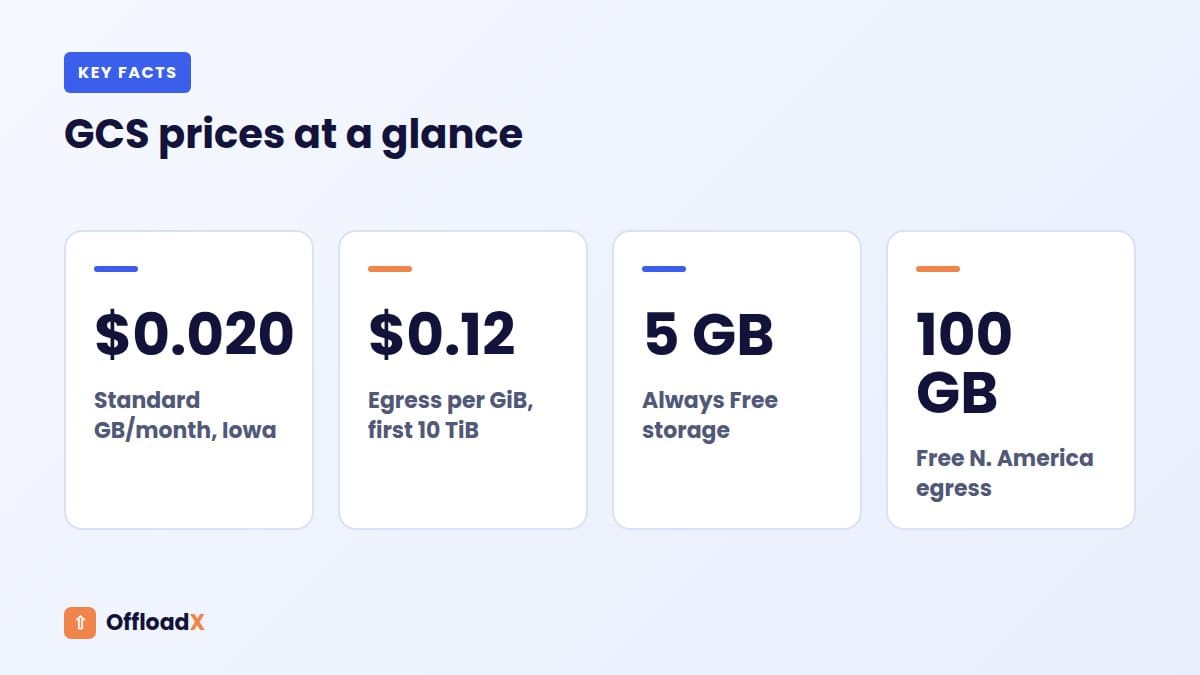
GCS bills for four things: data stored, operations (requests), data retrieval for colder classes, and network egress. These are list prices from the Google Cloud Storage pricing page, checked September 2026.
Storage per GB per month
| Location type | Example | Standard | Nearline | Coldline |
|---|---|---|---|---|
| Single region | us-central1 (Iowa), us-east1 (South Carolina) | $0.020 | $0.010 | $0.004 |
| Multi-region | US or EU | $0.026 | $0.015 | $0.0087 |
Prices can differ between regions, and Google lists them per GiB-hour as well as per month. Always check the row for the exact region you plan to use before you commit.
Operations
Uploads and listings are Class A operations; downloads and metadata reads are Class B. For Standard storage in a single region with a flat namespace, Class A costs $0.005 per 1,000 operations and Class B costs $0.0004 per 1,000. A WordPress image upload that creates several thumbnail sizes triggers one upload per file, so budget a handful of Class A operations per image.
Network egress
| Monthly internet egress (from North America or Europe) | Price per GiB |
|---|---|
| 0 to 10 TiB | $0.12 |
| 10 to 150 TiB | $0.11 |
| 150 TiB and above | $0.08 |
Egress is the line that surprises people. Every time a visitor downloads an image straight from the bucket, you pay for those bytes. A busy blog can spend more on egress in a month than on a year of storage.
The Always Free tier
- 5 GB-months of Standard storage
- 5,000 Class A and 50,000 Class B operations
- 100 GB of outbound data transfer from North America to most destinations (Australia and China excluded)
- Applies only to buckets in us-west1, us-central1 or us-east1, aggregated across them
Key point: the free tier only applies to three US regions. A bucket in London or Frankfurt pays from the first byte, so pick your region with both latency and cost in mind.
Storage Classes: Why Live Media Belongs in Standard
Nearline and Coldline look tempting because they are half or a fifth of the Standard price. For a live WordPress media library they are usually a trap, because of two rules: minimum storage durations and retrieval fees.
| Class | Minimum storage duration | Retrieval fee per GB | Good for |
|---|---|---|---|
| Standard | None | $0 | Live website media |
| Nearline | 30 days | $0.01 | Data read about once a month |
| Coldline | 90 days | $0.02 | Data read about once a quarter |
| Archive | 365 days | $0.05 | Long-term archives and backups |
Google’s pricing page states that if you delete, replace or move an object before the minimum duration, you are charged as if it had been stored for the full period. WordPress replaces files more often than you might think: regenerating thumbnails, editing an image, or re-running a compression tool all rewrite objects.
Why retrieval fees hurt a website
Every page view that loads a Nearline image triggers a retrieval fee on top of egress. On a site where the same hero image is fetched thousands of times a day, the “cheap” class quickly costs more than Standard. The storage classes documentation positions the colder classes for data you rarely read, which is the opposite of a web page.
Where colder classes do fit
- A separate bucket for off-site copies of your WordPress backups.
- Old original files you keep for legal or archive reasons but never display.
- Lifecycle rules that move noncurrent object versions to Coldline after a set number of days.
Uniform vs Fine-Grained Access and Public Objects
Visitors must be able to load your images without logging in, so the bucket needs public read access. GCS gives you two ways to control that.
| Model | How permissions work | Best for |
|---|---|---|
| Uniform bucket-level access | IAM only; ACLs are disabled for the bucket and its objects | A media bucket where everything is public |
| Fine-grained | IAM plus per-object ACLs | Legacy tools that set ACLs on each upload |
Google recommends uniform bucket-level access for most buckets. It is simpler, and it removes the risk of one object ending up with different permissions from the rest. Note that the uniform access documentation says the setting cannot be turned off once it has been active for 90 consecutive days.
Making a WordPress media bucket public
- Check that public access prevention is not enforced on the bucket, its project or its organisation. If it is, public sharing will fail.
- Open the bucket’s Permissions tab and grant the principal
allUsersthe role Storage Object Viewer (roles/storage.objectViewer). - Upload a test file and open
https://storage.googleapis.com/BUCKET_NAME/OBJECT_NAMEin a private browser window.
Google warns that public data exposes object metadata to the internet, and that revoking access typically takes about a minute. Keep this bucket for public media only; never store backups or private documents in it.
ACL errors from S3 tools
Some S3 tools send an ACL such as public-read with every upload. With uniform access enabled, Google says ACL requests fail with 400 Bad Request. If uploads fail with that error, look for a setting in your plugin that stops it sending per-object ACLs, or use a fine-grained bucket instead.
HMAC Keys and S3-Compatible Access
Offload plugins built for the S3 API cannot use a Google service account JSON file. Instead, GCS offers interoperability through its XML API: you point the tool at https://storage.googleapis.com and sign requests with HMAC keys, which work like an AWS access key and secret.
HMAC key facts worth knowing
- Two parts: an access ID (61 characters for a service account) and a 40-character secret.
- Shown once: the secret appears only when the key is created. If you lose it, you must create a new key.
- Service accounts preferred: Google recommends service account keys over user account keys for better oversight.
- Limit: a service account can have up to 10 HMAC keys, which makes rotation easy.
Details are in the HMAC keys documentation and the interoperability guide.
Scope the service account tightly
Create a dedicated service account for WordPress, then grant it a role on the media bucket only, not on the whole project. Storage Object Admin on that one bucket lets the plugin upload, overwrite and delete media without touching anything else in your account.
Key point: HMAC keys give full access to whatever the service account can reach. One bucket, one service account, one key per site keeps the damage small if a key ever leaks.
Google Cloud Storage WordPress Setup, Step by Step
OffloadX supports Google Cloud on every plan, including Free. The Google-side steps below are the same whichever S3-compatible plugin you use; the plugin’s credentials screen and documentation tell you where each value goes.
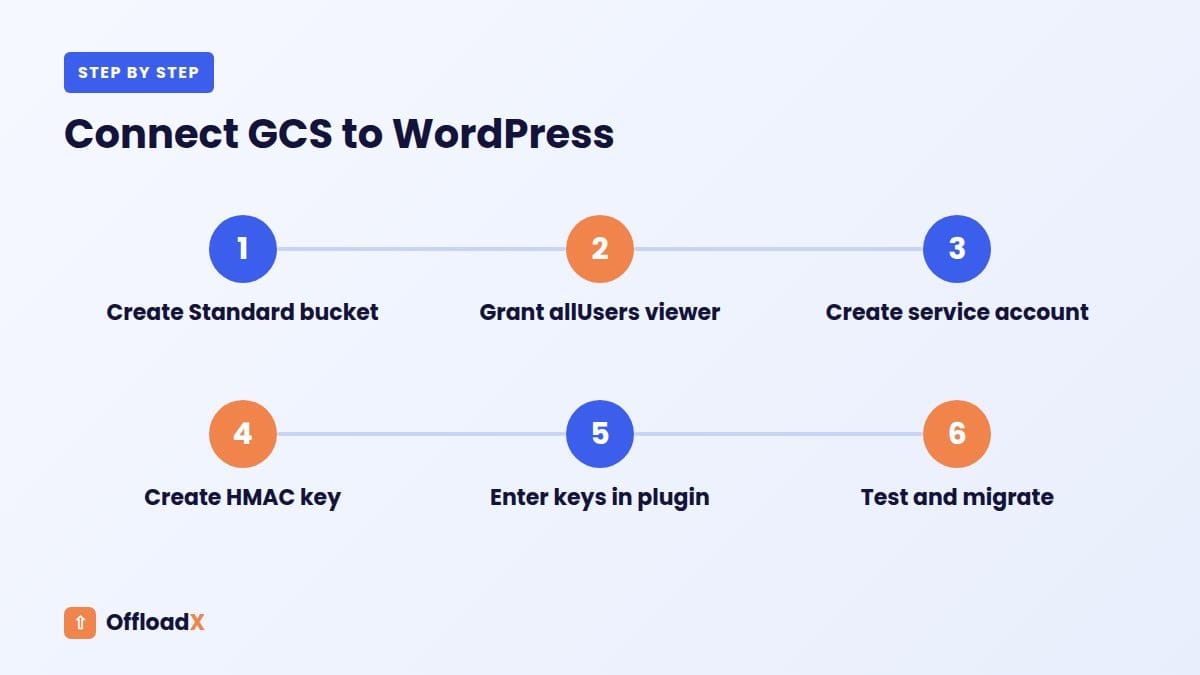
Step 1: Create the bucket
- Pick a globally unique name, ideally without dots (dotted names cause problems with virtual-hosted URLs over HTTPS).
- Choose a single region close to most of your visitors, or a US region if you want the free tier.
- Set the default storage class to Standard.
- Choose uniform access control unless your plugin insists on ACLs.
Step 2: Make it publicly readable
Grant allUsers the Storage Object Viewer role, as described above, and confirm a test object loads in an incognito window.
Step 3: Create a service account and HMAC key
- In IAM, create a service account such as
wp-media-uploader. - On the bucket’s Permissions tab, grant it Storage Object Admin.
- In Cloud Storage settings, open the Interoperability tab and create an HMAC key for that service account.
- Copy the access ID and secret into a password manager straight away.
Step 4: Connect WordPress
- Download OffloadX from offloadx.com and install it via Plugins → Add New → Upload Plugin.
- Open Credentials, choose Google Cloud, and enter the bucket and HMAC details your plugin asks for.
- Run the connection tester, then upload a test image and check its URL points at the bucket.
- On Starter and above, use the bulk migrator to move existing media, and the CDN safety checker before switching URLs site-wide.
Step 5: Set caching
Public objects get a default Cache-Control of public, max-age=3600, according to Google’s metadata documentation. That is one hour. WordPress media filenames rarely change, so a longer cache lifetime set through object metadata or your CDN reduces repeat egress.
Should You Add Cloud CDN?
Serving images straight from storage.googleapis.com works, but every request is billed as GCS egress and served from the bucket’s location. Cloud CDN caches objects at Google’s edge locations and changes the billing model.
| Cloud CDN charge (North America / Europe) | Price |
|---|---|
| Cache egress, first 10 TiB | $0.08 per GiB |
| Cache egress, 10 to 150 TiB | $0.055 per GiB |
| Cache fill within North America or Europe | $0.01 per GiB |
| Cache lookup requests | $0.0075 per 10,000 |
The Cloud CDN pricing page says Cloud Storage data transfer charges are waived for Cloud CDN, though cache fill charges may apply. You also need an external Application Load Balancer in front of the bucket, which carries its own charges and a few extra setup steps.
Custom domains
Google’s request endpoint docs explain that a simple CNAME to c.storage.googleapis.com only works over HTTP. For https://media.example.com, you need the load balancer route with an SSL certificate. Many site owners skip this and put a third-party CDN in front instead.
Cloud CDN or a third-party CDN?
- Cloud CDN: one bill, one console, and the Google network end to end. Best for teams already running load balancers.
- Third-party CDN: often cheaper per GB and easier to point at a custom domain, but the CDN still pulls from GCS, so cache misses still cost GCS egress.
If you are unsure how offloading and a CDN fit together, our explainer on media offload vs CDN covers the difference.
Google Cloud Storage vs Cloudflare R2 vs Amazon S3
All three work with S3-compatible WordPress plugins. The difference is almost entirely in how they charge for bandwidth.
| Item | Google Cloud Storage (us-central1) | Cloudflare R2 | Amazon S3 (us-east-1) |
|---|---|---|---|
| Storage per GB-month | $0.020 | $0.015 | $0.023 |
| Internet egress per GB | $0.12 (first 10 TiB) | Free | $0.09 after the first 100 GB |
| Free storage | 5 GB (3 US regions) | 10 GB | None listed |
| Writes per 1,000 | $0.005 | $0.0045 | $0.005 |
| Reads per 1,000 | $0.0004 | $0.00036 | $0.0004 |
| S3-compatible | Yes, via XML API and HMAC keys | Yes | Native |
Sources: Cloudflare R2 pricing and Amazon S3 pricing, checked September 2026. R2 prices its operations per million; the table converts them for comparison.
Where GCS wins
- Lower storage price than S3 in the regions shown.
- Deep integration with Google Cloud IAM, logging and billing.
- Soft delete is on by default, with a seven-day retention period, which helps recover accidental deletions.
Where R2 or S3 win
- R2 has no egress fees, which is decisive for image-heavy sites. See our Cloudflare R2 offload guide.
- S3 has the widest tool support and CloudFront. See our Amazon S3 offload guide, or the head-to-head R2 vs S3 comparison.
Monthly Cost Examples
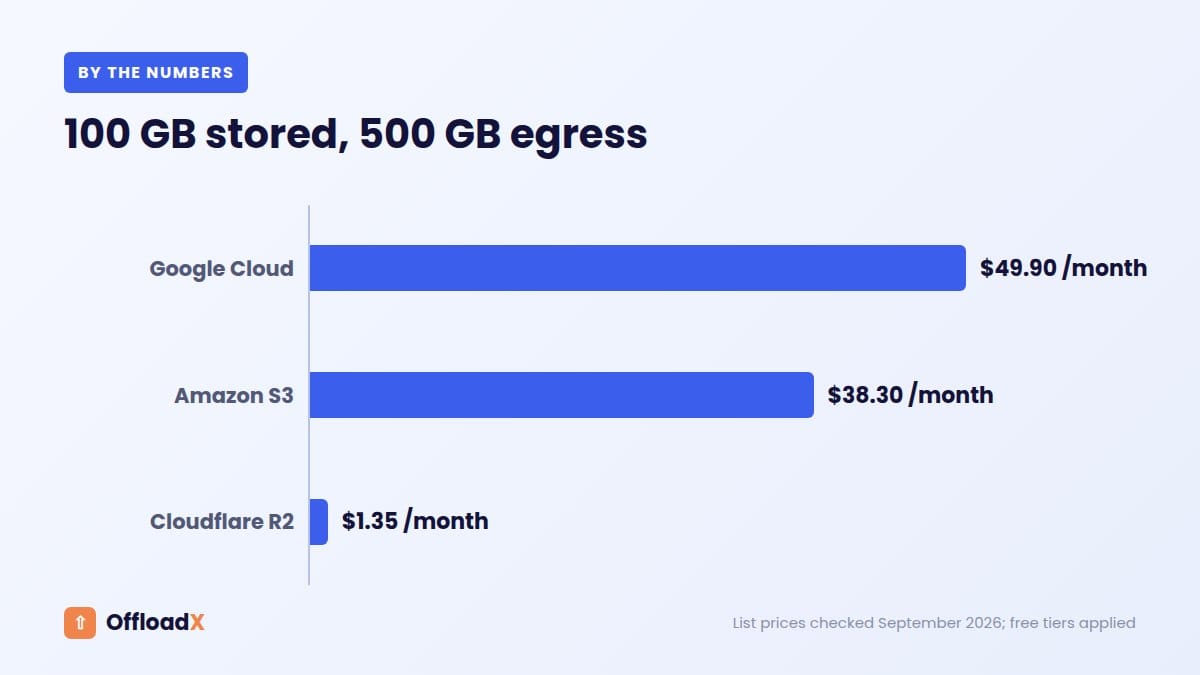
These Google Cloud Storage WordPress examples use list prices from above and ignore taxes and small operation charges. They assume a single us-central1 bucket, served directly without a CDN, and include the Always Free allowances where they apply.
| Site | Stored | Monthly egress | GCS | R2 | S3 |
|---|---|---|---|---|---|
| Small blog | 20 GB | 50 GB | $0.30 | $0.15 | $0.46 |
| Growing magazine | 100 GB | 500 GB | $49.90 | $1.35 | $38.30 |
| Busy shop | 300 GB | 2,000 GB | $233.90 | $4.35 | $177.90 |
How the numbers work
- Small blog on GCS: 15 billable GB × $0.020 = $0.30; 50 GB of egress falls inside the 100 GB free allowance.
- Growing magazine on GCS: 95 GB × $0.020 = $1.90, plus 400 GB × $0.12 = $48.00.
- Busy shop on GCS: 295 GB × $0.020 = $5.90, plus 1,900 GB × $0.12 = $228.00.
- R2: storage above 10 GB at $0.015; egress is free.
- S3: storage at $0.023; egress above 100 GB at $0.09.
Putting Cloud CDN in front of the magazine example would replace the $48 of egress with cache egress at $0.08 per GiB plus cache fill and lookups, before load balancer costs. Egress is the lever that matters, whichever route you choose.
Using GCS Without WP-Stateless
Disclosure: OffloadX is our plugin, so weigh our view accordingly; the facts below are sourced.
WP-Stateless, by UDX, is a free plugin on WordPress.org that connects WordPress to Google Cloud Storage only. It uses a service account JSON key and offers several modes, including Backup, CDN, Ephemeral and Stateless. If you are certain you will stay on Google forever and want a free tool, it is a reasonable choice, and it has 4,000+ active installations according to its WordPress.org listing.
The case for an S3-compatible plugin is flexibility. The same plugin, settings and habits carry over if you later move from GCS to R2, S3, Wasabi or Bunny. With a Google-only plugin, changing provider also means changing plugin.
| Question | WP-Stateless | S3-compatible plugin with HMAC keys |
|---|---|---|
| Providers | Google Cloud Storage only | GCS plus other S3-compatible services |
| Credentials | Service account JSON | HMAC access ID and secret |
| Price | Free | Varies by plugin |
| Switching provider later | Requires a new plugin | Change credentials and migrate |
If you are weighing up several offload plugins, our round-up of WP Offload Media alternatives compares the main options.
Common Problems and Fixes
| Symptom | Likely cause | Fix |
|---|---|---|
| 403 when loading an image | allUsers lacks Storage Object Viewer, or public access prevention is enforced | Check bucket permissions and public access prevention at bucket, project and organisation level |
| 400 Bad Request on upload | Tool sends ACLs to a uniform-access bucket | Disable per-object ACLs in the plugin, or use fine-grained access |
| SignatureDoesNotMatch | Wrong secret, extra spaces, or wrong endpoint | Re-copy the key, confirm the endpoint is https://storage.googleapis.com |
| SSL errors on bucket URLs | Bucket name contains dots | Use path-style URLs or a bucket name without dots |
| Lost HMAC secret | Secrets are shown only once | Create a new key, update WordPress, deactivate the old key |
| Bill higher than expected | Direct egress at $0.12 per GiB | Add a CDN, raise cache lifetimes, compress images |
| Charges for deleted files | Nearline or Coldline minimum durations, or soft delete retention | Keep live media in Standard; review soft delete settings |
A quick Google Cloud Storage WordPress health checklist
- Bucket default class is Standard.
- Only the media bucket is public.
- The service account has a role on one bucket, not the project.
- You have set a budget alert in Google Cloud Billing.
- A test image loads over HTTPS in a private window.
Frequently Asked Questions
Is Google Cloud Storage free for WordPress?
Only at very small scale. The Always Free tier includes 5 GB-months of Standard storage and 100 GB of North American egress per month, but only for buckets in us-west1, us-central1 and us-east1. Beyond that you pay list prices.
Can I use Google Cloud Storage with an S3 plugin?
Yes. GCS offers an S3-compatible XML API at https://storage.googleapis.com. Create HMAC keys for a service account and enter them in any plugin that supports S3-compatible storage.
Should I use Nearline to save money?
Not for live media. Nearline has a 30-day minimum storage duration and a $0.01 per GB retrieval fee, so every page view that loads a file costs extra. Use Standard for your media bucket and colder classes for backups.
Do I need uniform or fine-grained access?
Uniform is the better default for a public media bucket, and it is what Google recommends. Use fine-grained only if your tool must set ACLs on each object. Remember uniform access becomes permanent after 90 consecutive days.
Is Cloud CDN required?
No. Files load straight from the bucket without it. Cloud CDN lowers per-GB delivery cost and latency at scale, but needs a load balancer, so small sites often skip it.
How does GCS compare with Cloudflare R2 for WordPress?
R2 is cheaper for most public websites because it has no egress fees. GCS makes sense when you are already invested in Google Cloud or have credits to use.
Does OffloadX support Google Cloud Storage?
Yes. Google Cloud is one of the storage options on every OffloadX plan, including the Free plan for up to 100 files.
Conclusion
A Google Cloud Storage WordPress setup works well when you keep live media in Standard, use a public bucket with uniform access, and connect through HMAC keys so you are not tied to one plugin. Watch egress closely, because at $0.12 per GiB it decides your bill, and add a CDN or consider R2 as traffic grows.
See OffloadX Plans →Prices are list prices from Google Cloud, Cloudflare and AWS, checked September 2026, in US dollars and excluding tax. Cloud providers change prices and free tiers; confirm current rates for your region before you commit.