
Is your WordPress site running out of disk space? You’re not alone — and things are probably breaking already. Images won’t upload. Plugins won’t update. Posts won’t save. Maybe you’re even seeing the dreaded “WordPress database error disk full” message. Whatever the symptom, the cause is the same: your server has hit its storage limit.
The good news is there are both quick fixes to free up space immediately and a permanent solution that means you’ll never hit this limit again. This guide covers everything — from cleaning up junk files to offloading your media library to the cloud.
Table of Contents
- Why WordPress Sites Run Out of Disk Space
- Signs Your WordPress Site Is Running Out of Disk Space
- How to Check Your Disk Usage
- Quick Fixes: Free Up Space Right Now
- The Permanent Fix: Offload Your Media to the Cloud
- How OffloadX Solves the Disk Space Problem
- How to Prevent Running Out of Disk Space Again
- Where the Space Goes on a WordPress Site Running Out of Disk Space
- A Real-World Example
- Frequently Asked Questions
Why WordPress Sites Run Out of Disk Space
Most shared hosting plans come with between 5 GB and 20 GB of storage. That sounds like plenty when you’re starting out — but a WordPress site running out of disk space is more common than you’d think. WordPress sites are surprisingly hungry for storage. Here’s what eats it up:
| What’s Using Your Space | How Much It Typically Takes |
|---|---|
| Media uploads (images, PDFs, videos) | The biggest culprit — can easily reach several GB |
| WordPress core, themes & plugins | 500 MB – 2 GB depending on what’s installed |
| Database (posts, revisions, metadata) | Grows steadily — post revisions alone add up fast |
| Backup files stored on server | Can double your disk usage if not managed |
| Error logs & cache files | Often overlooked — can grow to hundreds of MB |
| Unused themes & plugins | Smaller but adds up over time |
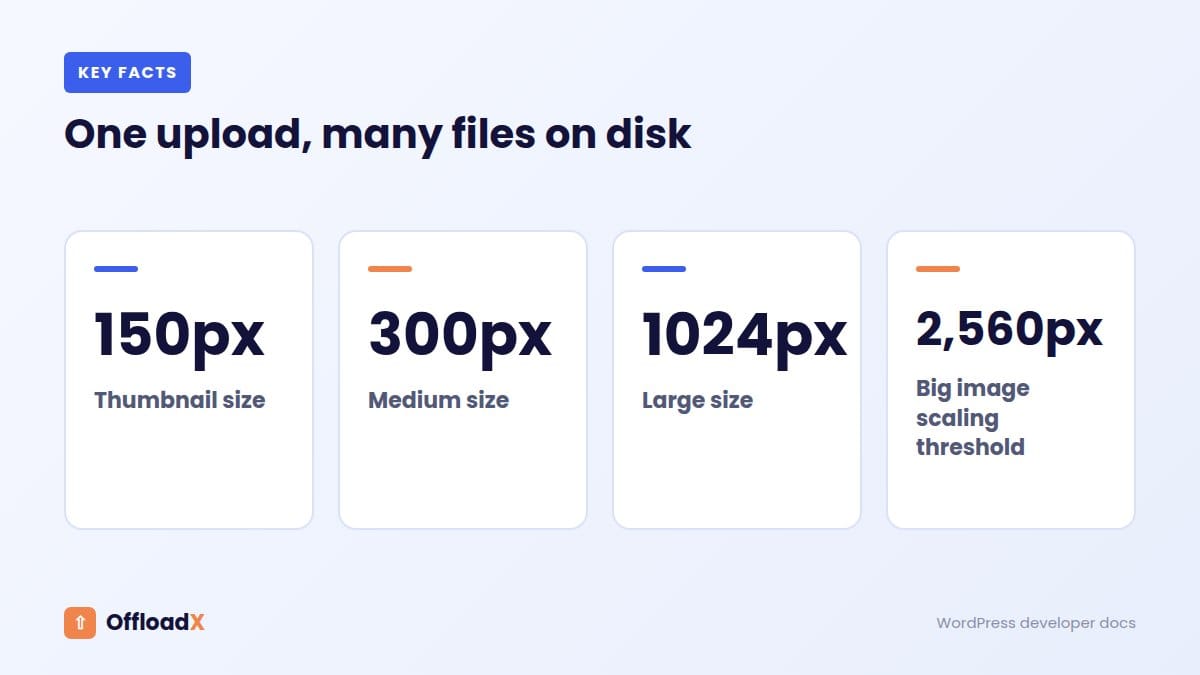
For most growing WordPress sites, the media library is the single biggest reason a WordPress site running out of disk space occurs. Every image you upload gets stored in multiple sizes (thumbnail, medium, large, full) — so one photo upload can create 4–6 files on your server. On an active blog or WooCommerce store, this adds up to gigabytes very quickly.
Signs Your WordPress Site Running Out of Disk Space
A WordPress site running out of disk space doesn’t always show an obvious error message. Here are the warning signs to watch for:
- Can’t upload images — the media uploader fails or freezes
- Posts and pages won’t save — the editor spins but nothing saves
- Plugin or WordPress updates fail — downloads can’t complete
- Emails stop sending — WordPress can’t write temporary mail files
- “WordPress database error disk full” — the clearest sign
- White screen of death — in severe cases your whole site goes offline
- Your host sends a storage warning email — don’t ignore these
Important: These symptoms often appear without warning. One day everything works fine, the next day you’re locked out of your dashboard because WordPress can’t write temporary files.
How to Check Your Disk Usage
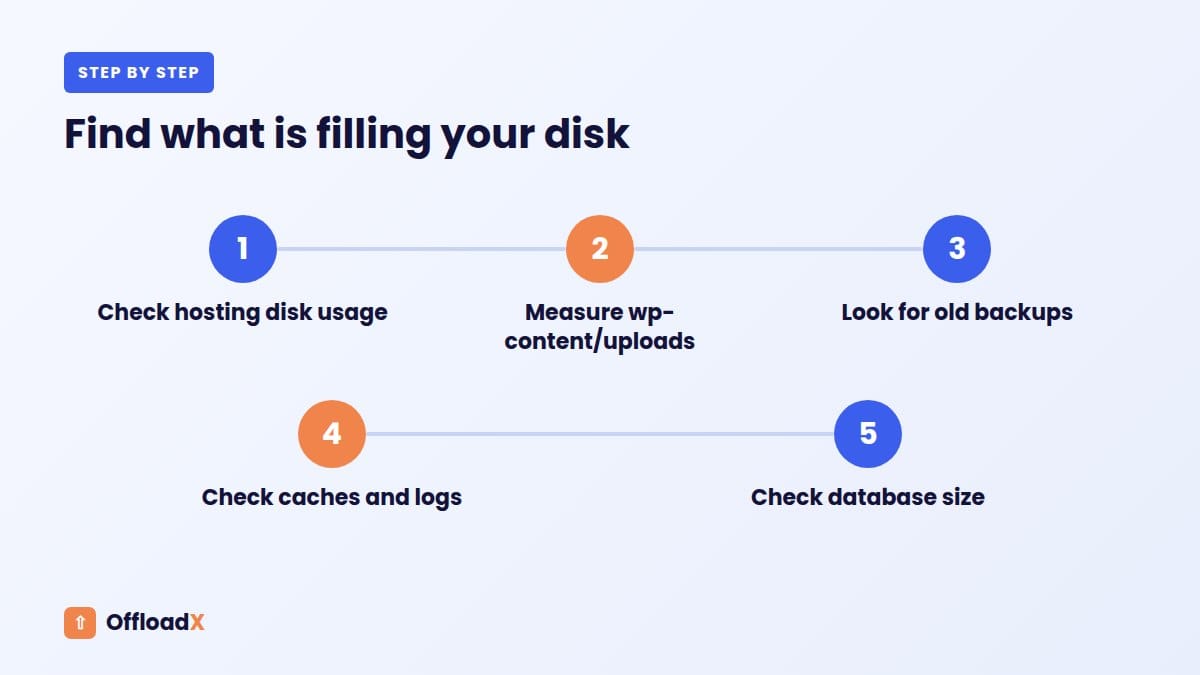
Before fixing a WordPress site running out of disk space, check exactly how much you’re using and where it’s going.
Option 1 — Check in cPanel
- Log in to your hosting cPanel
- Look for the Disk Usage widget on the main dashboard
- Click it to see a breakdown by folder
Option 2 — Check in WordPress Admin
- Go to Tools → Site Health
- Click the Info tab
- Expand Filesystem Permissions — it shows available disk space
Option 3 — Ask Your Host
Most hosting control panels (Plesk, Directadmin, Cloudways, etc.) show a storage meter in the main dashboard. Check there first — it usually tells you exactly what’s consuming the most space.
Tip: Check the wp-content/uploads folder size specifically. If it’s over 2–3 GB, offloading your media to the cloud will solve the problem permanently.Quick Fixes: Free Up Space Right Now
If your WordPress site running out of disk space has already broken things, these steps will help you recover quickly.
1. Delete Old Backup Files From Your Server
Backup plugins like UpdraftPlus, BackWPup, and Duplicator often store backup archives directly on your server — and this alone is one of the top causes of a WordPress site running out of disk space. A single backup can be 500 MB to several GB. Go to your backup plugin settings and delete old backups stored on-server — then configure future backups to save to Google Drive, Dropbox, or Amazon S3 instead.
2. Clean Up Your Database
WordPress stores a revision every time you save a post. On an active site, thousands of revisions pile up silently. Use a plugin like WP-Optimize or Advanced DB Cleaner to delete:
- Post revisions
- Trashed posts and pages
- Spam and trashed comments
- Expired transients
- Orphaned metadata
This alone can reduce your database size by 50–80% on older sites.
3. Limit Post Revisions Going Forward
Add this to your wp-config.php to cap revisions at 3 per post:
define('WP_POST_REVISIONS', 3);
4. Delete Unused Themes and Plugins
Go to Appearance → Themes and delete every theme except your active one and one fallback (like Twenty Twenty-Four). Do the same for deactivated plugins under Plugins. Unused themes especially can include large demo content folders.
5. Remove Unused Media Files
Go to Media → Library and switch to list view. Sort by date and look for old, unused images. You can also use a plugin like Media Cleaner to automatically detect media files not attached to any post or page.
6. Clear Cache and Log Files
Caching plugins (WP Rocket, W3 Total Cache, LiteSpeed Cache) generate large cache folders. Clear your cache from the plugin dashboard. Also check wp-content/debug.log — on busy sites this file grows to hundreds of MB and can be safely deleted.
7. Move Videos Off Your Server
Videos are the fastest way to fill up disk space. If you have videos hosted on your server, upload them to YouTube or Vimeo and embed them instead. A single 100 MB video takes up as much space as hundreds of images.
The Permanent Fix: Offload Your Media to the Cloud
The quick fixes above will buy you some breathing room — but if your WordPress site running out of disk space keeps happening, you’ll hit the limit again as the site grows. The only real long-term solution is to stop storing media on your server in the first place.
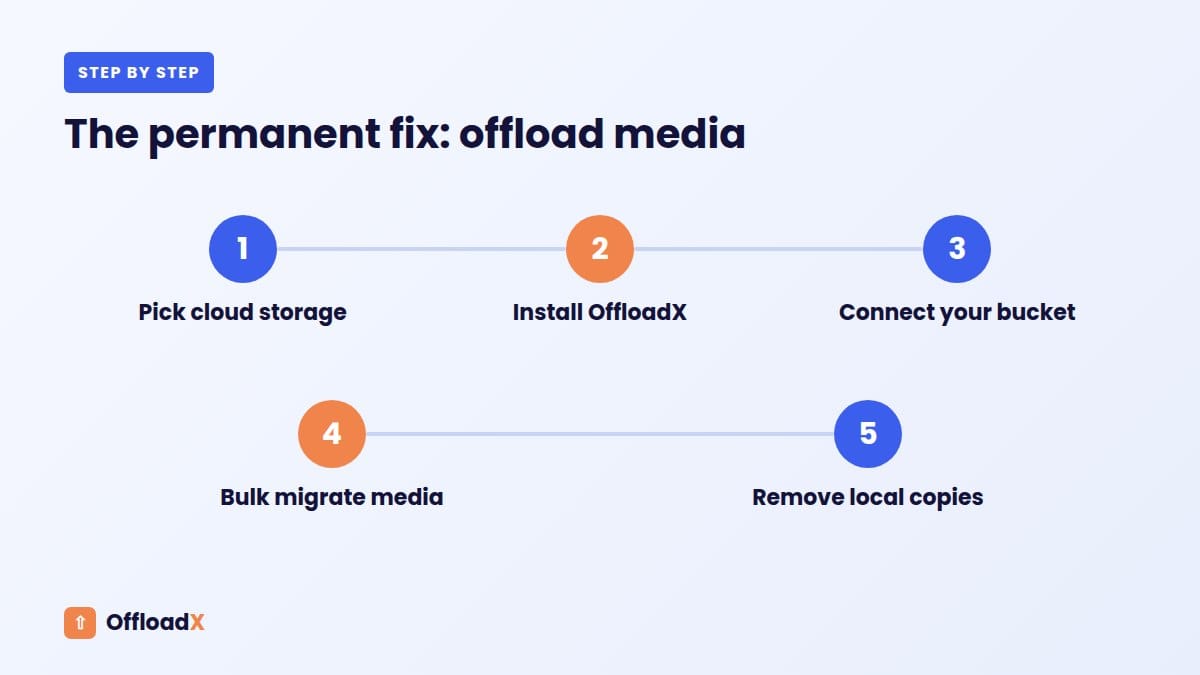
This is called media offloading — and it’s the ultimate solution for any WordPress site running out of disk space. Your WordPress site stays on your hosting server, but all images, PDFs, and other files are automatically uploaded to cloud storage (like Cloudflare R2, Amazon S3, or Wasabi) and served from there. Your server’s disk usage stays flat no matter how many files you upload.
Why this beats upgrading your hosting plan
Hosting upgrades are expensive and temporary — you’ll hit the new limit eventually too. Cloud storage like Cloudflare R2 costs $0.015/GB per month with a free 10 GB tier. For most WordPress sites, offloading media to the cloud costs less per year than a single month of upgraded hosting.
How OffloadX Solves the WordPress Disk Space Problem
OffloadX is a WordPress plugin built specifically to solve the WordPress site running out of disk space problem. It connects your media library to cloud storage providers — Cloudflare R2, Amazon S3, Wasabi, DigitalOcean Spaces, and Bunny CDN. Once connected, it handles everything automatically:
- New uploads go directly to cloud storage — never touch your server’s disk
- Existing media can be bulk-migrated to the cloud in one click
- URLs are rewritten automatically so your site works exactly as before
- Local copies are deleted after upload, freeing your server disk immediately
- Files are served via CDN — your pages load faster too
After setting up OffloadX, your wp-content/uploads folder stays essentially empty. You could run a site with 10,000 images and use almost no server disk space at all.
Which cloud provider should you use?
| Provider | Free Tier | Egress Fees | Best For |
|---|---|---|---|
| Cloudflare R2 | 10 GB free | Zero | Most WordPress sites — best value |
| Amazon S3 | 5 GB (12 months) | Yes | Sites already in the AWS ecosystem |
| Wasabi | None | Zero | Large media libraries on a budget |
| DigitalOcean Spaces | None | Yes | DigitalOcean hosting customers |
| Bunny CDN | None | Very low | Maximum CDN performance |
For most WordPress sites, Cloudflare R2 is the best starting point — zero egress fees and a free tier generous enough to cover small to medium sites entirely. Read our full guide on how to offload WordPress media to Cloudflare R2.
How to Prevent Running Out of Disk Space Again
Once you’ve dealt with a WordPress site running out of disk space, these habits will keep you from hitting the limit again:
- Offload media to the cloud with OffloadX — this is the single most impactful thing you can do
- Store backups off-server — always send backups to Google Drive, Dropbox, or S3, never keep them on your server
- Compress images before uploading — use a plugin like ShortPixel or Imagify to automatically compress images on upload
- Limit post revisions in
wp-config.phpas shown above - Run a database cleanup monthly — takes 2 minutes with WP-Optimize
- Monitor disk usage — set up an alert in your hosting panel so you know before things break
Where the Space Goes on a WordPress Site Running Out of Disk Space
When a WordPress site is running out of disk space, the cause is almost always one of a handful of folders. Knowing which one saves hours of guessing.
| Location | What fills it | Typical fix |
|---|---|---|
wp-content/uploads | Images, every resized copy, PDFs, video | Offload media to cloud storage |
Backup plugin folders in wp-content | Old backup archives stored on the same server | Send backups off-site and delete old local copies |
| Cache folders | Page and image cache files | Clear cache; check cache size limits |
| Logs | Error and debug logs that never rotate | Turn off debug logging, delete old logs |
| Database | Revisions, transients, spam comments | Clean up with a database optimisation tool |
Why uploads grow faster than you expect
WordPress creates several resized versions of every image. According to the WordPress developer documentation, core registers sizes such as thumbnail (150px), medium (300px), medium_large (768px) and large (1024px), plus 1536px and 2048px sizes, and large uploads over 2,560px are scaled with a “-scaled” copy. Themes, page builders and WooCommerce add more. One photo can easily become eight or more files on disk.
Our guide to WordPress 7.1 media processing explains how newer versions generate these sizes in the browser, which reduces server load but not the number of files stored.
A Real-World Example
Consider a blog on a hosting plan with a 20 GB disk:
- Uploads folder: 14 GB of images and thumbnails.
- Old backups stored locally: 3 GB.
- Cache and logs: 1 GB.
- WordPress core, themes, plugins and database: 1.5 GB.
That WordPress site is running out of disk space with 19.5 GB used. Clearing caches and old backups buys a few months. Offloading the 14 GB of media to Cloudflare R2, which costs about $0.06 a month for 14 GB after the 10 GB free tier, frees most of the disk permanently and shrinks every future backup.
Choosing where to put your media
For most sites, Cloudflare R2 is the simplest low-cost home because it has no egress fees. Large libraries may be cheaper on Backblaze B2 or Wasabi. Compare them in our cloud storage cost comparison, and see the step-by-step R2 guide when you are ready.
How to stop it happening again
- Offload new uploads automatically, so media never builds up on the server again.
- Store backups off-site rather than in
wp-content. - Limit post revisions with the
WP_POST_REVISIONSconstant inwp-config.php. - Check disk usage monthly in your hosting panel, before it becomes an emergency.
- Compress images on upload, so each file and every thumbnail takes less space.
These habits, together with offloading, keep a growing site comfortably inside a small hosting plan.
When to upgrade hosting instead
Sometimes a bigger plan is the right answer, for example when the database itself is large or your site needs more CPU and memory. But if most of the space is media, upgrading only delays the problem, because uploads keep growing. Offloading removes the biggest and fastest-growing part of the site from your disk, which is why it is the lasting fix.
Remember: quick fixes free space for weeks; offloading media fixes a WordPress site running out of disk space for years.
Frequently Asked Questions
What causes the “WordPress database error disk full” message?
This error appears when your server’s disk has reached its storage limit and WordPress can’t write new data to the database. The fix is to free up disk space using the methods above, then address the root cause — usually a large media library or backup files stored on-server.
Will I lose any images if I offload my media library?
No. OffloadX copies your files to cloud storage and rewrites the URLs in your database. Your images still appear on your site exactly as before — they’re just loading from the cloud instead of your server. You can keep local copies as a backup if you want extra peace of mind.
How much does cloud storage cost for a WordPress site?
Very little. Cloudflare R2 is free up to 10 GB of storage. Beyond that, it’s $0.015/GB per month. A site with 50 GB of media would pay about $0.60/month — far cheaper than upgrading your hosting plan.
Can I offload media on a shared hosting plan?
Yes. OffloadX works on any WordPress site regardless of hosting. A WordPress site running out of disk space on shared hosting is actually the most common scenario — those plans typically have the tightest disk space limits and benefit the most from offloading.
Is it safe to delete the wp-content/debug.log file?
Yes. The debug log is a text file WordPress writes errors to. Deleting it is safe — WordPress will simply create a new one if debugging is enabled. If you’re not actively debugging, you can disable debug logging in wp-config.php by setting define('WP_DEBUG_LOG', false);
My site is already broken. What should I do first?
If your WordPress site running out of disk space has already broken things, log into your hosting cPanel or file manager and delete old backup files first — these are usually the biggest files and the quickest to remove. This should restore enough space to get your site working again. Then follow the full cleanup steps above.
Related Guides
- Does offloading WordPress media speed up your site?
- DigitalOcean Spaces for WordPress
- Bunny Storage WordPress guide
More From the Blog
Conclusion
A WordPress site running out of disk space is frustrating — but it’s completely fixable. Start with the quick wins: delete old backups, clean your database, and remove unused files. That’ll get your site working again immediately.
For a permanent solution, offload your media library to cloud storage with OffloadX. It takes less than 10 minutes to set up and means you’ll never hit your disk limit again — no matter how much your site grows.
Download OffloadX Free →Have questions? Leave a comment below or reach out via our support page.