
DigitalOcean Spaces WordPress setups are a favourite with developers and agencies for one reason: the pricing fits on a sticky note. Five dollars a month buys 250 GiB of storage, 1 TiB of outbound transfer and a built-in CDN. If your WordPress server already runs on a DigitalOcean Droplet, keeping your media in the same cloud is a natural next step.
This guide explains how to set up DigitalOcean Spaces for WordPress media, what the $5 plan really covers, how the built-in CDN works, how Spaces compares on cost with Cloudflare R2 and Amazon S3, and the limits worth knowing before you migrate a large library.
Table of Contents
- What Is DigitalOcean Spaces?
- DigitalOcean Spaces Pricing for WordPress
- Real Cost Examples vs R2 and S3
- Who Should Use DigitalOcean Spaces for WordPress?
- Spaces vs Keeping Media on Your Droplet
- The Built-In Spaces CDN
- How to Set Up DigitalOcean Spaces for WordPress
- Using a Custom Domain With Spaces
- Spaces Limits Worth Knowing
- Keeping Your Spaces Setup Secure
- Migrating Your Existing Media
- Common Problems and Fixes
- Frequently Asked Questions
What Is DigitalOcean Spaces?
DigitalOcean Spaces is S3-compatible object storage from DigitalOcean, the cloud provider known for simple virtual servers called Droplets. Each storage container is called a Space (or bucket), and it works with the same tools and plugins that talk to Amazon S3.
Spaces is designed for exactly the kind of files WordPress produces: images, thumbnails, PDFs, audio and video. Instead of storing them on your server’s disk, you store them in a Space and serve them to visitors through the built-in CDN.
Why WordPress sites move media to Spaces
- Smaller servers: you can run WordPress on a smaller Droplet or hosting plan when media no longer fills the disk.
- Faster backups and migrations: without gigabytes of uploads, backups finish quickly and moving hosts is easier.
- Faster images: the Spaces CDN delivers files from edge locations closer to your visitors.
- Predictable billing: a flat monthly base price with clear overage rates.
DigitalOcean Spaces Pricing for WordPress
According to DigitalOcean’s pricing page (checked September 2026), Spaces works on a simple subscription model.
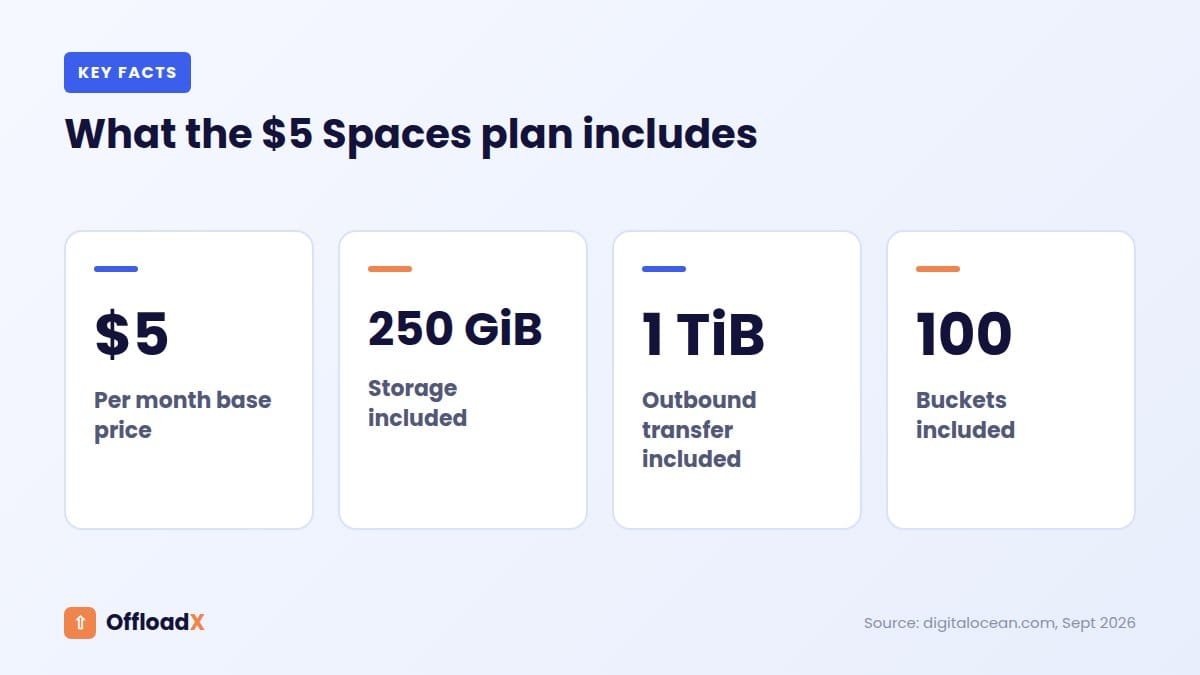
| Item | Price |
|---|---|
| Base subscription | $5 per month |
| Included storage | 250 GiB |
| Included outbound transfer | 1 TiB |
| Extra storage | $0.02 per GiB |
| Extra transfer | $0.01 per GiB |
| Buckets included | Up to 100 |
Two details matter for WordPress. First, the $5 subscription covers every Space in your account, so an agency can host media for several client sites under one base fee. Second, traffic served through the Spaces CDN counts as normal Spaces transfer, so the CDN does not add a separate bill.
DigitalOcean also offers a cold storage option at $0.007 per GiB for rarely accessed data, but cold storage buckets do not support the CDN. For live WordPress media, use standard Spaces.
Real Cost Examples vs R2 and S3
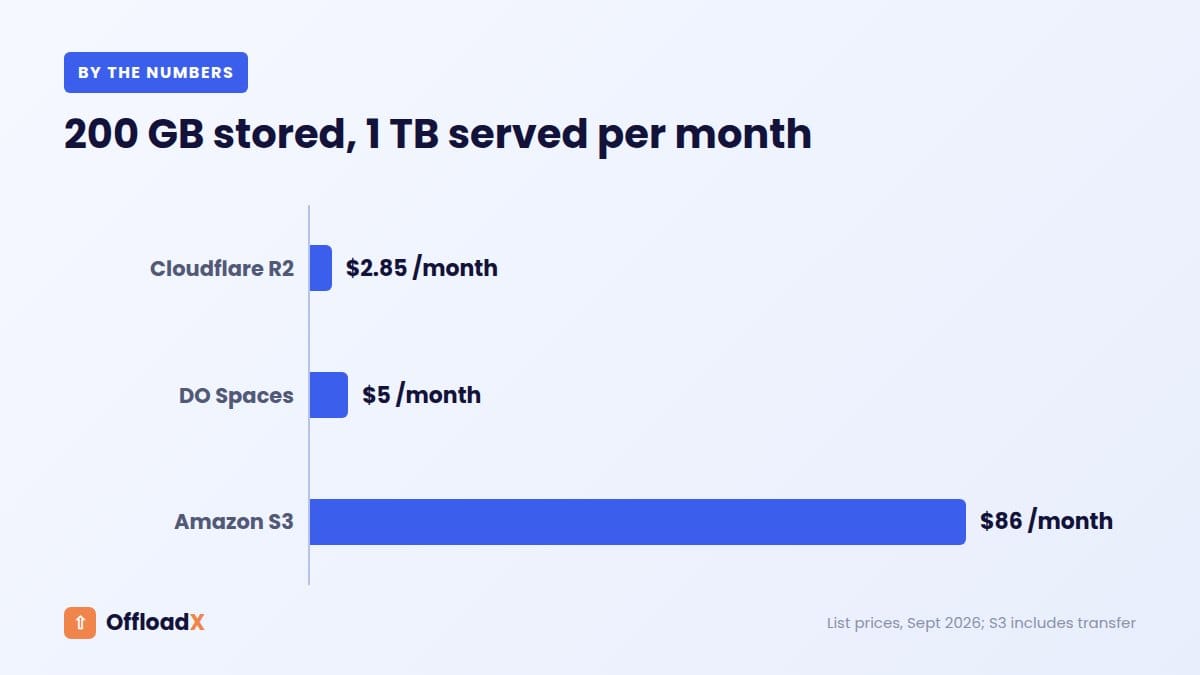
Here is what DigitalOcean Spaces WordPress hosting costs for three typical sites, compared with Cloudflare R2 ($0.015 per GB-month, 10 GB free, no egress fees) and Amazon S3 Standard in us-east-1 (about $0.023 per GB-month, first 100 GB of transfer free, then about $0.09 per GB). We treat GB and GiB as equal for simple maths.
| Site | DigitalOcean Spaces | Cloudflare R2 | Amazon S3 |
|---|---|---|---|
| 50 GB stored, 300 GB served | $5.00 | $0.60 | about $19 |
| 200 GB stored, 1 TB served | $5.00 | $2.85 | about $86 |
| 500 GB stored, 3 TB served | about $30 | $7.35 | about $272 |
For the third site, Spaces charges $5 plus 250 GB of extra storage ($5) plus about 2 TB of extra transfer (about $20). Operation fees on R2 are left out because most small and medium sites stay within its free tier.
What the numbers tell you
- Spaces is far cheaper than S3 once you count transfer. S3’s bandwidth charges dominate the bill for any site with real traffic.
- R2 is cheaper than Spaces in pure cost, mainly because it charges nothing for egress.
- Spaces wins on simplicity if you already run on DigitalOcean: one account, one bill, and a CDN switch in the same dashboard.
For a side-by-side of all the main providers, see our best cloud storage for WordPress comparison.
Who Should Use DigitalOcean Spaces for WordPress?
| Your situation | Spaces a good fit? |
|---|---|
| WordPress already runs on a DigitalOcean Droplet | Yes: same provider, same region, one bill |
| Agency hosting media for several client sites | Yes: one $5 base covers up to 100 buckets |
| Site under 250 GB serving under 1 TB a month | Yes: everything fits in the $5 plan |
| Very high traffic, many terabytes a month | Compare with R2, which has no egress fees |
| Tiny site with a few GB of media | R2’s free tier may cost nothing at all |
Spaces vs Keeping Media on Your Droplet
If WordPress already runs on a Droplet, you might wonder why not just buy a bigger disk. Here is how the two approaches compare for a growing media library.
| Media on the Droplet | DigitalOcean Spaces WordPress setup | |
|---|---|---|
| Growing storage | Resize the Droplet or attach a volume | Automatic; pay per extra GiB |
| Global delivery | From one region unless you add a CDN | Built-in CDN |
| Server load from images | Every image request hits your server | Handled by Spaces and the CDN |
| Backups and snapshots | Include every upload, so they grow large | Much smaller: code and database only |
| Scaling to several servers | Files must be synced between servers | All servers share the same Space |
The last row matters more as a site grows. Once you run WordPress on more than one server behind a load balancer, keeping uploads on local disks becomes a real headache. With Spaces, every server reads from and writes to the same place.
A quick way to estimate your size
Check the size of your wp-content/uploads folder in your hosting file manager or over SSH. That number, plus about a year of expected growth, tells you whether you will stay within the 250 GiB included in the base plan. To estimate transfer, look at your monthly bandwidth in your host’s statistics: most of it is usually images.
The Built-In Spaces CDN
Every Space can have a CDN turned on with one click. According to DigitalOcean’s documentation, you enable it from the Space’s Settings tab, and your files become available at an address in this format:
your-space.region.cdn.digitaloceanspaces.com
Edge cache TTL
The CDN keeps a cached copy of each file for a set time, called the edge cache TTL. The default is 1 hour. DigitalOcean notes that a longer TTL improves performance but delays updates until the cache expires.
For WordPress media, a longer TTL is almost always the right choice. When you edit or replace an image in WordPress, it normally gets a new file name, so the old cached copy does no harm. A TTL of a day or more means fewer trips back to the Space and faster loading for visitors.
Tip: Always use the CDN endpoint, not the direct Space endpoint, as the address your images load from. It costs the same and loads faster for visitors far from your Space’s region.
How to Set Up DigitalOcean Spaces for WordPress
These steps use OffloadX, which supports DigitalOcean Spaces on every plan, including the free one.
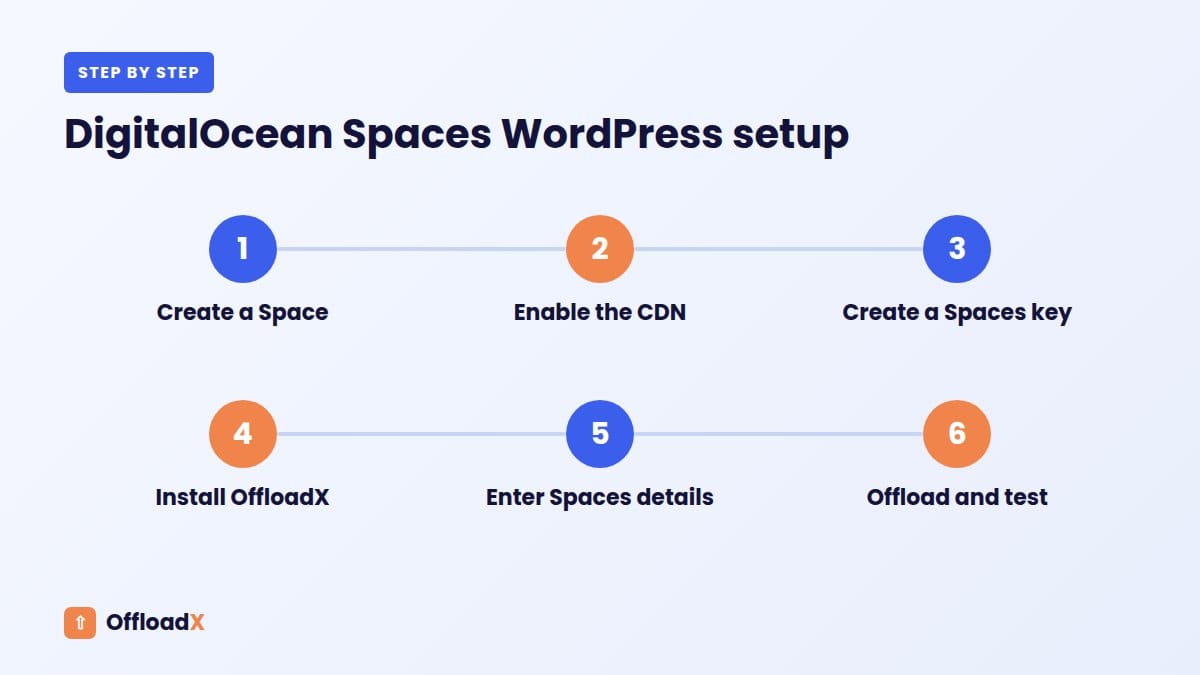
Step 1: Create a Space
In the DigitalOcean control panel, create a Spaces bucket. Choose a region close to your WordPress server, such as nyc3, ams3 or sgp1. If your site runs on a Droplet, pick the same region. Avoid dots in the bucket name if you plan to use the CDN with a custom domain (see below).
Step 2: Enable the CDN
Open the Space’s Settings, find the CDN section, click Edit and then Enable CDN. Set a longer edge cache TTL than the 1-hour default.
Step 3: Create a Spaces access key
Generate a Spaces key in the control panel. This is separate from a general DigitalOcean API token, and it is the most common setup mistake: an API token will not work as a Spaces access key. Save the Access Key ID and Secret Access Key; the secret is shown only once.
Step 4: Install OffloadX
Download OffloadX from offloadx.com, go to Plugins → Add New → Upload Plugin, upload the ZIP file and activate it.
Step 5: Enter your Spaces details
In OffloadX Credentials, choose DigitalOcean Spaces and enter:
- Bucket Name: the Space name.
- Region: for example
nyc3. - Access Key ID and Secret Access Key from your Spaces key.
- CDN Endpoint: your CDN address or custom subdomain.
Run the connection tester to confirm everything works.
Step 6: Turn on offloading and test
Enable automatic offloading for new uploads in Behaviour. Upload a test image, add it to a draft post and preview it. Open the image in a new tab: the address should show your CDN endpoint.
Using a Custom Domain With Spaces
Serving media from your own subdomain, such as media.yoursite.com, looks more professional and keeps your image URLs stable if you ever change storage provider. The Spaces CDN supports this, with one requirement: the subdomain must have an SSL certificate.
Two ways to get the certificate
- DNS managed by DigitalOcean: the control panel can issue a free Let’s Encrypt certificate automatically.
- DNS managed elsewhere: you upload your own certificate for the subdomain.
Two gotchas from the docs
- A custom wildcard certificate already used elsewhere in your account cannot secure a CDN subdomain.
- Wildcard certificates do not match bucket names that contain dots, which is why we suggest a name like
yoursite-mediainstead ofmedia.yoursite.com.
Once the subdomain is live, enter it as the CDN Endpoint in OffloadX. Our custom domain guide explains why a branded media domain helps SEO and future migrations.
Spaces Limits Worth Knowing
Most WordPress sites never hit these, but they matter for large libraries and busy stores. From DigitalOcean’s limits page:
| Limit | Value | What it means for WordPress |
|---|---|---|
| Operations per second (new buckets) | 800 total | Plenty for normal traffic, especially with the CDN absorbing reads. |
| Operations per second (older buckets) | 500 total | Very large bulk migrations may need pacing. |
| Single upload size | Up to 5 GB | Fine for images; very large videos need multipart uploads. |
| Deleting files in the control panel | Up to 9,999 at once | Use the API or a tool for bigger clean-ups. |
The operations limit is the one to watch. Serving images through the CDN keeps most reads away from the Space itself, which is another reason to always use the CDN endpoint.
Keeping Your Spaces Setup Secure
Your Spaces access key can upload, overwrite and delete files, so treat it like a password.
- Use a key just for WordPress. If you run several sites, give each its own key so you can revoke one without affecting the others.
- Never share keys in support tickets, chat or code repositories. If a key leaks, delete it in the control panel and create a new one.
- Keep private files out of public Spaces. Paid downloads, invoices and member-only documents should not be served from a public CDN address.
- Turn on two-factor authentication for your DigitalOcean account.
Migrating Your Existing Media
On OffloadX paid plans, Bulk Migration uploads your existing Media Library in the background and URL Replace updates file links in your database, so old posts load from Spaces too.
Before you migrate
- Back up files and database.
- Compress images first: every megabyte saved is saved on storage and on transfer for as long as the file is online.
- Check your total size: if the library is close to 250 GiB, estimate the overage so the first bill is not a surprise.
- Test on staging if your site uses unusual image sizes or a page builder.
After you migrate
- Browse the site logged out and confirm images, PDFs and media load from the CDN address.
- Check a few old posts, not just recent ones.
- Run PageSpeed Insights on key pages and compare with your earlier results.
- Once everything checks out, remove local copies to free disk space.
Moving from WP Offload Media? Our OffloadX vs WP Offload Media comparison covers the differences.
Common Problems and Fixes
| Problem | Likely cause | Fix |
|---|---|---|
| Connection test fails with “access denied” | Using a DigitalOcean API token instead of a Spaces key | Create a Spaces access key and use that. |
| Bucket not found | Wrong region | Use the Space’s exact region code, such as ams3. |
| Images return 403 to visitors | Files are not publicly readable | Check the file permissions in the Spaces control panel. |
| Custom domain SSL error | Certificate missing or bucket name has dots | Issue a certificate; avoid dots in bucket names. |
| Updated image still shows old version | CDN cache has not expired | Purge the file from the CDN cache in the control panel. |
| Slow or failing bulk migration | Operations limit reached | Let the migration run in the background at a steady pace. |
Frequently Asked Questions
Is DigitalOcean Spaces good for WordPress?
Yes. It is S3-compatible, includes a free built-in CDN and costs $5 a month for 250 GiB of storage and 1 TiB of transfer, which covers many WordPress sites completely.
Do I need a Droplet to use Spaces?
No. Spaces works with WordPress hosted anywhere. Using the same region as a DigitalOcean Droplet just makes uploads a little faster.
Does the Spaces CDN cost extra?
No separate fee. CDN traffic is billed as normal Spaces transfer, and the first 1 TiB each month is included in the $5 plan.
Is DigitalOcean Spaces cheaper than Amazon S3 for WordPress?
For most sites, yes, mainly because of transfer costs. A site serving 1 TB a month pays about $80 in S3 transfer alone, while Spaces includes 1 TiB in the base price.
What is the difference between a Spaces key and an API token?
An API token manages your DigitalOcean account. A Spaces key is an S3-style access key for reading and writing files. Offload plugins need the Spaces key.
Can I offload WooCommerce images to Spaces?
Yes. In OffloadX, WooCommerce support is included on the Business and Agency plans. See our WooCommerce offload guide for which files to keep private.
What happens if I go over 250 GiB or 1 TiB?
Nothing breaks. You pay $0.02 per extra GiB of storage and $0.01 per extra GiB of transfer, added to the $5 base.
Should I use cold storage for old WordPress media?
Not for files still shown on your site. Cold storage buckets do not support the CDN, so keep live media in standard Spaces and use cold storage only for archives and backups.
Which Spaces region should I pick for WordPress?
The region closest to your WordPress server, so uploads are quick. The CDN handles delivery to visitors elsewhere, so the storage region matters less for page speed.
Can one Space hold media for several WordPress sites?
It can, using a separate folder per site, but separate Spaces are easier to manage. The $5 base plan already includes up to 100 buckets.
Conclusion
A DigitalOcean Spaces WordPress setup is simple and affordable: $5 a month covers most sites, the CDN is built in, and it pairs naturally with Droplets. Use a Spaces key, turn on the CDN with a long cache time, and compare with R2 if your traffic runs into many terabytes.
See OffloadX Plans →Pricing and limits checked September 2026 from DigitalOcean, Cloudflare and AWS. Providers change prices from time to time, so confirm current rates on their websites.