
WordPress 7.1 media processing works differently from every version before it. Since the release on August 19, 2026, supported browsers resize, compress and convert images on your own computer before they reach the server. For anyone who offloads media to Cloudflare R2, Amazon S3 or another cloud provider, that raises practical questions: does my offload plugin still work, are thumbnails still uploaded, and what should I test?
This guide explains WordPress 7.1 media processing in plain language, what actually changed in the upload flow, what it means for media offloading, the known compatibility issues so far, and a testing checklist before you rely on it in production.
Table of Contents
- What Changed in WordPress 7.1 Media Processing?
- Who Gets Client-Side Processing (and Who Does Not)
- The New Upload Flow, Step by Step
- What Stays the Same
- What WordPress 7.1 Media Processing Means for Offloading
- Benefits for Sites That Offload Media
- Known Issues and Risks
- Notes for Developers
- Questions to Ask Your Offload Plugin Vendor
- Testing Checklist Before You Update
- What to Do This Week
- How to Turn Client-Side Processing Off
- Frequently Asked Questions
What Changed in WordPress 7.1 Media Processing?
Until WordPress 7.1, every uploaded image was processed on your web server. PHP libraries such as GD or Imagick created each thumbnail size, rotated photos and handled compression. On shared hosting, large photos often hit memory limits and failed with the familiar “HTTP error” in the Media Library.
WordPress 7.1 moves much of that work into the browser. According to the official WordPress core announcement, client-side processing handles image compression, resizing, format conversion, rotation and thumbnail generation directly in the user’s browser.
How it works
- wasm-vips: WordPress runs a WebAssembly build of libvips, a fast image processing library, inside the browser.
- Web Worker: the processing runs in the background, so the editor stays responsive.
- New formats: iPhone HEIC photos can be converted to JPEG, AVIF gets end-to-end support, and animated GIFs can be converted to video.
Hosting company Kinsta reports that images generated this way are about 15% smaller than with the previous server-side methods (Kinsta’s WordPress 7.1 overview). Smaller files mean less storage and less bandwidth, which matters directly if you pay a cloud provider for both.
Who Gets Client-Side Processing (and Who Does Not)
WordPress 7.1 media processing only runs in the browser when several conditions are met. Everyone else gets the traditional server-side processing automatically.
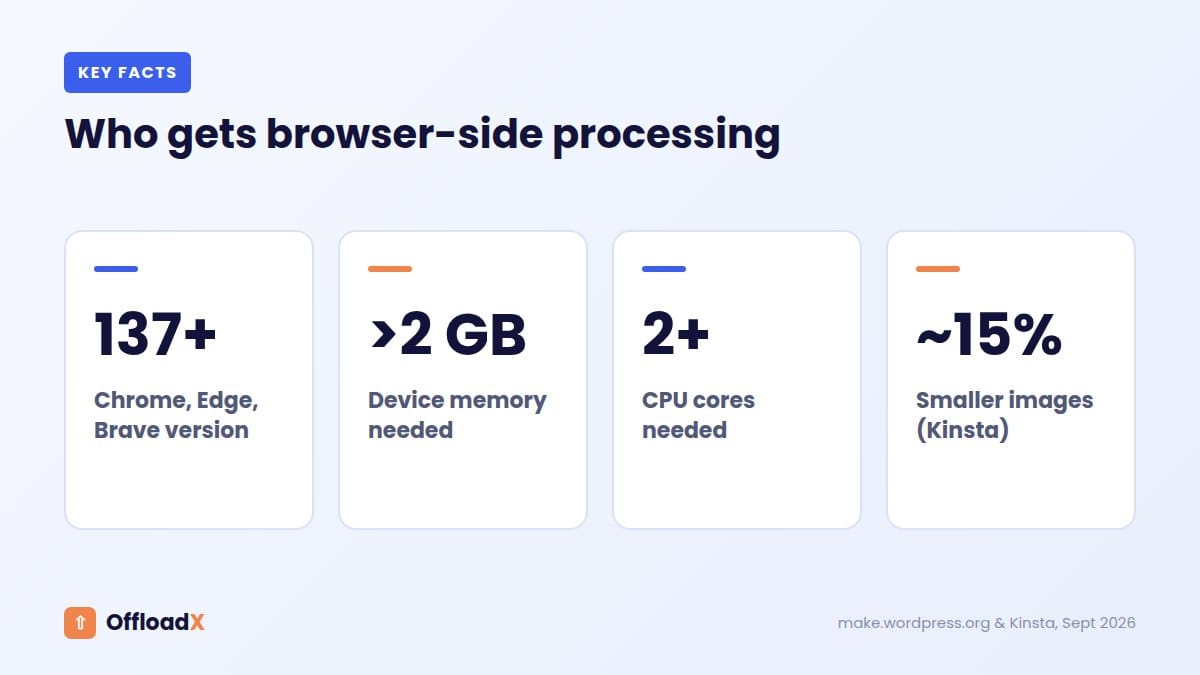
| Condition | Client-side processing |
|---|---|
| Chrome, Edge or Brave version 137 or newer | Yes |
| Firefox or Safari | No: falls back to the server |
| Device with 2 GB of memory or less | No |
| Fewer than 2 CPU cores | No |
| Slow 2G connection or Data Saver turned on | No |
| A security policy that blocks blob workers | No |
These details come from the client-side media architecture documentation. The practical result: on a team where one editor uses Chrome and another uses Safari, the same site will process images in two different ways. Your offload setup must handle both.
The New Upload Flow, Step by Step
Understanding the new flow is the key to understanding how WordPress 7.1 media processing affects offloading. When client-side processing is active, an image upload goes through six stages:
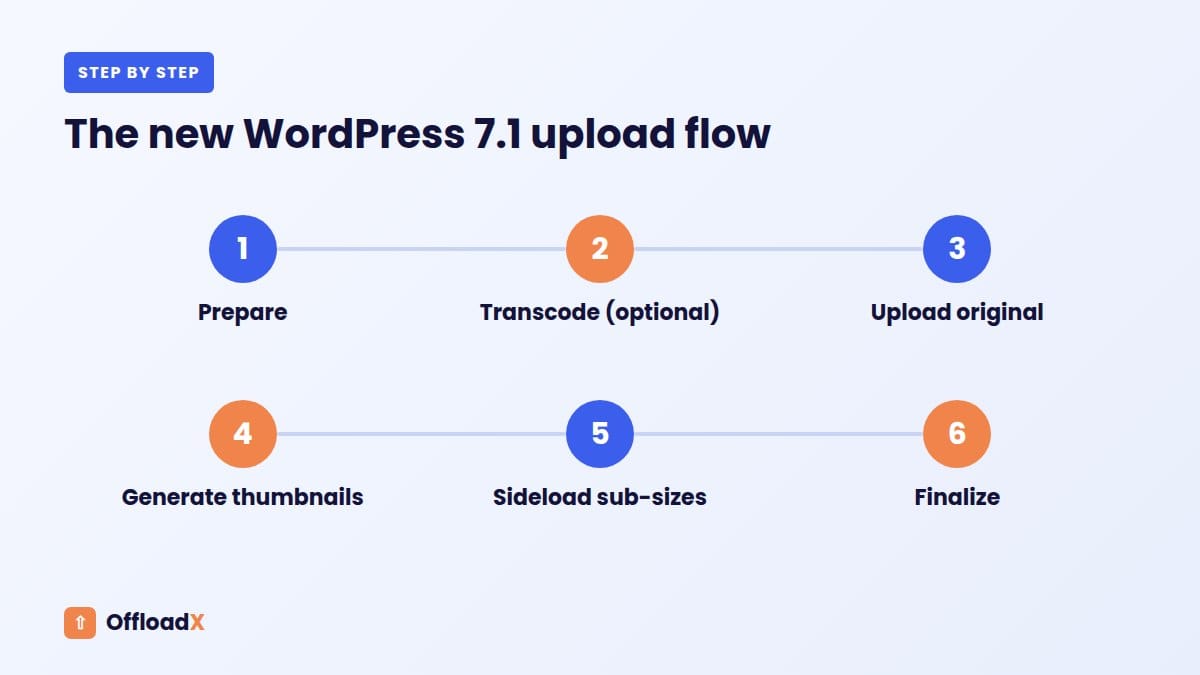
- Prepare: the browser checks the file type and decides what to do.
- Transcode (optional): the image may be converted to another format, such as HEIC to JPEG.
- Upload the original: the file is sent to the server through the REST API with an instruction not to generate sub-sizes.
- Generate thumbnails: the browser creates the missing image sizes.
- Sideload sub-sizes: each thumbnail is uploaded separately through a new sideload endpoint.
- Finalize: the server runs its final processing hooks once all sizes have arrived.
In the old flow, the original and all thumbnails existed on the server in one step. In the new flow, they arrive in pieces, and the attachment is only complete after the finalize step.
What Stays the Same
Big as the change is, a lot of WordPress 7.1 media processing works exactly as before.
- Your existing library is untouched. Only new uploads use the new flow.
- Image sizes are the same. The browser creates the same registered sizes the server would.
- Attachment records are the same. Posts, galleries and the Media Library work as they did.
- Server fallback is automatic. Editors on unsupported browsers see no difference.
- Final server hooks still run. The finalize step gives plugins one last pass after all sizes arrive.
HEIC in plain English
HEIC is the photo format iPhones use by default. Browsers generally cannot display it, so in the past WordPress sites either rejected HEIC uploads or needed a special server library. With WordPress 7.1, supported browsers can convert HEIC to JPEG before upload, so editors can drop phone photos straight into posts. The architecture documentation notes that HEIC files may still use a canvas fallback, with the server generating sub-sizes.
What WordPress 7.1 Media Processing Means for Offloading
An offload plugin’s job is to copy each upload, including every thumbnail, to cloud storage and rewrite its URLs. Here is how the new flow affects that job.
1. The metadata hook fires twice
Most offload plugins act when WordPress generates attachment metadata. According to the core team, wp_generate_attachment_metadata fires once with the context “create” during the initial upload, and again with “update” after finalize. Plugins hooking these filters continue to work without changes, but they should handle being called twice safely.
For offloading, that means a well-built plugin must make sure all thumbnails are offloaded after the second call, not only the original from the first one, and must not upload files twice.
2. Thumbnails arrive after the original
If a plugin offloads immediately on the first call and deletes local files, it could run before the browser has sent the thumbnails. Test that every size ends up in your bucket.
3. The finalize step is where post-processing belongs
The architecture documentation says the finalize endpoint lets server-side plugins, including those doing CDN sync, post-process the attachment after all sub-sizes are written. Offload plugins that respond to the final metadata update are in the right place.
4. Some image hooks no longer run
On the client-side path, hooks such as image_make_intermediate_size and wp_image_editors do not fire, because the server is not creating the sizes. A plugin that relied on those hooks to detect new thumbnails will miss them.
Bottom line: WordPress 7.1 media processing does not break offloading by design, but it changes timing. Offload plugins that wait for the final metadata and handle repeated calls work fine. Test yours before trusting it with new uploads.
Benefits for Sites That Offload Media
- Smaller files to store and serve. If images really are around 15% smaller, every gigabyte of storage and bandwidth goes further on R2, S3, Wasabi or Bunny.
- Fewer failed uploads. Big photos no longer depend on your server’s PHP memory limit when processed in the browser.
- Lighter server load. Thumbnail generation is one of the heaviest jobs on budget hosting. Moving it to the editor’s computer frees server resources, just as offloading frees disk space.
- HEIC support. Editors can upload iPhone photos directly, and they are converted into web-friendly formats before storage.
Combined with offloading, this is a strong setup: the browser does the processing, the cloud stores the files, and the server just runs WordPress. For more on the speed side, see does offloading WordPress media speed up your site?
What smaller images mean for your cloud bill
If images really are around 15% smaller, the saving flows straight through to storage and bandwidth. For example, a site adding 50 GB of new media a year would store about 7.5 GB less. On Cloudflare R2 at $0.015 per GB-month, that is small money, but on a provider that charges for bandwidth, such as Amazon S3 at roughly $0.09 per GB of transfer, every gigabyte not served is a direct saving each month.
The saving only applies to images processed in supported browsers, so the real figure depends on which browsers your editors use.
Known Issues and Risks
HEIC duplicates with some image plugins
The developer of Advanced Media Offloader tested WordPress 7.1 with the Modern Image Formats plugin, version 2.7.1, and found it created duplicate files for HEIC uploads, noticeably increasing storage use (WP Fitter’s report). If you offload media, duplicates also mean duplicate cloud storage costs.
Hooks running twice
Plugins that watermark, compress or rename images on upload may run twice unless their code checks for it. That can mean double processing or double uploads.
Different behaviour for different editors
Because Firefox and Safari fall back to the server path, a problem may appear only for editors using Chrome, or only for those using Safari. Test both.
Filters that behave differently
Filters that control output format and quality, such as image_editor_output_format, wp_editor_set_quality and big_image_size_threshold, still work, but on the client path they run when settings are calculated rather than once per file. Plugins that change formats or quality may see different results.
Notes for Developers
If you build or maintain plugins that touch uploads, the core documentation lists the essentials:
- New REST endpoints:
POST /wp/v2/mediawithgenerate_sub_sizes: false,POST /wp/v2/media/{id}/sideloadfor each size, andPOST /wp/v2/media/{id}/finalize. - Make metadata callbacks idempotent: expect “create” then “update” contexts.
- Cross-origin isolation: WordPress sends a
Document-Isolation-Policy: isolate-and-credentiallessheader on editor screens so the browser can use SharedArrayBuffer for WebAssembly threading. - Opt out if needed: the
wp_client_side_media_processing_enabledfilter turns the feature off.
The editor isolation header is worth knowing if you load images from a separate media domain inside the editor. Credentialless mode loads cross-origin resources without cookies, which suits public buckets and CDNs. If your media requires cookies to load, test the editor carefully.
Questions to Ask Your Offload Plugin Vendor
If you rely on an offload plugin, these questions tell you quickly whether it is ready for WordPress 7.1 media processing:
- Has the plugin been tested with WordPress 7.1 client-side uploads in Chrome?
- Does it offload sub-sizes that arrive through the sideload endpoint?
- Does it wait for the finalize step before removing local files?
- Is its metadata handling safe when the hook runs twice?
- Has it been tested with HEIC uploads?
An actively maintained plugin should answer these clearly. If the plugin has not been updated since before WordPress 7.1, treat that as a warning sign. Plugins that are no longer maintained, such as Media Cloud, will never be updated for these changes; see our guide to migrating from Media Cloud if that affects you.
Why this matters more for offloading than for local storage
On a site that keeps media locally, a missing thumbnail is regenerated the next time something asks for it. On an offloaded site with local copies removed, a thumbnail that never reached the bucket simply does not exist anywhere. That is why offload users should test more carefully than most.
Testing Checklist Before You Update
Run this on a staging copy of your site with WordPress 7.1 and your offload plugin active.
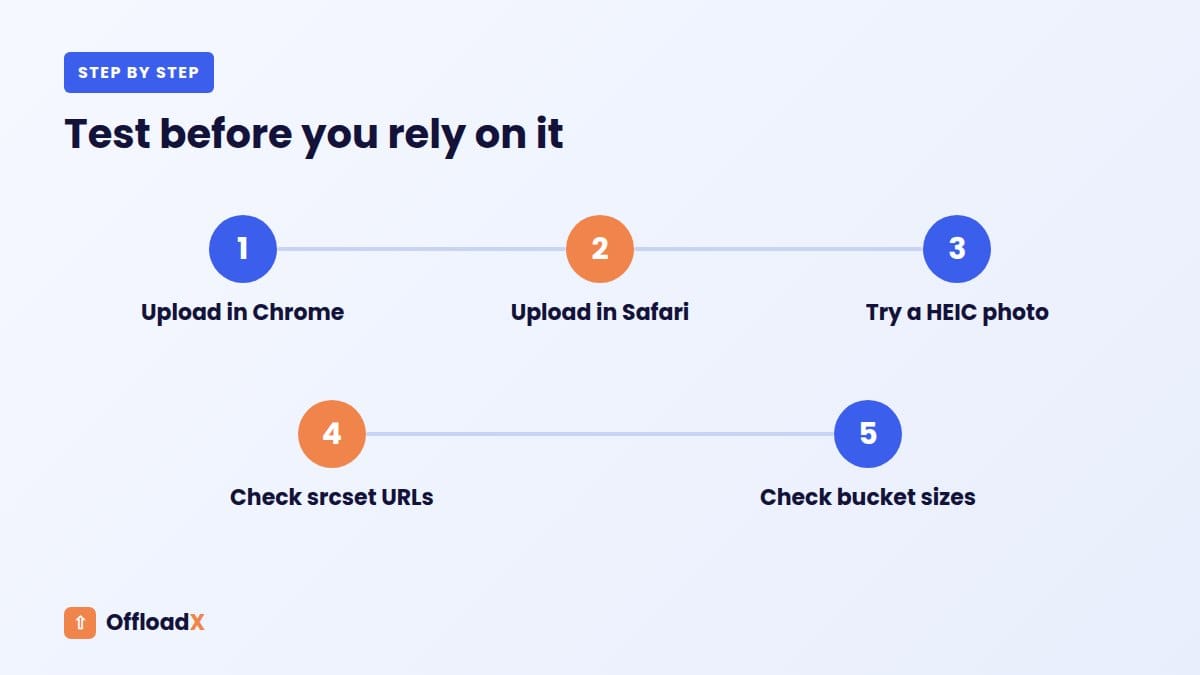
- Upload a large JPEG in Chrome. Confirm the original and every thumbnail size appear in your bucket.
- Upload the same image in Safari or Firefox. Confirm the server path also offloads every size.
- Upload an iPhone HEIC photo. Check for duplicate files in the bucket and the Media Library.
- Insert each image in a post and check the
srcsetURLs all point to your bucket or CDN. - Test with “remove local files” on, if you use it. Make sure no size is deleted before it is offloaded.
- Check image optimisation plugins for double compression or duplicate formats.
- Review storage use in your provider dashboard after a day of normal uploads.
Where to look for problems
| Symptom | Likely cause |
|---|---|
| Original in bucket, thumbnails missing | Plugin offloaded before sideloaded sizes arrived |
| Two copies of the same file | Hook ran on both “create” and “update” |
| Problem only in Chrome | Client-side path; compare with Safari to confirm |
| HEIC upload creates extra files | Conflict with an image format plugin |
What to Do This Week
If you run one site
- Confirm you are on WordPress 7.1 and your offload plugin is up to date.
- Upload one test image in Chrome and one in Safari or Firefox.
- Check both appear in your bucket with every thumbnail size.
- If anything is missing, use the opt-out filter below and contact your plugin’s support.
If you manage client sites
- List which sites use offload, image optimisation or watermark plugins.
- Test one representative site per plugin combination on staging.
- Tell clients which browsers their editors use; mixed teams need both paths tested.
- Keep the opt-out snippet ready to deploy across sites if a conflict appears.
How to Turn Client-Side Processing Off
If a plugin conflict affects your site, you can switch WordPress 7.1 media processing back to the server while you wait for a fix. Add this snippet with a code snippets plugin or in a small custom plugin:
add_filter( 'wp_client_side_media_processing_enabled', '__return_false' );
Uploads then use the traditional server-side processing for everyone. Remove the snippet once your plugins are updated and tested.
Frequently Asked Questions
Does WordPress 7.1 break media offload plugins?
Not by design. Core keeps the same metadata hooks, but they can fire twice and thumbnails arrive separately. Well-built plugins keep working; test yours on staging.
Which browsers use client-side processing?
Chrome, Edge and Brave version 137 and newer. Firefox and Safari automatically fall back to server-side processing.
Are images smaller in WordPress 7.1?
Kinsta reports around 15% smaller images from client-side processing. Results vary by image and settings.
Do I still need an image optimisation plugin?
Possibly. Core now compresses and converts in supported browsers, but dedicated plugins add bulk optimisation of existing images and more control over formats and quality.
Can I disable client-side media processing?
Yes, with the wp_client_side_media_processing_enabled filter returning false.
Does this affect my existing media library?
No. It changes how new uploads are processed. Existing files and offloaded media are not reprocessed.
Will client-side processing use my editors’ computers heavily?
It runs in a background worker and only on devices with more than 2 GB of memory and at least 2 CPU cores. Lower-powered devices fall back to the server automatically.
Does WordPress 7.1 media processing work in the Media Library screen?
According to the core announcement, Media Library uploads also use client-side processing when the block editor is active, in supported browsers.
Is my server still needed for images?
Yes. The server receives the files, stores attachment records and runs final hooks. With offloading, your storage provider then holds and serves the files.
Does it change how images look?
Images are compressed and resized with libvips, a well-established image library. Quality settings still apply. Compare a few uploads side by side after updating if image quality is critical for your site, such as for photographers.
Do I need to update my offload plugin for WordPress 7.1?
Keep it on the latest version and test uploads on staging. Plugins that follow core’s documented hooks should keep working.
Conclusion
WordPress 7.1 media processing makes uploads lighter and more reliable, and pairs naturally with media offloading. The main change for offload users is timing: thumbnails arrive separately and hooks can run twice. Test uploads in Chrome and Safari on staging, watch for HEIC duplicates, and keep the opt-out filter handy.
See OffloadX Plans →Based on WordPress core documentation and announcements for WordPress 7.1 (released August 19, 2026), checked September 2026.