
A WordPress HTTP error uploading images is one of the most frustrating messages in the Media Library, because it tells you almost nothing. You drag in a photo, the progress bar fills, and then a red “HTTP error” appears with no hint about what went wrong. The good news is that the causes are well known, and you can work through them in a sensible order.
This troubleshooting guide explains what the message really means, the ten most common causes, the order we recommend checking them in, and the exact code or settings for each fix. It also covers how WordPress 7.1 browser-based image processing changes the picture for many sites.
Table of Contents
- What the HTTP Error Actually Means
- Quick Checks Before You Touch Any Code
- Diagnostic Order for a WordPress HTTP Error Uploading Images
- How to Find the Real Error
- Cause 1: PHP Memory Limit
- Cause 2: Upload and Post Size Limits
- Cause 3: Maximum Execution Time
- Cause 4: The Image Editor Library (GD vs Imagick)
- Cause 5: Very Large Images
- Cause 6: HEIC Photos From iPhones
- Cause 7: mod_security and Firewalls
- Cause 8: File Permissions and a Full Disk
- Cause 9: Plugin and Theme Conflicts
- Cause 10: Offload Plugin Credential Errors
- How WordPress 7.1 Changes the HTTP Error
- Prevention Checklist
- Frequently Asked Questions
What the HTTP Error Actually Means
When you upload through the Media Library, your browser sends the file to WordPress and waits for a response. If the server returns an error code, an empty response or something that is not the expected data, the uploader cannot show a specific message. It falls back to a generic “HTTP error.”
In other words, the HTTP error is a symptom, not a diagnosis. Something failed on the server, in a proxy in front of it, or in a plugin, and WordPress did not get a clean answer back.
Related messages you may see
- “HTTP error.” The generic version, often caused by memory, time or security limits.
- “Post-processing of the image failed likely because the server is busy or does not have enough resources.” WordPress uploaded the file but could not create every thumbnail. The message suggests a maximum size of 2500 pixels.
- “The uploaded file exceeds the upload_max_filesize directive in php.ini.” A clear size limit problem.
- “413 Request Entity Too Large.” A web server or proxy rejected the request before PHP saw it.
All of these can show up as the same HTTP error in some upload screens, so it pays to find the underlying message before changing settings.
Quick Checks Before You Touch Any Code
Some cases of a WordPress HTTP error uploading images are temporary. Before editing configuration files, spend two minutes on these checks.
- Wait and retry. A busy shared server can fail one upload and accept the next.
- Try a smaller copy. Resize the image to around 2000 pixels wide and try again. If it works, you are looking at a resource limit.
- Try another file type. If a JPEG works and a PNG or HEIC fails, the image library is the likely cause.
- Rename the file. Remove spaces, accents and special characters from the filename.
- Try another browser. Browser extensions and, on WordPress 7.1, the browser itself can change how uploads are processed.
- Log out and back in. An expired login session can make upload requests fail.
Key point: if a resized copy of the same photo uploads fine, stop guessing. Your server is running out of memory, time or allowed request size while processing the original.
Diagnostic Order for a WordPress HTTP Error Uploading Images
We check causes in order of how common they are and how easy they are to confirm. Work down this table and stop when you find the culprit.
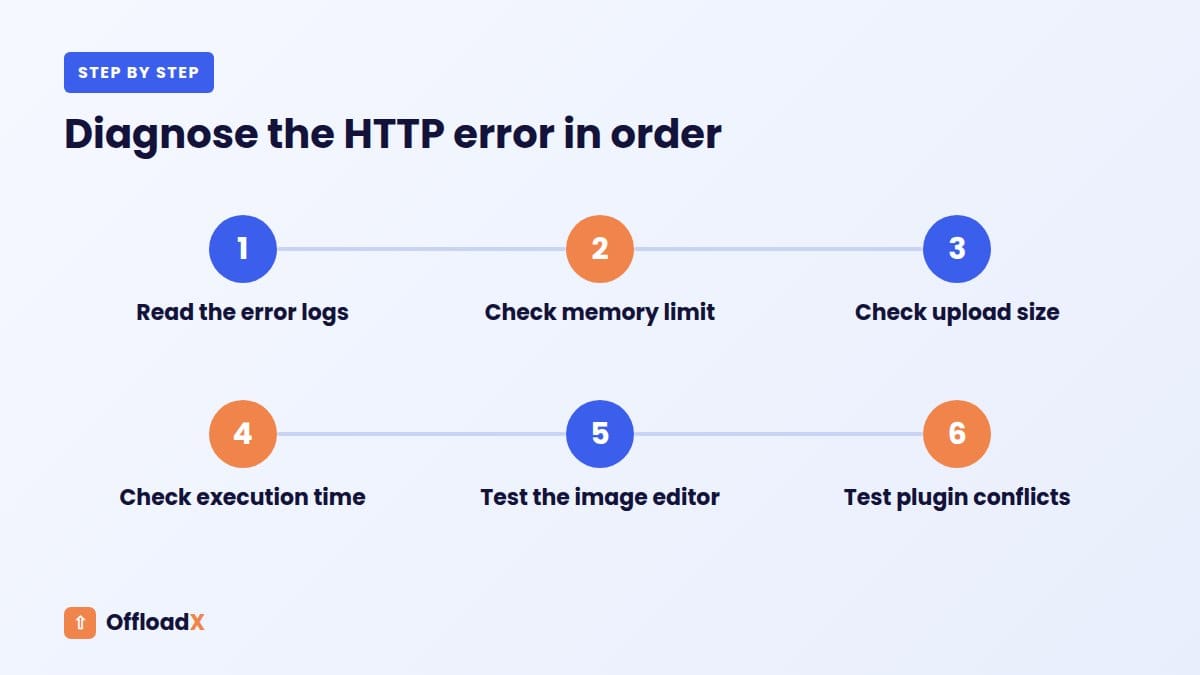
| Step | Check | Where to look | Typical sign |
|---|---|---|---|
| 1 | Error logs | wp-content/debug.log, host error log | “Allowed memory size exhausted”, timeouts |
| 2 | PHP memory limit | Site Health → Info → Server | Large photos fail, small ones work |
| 3 | Upload and post size | Media → Add New, Site Health | Files over a certain size always fail |
| 4 | Execution time | Site Health → Info → Server | Fails after a consistent delay |
| 5 | Image editor | Site Health → Info → Media Handling | Certain formats fail |
| 6 | Disk space and permissions | Hosting panel, file manager | All uploads fail, even tiny ones |
| 7 | Security rules | Host firewall or mod_security log | Uploads fail with 403 or on certain filenames |
| 8 | Plugins and theme | Troubleshooting mode or staging | Started after an update |
| 9 | Offload plugin connection | Plugin connection test | File uploads locally but offload fails |
How to Find the Real Error
Guessing is slow when you face a WordPress HTTP error uploading images. Turn on logging, repeat the failed upload once, and read what the server recorded.
Enable the WordPress debug log
The WordPress debugging guide recommends these lines in wp-config.php, above the “That’s all, stop editing” comment. They write errors to wp-content/debug.log without showing them to visitors.
define( 'WP_DEBUG', true );define( 'WP_DEBUG_LOG', true );define( 'WP_DEBUG_DISPLAY', false );
Upload the image again, then open the log. Turn debugging off when you finish, because the log can grow and may contain paths you do not want public.
Check the browser’s network tab
- Open your browser’s developer tools and select the Network tab.
- Upload the image again.
- Find the request to
async-upload.phpor/wp/v2/media. - Note the status code: 413, 403, 500, 502, 503 or 504.
What the status code tells you
| Status | Usual meaning | Go to |
|---|---|---|
| 413 | Request too large for the web server or proxy | Cause 2 |
| 403 | Blocked by a firewall or security rule | Cause 7 |
| 500 | PHP fatal error, often memory | Cause 1 or 4 |
| 502 / 504 | PHP process timed out or crashed | Cause 3 or 5 |
| 503 | Server overloaded or resource-limited | Cause 1 or 5 |
Cause 1: PHP Memory Limit
Resizing an image means decoding it into raw pixels in memory. A 24-megapixel photo can be a few megabytes as a JPEG but needs far more memory once decoded, and WordPress then creates several sizes from it. If PHP hits its memory limit, the request dies and you see an HTTP error.
How WordPress manages memory
According to the wp-config.php documentation, WordPress tries to raise PHP memory to 40MB on single sites and 64MB on multisite. You can raise this with WP_MEMORY_LIMIT, and admin tasks such as image processing can use a higher limit set by WP_MAX_MEMORY_LIMIT.
define( 'WP_MEMORY_LIMIT', '256M' );define( 'WP_MAX_MEMORY_LIMIT', '512M' );
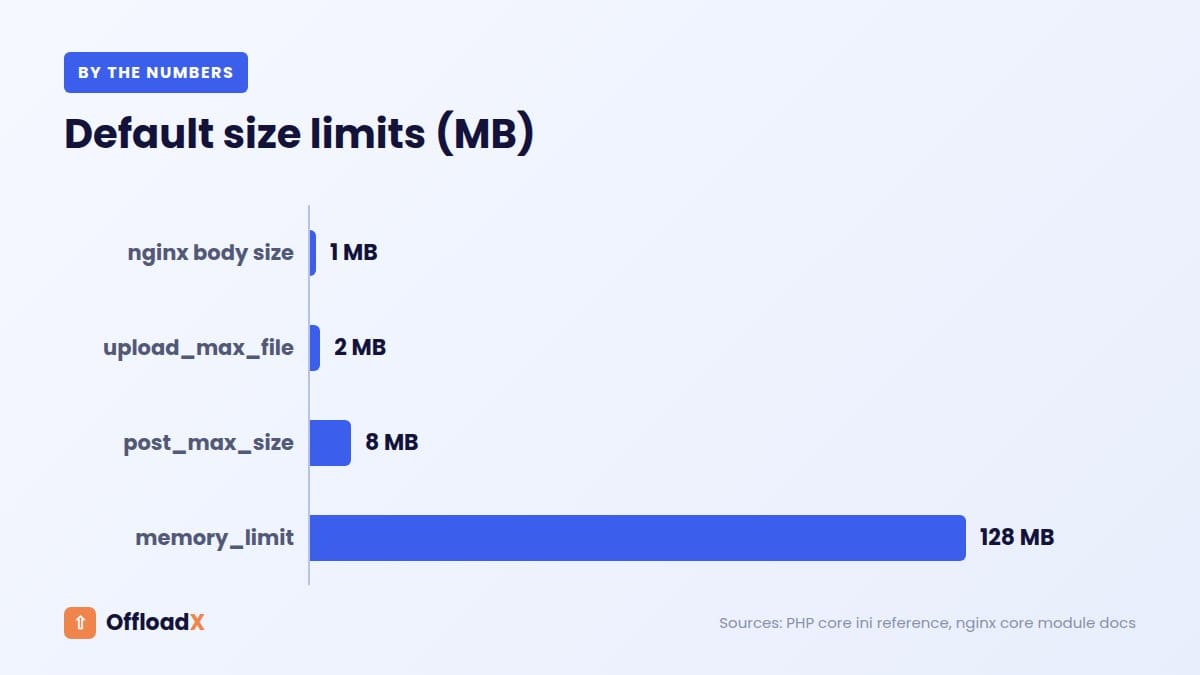
These constants cannot go above a hard limit set by your host. If nothing changes, raise memory_limit in php.ini or ask your host. PHP’s own default is 128M, per the PHP core ini reference.
How to confirm memory is the problem
- The debug log shows “Allowed memory size of … bytes exhausted”.
- Small images upload fine, large photos fail.
- Site Health → Info → Server shows a low PHP memory limit.
Cause 2: Upload and Post Size Limits
Three separate limits decide your real upload size. The smallest one wins, so raising one upload size setting alone often changes nothing.
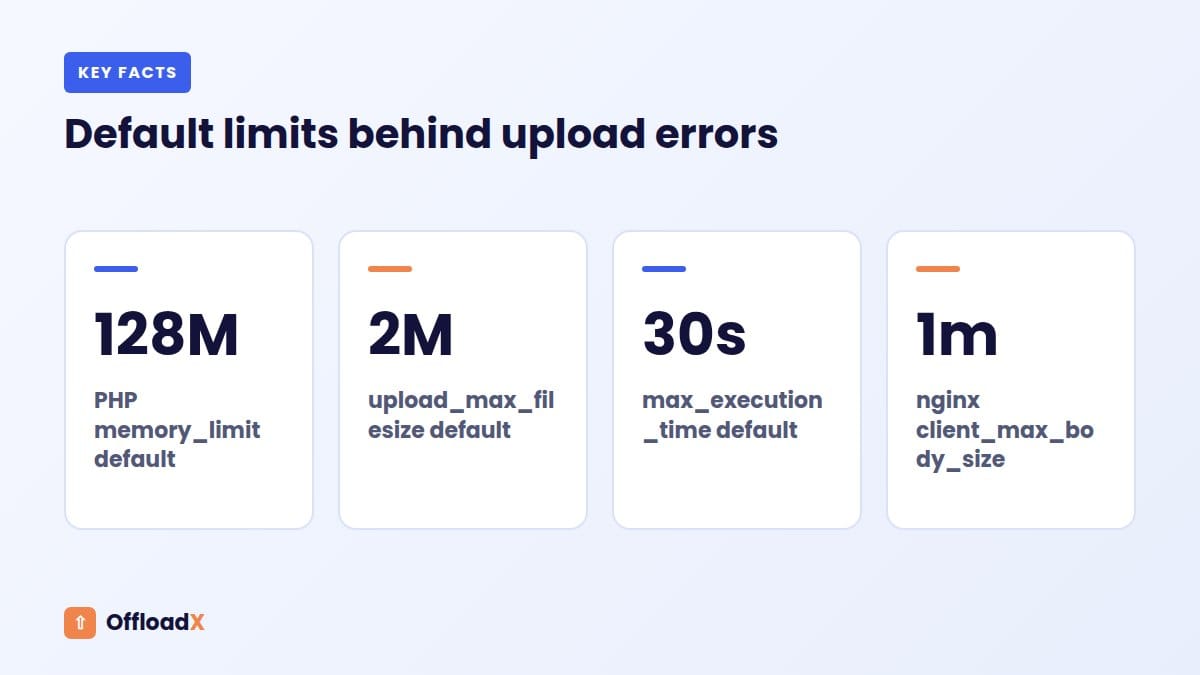
| Limit | Set in | PHP default | Symptom when hit |
|---|---|---|---|
upload_max_filesize | php.ini, .user.ini, .htaccess | 2M | Clear “exceeds upload_max_filesize” message |
post_max_size | php.ini, .user.ini, .htaccess | 8M | Silent failure or HTTP error |
nginx client_max_body_size | nginx config | 1m | 413 Request Entity Too Large |
PHP’s documentation says post_max_size must be larger than upload_max_filesize, and memory_limit should generally be larger than post_max_size. The nginx documentation confirms a 1 MB default for client_max_body_size, with a 413 error when exceeded.
Fix in php.ini or .user.ini
upload_max_filesize = 64Mpost_max_size = 64Mmemory_limit = 256M
On PHP-FPM or FastCGI hosts, put these in a .user.ini file in your WordPress root. PHP re-reads it every 300 seconds by default, so changes can take five minutes to apply.
Fix in .htaccess (Apache with mod_php only)
php_value upload_max_filesize 64Mphp_value post_max_size 64M
If adding these causes a 500 error, your server does not run PHP as an Apache module. Remove the lines and use .user.ini instead. Whatever method you use, confirm the new upload size on the Media → Add New screen, which shows the maximum upload size WordPress will accept.
Cause 3: Maximum Execution Time
PHP stops scripts that run longer than max_execution_time, which defaults to 30 seconds for web requests. Generating many thumbnails from a huge photo on a slow shared server can exceed that.
max_execution_time = 120
Add this to php.ini or .user.ini. Proxies and load balancers have their own timeouts, often shown as a 504 error, so ask your host if raising the PHP value does not help.
Cause 4: The Image Editor Library (GD vs Imagick)
WordPress creates thumbnails with either the Imagick extension or the GD library. The wp_image_editors hook reference shows the default order: Imagick first, then GD.
On some hosts, Imagick runs into resource limits or has a buggy build, and switching to GD makes the HTTP error disappear. Test it with this snippet in a small plugin or code snippets tool:
add_filter( 'wp_image_editors', function() { return array( 'WP_Image_Editor_GD', 'WP_Image_Editor_Imagick' ); } );
| Situation | Try |
|---|---|
| JPEGs fail, host has Imagick | Prefer GD with the snippet above |
| WebP or AVIF fails | Check Site Health → Media Handling for format support |
| HEIC fails | See Cause 6 |
| Everything fails after a PHP upgrade | Ask the host whether GD or Imagick is installed for the new version |
Keep the snippet only if it helps. If it does, tell your host, as a broken Imagick build may affect other sites on the server too.
Cause 5: Very Large Images
Photos straight from modern phones and cameras are often 4000 pixels or wider. WordPress handles these with the big_image_size_threshold filter, added in WordPress 5.3 with a default of 2560 pixels. Larger images are scaled down to a “-scaled” copy that becomes the main file, while the original is kept.
That scaling step itself needs memory. If you do not need huge originals, the best fix is to resize before uploading. You can also lower the threshold so WordPress works with a smaller main image:
add_filter( 'big_image_size_threshold', function() { return 2048; } );
Key point: disabling the threshold with __return_false makes WordPress work from full-size originals. That can make memory problems worse, not better.Resize before uploading
- Export photos from your editing tool at 2000–2560 pixels on the long edge.
- Use a desktop tool or phone setting that saves web-sized copies.
- Ask editors to avoid uploading camera originals unless they are needed.
Cause 6: HEIC Photos From iPhones
iPhones save photos in HEIC format by default. WordPress 6.7 added automatic conversion of HEIC uploads to JPEG, but only when the server’s Imagick supports HEIC, according to the core announcement. Without that support, WordPress shows a message asking you to convert the image to JPEG before uploading.
Fixes for HEIC
- Change the iPhone camera setting to “Most Compatible” so it saves JPEG.
- Convert HEIC files to JPEG on your computer before uploading.
- Ask your host whether Imagick with HEIC support is available.
- On WordPress 7.1, upload from Chrome, Edge or Brave, which can convert HEIC to JPEG in the browser.
Cause 7: mod_security and Firewalls
mod_security is a web application firewall many hosts run in front of WordPress. Its rules sometimes flag image uploads as suspicious, especially files with unusual names or embedded metadata. The upload is then blocked with a 403 or a generic error before WordPress can respond.
How to fix a firewall block
- Note the time of the failed upload and the filename.
- Ask your host to check the mod_security or firewall log for that request.
- Ask them to allow the specific rule for
async-upload.phpor the media endpoint, rather than turning the firewall off. - Check security plugins and CDN firewall rules too, as they can block uploads in the same way.
Avoid old advice to disable mod_security entirely through .htaccess. It removes protection for the whole site and often does not work on modern servers anyway.
Cause 8: File Permissions and a Full Disk
If every upload fails, including tiny images, WordPress probably cannot write to the uploads folder. The two usual reasons are wrong permissions and no free disk space.
Permissions
The WordPress file permissions guide recommends 755 for directories and 644 for files, with wp-content/uploads writable by your web user. It warns never to use 777, even for upload folders.
Disk space
Shared hosting plans often have tight storage quotas, and every image creates several files. When the disk is full, uploads fail with an HTTP error or a message that the file could not be written. Check usage in your hosting panel and clear old backups first.
For long-term fixes, including moving media to cloud storage, read our guide on what to do when your WordPress site is running out of disk space.
Cause 9: Plugin and Theme Conflicts
Image optimisation, watermark, security and offload plugins all hook into the upload process. A bug or a timeout in any of them can turn a normal upload into an HTTP error.
How to test for a conflict
- Use a staging copy or the Health Check plugin’s troubleshooting mode.
- Switch to a default theme such as Twenty Twenty-Five.
- Deactivate all plugins, then upload the same image.
- If it works, reactivate plugins one at a time, testing after each.
- Report the conflict to the plugin developer with your debug log.
Pay special attention to plugins that compress or convert images during upload. They add processing time and memory use to the same request that is already creating thumbnails.
Cause 10: Offload Plugin Credential Errors
If you offload media to Cloudflare R2, Amazon S3 or another provider, the upload may succeed locally but fail when the plugin copies it to the bucket. Depending on the plugin, that can surface as an HTTP error in the Media Library.
| Problem | Typical cause | Fix |
|---|---|---|
| Access denied | Wrong access key or secret, or key lacks write permission | Create a new key with read and write access to the bucket |
| Bucket not found | Typo in bucket name or wrong region or account ID | Copy the exact values from the provider dashboard |
| Wrong key type | Using an API token where an S3 key is needed | Use the S3-compatible access key for the service |
| Uploads slow or time out | Large files offloaded during the upload request | Use background or scheduled offloading if available |
OffloadX includes a connection tester on every plan, including Free, so you can confirm credentials before blaming the server. For provider-specific messages, see our list of common Cloudflare R2 WordPress errors and fixes, or the Amazon S3 offload guide for S3 setups.
How WordPress 7.1 Changes the HTTP Error
WordPress 7.1, released on 19 August 2026, moves image resizing, compression and format conversion into the browser for editors using Chromium 137 or newer (Chrome, Edge and Brave). The core announcement explains that the browser creates the thumbnails and uploads them separately.
| Cause | Browser path (Chrome, Edge, Brave) | Server path (Firefox, Safari) |
|---|---|---|
| PHP memory for thumbnails | Much less relevant | Same as before |
| Execution time for resizing | Much less relevant | Same as before |
| GD vs Imagick problems | Mostly avoided | Same as before |
| HEIC support | Converted to JPEG in the browser | Needs Imagick with HEIC |
| Upload size limits | Still apply: the original is uploaded | Same as before |
| Firewalls, permissions, disk space | Still apply | Same as before |
This is why the same image can fail for a Safari user and work for a Chrome user on the same site. Test in both before deciding the problem is fixed. Our guide to WordPress 7.1 media processing and offloading covers the new upload flow in detail, including the opt-out filter.
Prevention Checklist
Once uploads work again, a few habits stop a WordPress HTTP error uploading images from coming back.
- Set a sensible memory limit, such as 256M, where your host allows it.
- Check the image editor in Site Health after every PHP upgrade.
- Keep
upload_max_filesize,post_max_sizeandmemory_limitin the right order. - Resize photos to around 2560 pixels before uploading.
- Keep PHP, WordPress and plugins up to date.
- Watch disk usage, and offload media to cloud storage before the disk fills.
- Test uploads after every major plugin, theme or PHP update.
- Keep one image optimisation plugin, not several doing the same job.
Quick reference: fixes by symptom
| Symptom | First fix to try |
|---|---|
| Only large photos fail | Raise memory limit, resize before upload |
| Files over a set size fail | Raise upload_max_filesize and post_max_size |
| Fails after 30 seconds | Raise max_execution_time |
| Only PNG or WebP fail | Switch image editor to GD |
| iPhone photos fail | Convert HEIC or use WordPress 7.1 in Chrome |
| Every upload fails | Check disk space and permissions |
| Started after an update | Test for plugin conflicts |
| Local file saved, bucket empty | Test offload credentials |
Choosing where your media lives also matters. Our comparison of the best cloud storage for WordPress can help if you are moving images off the server.
Frequently Asked Questions
What causes a WordPress HTTP error uploading images?
The uploader received an error or an unexpected response from the server. The most common causes are the PHP memory limit, upload size limits, timeouts, image library problems and security rules.
Does increasing WP_MEMORY_LIMIT always fix it?
No. It only helps when memory is the cause, and it cannot exceed your host’s hard limit. Check the debug log for “memory exhausted” before changing it.
Why does the error happen only with large images?
Large photos need much more memory and time to resize. Resize them to around 2560 pixels before uploading, or raise memory and time limits if your host allows.
Can a plugin cause the HTTP error?
Yes. Image optimisation, security and offload plugins all run during uploads. Test with plugins deactivated on a staging site to confirm.
Why does the upload work in Chrome but not Safari?
On WordPress 7.1, Chrome, Edge and Brave process images in the browser, while Firefox and Safari use the server. A server limit therefore only affects editors on the server path.
Is it safe to set folder permissions to 777?
No. WordPress’s own guidance says never to use 777, even for uploads. Use 755 for folders and 644 for files, and ask your host to fix ownership if uploads still fail.
Does offloading media prevent HTTP errors?
Offloading does not change PHP limits, but it stops a full disk from blocking uploads. Make sure your offload credentials are correct so the copy to the bucket does not fail.
What if nothing on this list works?
Send your host the time of the failed upload, the status code from the network tab and your debug log. They can see server logs that WordPress cannot.
Conclusion
A WordPress HTTP error uploading images almost always comes down to a limit: memory, size, time, disk space or a security rule. Check the logs first, work through the causes in order, and test in more than one browser now that WordPress 7.1 processes images in some of them. Once uploads are stable, offloading media keeps disk space from becoming the next problem.
See OffloadX Plans →Based on WordPress developer documentation, PHP and nginx manuals, and the WordPress 7.1 core announcement. Sources checked September 2026.