

If you need to increase WordPress max upload size, the first thing to know is that WordPress itself rarely sets the limit. The number you see on the Media → Add New screen comes from PHP, and it can be capped again by your web server, a proxy or a CDN such as Cloudflare. Change the wrong layer and nothing happens.
This guide shows where each limit lives, how to check your current value, every practical way to raise it, what to do on multisite, and why a bigger limit is not always the best answer for disk space. We finish with better options for large videos.
Table of Contents
- Where the Upload Limit Comes From
- How to Check Your Current Upload Limit
- Choose Sensible Values First
- Method 1: Your Hosting Control Panel
- Method 2: php.ini or .user.ini
- Method 3: .htaccess on Apache
- Method 4: nginx and Apache Request Limits
- What wp-config.php Can and Cannot Do
- How to Increase WordPress Max Upload Size on Multisite
- Cloudflare and Proxy Upload Limits
- When the Limit Will Not Change
- Why a Bigger Limit Is Not Always Wise
- How Offloading Helps
- Better Options for Big Videos
- Frequently Asked Questions
Where the Upload Limit Comes From
An upload passes through several layers before WordPress saves it. Each layer can reject a file that is too big, and the smallest limit in the chain is the one you actually get.
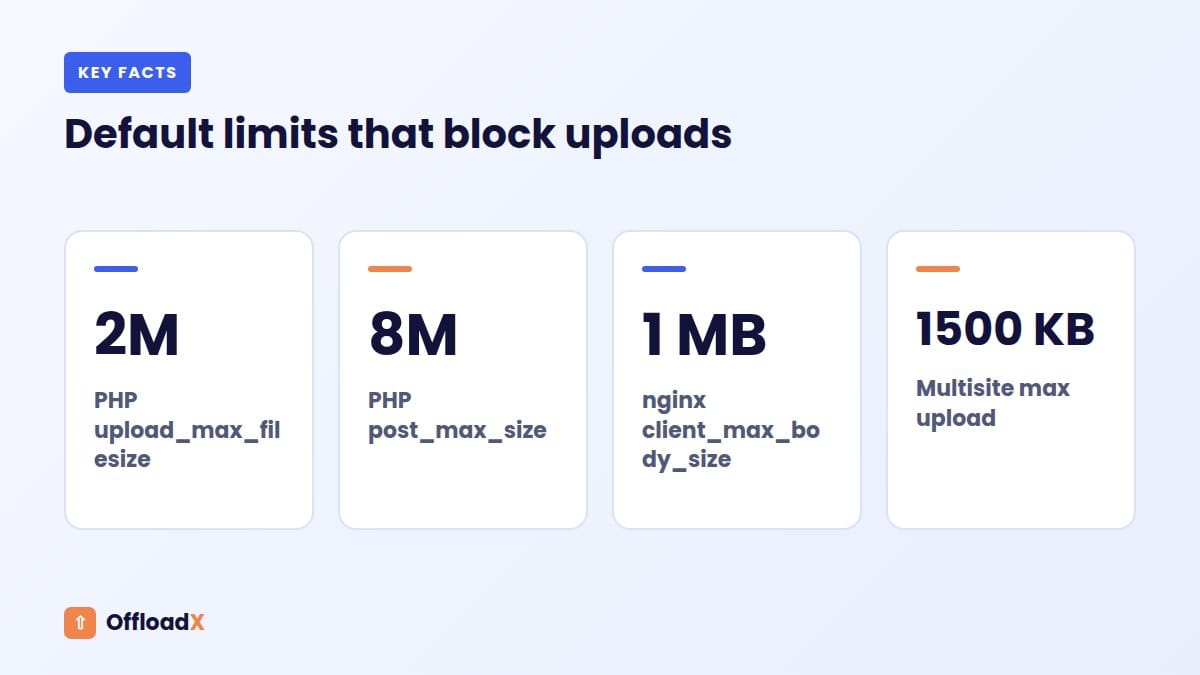
| Layer | Setting | Default | What happens when exceeded |
|---|---|---|---|
| CDN or proxy | Cloudflare maximum upload size | 100 MB on Free and Pro | Rejected before reaching your server |
| Web server (nginx) | client_max_body_size | 1 MB | 413 Request Entity Too Large |
| Web server (Apache) | LimitRequestBody | 1 GB in current versions | Error response |
| PHP | post_max_size | 8M | Request data discarded, often an HTTP error |
| PHP | upload_max_filesize | 2M | “Exceeds upload_max_filesize” message |
| PHP | memory_limit | 128M | Processing fails on large images |
| WordPress multisite | Max upload file size | 1500 KB | Upload refused with a size message |
PHP defaults come from the PHP core ini reference, although most hosts ship their own higher values. The nginx default is in the nginx core module docs, and the Apache default in the Apache core docs, which note it was unlimited in 2.4.53 and earlier.
How WordPress calculates the number
WordPress’s wp_max_upload_size() function reads upload_max_filesize and post_max_size and uses whichever is smaller. On multisite, the network’s max upload setting and remaining site quota can lower it further. That is why raising only one PHP value often changes nothing.
Key point: keep the PHP values in order. PHP’s documentation sayspost_max_sizemust be larger thanupload_max_filesize, andmemory_limitshould generally be larger thanpost_max_size.
How to Check Your Current Upload Limit
Before you change anything, note your current max upload size so you can confirm the change worked.
Three places to look
- Media → Add New: the line “Maximum upload file size” under the upload box shows the limit WordPress will accept.
- Tools → Site Health → Info → Media Handling: look for “Max size of an uploaded file”.
- Tools → Site Health → Info → Server: shows “Upload max filesize”, “PHP post max size” and “PHP memory limit” separately.
The Server section is the most useful when troubleshooting, because it shows which PHP value is the bottleneck. Remember it cannot see nginx, Apache or Cloudflare limits, which sit outside PHP.
Check from the command line
If you have SSH access and WP-CLI, wp eval 'echo size_format( wp_max_upload_size() );' prints the limit WordPress calculates, using the same function as the Media screen. It is quick to rerun after each change.
Be careful with php -i | grep upload_max_filesize. The command-line PHP often reads a different php.ini from the one your web server uses, so its answer can be misleading. Site Health reflects the web PHP, which is the one that matters for uploads.
Test with a real file
After any change, upload a file slightly larger than the old limit. If the screen shows the new limit but the upload still fails, a web server or proxy limit is blocking it.
Choose Sensible Values First
Bigger is not automatically better. Pick values that match what your site actually uploads.
| Site type | upload_max_filesize | post_max_size | memory_limit |
|---|---|---|---|
| Blog with web-sized photos | 16M | 20M | 256M |
| Photography or portfolio | 32M | 40M | 256M |
| Shop with PDFs and product images | 32M | 40M | 256M |
| Podcast or course audio | 128M | 140M | 256M |
| Occasional video files | Use a video service instead | – | – |
These are our starting suggestions, not official figures. The key rule is the order: post_max_size a little above upload_max_filesize, and enough memory for image processing.
Method 1: Your Hosting Control Panel
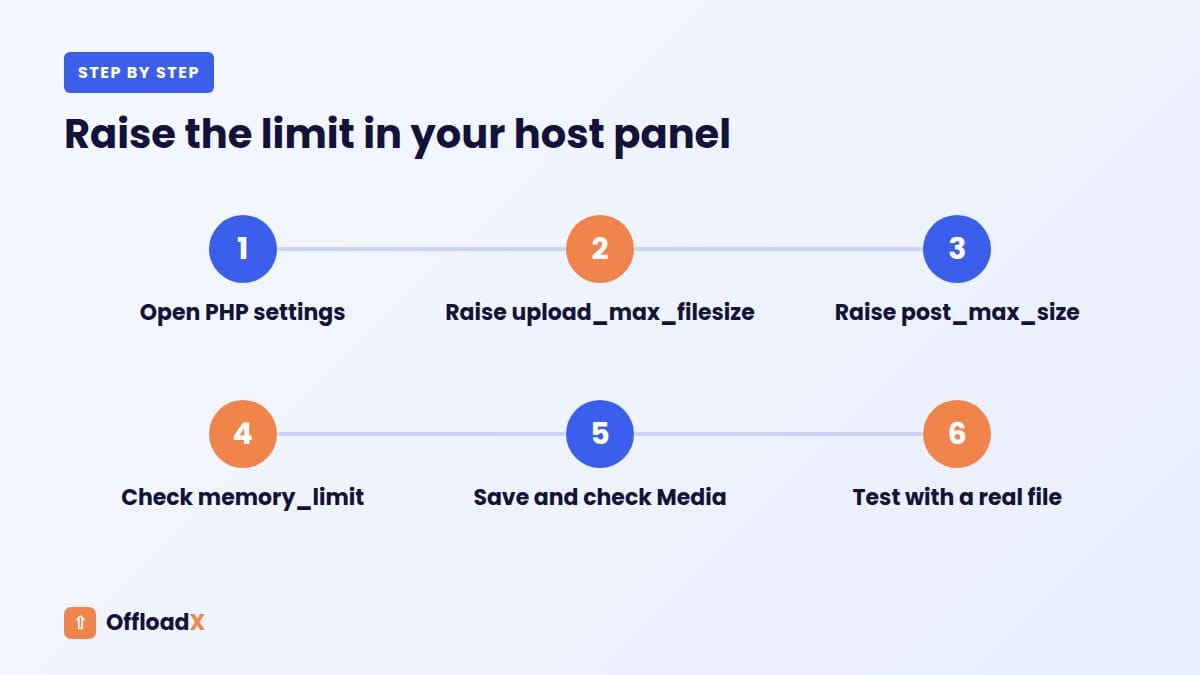
The easiest way to increase WordPress max upload size is usually your host’s PHP settings screen. Most control panels have a page for PHP version and options where you can edit upload_max_filesize, post_max_size, memory_limit and max_execution_time without touching files.
Steps
- Log in to your hosting control panel.
- Find the PHP settings, PHP options or PHP configuration page.
- Raise
upload_max_filesizeandpost_max_sizetogether. - Raise
memory_limitif it is below 256M and your plan allows it. - Save, then check Media → Add New for the new max upload size.
Managed WordPress hosts often lock these values. If you cannot find the setting, their support team can usually change it for you in minutes.
Method 2: php.ini or .user.ini
If you have file access but no panel option, set the values in a PHP configuration file.
php.ini (VPS or dedicated server)
On a server you control, edit the main php.ini used by your web PHP version, then restart PHP-FPM or your web server.
upload_max_filesize = 64Mpost_max_size = 72Mmemory_limit = 256Mmax_execution_time = 120
.user.ini (most shared hosting)
Hosts that run PHP through FastCGI or PHP-FPM read a .user.ini file in your site’s folder. Create it in the WordPress root, next to wp-config.php, with the same lines as above.
- According to the PHP manual on .user.ini files, they only work with the CGI/FastCGI SAPI.
- PHP re-reads them every 300 seconds by default, so wait five minutes before testing.
- Use
key = valuesyntax, not thephp_valuesyntax used in.htaccess.
Method 3: .htaccess on Apache
If your host runs PHP as an Apache module, you can set the values in the .htaccess file in your WordPress root.
php_value upload_max_filesize 64Mphp_value post_max_size 72Mphp_value memory_limit 256Mphp_value max_execution_time 120
If your site shows a 500 error after saving, your server does not run PHP as an Apache module. Remove the lines straight away and use .user.ini instead. Always keep a copy of .htaccess before editing it.
Which method should you use?
| Server setup | Best method |
|---|---|
| Shared hosting with a PHP settings page | Hosting panel |
| Shared hosting on PHP-FPM or FastCGI | .user.ini |
| Apache with mod_php | .htaccess or php.ini |
| VPS or dedicated server | php.ini plus web server config |
| Managed WordPress hosting | Ask support |
Method 4: nginx and Apache Request Limits
If PHP shows the new limit but large uploads still fail, the web server is probably rejecting the request first.
nginx
nginx allows 1 MB request bodies by default and returns a 413 error above that. Add this to the http, server or location block, then reload nginx:
client_max_body_size 72M;
Apache
Current Apache versions default LimitRequestBody to 1 GB, which rarely affects WordPress. Some hosts set a much lower value. If you control the server, check your virtual host and .htaccess for a lower LimitRequestBody.
Many hosts put nginx in front of Apache as a proxy. In that setup, both need to allow the size you want, and only your host can change the nginx side.
What wp-config.php Can and Cannot Do
Many tutorials suggest adding upload settings to wp-config.php. It rarely works, because upload_max_filesize and post_max_size can only be set per directory or in the main configuration, not with ini_set() at runtime. PHP lists both as INI_PERDIR settings.
| What you want | Works in wp-config.php? |
|---|---|
| Raise upload_max_filesize | No |
| Raise post_max_size | No |
Raise WordPress memory with WP_MEMORY_LIMIT | Yes, up to the host’s limit |
| Lower the upload limit for some users | Yes, with the upload_size_limit filter in a plugin |
The upload_size_limit filter can reduce the limit, for example to 10 MB for authors, but it cannot raise it above what PHP allows. The WP_MEMORY_LIMIT constant helps image processing, not upload size:
define( 'WP_MEMORY_LIMIT', '256M' );
How to Increase WordPress Max Upload Size on Multisite
Multisite adds its own limit on top of PHP. WordPress checks a network option called fileupload_maxk, which defaults to 1500 KB, according to the source of upload_size_limit_filter(). That is under 1.5 MB, which is smaller than many phone photos.
Steps for a network
- Raise the PHP limits first using one of the methods above.
- Go to Network Admin → Settings.
- Find Max upload file size and enter a value in KB, for example 65536 for 64 MB.
- Check Site upload space; each site’s quota defaults to 100 MB if not set.
- Save and test an upload on a subsite.
The effective limit is the smallest of the PHP limit, the network max upload size and the site’s remaining quota, unless the upload space check is disabled. A full quota blocks uploads even if every size limit is high.
Cloudflare and Proxy Upload Limits
If your site runs through Cloudflare, uploads must also pass Cloudflare’s maximum upload size. According to Cloudflare’s documentation, checked September 2026, the limits are:
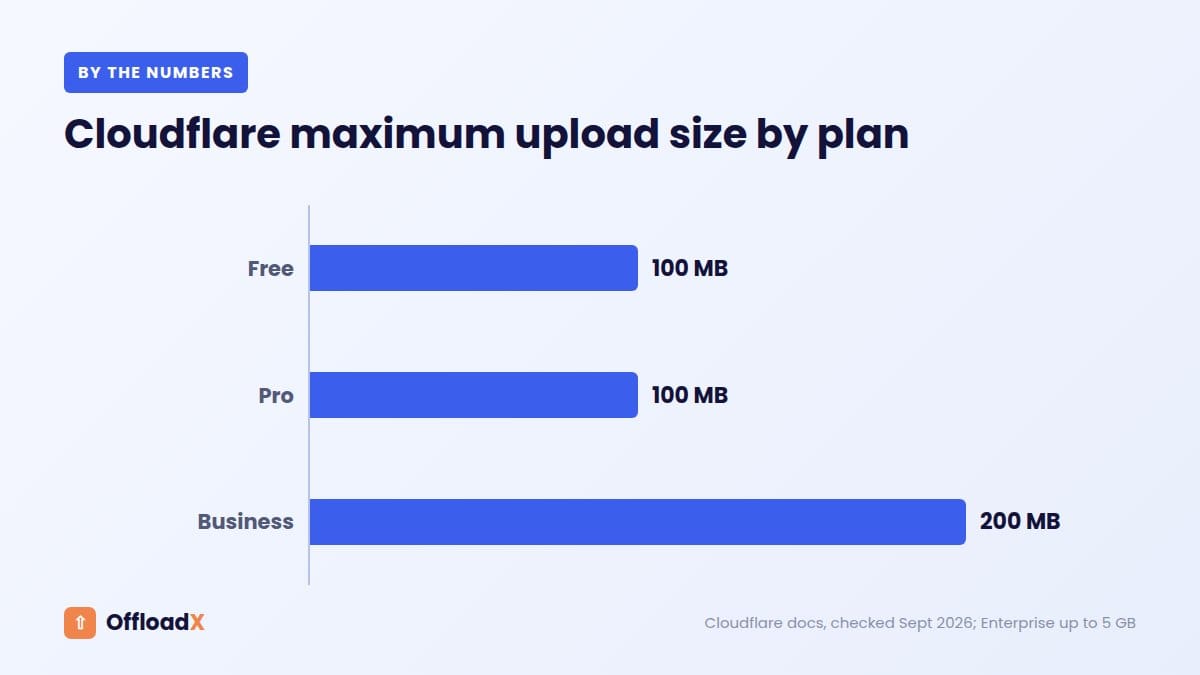
| Cloudflare plan | Maximum upload size |
|---|---|
| Free | 100 MB |
| Pro | 100 MB |
| Business | 200 MB |
| Enterprise | Up to 5 GB (self-serve) |
For most image and document uploads, 100 MB is plenty. It becomes a problem for video, large backups and big ZIP files. Other proxies, load balancers and firewalls can have their own limits, so check with your host if uploads fail at a consistent size.
When the Limit Will Not Change
If you have edited settings and the max upload size still shows the old value, work through this list.
| Symptom | Likely cause | Fix |
|---|---|---|
| Media screen shows old value | Wrong file, or file not read by your PHP setup | Try .user.ini instead of .htaccess, or ask host |
| Changed only upload_max_filesize | post_max_size still lower | Raise both together |
| New value shows but upload fails with 413 | nginx or proxy limit | Raise client_max_body_size or ask host |
| 500 error after editing .htaccess | PHP not running as Apache module | Remove the lines, use .user.ini |
| Change seems ignored for a few minutes | .user.ini cache | Wait five minutes |
| Large images fail after upload | Memory or time during processing | Raise memory_limit and max_execution_time |
| Multisite still refuses | Network max upload or quota | Check Network Admin → Settings |
If uploads fail with a vague “HTTP error” rather than a size message, the cause may be memory or processing rather than the limit itself. Our guide to offloading and site speed covers related performance issues, and processing changes in WordPress 7.1 are explained in our WordPress 7.1 media processing guide.
Why a Bigger Limit Is Not Always Wise
Raising the upload limit solves one problem and can create another. Every large file uploaded to the Media Library lands on your server’s disk, and images are multiplied into several thumbnail sizes.
What a large limit can cost you
- Disk space: shared hosting plans often have small storage quotas, and a few big uploads can fill them.
- Backups: larger uploads folders make backups slower and more expensive.
- Memory and time: huge images need more memory to process, which can cause failed uploads.
- Page weight: editors may insert full-size files that slow pages down.
- Abuse: on sites that accept uploads from users, a very high limit makes it easier to fill your disk.
For images, WordPress already scales anything larger than 2560 pixels by default using the big_image_size_threshold filter, but it keeps the original too. A large limit therefore often stores a big original you never show.
If your disk is already filling up, see our guide on what to do when your WordPress site is running out of disk space.
How Offloading Helps
Media offloading copies uploads to cloud storage such as Cloudflare R2, Amazon S3 or Wasabi and serves them from there. Uploads still pass through your server, so PHP limits still apply, but the long-term storage moves to a service priced per gigabyte.
| Concern | Local storage only | With offloading |
|---|---|---|
| Disk quota | Fills with every upload | Media lives in a bucket that grows as needed |
| Storage price | Tied to your hosting plan | Cloudflare R2 is $0.015 per GB-month |
| Serving large files | Uses your server’s bandwidth | Served from the bucket or CDN |
| Upload limit | Set by PHP and web server | Still set by PHP and web server |
R2 pricing is from Cloudflare’s R2 pricing page, which also lists free egress. OffloadX offloads new uploads automatically on every plan, including Free for up to 100 files, and Starter ($8/month billed annually, checked September 2026) adds a bulk migrator for your existing library.
To choose a provider, compare options in our guide to the best cloud storage for WordPress.
Better Options for Big Videos
Video is the main reason people try to increase WordPress max upload size far beyond 100 MB. In most cases a video service is a better home for it than the Media Library.
Why video in the Media Library is a poor fit
- Large uploads hit PHP, web server and Cloudflare limits.
- WordPress does not create multiple quality levels for video, so viewers download one large file.
- Serving video from shared hosting uses a lot of bandwidth.
Alternatives
| Option | Best for | Notes |
|---|---|---|
| YouTube or Vimeo embed | Public marketing videos | No upload limit problems in WordPress |
| Cloudflare Stream | Ad-free video on your site | $5 per 1,000 minutes stored, $1 per 1,000 minutes delivered; files under 30 GB |
| Upload to a bucket directly | Downloads and large files | Upload through the provider’s dashboard or tools, then link to the file |
Stream figures are from Cloudflare Stream pricing, checked September 2026. For large downloadable files such as course resources, uploading straight to your bucket bypasses WordPress limits entirely. Our Cloudflare R2 offload guide covers setting up a bucket and delivery URL.
Frequently Asked Questions
What is the default max upload size in WordPress?
WordPress uses the smaller of PHP’s upload_max_filesize and post_max_size. PHP’s own defaults are 2M and 8M, but most hosts set higher values, often between 32M and 256M.
Can I increase the upload limit with a plugin?
A plugin can only show or lower the limit, or ask the server nicely. It cannot override PHP’s upload_max_filesize if your host does not allow it.
Why does wp-config.php not change my upload limit?
upload_max_filesize and post_max_size are per-directory PHP settings. They must be set in php.ini, .user.ini, .htaccess or the server configuration.
How do I increase WordPress max upload size on shared hosting?
Use your host’s PHP settings page if it has one, otherwise create a .user.ini file in the WordPress root. If neither works, ask support to raise it.
Why do I get a 413 error after raising the limit?
A 413 comes from the web server or a proxy, not PHP. Raise nginx’s client_max_body_size or ask your host, and check Cloudflare’s plan limit.
What is the multisite max upload file size default?
1500 KB. Change it in Network Admin → Settings under Max upload file size, and check each site’s upload space quota.
Is a very high upload limit a security risk?
It can be on sites where visitors upload files, because large files use disk space and processing time. Set limits to what you need and use role-based limits if required.
Do I need to restart anything after changing the limit?
Changes to the main php.ini need a restart of PHP-FPM or the web server. A .user.ini change is picked up after PHP’s cache period, five minutes by default, and .htaccess changes apply on the next request.
Should I upload videos to WordPress?
Usually not. A video service or a direct bucket upload avoids upload limits, saves disk space and gives viewers a better experience.
Conclusion
To increase WordPress max upload size, raise upload_max_filesize and post_max_size together in the right place for your server, then check nginx, Cloudflare and multisite limits. Keep the limit to what you really need, move large videos to a video service, and offload media so bigger files do not fill your disk.
Based on PHP, nginx, Apache, WordPress developer and Cloudflare documentation. Sources, Cloudflare limits and OffloadX pricing checked September 2026.